UI 4.0 - Reset Login Password
The 4.0 interface MENU blue banner is locate on the top of the screen.
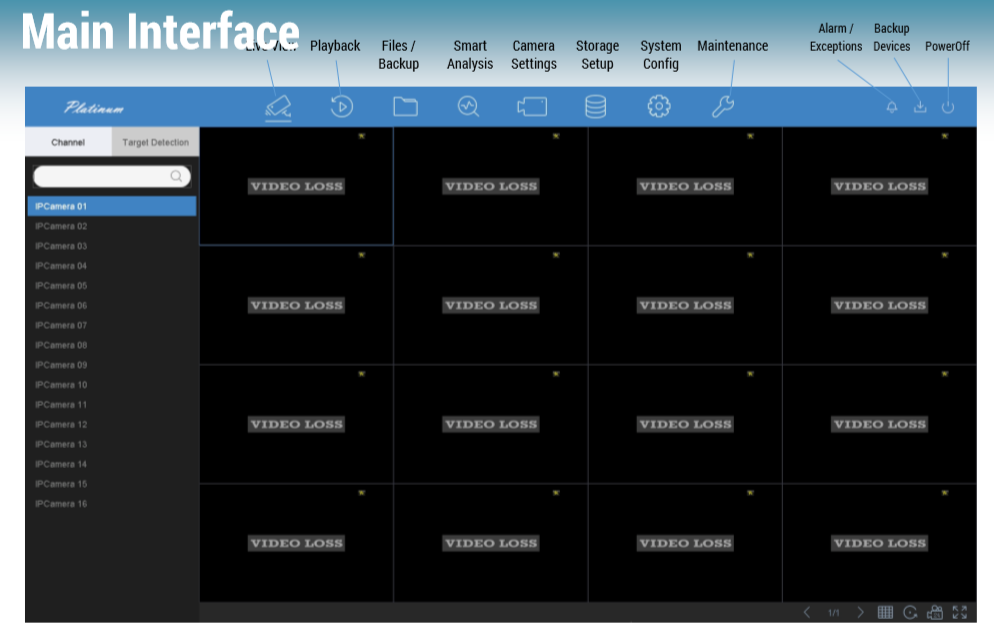
Click the icon to Power Off > Log Out, then Log On again.
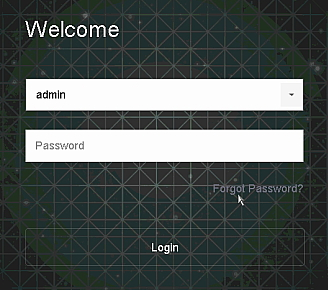
(If you have the Draw Pattern window popup, go to the pattern bottom.
Select Switch To the User Window.)
Click Forgot Password.
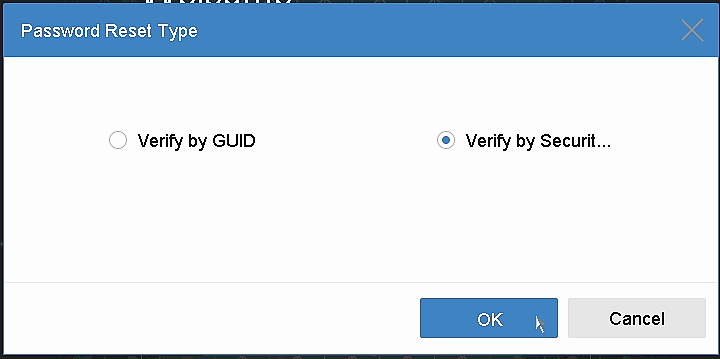
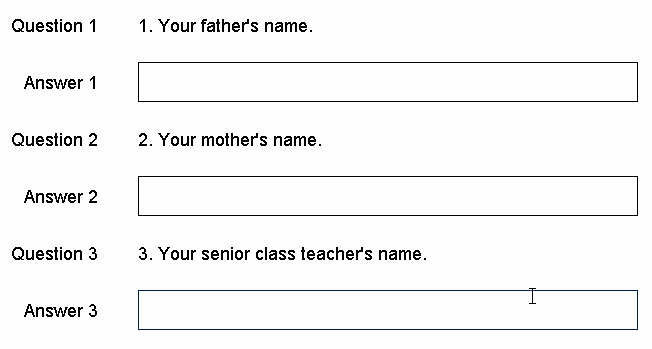
Choose Verify by Secret Question to Answer that you defined it before.
Or, select GUID (aka USB key file) / Verify by Reserved Email (if available).
If you forgot or haven't any there, then you must use PC (IP portal) to reset the password.
Summary
To ensure the highest level of protection, LTS has launched a new login procedure
that requires users to create a new password for the admin account upon the first login to
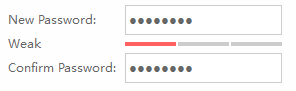
all devices. The password must contain 8 to 16 characters, combining numbers,
lowercase letters, uppercase letters, and special characters.
At least two types of the above-mentioned characters are required to activate the device.
The system will check the password strength; “Risky” passwords will not be accepted.
For the latest DVR/NVR/IPC firmware.
The password can not contains the User Name inside.
Was this article helpful?
Bu bilgiler sorununuzu çözmeye yardımcı oldu mu?
Still need help?
Uzman ekibimiz size yardımcı olmak için burada.