Sannce Smart-How to View the Security System on the PC(via IP Address)?
Applies to: DN41CR/DN81BR/DT61BR/DT61BT
The article will introduce how to connect the system to the PC. If you have a concern about the instruction, please submit a request here to the technical support for more details.
Preparation: Connect the DVR and the PC to the same network.
1. Please check the network status of the system. If the users want to view the cameras remotely, the status must be connected. It could be checked on the Main Menu-->Version>Nat Status.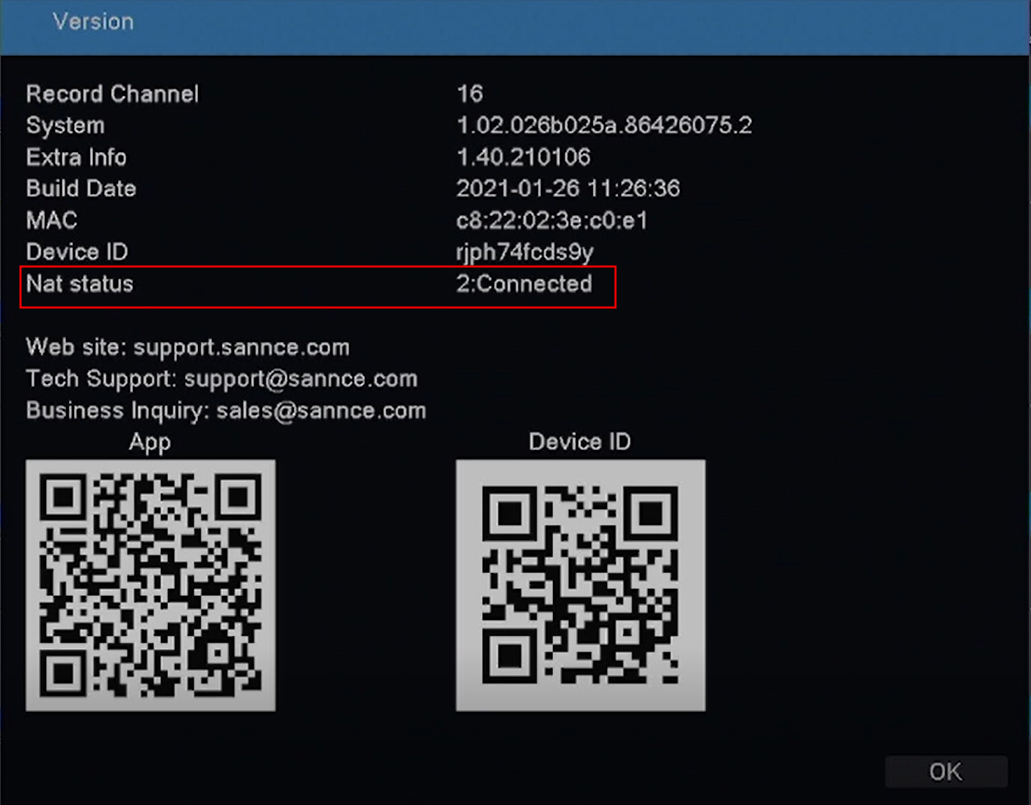
If it is not connected, please refer to the below link to fix it:
https://support.sannce.com/hc/en-us/articles/4408166496025
2. Download the software on your PC named VMS. Here is the download link:
http://www.sanncegroup.com/document/TS/VMS.exe
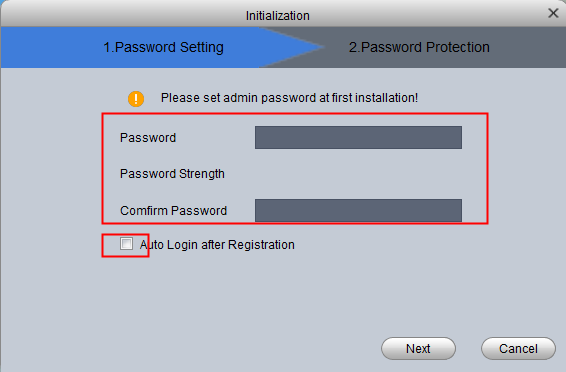
3. Run the software and set up a password for the software. It is better to enable Auto Login.
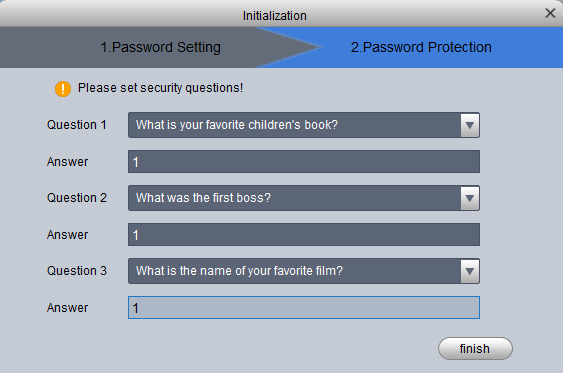
4. Set up Password Protection in case you forgot the login password.
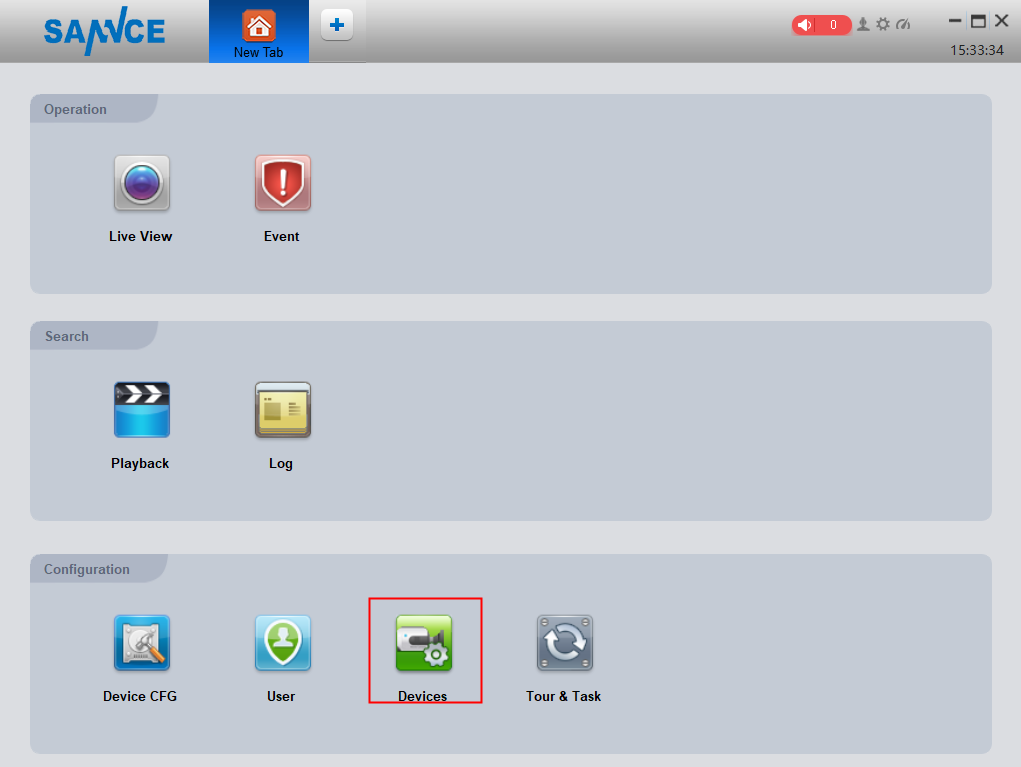
5. Click the Device and AutoSearch. The software will find your NVR automatically.
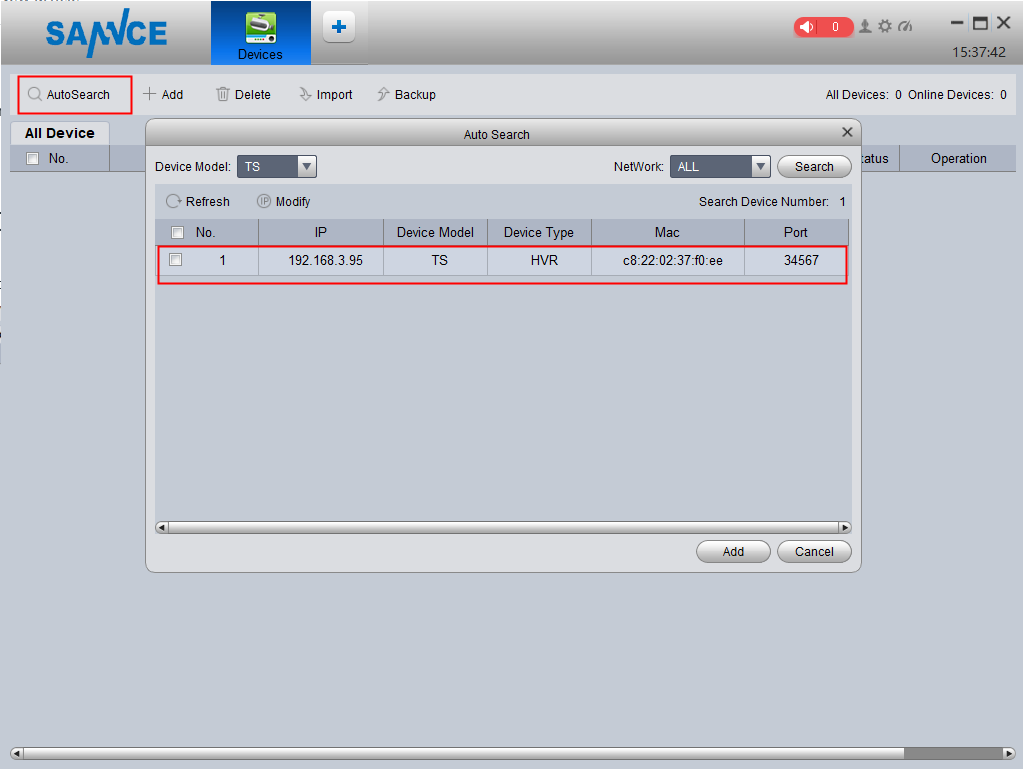
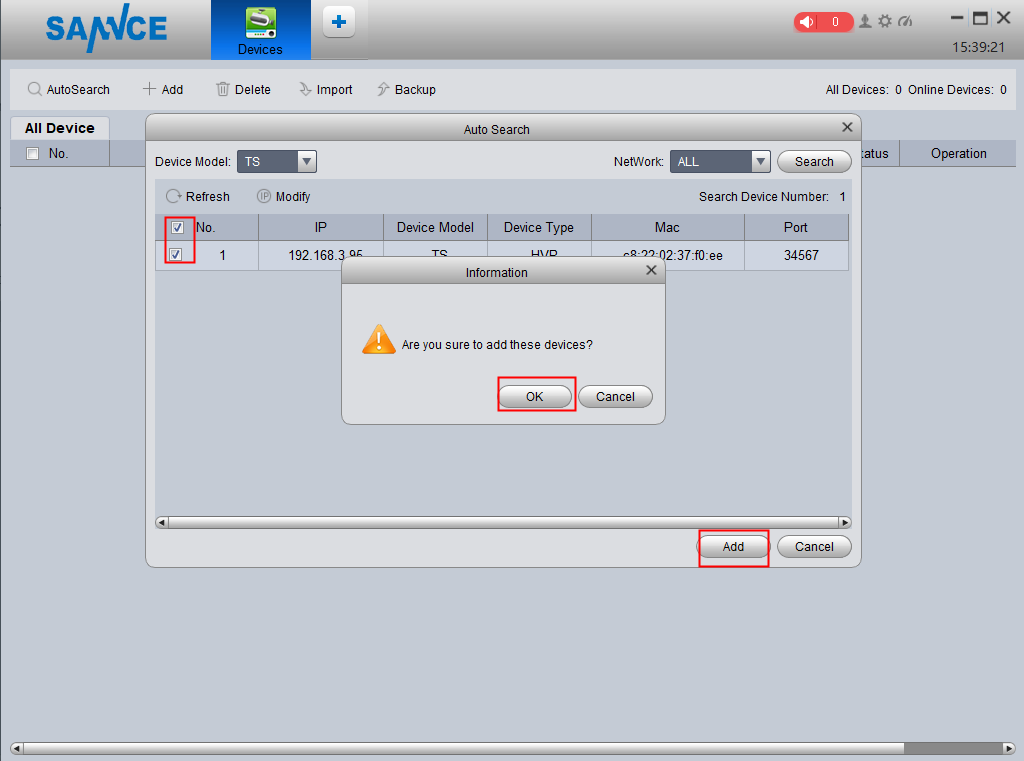
6. Choose the Device and click "Add".
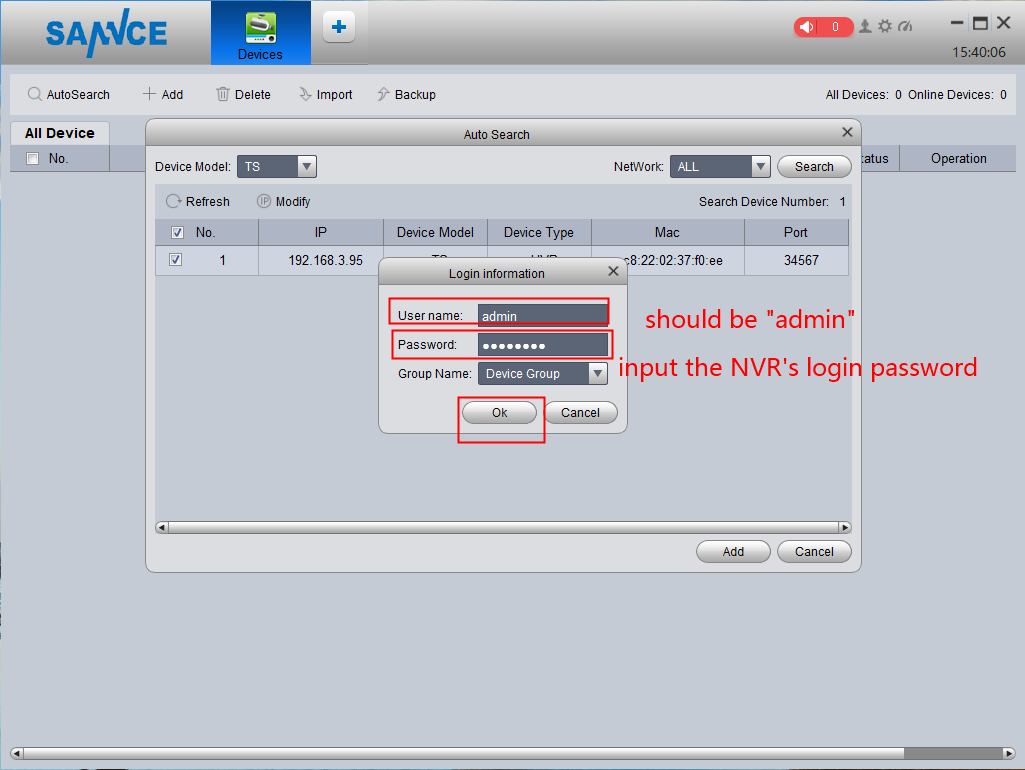
7. Input the information about your NVR. The password is the login password of your NVR, not the login password of the software.
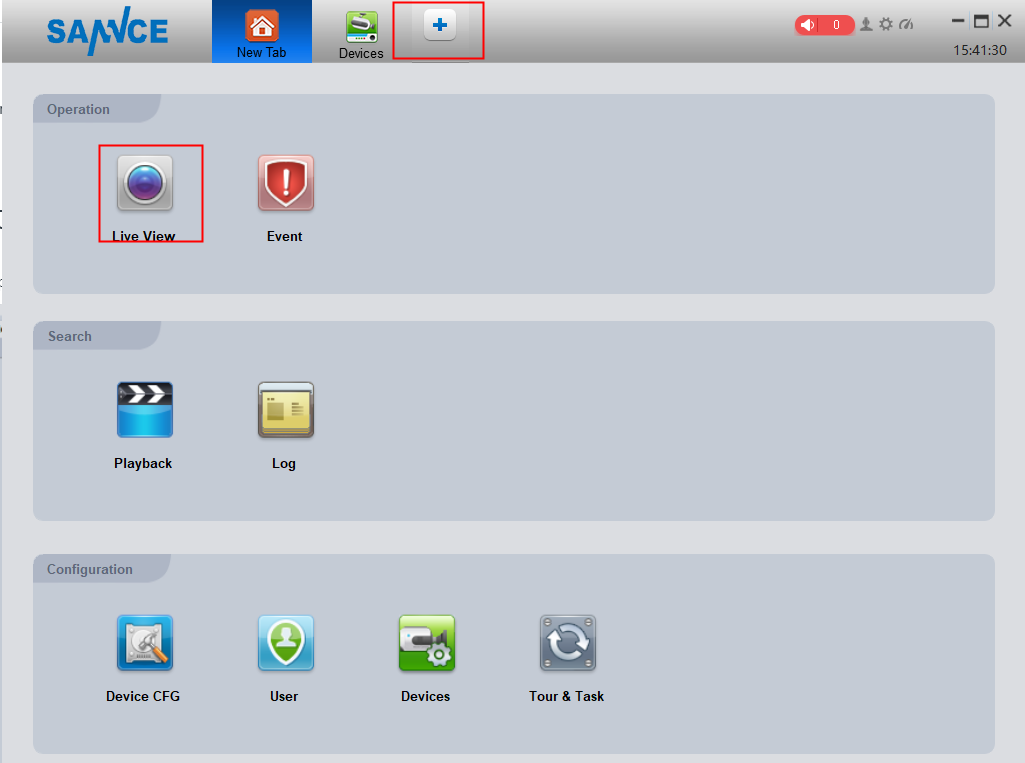
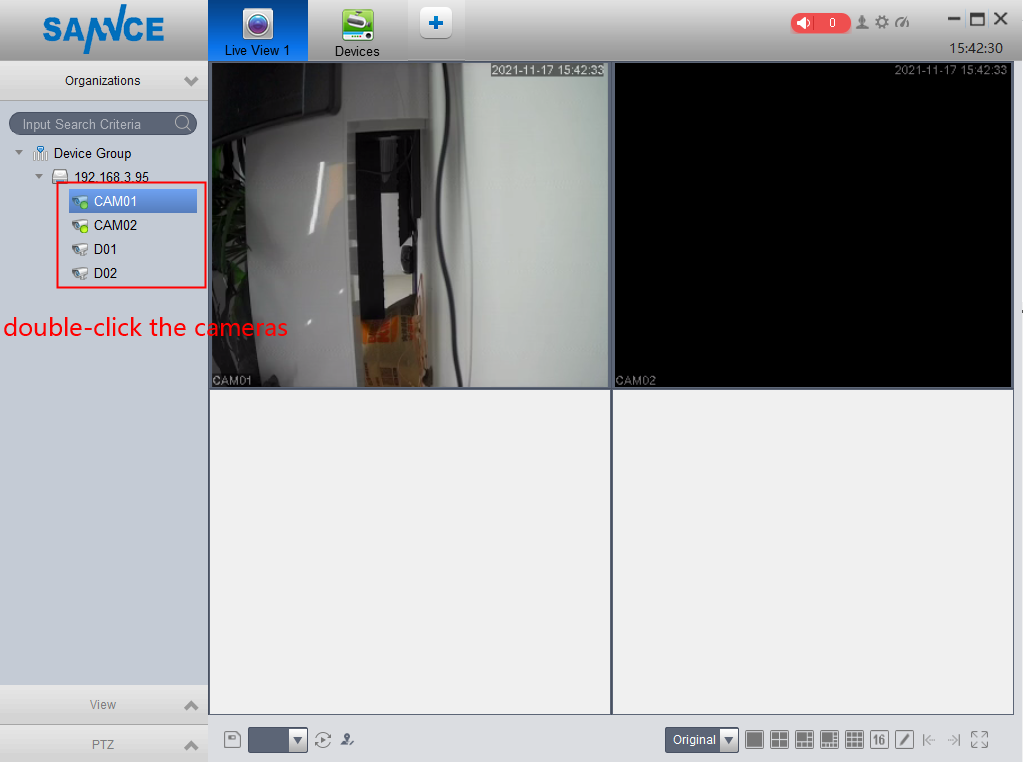
8. After that, please go back to the Live View page. Double-click the cameras to view them.
Was this article helpful?
Bu bilgiler sorununuzu çözmeye yardımcı oldu mu?
Still need help?
Uzman ekibimiz size yardımcı olmak için burada.