Sannce Smart - How to set up Record Plan of Motion Detection
Applies to:
DN41CR/DN81BR/DT61BR/DT61BT
The DVR needs an internal hard disk drive for recording. Without the hard drive, the system can show live viewing, but can’t record, playback either.
Please go to the Main Menu-->Record-->HDD Manage to check if hard drive is working (status shoulld be 'Normal').
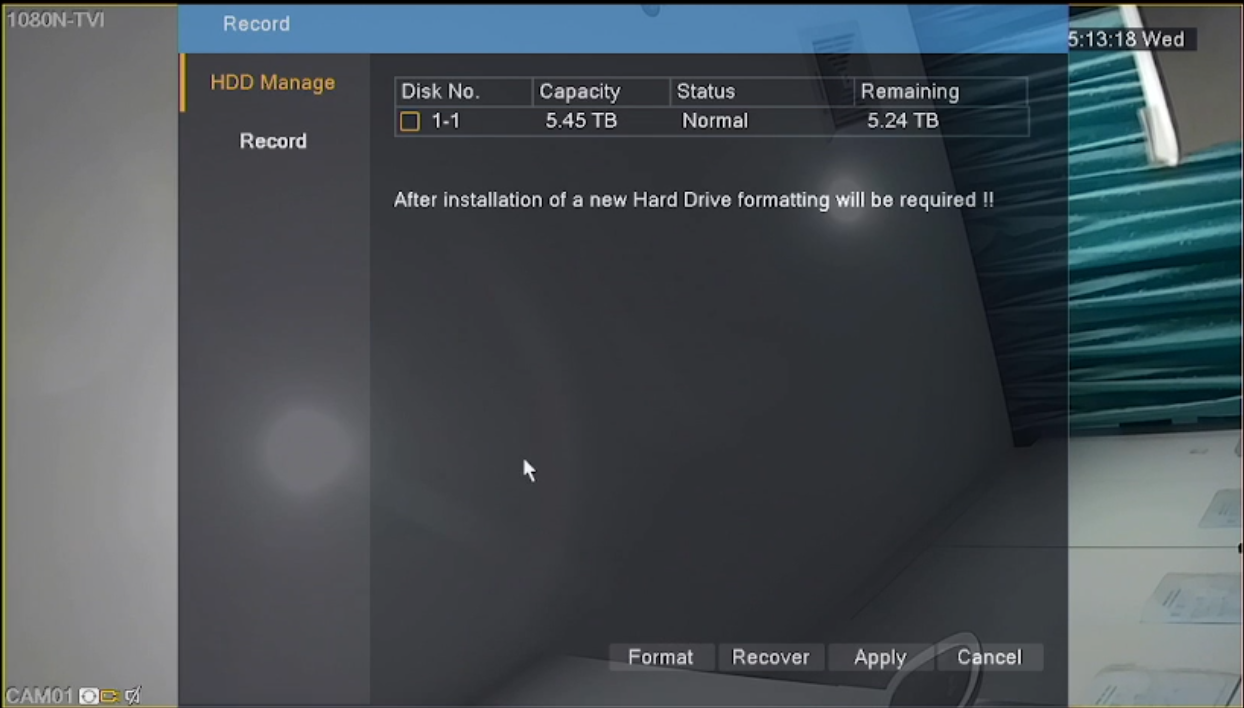

Motion detection recording means DVR will record automatically when it is triggered by movement.
1. Go to Menu--Record, select Channel, tick Schedule, and Motion.
This step is necessary and you can‘t skip it. Please don‘t tick Manual or regular.
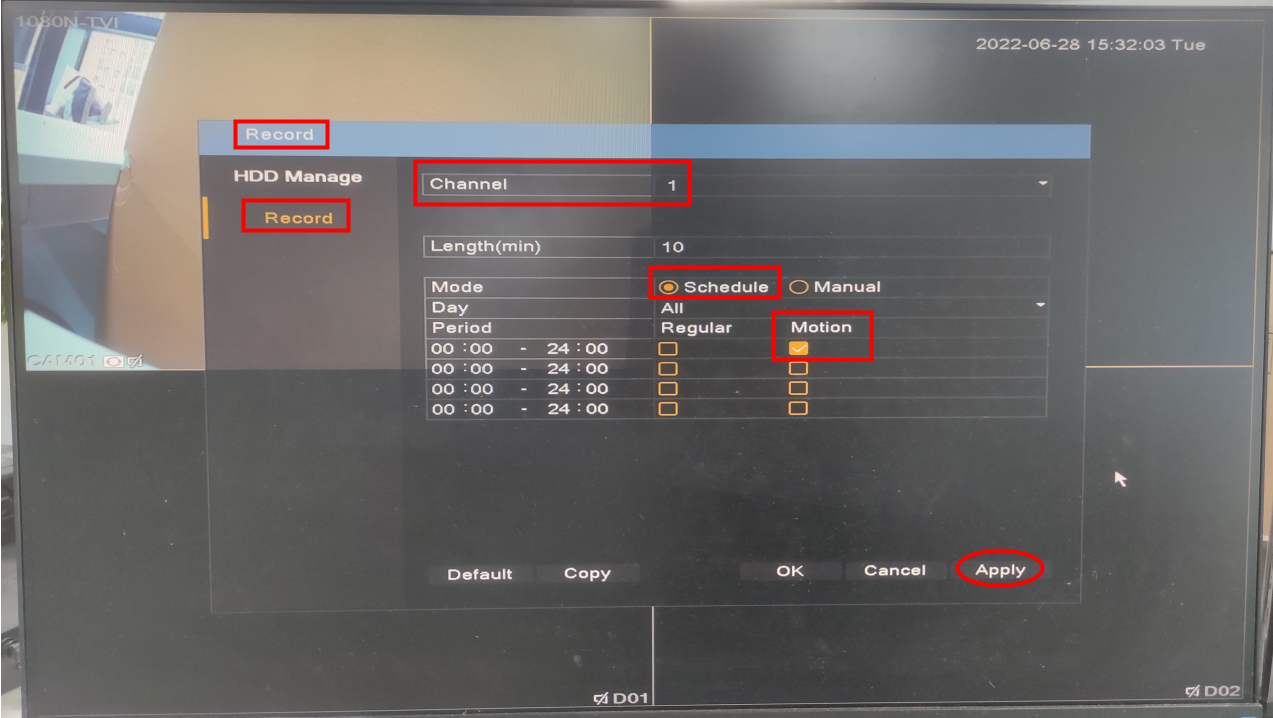
2. Motion Detect setting
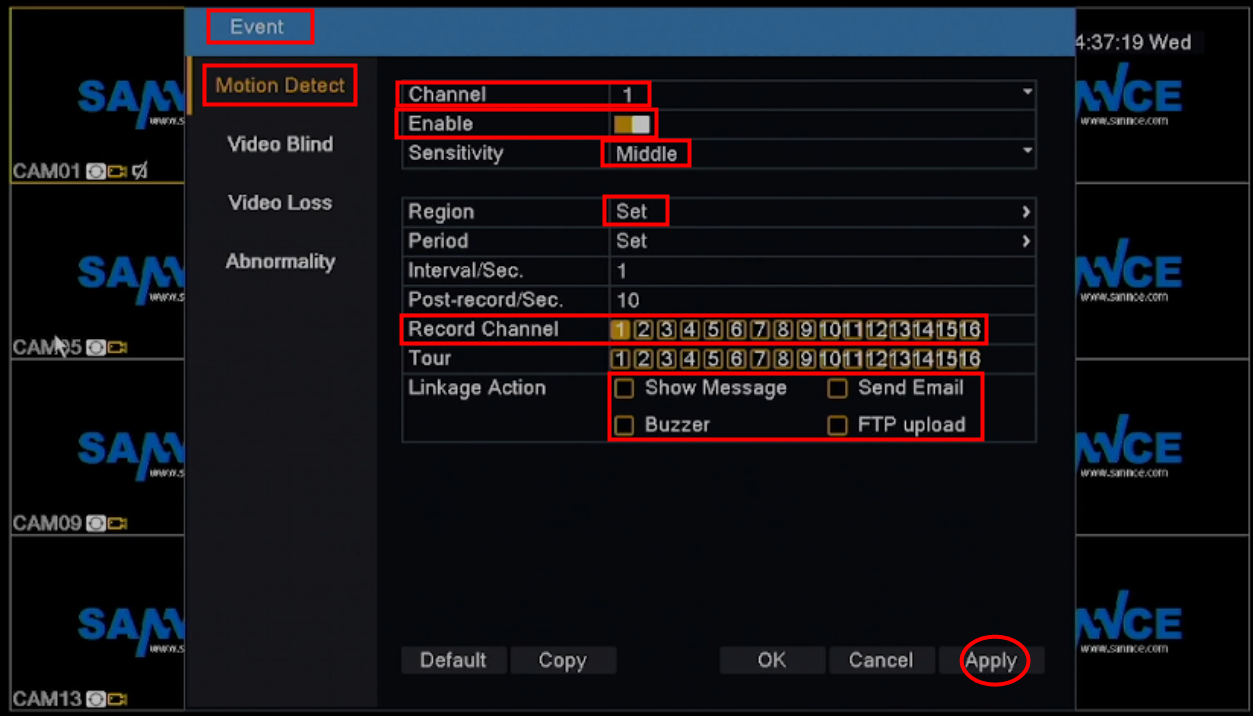
Go to Main Menu--Event
Click "Channel" to choose a camera, toggle on “Enable”, set up “Sensitivity”, “Region”, “Record Channel”, "Linkage Action" according to your needs and click “Apply” to save.
Notice: Even if you are setting up channel 1, you can still select other channels to record when the only camera in channel 1 is recording.
Click Region Set to set region, default is all chosen (area in red will be detected). You can change the region by left click your mouse, drag the mouse, and draw the area. Right-click to save and quit,and after you set up,it will record if the system detects the motion signal.
3. Go to Play Back to check if it takes motion detection recording.
Was this article helpful?
Bu bilgiler sorununuzu çözmeye yardımcı oldu mu?
Still need help?
Uzman ekibimiz size yardımcı olmak için burada.