Sannce Smart-How to Add the Security System to APP Sannce Smart?
20 Aug 2026
409 views
Applies to: DN41CR/DN81BR/DT61BR/DT61BT
The article will introduce how to connect the system to the mobile phone. If you have a concern about the instruction, please submit a request here to the technical support for more details.
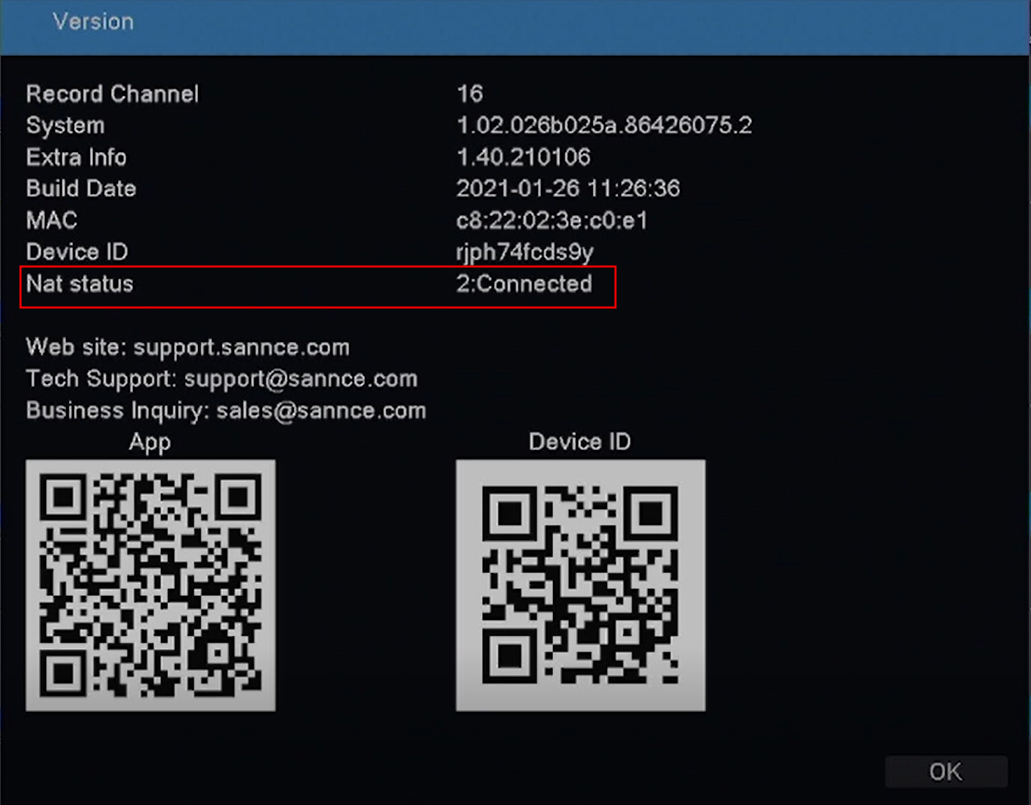
- Please check the network status of the system. If the users want to view the cameras remotely, the status must be connected. It could be checked on the Main Menu-->Version>Nat Status.
- Please download the APP Sannce Smart from Google Play or APP Store.
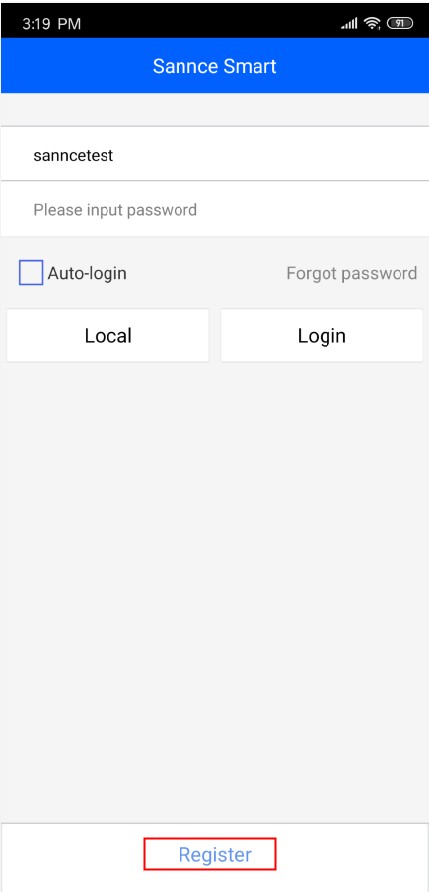
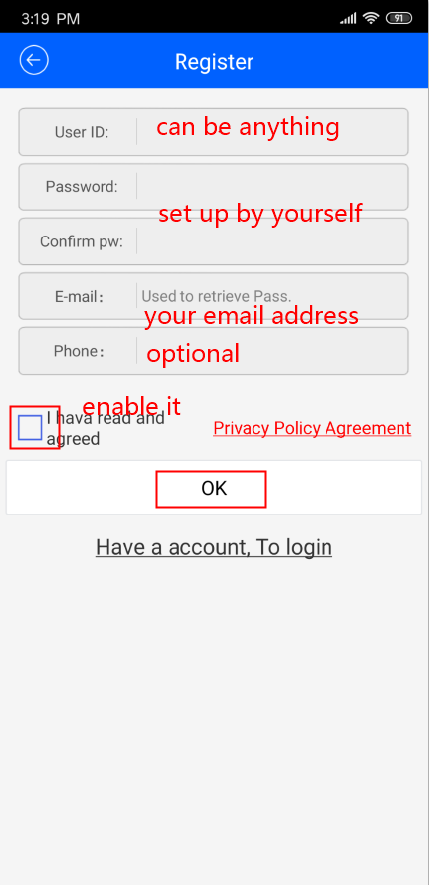
- Please register the APP by using an email address or a phone number.
- Firstly, please register an account on the APP.
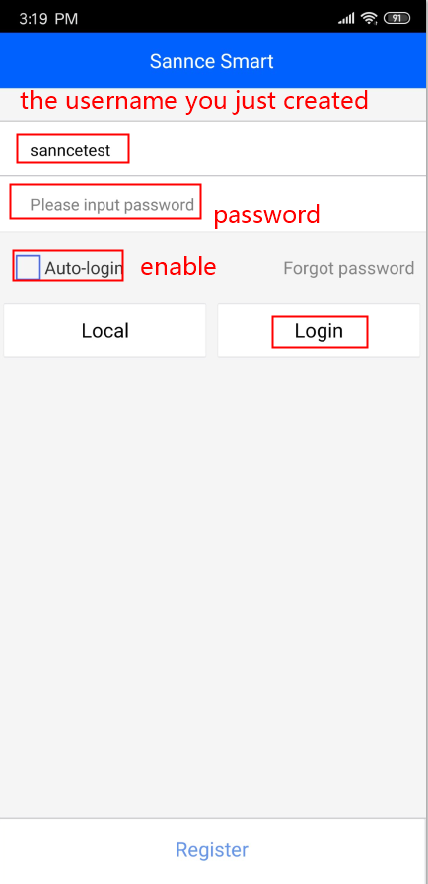
- Secondly, please log into the APP.
- Thirdly, please enter the Device Management page on the APP.

- Fourthly, please click "+" to add the device.

- Firstly, please register an account on the APP.
A: Adding by QR code
- Click the QR to scan the Device ID QR code and fill in the information:
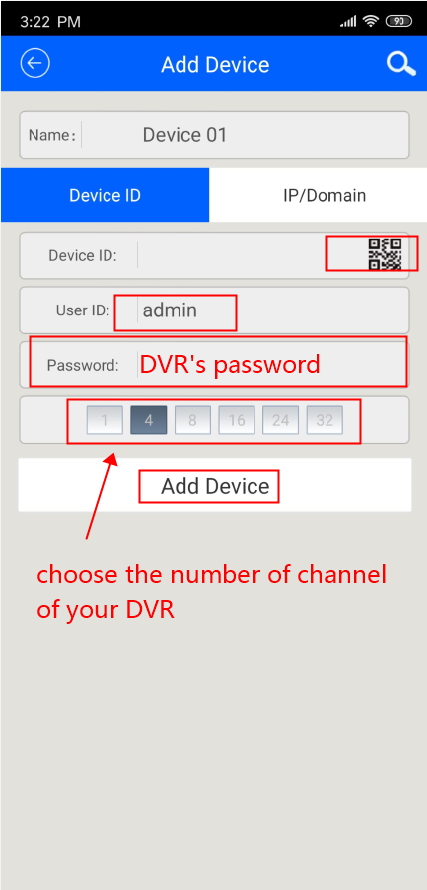
Note: The username must be "admin" and the password is the password of your DVR.
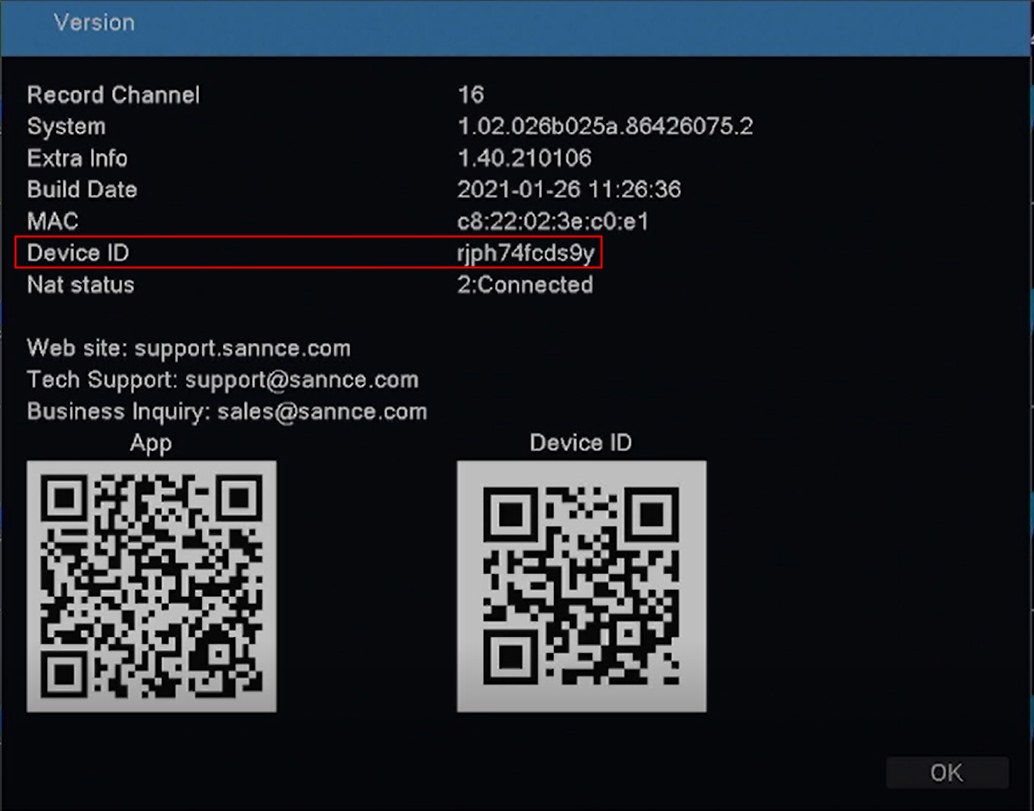
- The Device ID can be found on Main Menu-->Version>Nat Status on the DVR monitor.
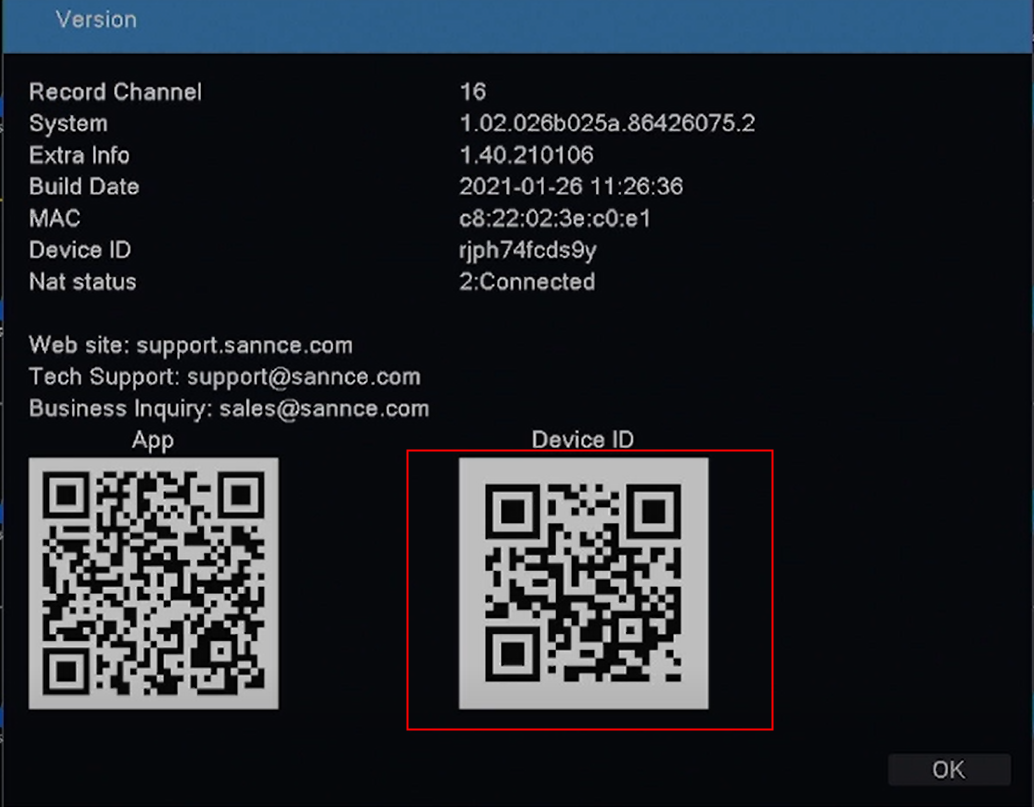
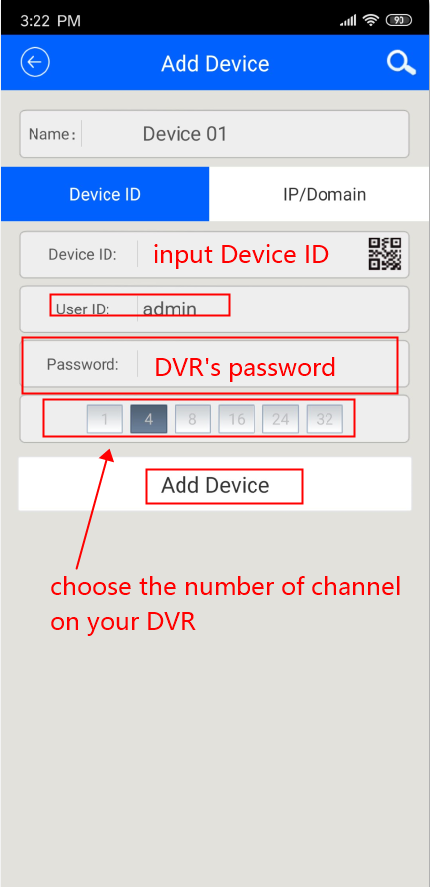
B: Adding by Inputting the Device ID manually.
- Input the Device ID manually on the below page.
- The Device ID can be found on the below page.
- Click Add Device to complete the device adding.
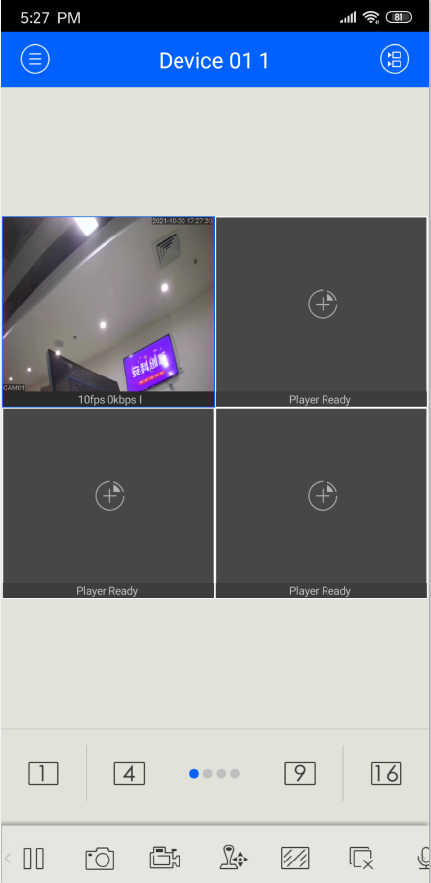
- Finally, the cameras could be viewed on the APP.

Was this article helpful?
Bu bilgiler sorununuzu çözmeye yardımcı oldu mu?
Thanks for your feedback!
Still need help?
Uzman ekibimiz size yardımcı olmak için burada.