Sannce Home - How to make recordings with sound on DVR?
20 Aug 2026
352 views
Apply to: DN81BG DN41CK DN81BL DT61BB
Purpose: There is no speaker nor a microphone in the DVR recorder. In order to record the sound of the system, please knows that you need to buy a microphone and a speaker to install the DVR audio in and out.
Note: Each camera needs an individual audio-in port. (If the DVR has only one audio-in port, then only one camera can record with sound)
Here are the steps for you:
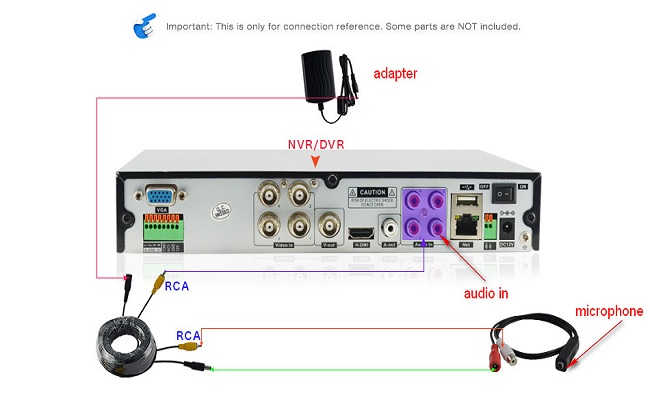
- Make sure your DVR has RCA red audio cord at the back of the DVR.
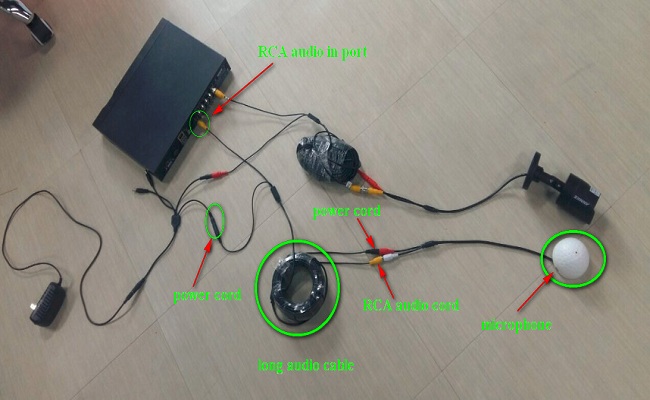
- Hook up an external microphone to DVR by audio cable.
- The microphone should be put next to one camera so that that camera‘s image and sound are synchronized.
- Connect a long audio cable to the microphone and DVR‘s audio-in port. Also, you can also connect a speaker to the audio-out port of the DVR.
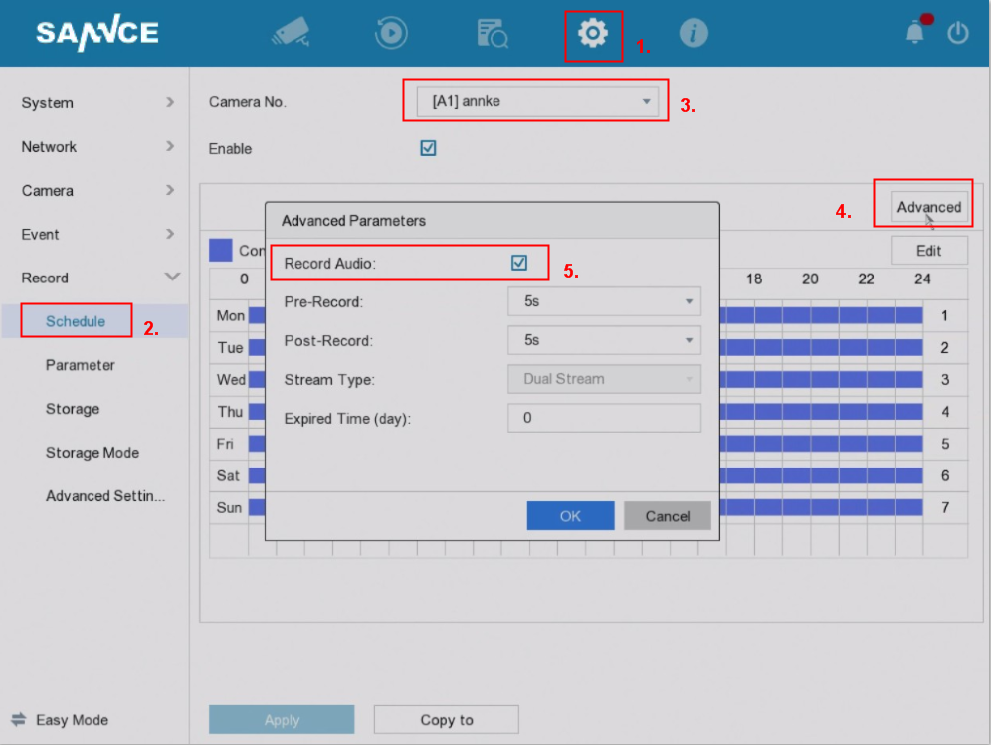
- Finally, you could go to the DVR Settings--Schedule--Camera No.--Advance--Record Audio to enable the Record Audio.
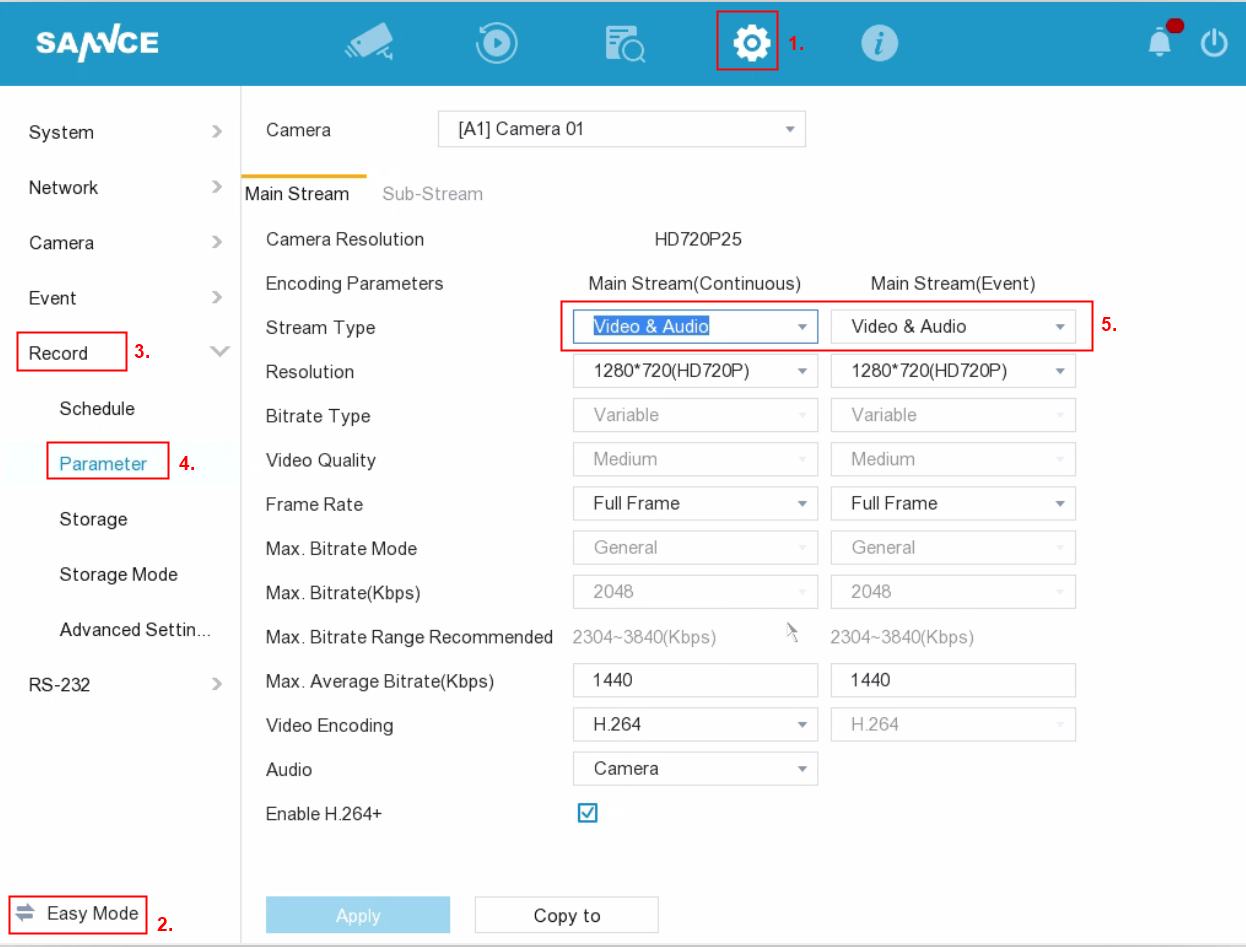
To get sound on the TV, computer, and the APP, you need to enable the speaker and microphone.
a). On the DVR from TV/monitor access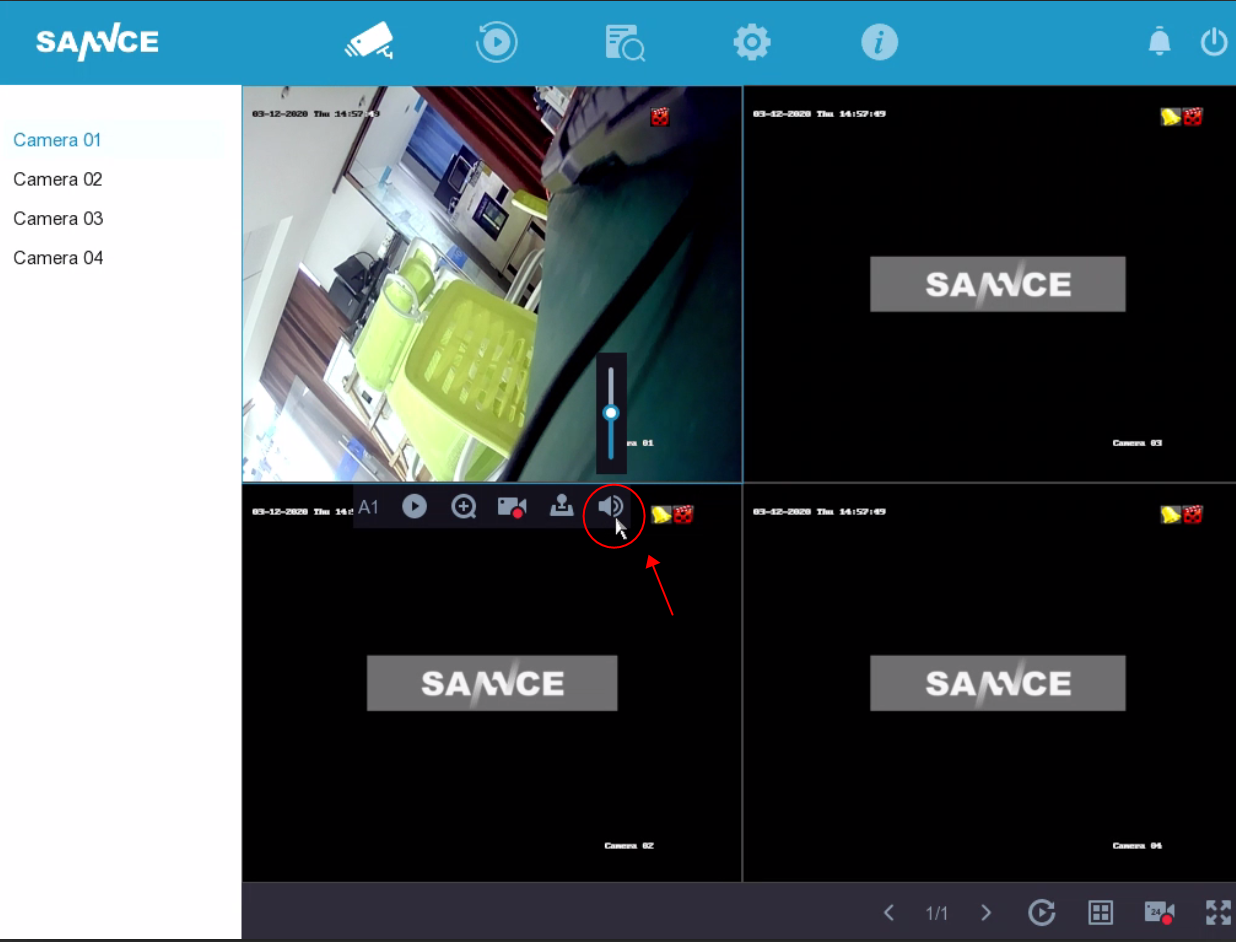
b). On the Sannce Home APP
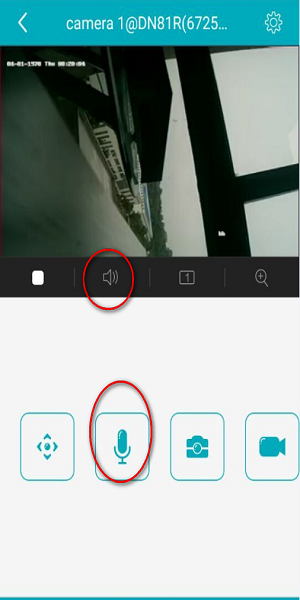
c). On the IE browser
d). On the computer software Guarding vision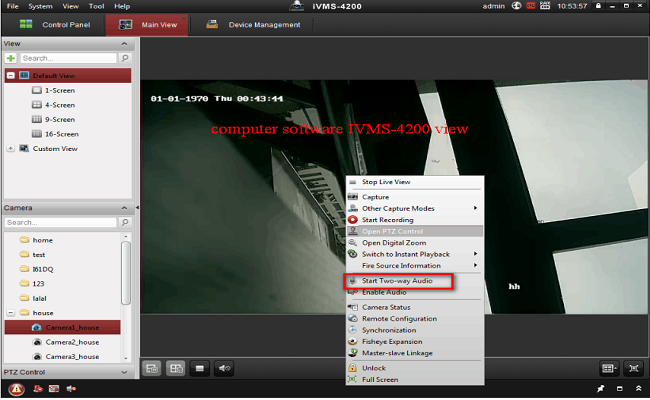
Was this article helpful?
Bu bilgiler sorununuzu çözmeye yardımcı oldu mu?
Thanks for your feedback!
Still need help?
Uzman ekibimiz size yardımcı olmak için burada.