[NR9581/NR9681][1.13.1.10] How to connect and configure UPS to NR9581/NR9681?
20 Aug 2026
296 views
QUESTION
This document guides you on how to connect the NR9581 with the CyberPower CP1500PFCLCD.
Test environment
NVR Model: NR9581
Firmware: 1.13.1.10
UPS model: CyberPower CP1500PFCLCD
Firmware: CRCA102_261
Software: PowerPanel Business Edition for Windows
Test environment
NVR Model: NR9581
Firmware: 1.13.1.10
UPS model: CyberPower CP1500PFCLCD
Firmware: CRCA102_261
Software: PowerPanel Business Edition for Windows
ANSWER
BIOS
Follow the steps to configure "Restore on AC Power Loss" option in BIOS.
Step 1. Restart NR, press "Delete" key to enter BIOS after this is displayed during NR is booting.
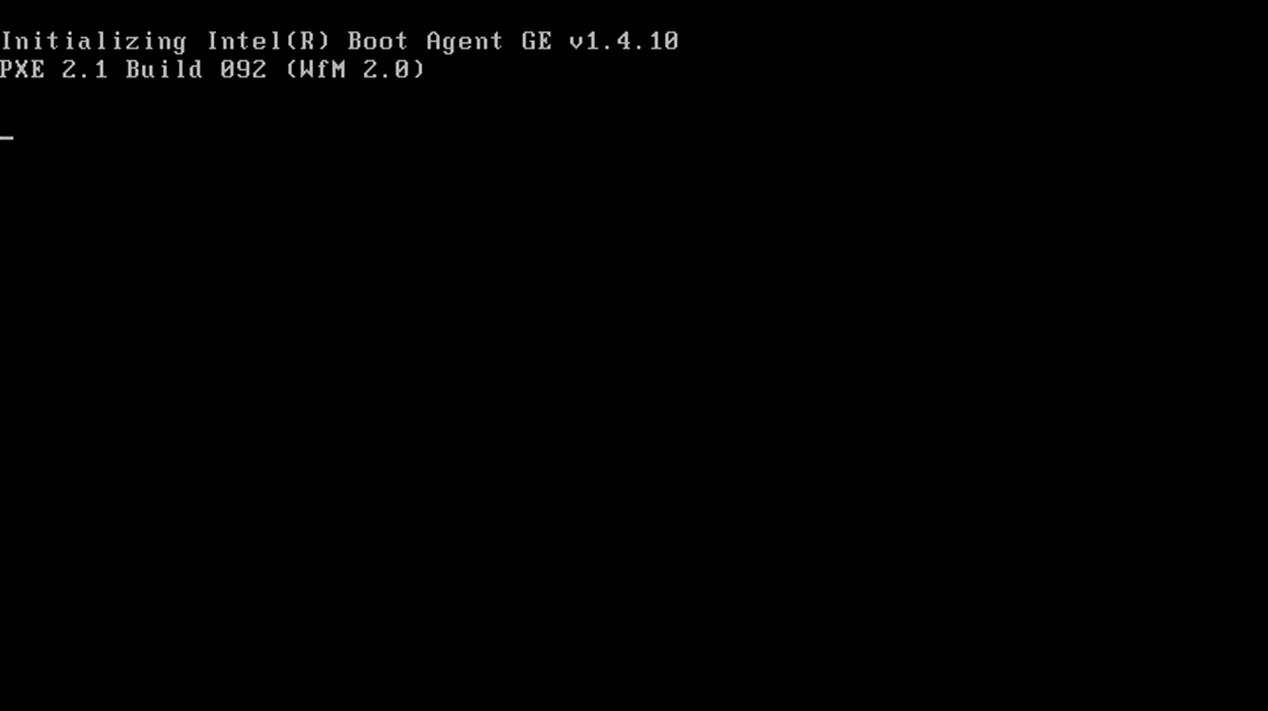
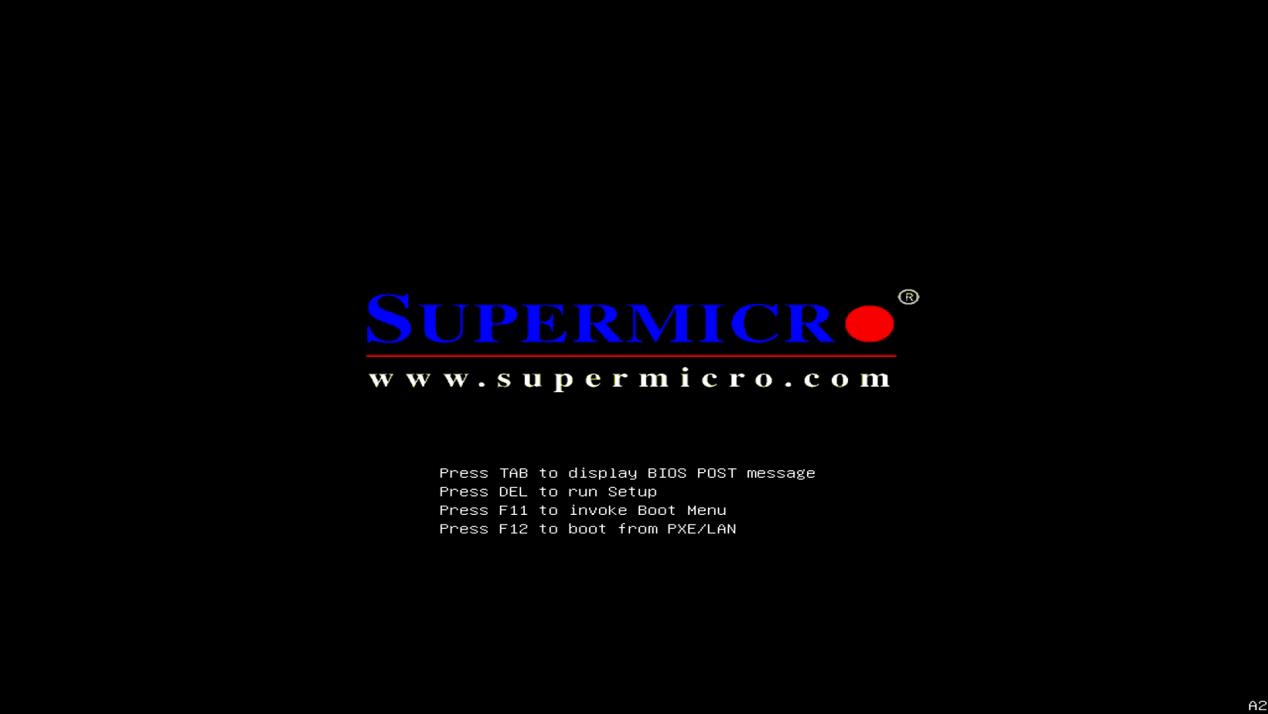
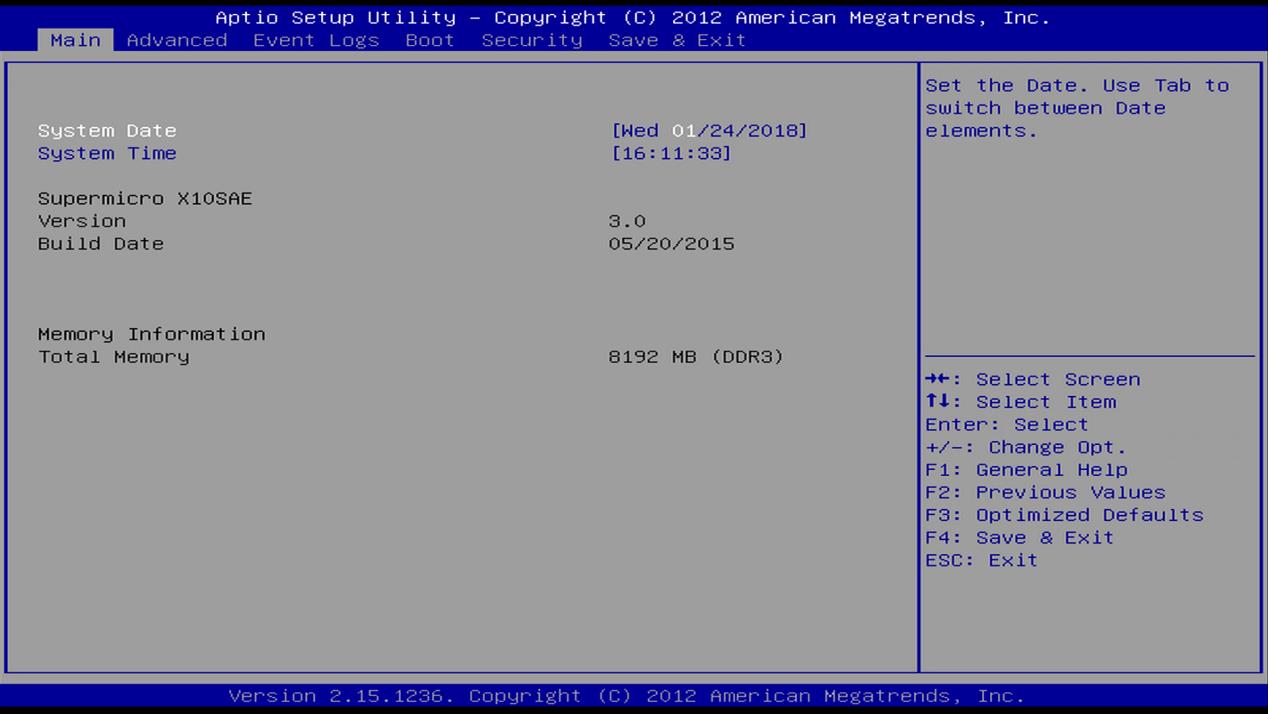
Step 2. Use the "Arrow" key to move to Advanced category, and Boot Feature is also selected because it is the first option. Press "Enter key" to enter Boot Feature options.
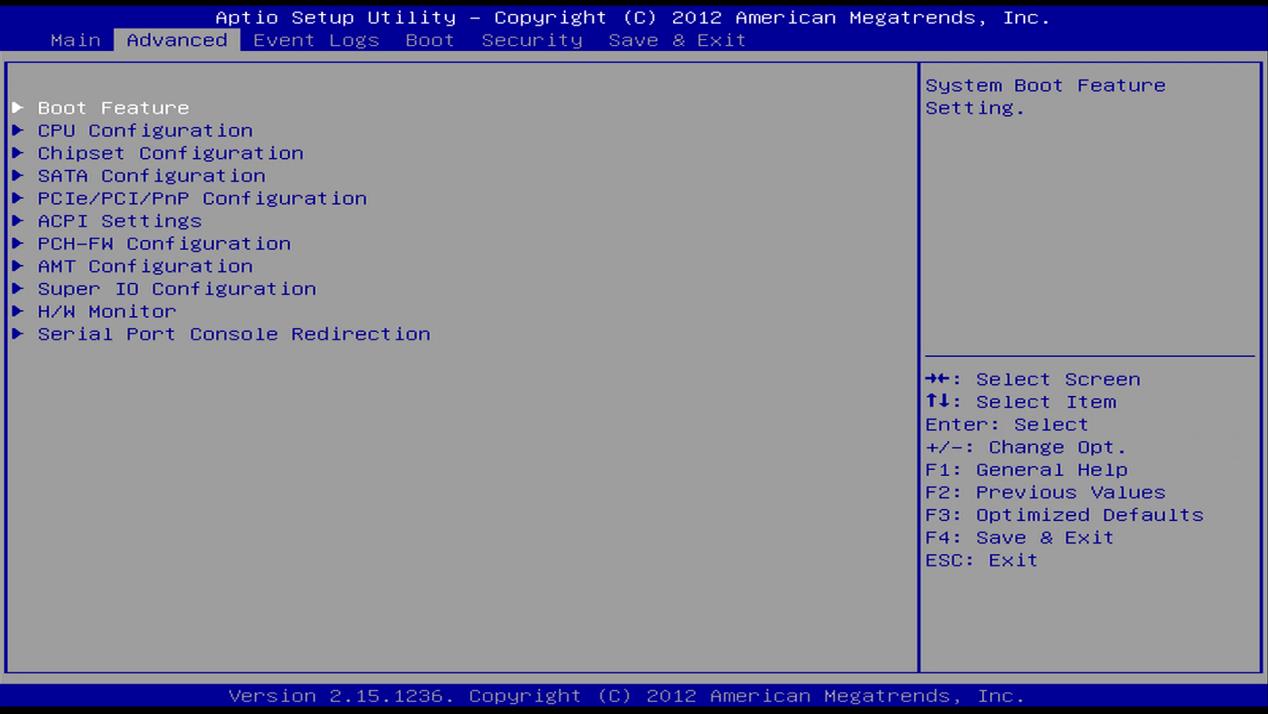
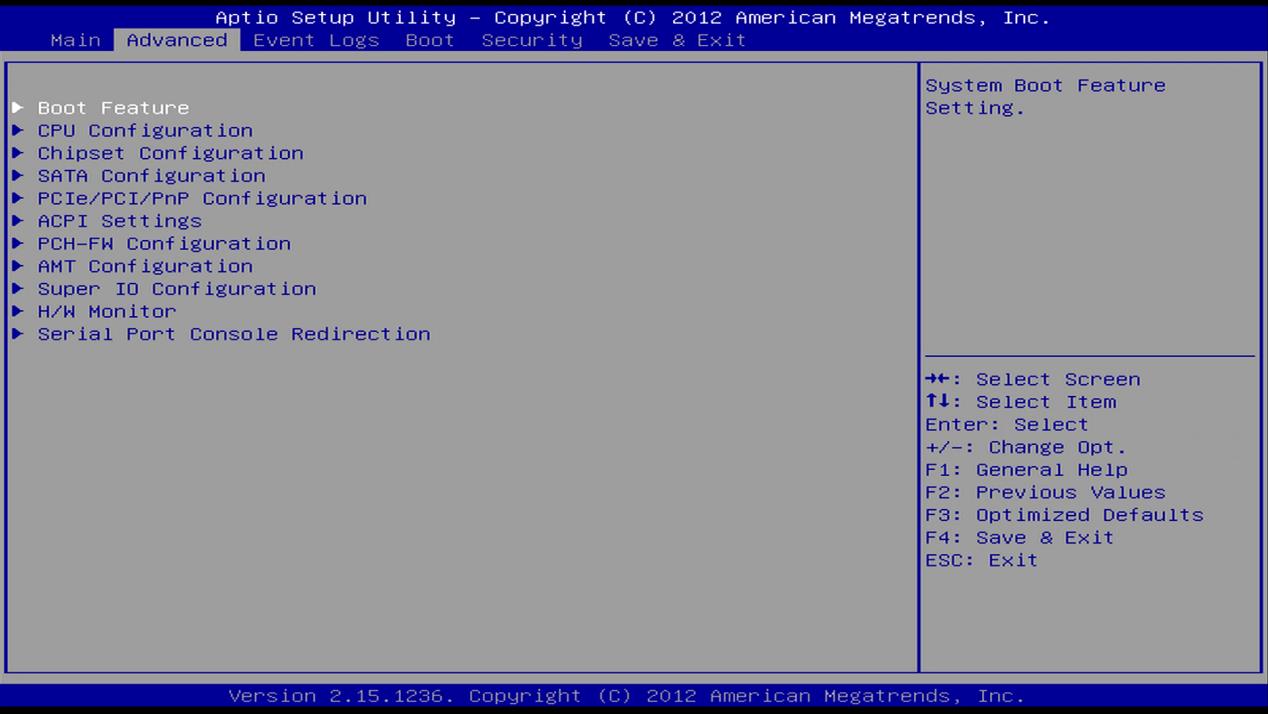
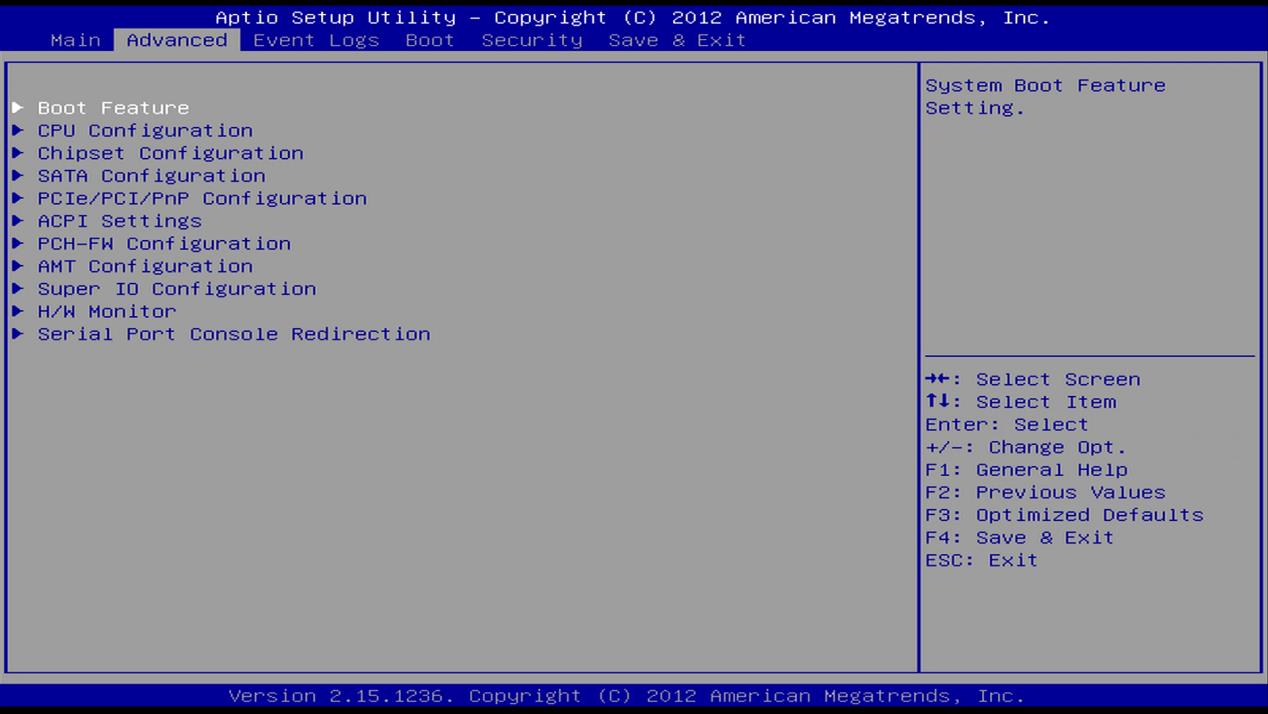
Step 3. In Boot Feature options, go to Restore on AC Power Loss.
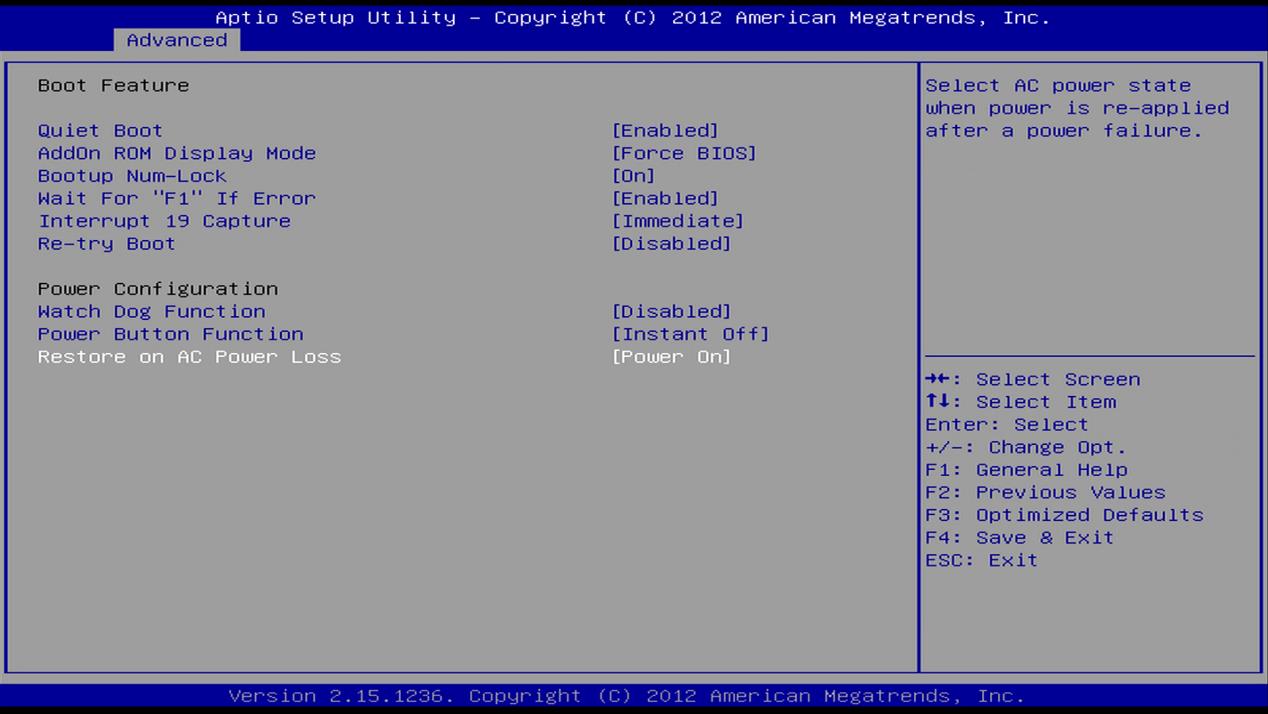
Step 4. Press "Enter" key to list its options, select Power On option and press "Enter" key again.
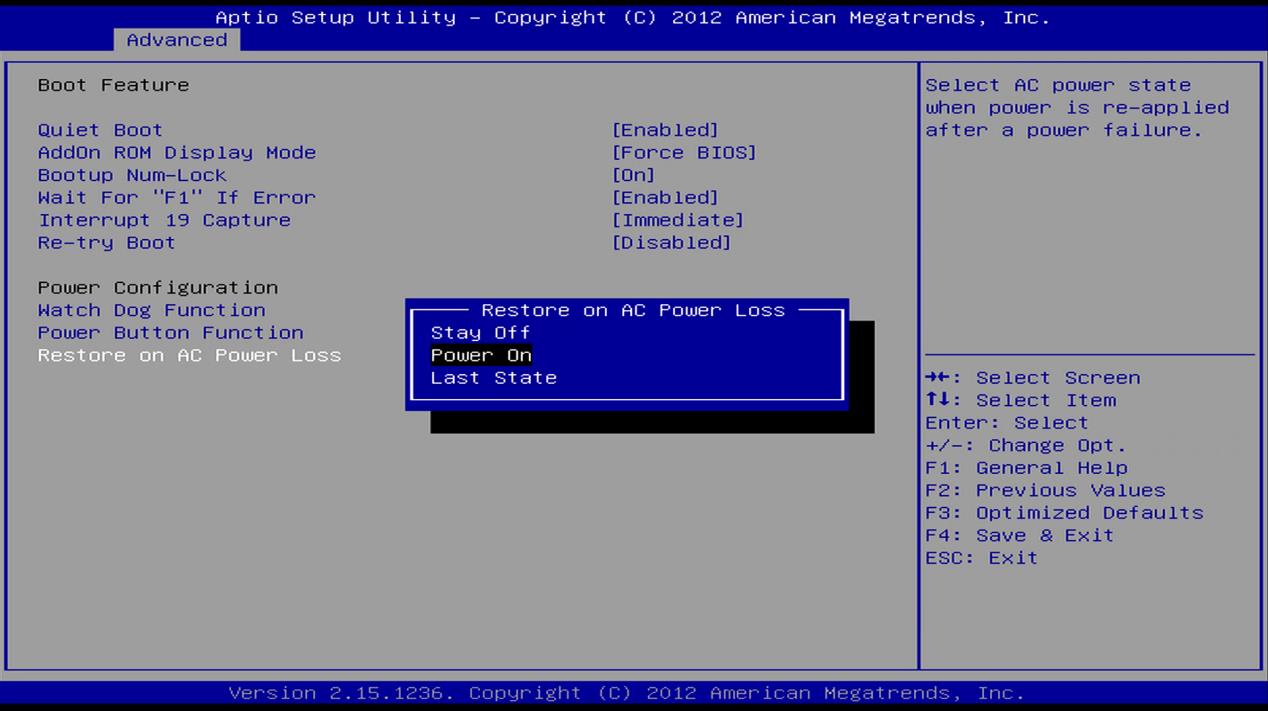
Step 5. Press F4 to Save & Exit.
Follow the steps to configure "Restore on AC Power Loss" option in BIOS.
Step 1. Restart NR, press "Delete" key to enter BIOS after this is displayed during NR is booting.
Step 2. Use the "Arrow" key to move to Advanced category, and Boot Feature is also selected because it is the first option. Press "Enter key" to enter Boot Feature options.
Step 3. In Boot Feature options, go to Restore on AC Power Loss.
Step 4. Press "Enter" key to list its options, select Power On option and press "Enter" key again.
Step 5. Press F4 to Save & Exit.
Windows OS
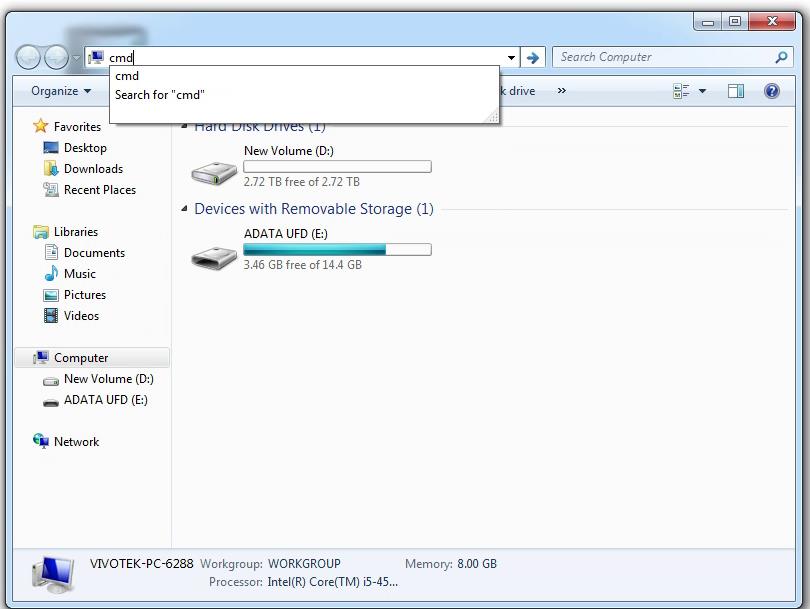
After NR is booted, double click File Manager. After it is displayed, type "cmd" in the address bar and press "Enter" key to bring out command line window. In the command line window, type this command "fbwfmgr /disable". You must reboot NR after this command is typed.
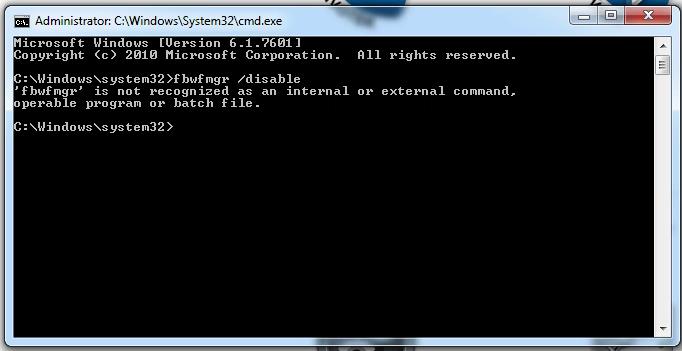
If Windows responses that "'fbwfmgr' is not recognized as an internal command, operable program or batch file.", just ignore it. That only means you are using older firmware and 'fbwfmgr' command doesn't exist.
Above step prevents UPS software from being removed after reboot.
Cable connections
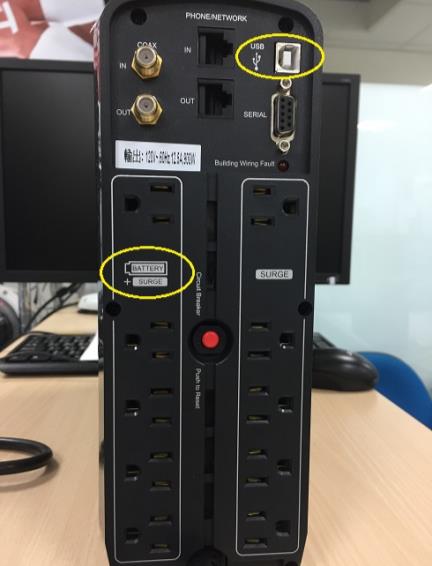
Step 1. The power cable of NR must connect to sockets which are protected by battery. Note that not all sockets of an UPS are protected by the battery.
Step 2. The UPS must be connected to NR via USB cable.
Step 3. This picture shows the rear panel of CyberPower CP1500PFCLCD.
Install UPS software
The UPS should have a management tool in its CD. Or it is available on its support web site. Install the management software. Generally, you should configure these.
(1) The amount of seconds to shut down NR after utility power is failure.
(2) The amount of seconds to shut down UPS after NR is down.
After NR is booted, double click File Manager. After it is displayed, type "cmd" in the address bar and press "Enter" key to bring out command line window. In the command line window, type this command "fbwfmgr /disable". You must reboot NR after this command is typed.
If Windows responses that "'fbwfmgr' is not recognized as an internal command, operable program or batch file.", just ignore it. That only means you are using older firmware and 'fbwfmgr' command doesn't exist.
Above step prevents UPS software from being removed after reboot.
Cable connections
Step 1. The power cable of NR must connect to sockets which are protected by battery. Note that not all sockets of an UPS are protected by the battery.
Step 2. The UPS must be connected to NR via USB cable.
Step 3. This picture shows the rear panel of CyberPower CP1500PFCLCD.
Install UPS software
The UPS should have a management tool in its CD. Or it is available on its support web site. Install the management software. Generally, you should configure these.
(1) The amount of seconds to shut down NR after utility power is failure.
(2) The amount of seconds to shut down UPS after NR is down.
A. CyberPower CP1500PFCLCD
Step 1. Download "PowerPanel Business Editions for Windows" from CyberPower supporting site.
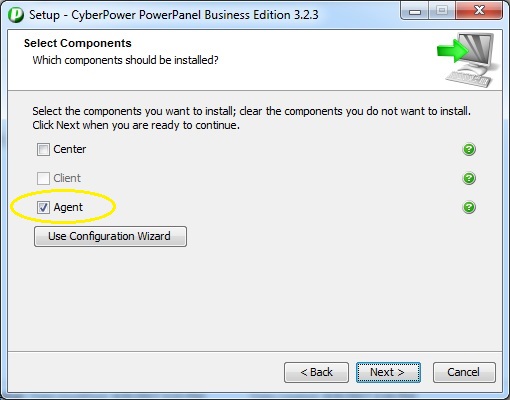
Step 2. During the installation, select "Agent" type. Accept all default to complete installation.
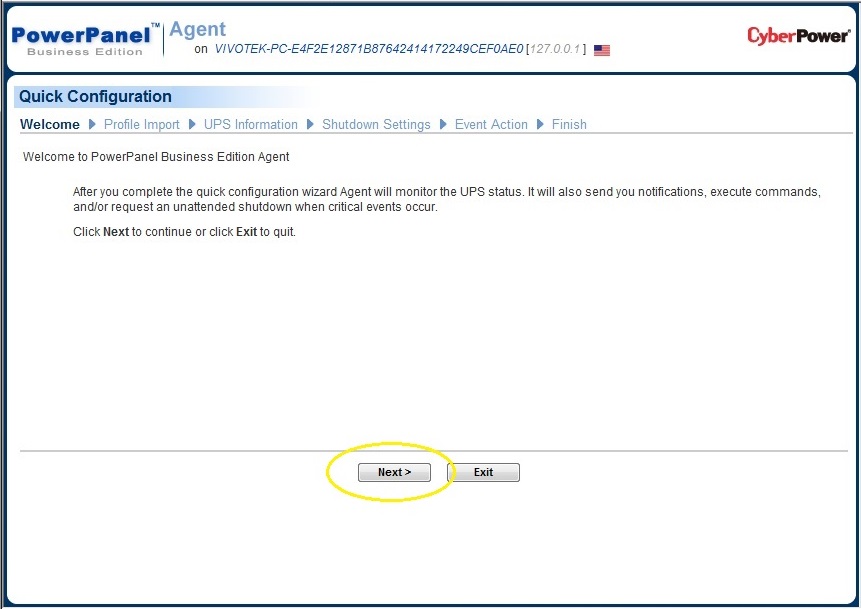
Step 3. When you first run the application, just click "Next" to accept all default configurations.
Step 4. Go to "Event Action/Settings". Configure these four items like the picture.
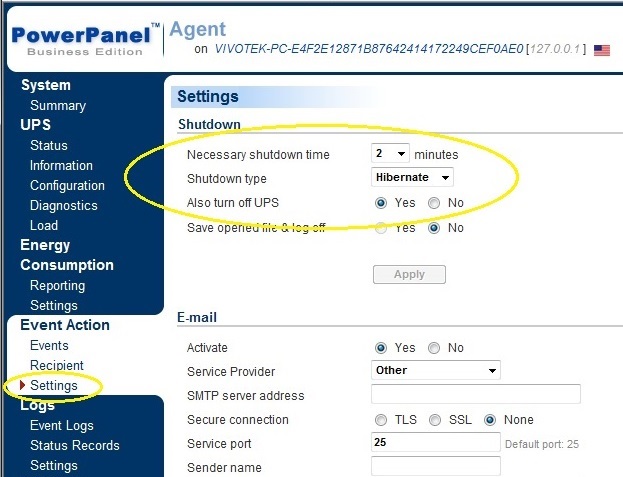
Hibernate: It will save your open documents and running applications straight to your hard drive so that there's no chance of losing anything if power is abruptly cut.
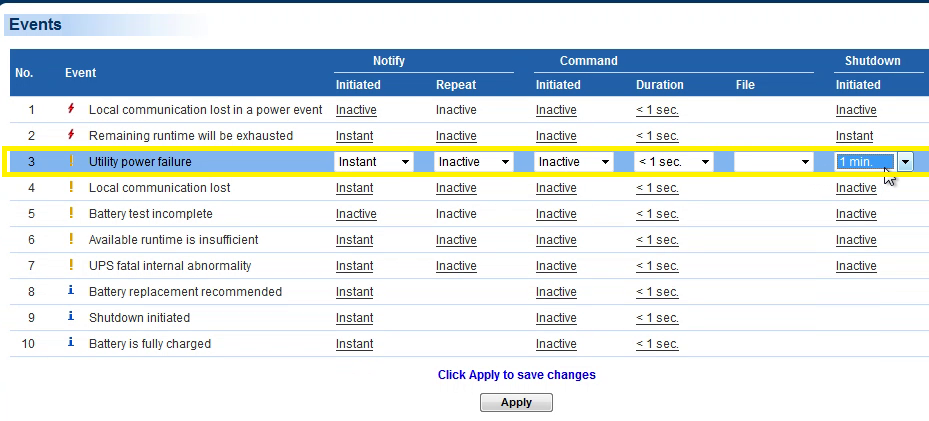
Step 5. Go to "Event Action/Events". Configure this item like the picture.
Test before you deploy
The above steps are tested OK in VIVOTEK's lab environment.
Since your environment could be different from our lab, we suggest you test your UPS connection and configuration before you deploy.
Step 1. Download "PowerPanel Business Editions for Windows" from CyberPower supporting site.
Step 2. During the installation, select "Agent" type. Accept all default to complete installation.
Step 3. When you first run the application, just click "Next" to accept all default configurations.
Step 4. Go to "Event Action/Settings". Configure these four items like the picture.
| Event Action > Settings | |
| Necessary shutdown time | 2 minutes |
| Shutdown type | Hibernate |
| Also turn off UPS | Yes |
| Save opened file & log off | No |
Step 5. Go to "Event Action/Events". Configure this item like the picture.
| Event Action > Events | |
| Utility power failure | Shutdown set to 1min |
Test before you deploy
The above steps are tested OK in VIVOTEK's lab environment.
Since your environment could be different from our lab, we suggest you test your UPS connection and configuration before you deploy.
Was this article helpful?
Bu bilgiler sorununuzu çözmeye yardımcı oldu mu?
Thanks for your feedback!
Still need help?
Uzman ekibimiz size yardımcı olmak için burada.