How to setup Users on Speco Blue VMS Lite
20 Aug 2026
416 views
Step 1: Enable User and Permissions
- *Do this step only if User and Permissions are not in your VMS Menu*
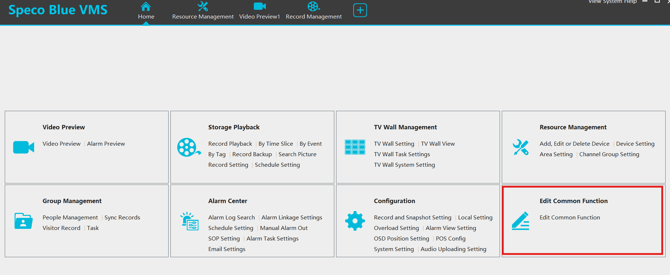
- Go to Home > Edit Common Function
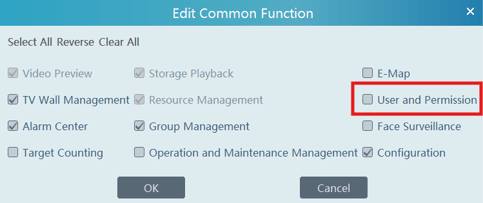
- Check off User and Permission
Step 2: Go to User and Permissions
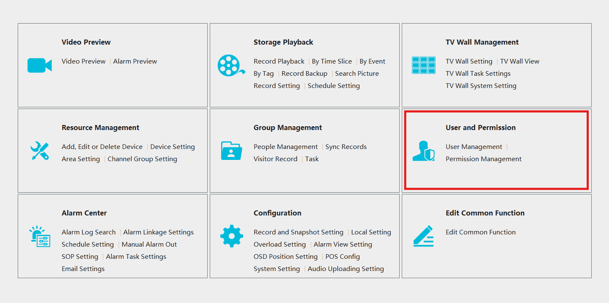
- Go to Home > User and Permissions
Step 3: Create Permission Group
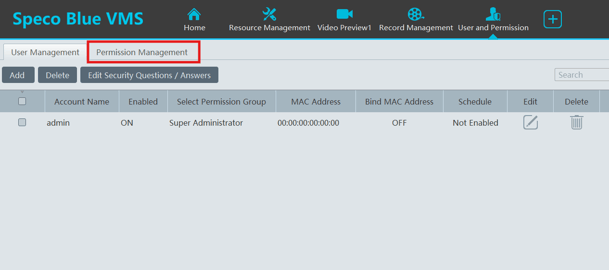
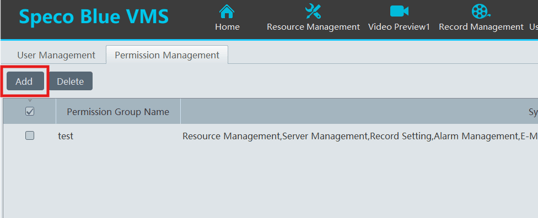
- Click on the Permission Management tab
- Click Add
-
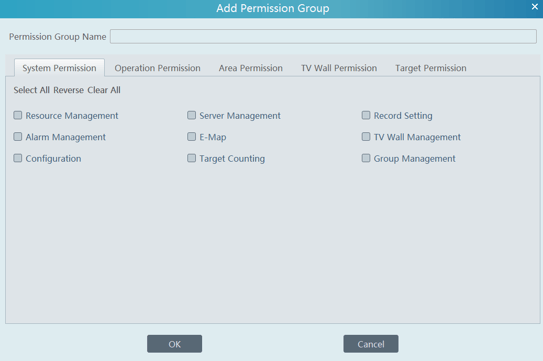
Name the group and give it the desired functionality
-
- Click OK
Step 4: Create Users
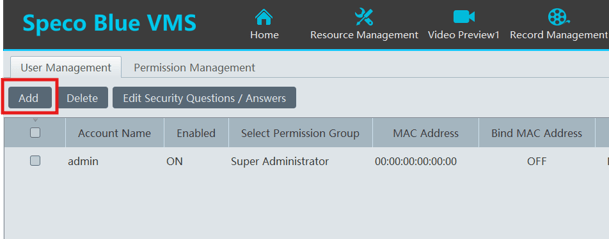
- Click on User Management
- Click on Add
- Fill out the user information
- Make sure to select the proper Permission Group
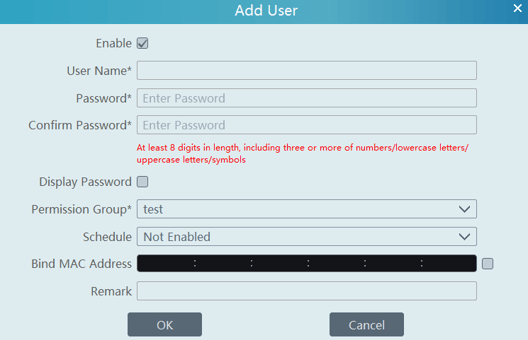
- Make sure to select the proper Permission Group
- Click OK
- Now multiple users can log into this computer's Speco Blue VMS with the users that are set up in the User and Permission Section!
Initial submission Date: November 14, 2024

Article authored by: Christopher Cataldo, Tier 1
Step 1: Enable User and Permissions
- *Do this step only if User and Permissions are not in your VMS Menu*
- Go to Home > Edit Common Function
- Check off User and Permission
Step 2: Go to User and Permissions
- Go to Home > User and Permissions
Step 3: Create Permission Group
- Click on the Permission Management tab
- Click Add
-
Name the group and give it the desired functionality
-
- Click OK
Step 4: Create Users
- Click on User Management
- Click on Add
- Fill out the user information
- Make sure to select the proper Permission Group
- Make sure to select the proper Permission Group
- Click OK
- Now multiple users can log into this computer's Speco Blue VMS with the users that are set up in the User and Permission Section!
Initial submission Date: November 14, 2024

Article authored by: Christopher Cataldo, Tier 1
Was this article helpful?
Bu bilgiler sorununuzu çözmeye yardımcı oldu mu?
Thanks for your feedback!
Still need help?
Uzman ekibimiz size yardımcı olmak için burada.