How to Configure Fisheye Viewing on Speco Blue Recorder in Web Browser
20 Aug 2026
375 views
- First, connect to the recorder unit from a web browser, either locally with the IP address or remotely with connect.specotech.cloud
- For a guide on how to connect to a recorder unit from a computer, CLICK HERE
- For a guide on how to connect to a recorder unit from a computer, CLICK HERE
- Then, click on the fisheye camera's image in the live-view grid.
- The pane on the right side by default will be set to Operation.
- An option on the top of that menu will be Fisheye.
- Select Fisheye.
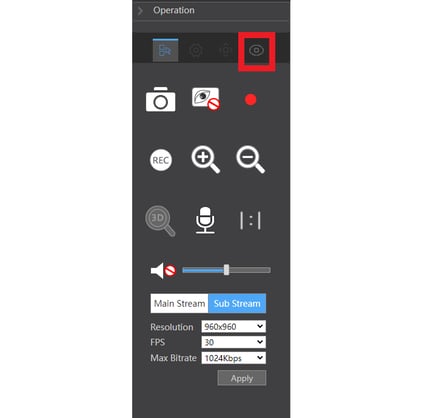
- Select Fisheye.
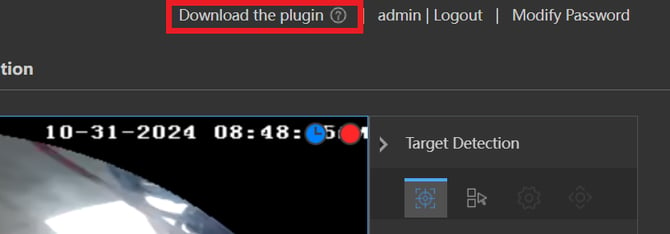
*If the Fisheye Icon is Greyed out when selecting your Fisheye camera, make sure to download and install the plug-in in the top right of your screen.*
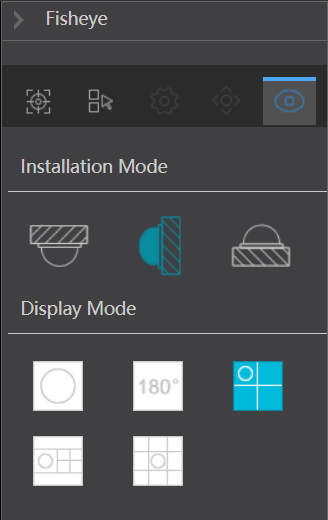
- The Fisheye Menu will appear.
- The top option, Installation Mode, will tell the camera how it is orientated to ensure it is displaying its image in the correct orientation as well.
- Selecting the Top Mount option will correctly orientate the image from the ceiling's perspective, so the image isn't upside down to the viewer.
- The Wall Mount option will orientate the image, so the image isn't sideways to the viewer.
- Desktop Mount is the same concept as Top Mount but this time the camera is pointing up instead of down.
- The bottom option, Display Mode, will change depending on what Installation Mode is selected. The options that are available in Display mode are:
- Fisheye, which is the default circular image.
- Panorama, which creates 2 separate 180-degree views.
- Fisheye+3PTZ, which will show the full fisheye image, as well as 3 separate images to view specific areas of the image.
- Fisheye+8PTZ, which will show the full fisheye image, as well as 8 separate images to view specific areas of the image.
Initial submission Date: October 1, 2024

Article authored by: Christopher Cataldo
- The top option, Installation Mode, will tell the camera how it is orientated to ensure it is displaying its image in the correct orientation as well.
- First, connect to the recorder unit from a web browser, either locally with the IP address or remotely with connect.specotech.cloud
- For a guide on how to connect to a recorder unit from a computer, CLICK HERE
- For a guide on how to connect to a recorder unit from a computer, CLICK HERE
- Then, click on the fisheye camera's image in the live-view grid.
- The pane on the right side by default will be set to Operation.
- An option on the top of that menu will be Fisheye.
- Select Fisheye.
- Select Fisheye.
*If the Fisheye Icon is Greyed out when selecting your Fisheye camera, make sure to download and install the plug-in in the top right of your screen.*
- The Fisheye Menu will appear.
- The top option, Installation Mode, will tell the camera how it is orientated to ensure it is displaying its image in the correct orientation as well.
- Selecting the Top Mount option will correctly orientate the image from the ceiling's perspective, so the image isn't upside down to the viewer.
- The Wall Mount option will orientate the image, so the image isn't sideways to the viewer.
- Desktop Mount is the same concept as Top Mount but this time the camera is pointing up instead of down.
- The bottom option, Display Mode, will change depending on what Installation Mode is selected. The options that are available in Display mode are:
- Fisheye, which is the default circular image.
- Panorama, which creates 2 separate 180-degree views.
- Fisheye+3PTZ, which will show the full fisheye image, as well as 3 separate images to view specific areas of the image.
- Fisheye+8PTZ, which will show the full fisheye image, as well as 8 separate images to view specific areas of the image.
Initial submission Date: October 1, 2024

Article authored by: Christopher Cataldo
- The top option, Installation Mode, will tell the camera how it is orientated to ensure it is displaying its image in the correct orientation as well.
Was this article helpful?
Bu bilgiler sorununuzu çözmeye yardımcı oldu mu?
Thanks for your feedback!
Still need help?
Uzman ekibimiz size yardımcı olmak için burada.