How to Batch Update Recorder firmware on Speco Blue VMS Lite
- Open Speco Blue VMS
- The application will open directly to the Home Tab
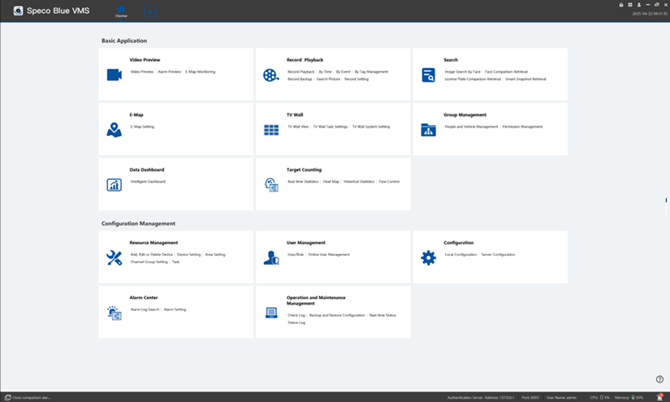
- The application will open directly to the Home Tab
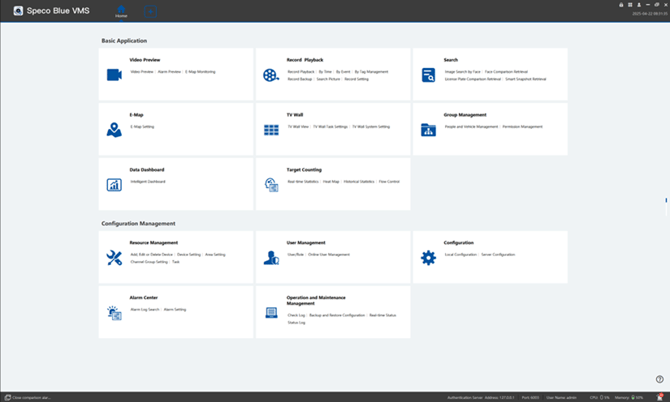
- Click on Resource Management
- Download the Firmware
-
Visit the Speco Technologies Website (https://www.specotech.com/recorder-software-updates-2/) and download the firmware version you want to use for the batch update.
-
- Select Device(s) to Update
-
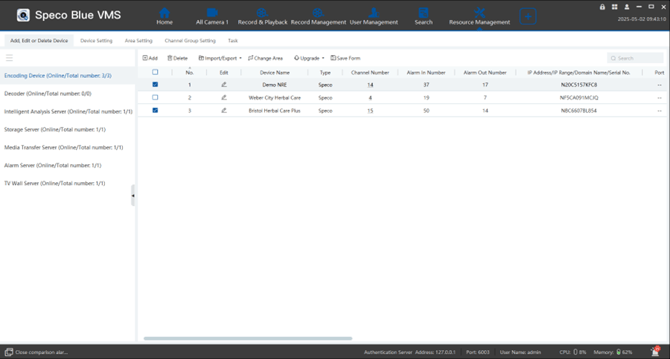
In the Resource Management tab, select all devices that need the firmware update.
-
-
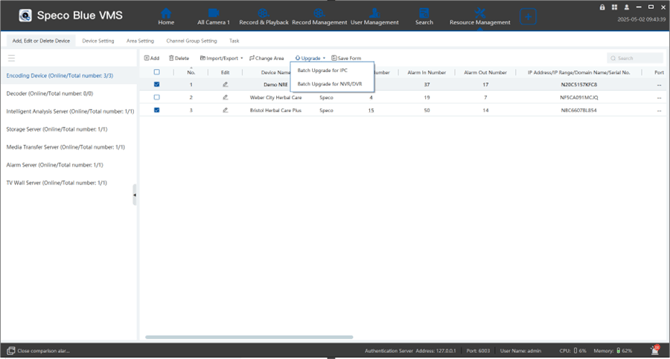
Click on the Upgrade tab
-
Choose the appropriate upgrade type:
- Batch Upgrade for NVR/DVR
-
Batch Upgrade for IPC (IP Cameras)
-
A Batch Upgrade window will appear
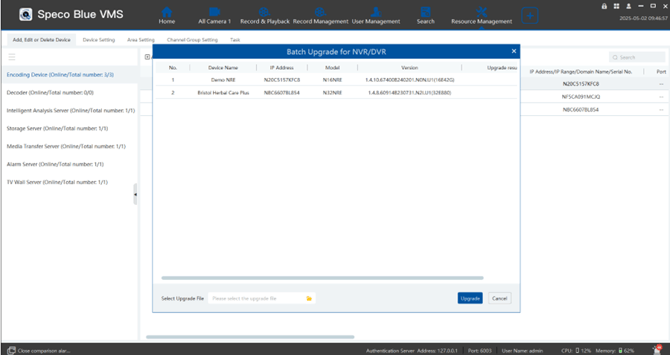
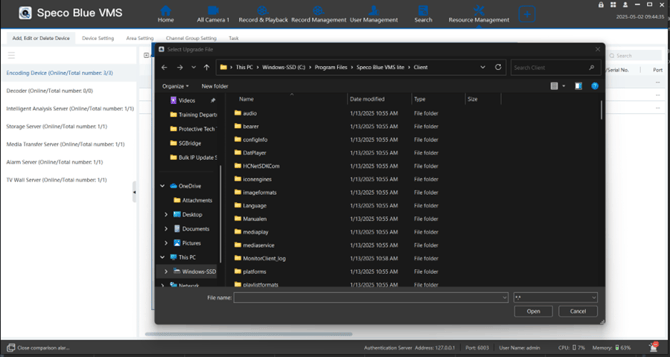
- Select the previously downloaded firmware fil
- Click Upgrade to begin the process
- The software will handle upgrading all selected devices
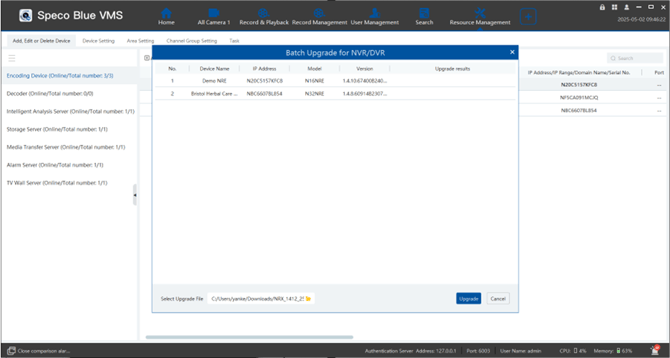
- The software will handle upgrading all selected devices
Notes:
- Ensure all devices remain powered on and connected to the network during the update process.
- Do not close the application until all updates are complete.
Initial submission Date: May 15, 2025

Article authored by: Tim O'Brien, National Trainer

Article transcribed by: Christopher Cataldo, Technical Support Lead
- Open Speco Blue VMS
- The application will open directly to the Home Tab
- The application will open directly to the Home Tab
- Click on Resource Management
- Download the Firmware
-
Visit the Speco Technologies Website (https://www.specotech.com/recorder-software-updates-2/) and download the firmware version you want to use for the batch update.
-
- Select Device(s) to Update
-
In the Resource Management tab, select all devices that need the firmware update.
-
-
Click on the Upgrade tab
-
Choose the appropriate upgrade type:
- Batch Upgrade for NVR/DVR
-
Batch Upgrade for IPC (IP Cameras)
-
A Batch Upgrade window will appear
- Select the previously downloaded firmware fil
- Click Upgrade to begin the process
- The software will handle upgrading all selected devices
- The software will handle upgrading all selected devices
Notes:
- Ensure all devices remain powered on and connected to the network during the update process.
- Do not close the application until all updates are complete.
Initial submission Date: May 15, 2025

Article authored by: Tim O'Brien, National Trainer

Article transcribed by: Christopher Cataldo, Technical Support Lead
Was this article helpful?
Bu bilgiler sorununuzu çözmeye yardımcı oldu mu?
Still need help?
Uzman ekibimiz size yardımcı olmak için burada.