How to Batch Update IP Camera addresses on Speco Blue VMS
- Launch the Speco Blue VMS
- Click on Resource Management
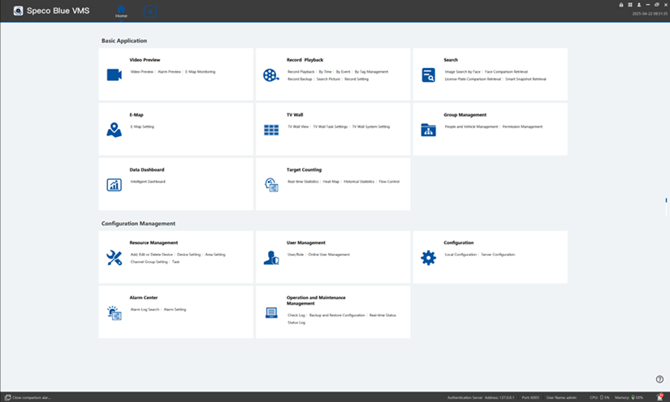
- Click on Resource Management
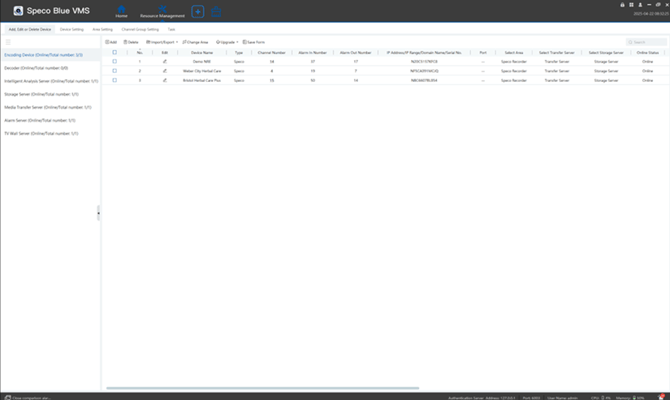
- Click the Add button
-
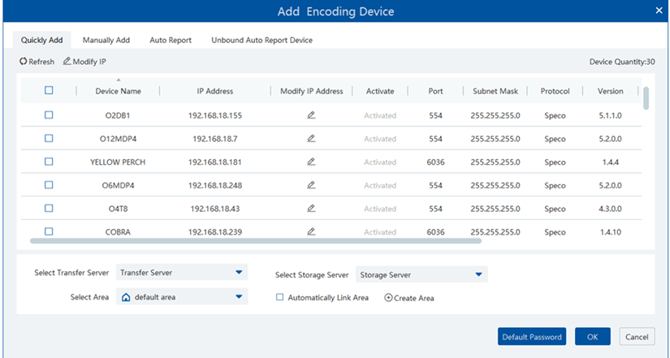
A new window will appear, select the cameras you wish to modify
-
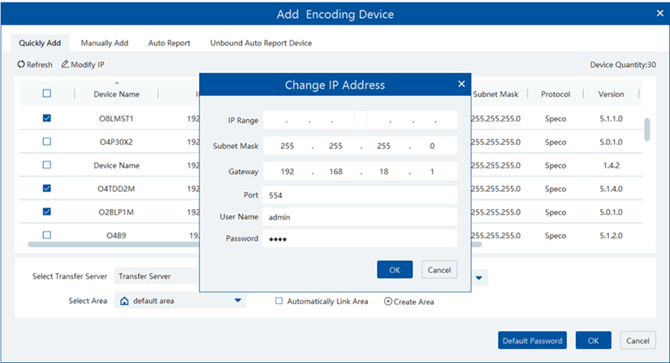
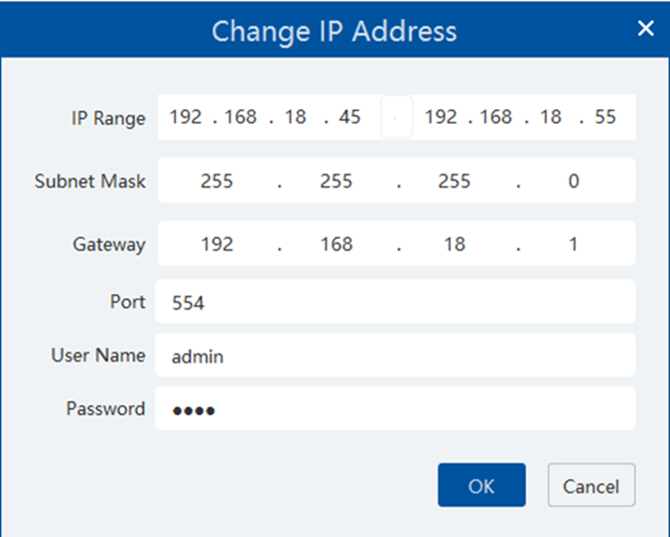
Click the Modify IP Address button. In the new window, enter the following:
-
Start IP Address
-
End IP Address
-
Default Gateway
-
RTSP Port Number: 554 by default
-
Username: admin by default
-
Password:1234 by default
-
-
Once all fields are correctly filled out, click OK.
-
The system will apply the new IP addresses and update the devices.
-
Initial submission Date: April 21, 2025

Article authored by: Tim O'Brien, National Trainer

Transcribed by: Christopher Cataldo, Technical Support Lead
- Launch the Speco Blue VMS
- Click on Resource Management
- Click on Resource Management
- Click the Add button
-
A new window will appear, select the cameras you wish to modify
-
Click the Modify IP Address button. In the new window, enter the following:
-
Start IP Address
-
End IP Address
-
Default Gateway
-
RTSP Port Number: 554 by default
-
Username: admin by default
-
Password:1234 by default
-
-
Once all fields are correctly filled out, click OK.
-
The system will apply the new IP addresses and update the devices.
-
Initial submission Date: April 21, 2025

Article authored by: Tim O'Brien, National Trainer

Transcribed by: Christopher Cataldo, Technical Support Lead
Was this article helpful?
Bu bilgiler sorununuzu çözmeye yardımcı oldu mu?
Still need help?
Uzman ekibimiz size yardımcı olmak için burada.