How to add the O5TMLB1 Thermal Camera to Speco Blue Recorder
20 Aug 2026
409 views
- First, disable Plug and Play feature if the NVR is an 8 or 16 channel.
- Go to Settings and click on System.
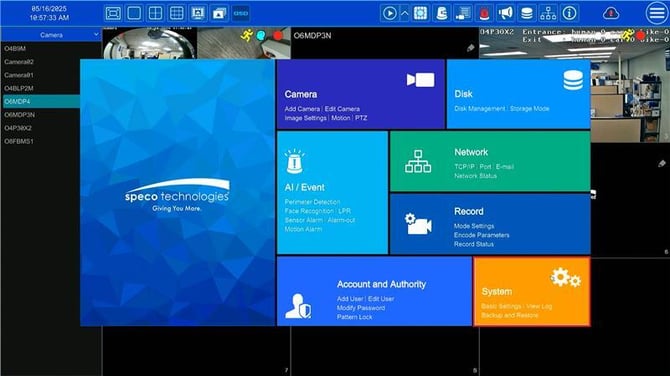
- Click on PoE Settings.
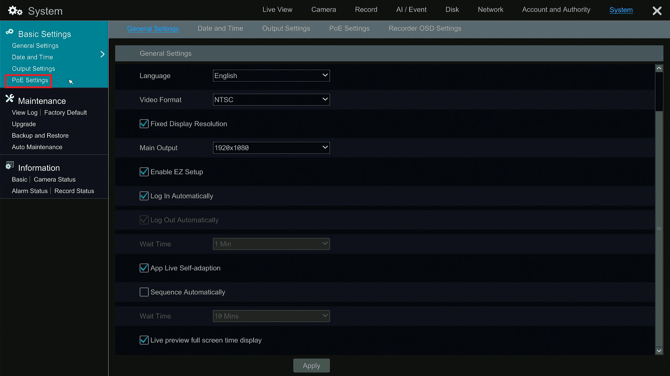
- Click on PoE Plug-and-Play Settings
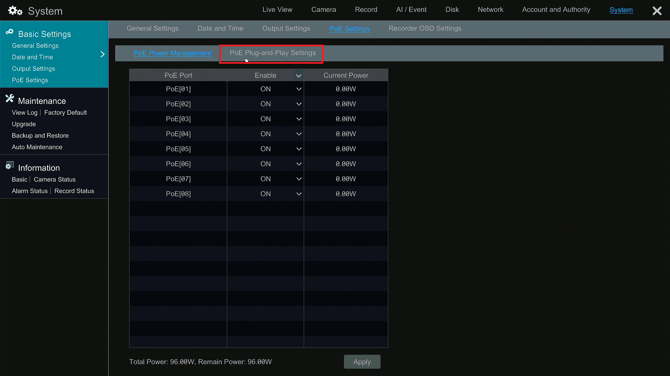
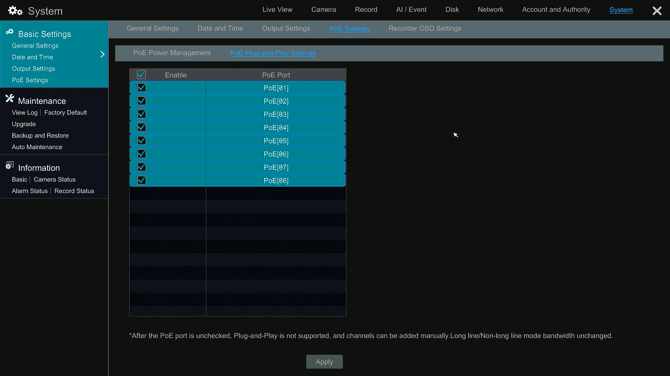
- Uncheck the Plug-and-Play on the two channels you want the optical and thermal modes to be on.
- Click Apply to save your changes.
- Manually add the camera to the recorder
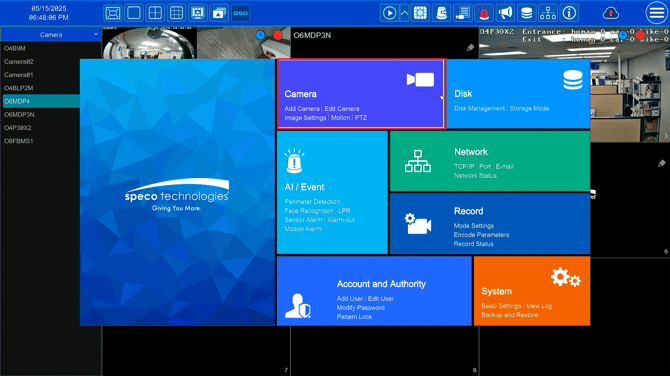
- Go to Settings > Camera
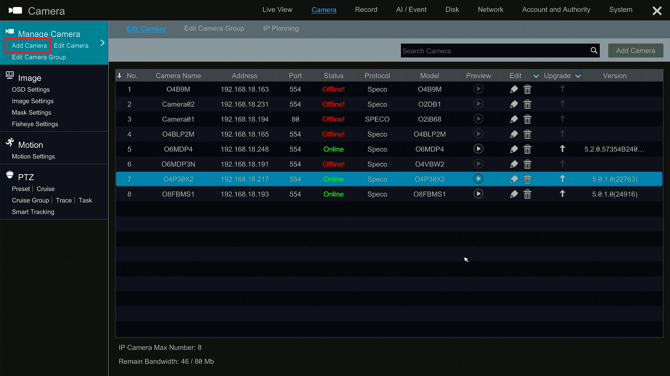
- Click Add Camera
- Click Add Manually
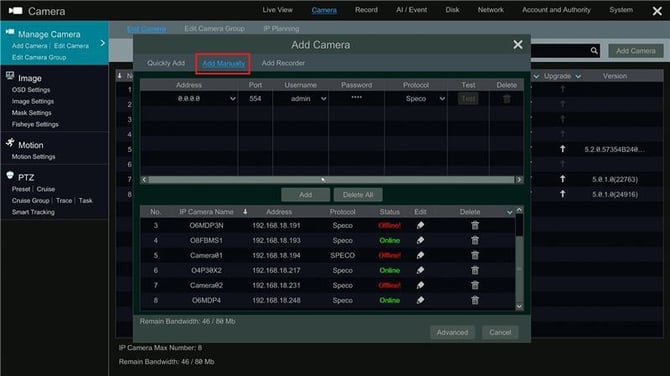
- Input the the IP address of the camera
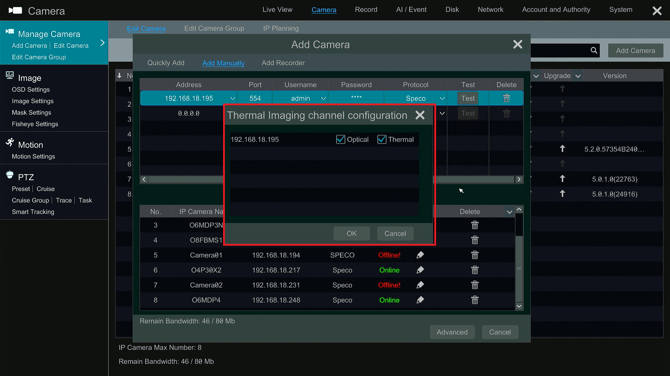
- From here, the NVR will prompt you to select Optical or Thermal mode.
- Select either Optical, Thermal, or both.
- If both are selected, 2 channels will be used from the recorder.
Initial submission Date: January 3, 2025

Article authored by: Michael Pagano, Tier 1
- First, disable Plug and Play feature if the NVR is an 8 or 16 channel.
- Go to Settings and click on System.
- Click on PoE Settings.
- Click on PoE Plug-and-Play Settings
- Uncheck the Plug-and-Play on the two channels you want the optical and thermal modes to be on.
- Click Apply to save your changes.
- Manually add the camera to the recorder
- Go to Settings > Camera
- Click Add Camera
- Click Add Manually
- Input the the IP address of the camera
- From here, the NVR will prompt you to select Optical or Thermal mode.
- Select either Optical, Thermal, or both.
- If both are selected, 2 channels will be used from the recorder.
Initial submission Date: January 3, 2025

Article authored by: Michael Pagano, Tier 1
Was this article helpful?
Bu bilgiler sorununuzu çözmeye yardımcı oldu mu?
Thanks for your feedback!
Still need help?
Uzman ekibimiz size yardımcı olmak için burada.