How to Add Recorders to the SecureGuard Dashboard from the SecureGuard Client App
20 Aug 2026
397 views
Setting up the Installer Mode and Profile
- If it hasn't been done already, make sure the installers profiles have been set up already on the SecureGuard Dashboard
- Download the SecureGuard Client App
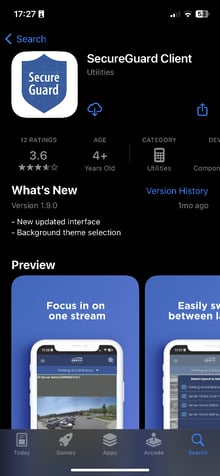
- When first opening the app, there will be a prompt to add a site
- Tap Cancel
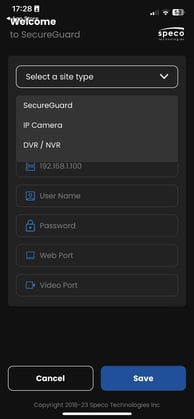
- Tap Cancel
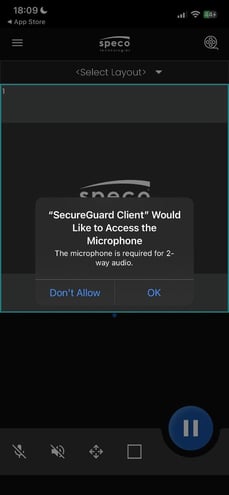
- Then allow the app to have access to microphone to later utilize the 2-way talk feature, if needed.
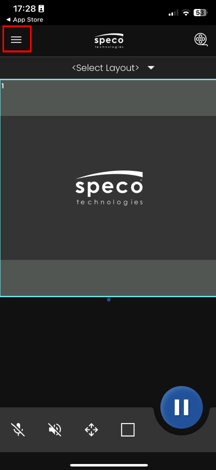
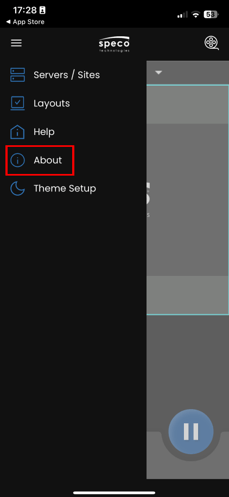
- On the main screen, tap the Hamburger menu.
- Tap About
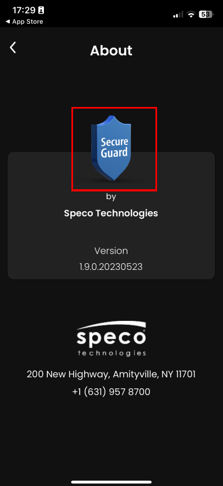
- Tap the SecureGuard Shield 7 times which will then display “Installer Options Enabled”
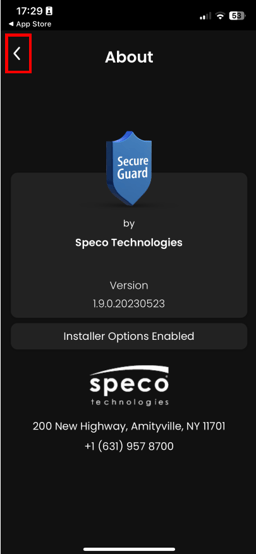
- Press the Arrow icon at the top left
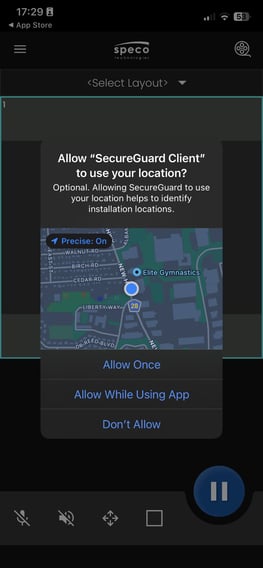
- Next, the app asks to allow the application to user their location. Make the selection to proceed.
- Press the hamburger menu again.
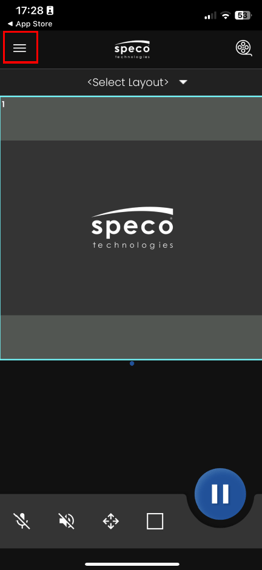
- Press “Installer Setup”.
- Here is where the installer credentials must be entered to register their device to send recorders to the dashboard.
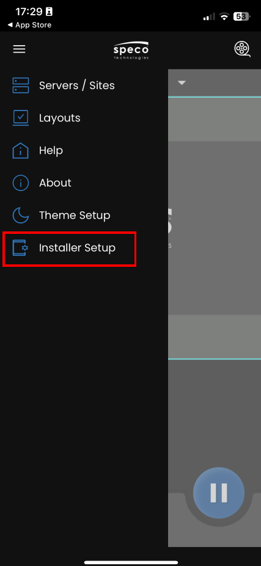
- Here is where the installer credentials must be entered to register their device to send recorders to the dashboard.
- Enter their login credentials and press “Register”.
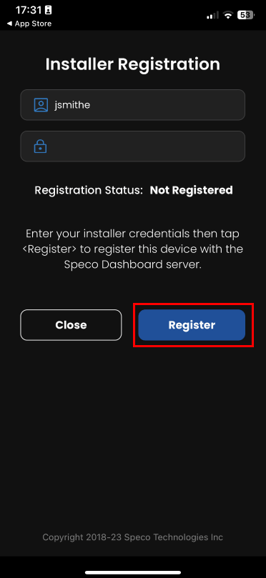
- If successful, the Registration Status will change to “Registered” and a message will display below stating “Device successfully registered.”
- Press “Close"
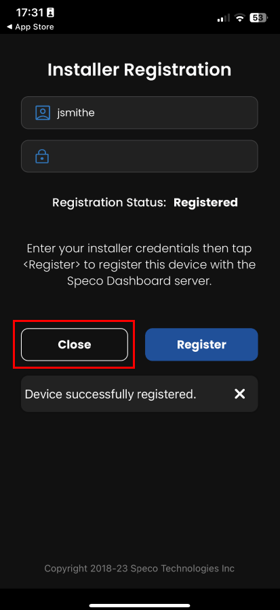
- Press “Close"
Adding the Recorder
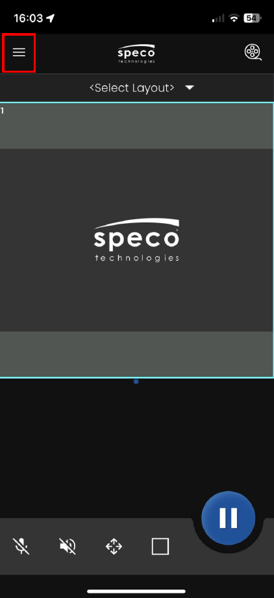
- Once registration has been confirmed, tap the hamburger menu on the main screen.
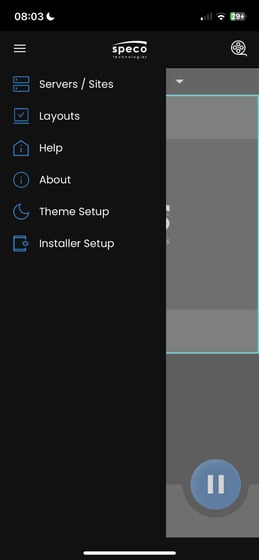
- Tap “Servers/Sites”
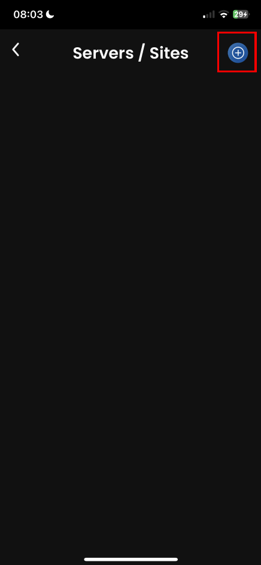
- Press the “+” icon
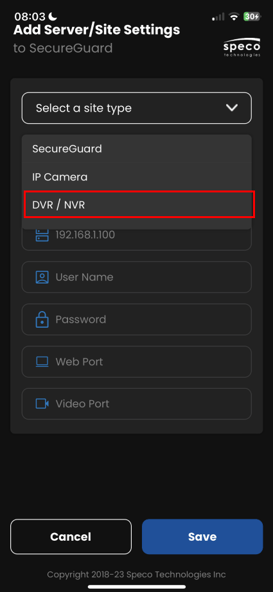
- In “Select Site Type” select “DVR/NVR”
- In “Select Recorder Model” select “HR/NRL/NRN/NRP/NRE”
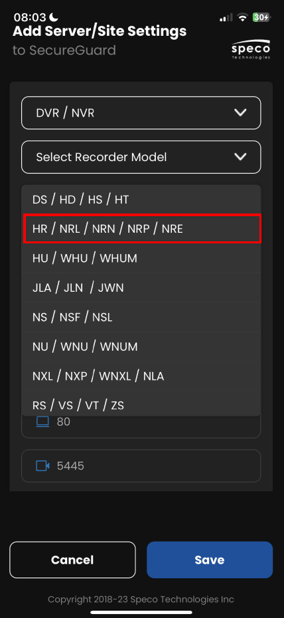
- Enter a name in the ‘Server/Site Friendly Name’ box.
- This is how it will be identified on the SecureGuard Client App.
- Next, check the box next to ‘QR Code’.
- If your recorder is utilizing NAT 2.0 check the box next to ‘V2’ as well.
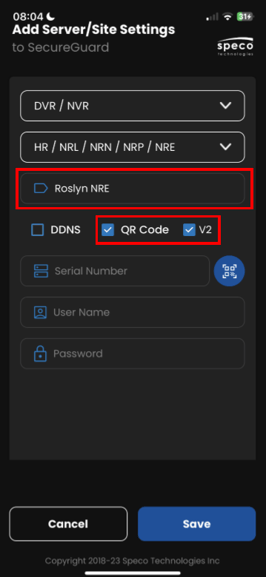
- If your recorder is utilizing NAT 2.0 check the box next to ‘V2’ as well.
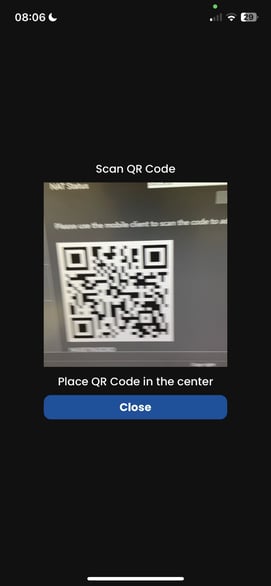
- Tap icon next to the ‘Serial Number’ box.
- (You will need to give permission to the SecureGuard Mobile App to use your phone camera. If prompted, grant permission to the app to utilize the camera.)
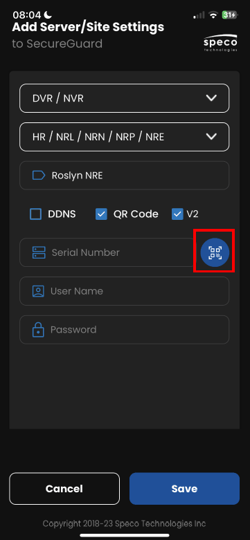
- (You will need to give permission to the SecureGuard Mobile App to use your phone camera. If prompted, grant permission to the app to utilize the camera.)
- Scan the QR Code of your Speco Blue Series Recorder.
- After scanning the QR Code, the ‘Serial Number’ box will populate along with the ‘User Name’ box.
- Enter the recorder’s admin password in the ‘Password’ box and press ‘Save’.
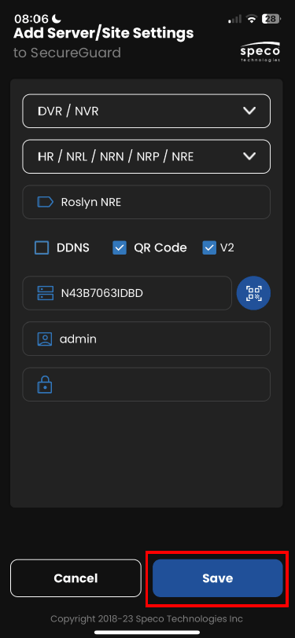
- Enter the recorder’s admin password in the ‘Password’ box and press ‘Save’.
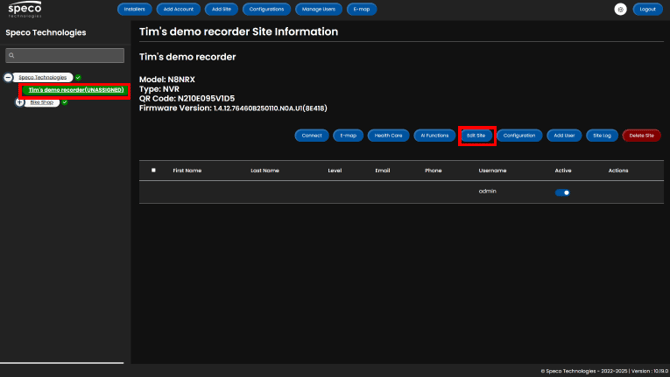
- Upon successfully adding it to the SecureGuard Mobile App, the recorder will be listed as UNASSIGNED on your dashboard.
- If the recorder is not displayed, refresh the dashboard page.
- To assign your site to a parent level, click the unassigned site and click “Edit Site”
Initial submission Date: July 14, 2025

Article authored by: Tim O'Brien, National Trainer

Article transcribed by: Christopher Cataldo, Technical Support Lead
Setting up the Installer Mode and Profile
- If it hasn't been done already, make sure the installers profiles have been set up already on the SecureGuard Dashboard
- Download the SecureGuard Client App
- When first opening the app, there will be a prompt to add a site
- Tap Cancel
- Tap Cancel
- Then allow the app to have access to microphone to later utilize the 2-way talk feature, if needed.
- On the main screen, tap the Hamburger menu.
- Tap About
- Tap the SecureGuard Shield 7 times which will then display “Installer Options Enabled”
- Press the Arrow icon at the top left
- Next, the app asks to allow the application to user their location. Make the selection to proceed.
- Press the hamburger menu again.
- Press “Installer Setup”.
- Here is where the installer credentials must be entered to register their device to send recorders to the dashboard.
- Here is where the installer credentials must be entered to register their device to send recorders to the dashboard.
- Enter their login credentials and press “Register”.
- If successful, the Registration Status will change to “Registered” and a message will display below stating “Device successfully registered.”
- Press “Close"
- Press “Close"
Adding the Recorder
- Once registration has been confirmed, tap the hamburger menu on the main screen.
- Tap “Servers/Sites”
- Press the “+” icon
- In “Select Site Type” select “DVR/NVR”
- In “Select Recorder Model” select “HR/NRL/NRN/NRP/NRE”
- Enter a name in the ‘Server/Site Friendly Name’ box.
- This is how it will be identified on the SecureGuard Client App.
- Next, check the box next to ‘QR Code’.
- If your recorder is utilizing NAT 2.0 check the box next to ‘V2’ as well.
- If your recorder is utilizing NAT 2.0 check the box next to ‘V2’ as well.
- Tap icon next to the ‘Serial Number’ box.
- (You will need to give permission to the SecureGuard Mobile App to use your phone camera. If prompted, grant permission to the app to utilize the camera.)
- (You will need to give permission to the SecureGuard Mobile App to use your phone camera. If prompted, grant permission to the app to utilize the camera.)
- Scan the QR Code of your Speco Blue Series Recorder.
- After scanning the QR Code, the ‘Serial Number’ box will populate along with the ‘User Name’ box.
- Enter the recorder’s admin password in the ‘Password’ box and press ‘Save’.
- Enter the recorder’s admin password in the ‘Password’ box and press ‘Save’.
- Upon successfully adding it to the SecureGuard Mobile App, the recorder will be listed as UNASSIGNED on your dashboard.
- If the recorder is not displayed, refresh the dashboard page.
- To assign your site to a parent level, click the unassigned site and click “Edit Site”
Initial submission Date: July 14, 2025

Article authored by: Tim O'Brien, National Trainer

Article transcribed by: Christopher Cataldo, Technical Support Lead
Was this article helpful?
Bu bilgiler sorununuzu çözmeye yardımcı oldu mu?
Thanks for your feedback!
Still need help?
Uzman ekibimiz size yardımcı olmak için burada.