E-Map in Safire Control Center
20 Aug 2026
296 views
Note:
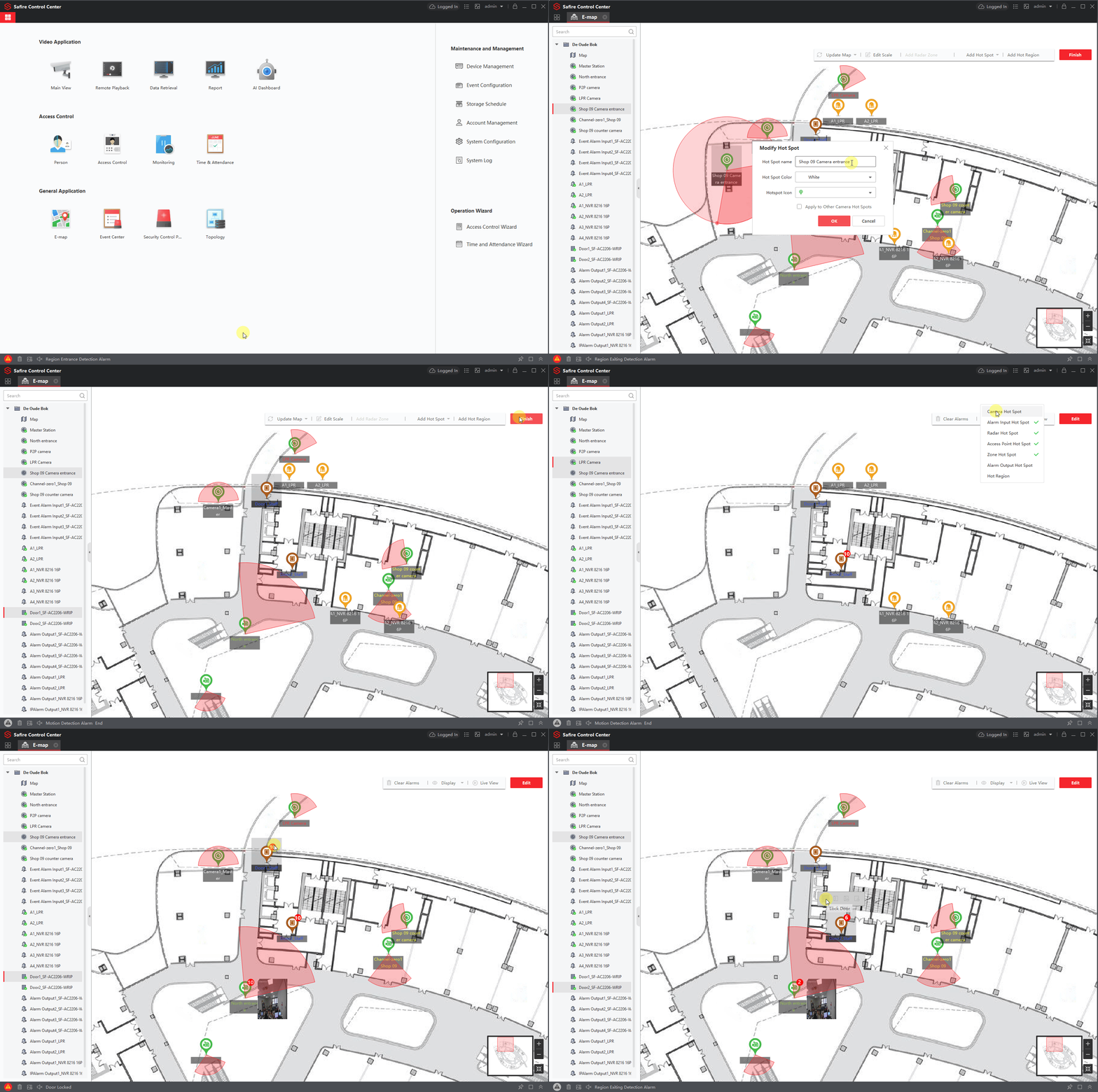
In this tutorial, we use SCC (Safire Control Center) Version V3.20.57 build20210726 and a floor plan of an existing shopping mall for this demonstration
Depending on the situation, creating a group via device management can be useful when there is more than one device for the plant. By making use of P2P devices it is also possible to deploy in the group
Tip:
"Right-click and open the image or gif in a new tab if it is a large image or gif."
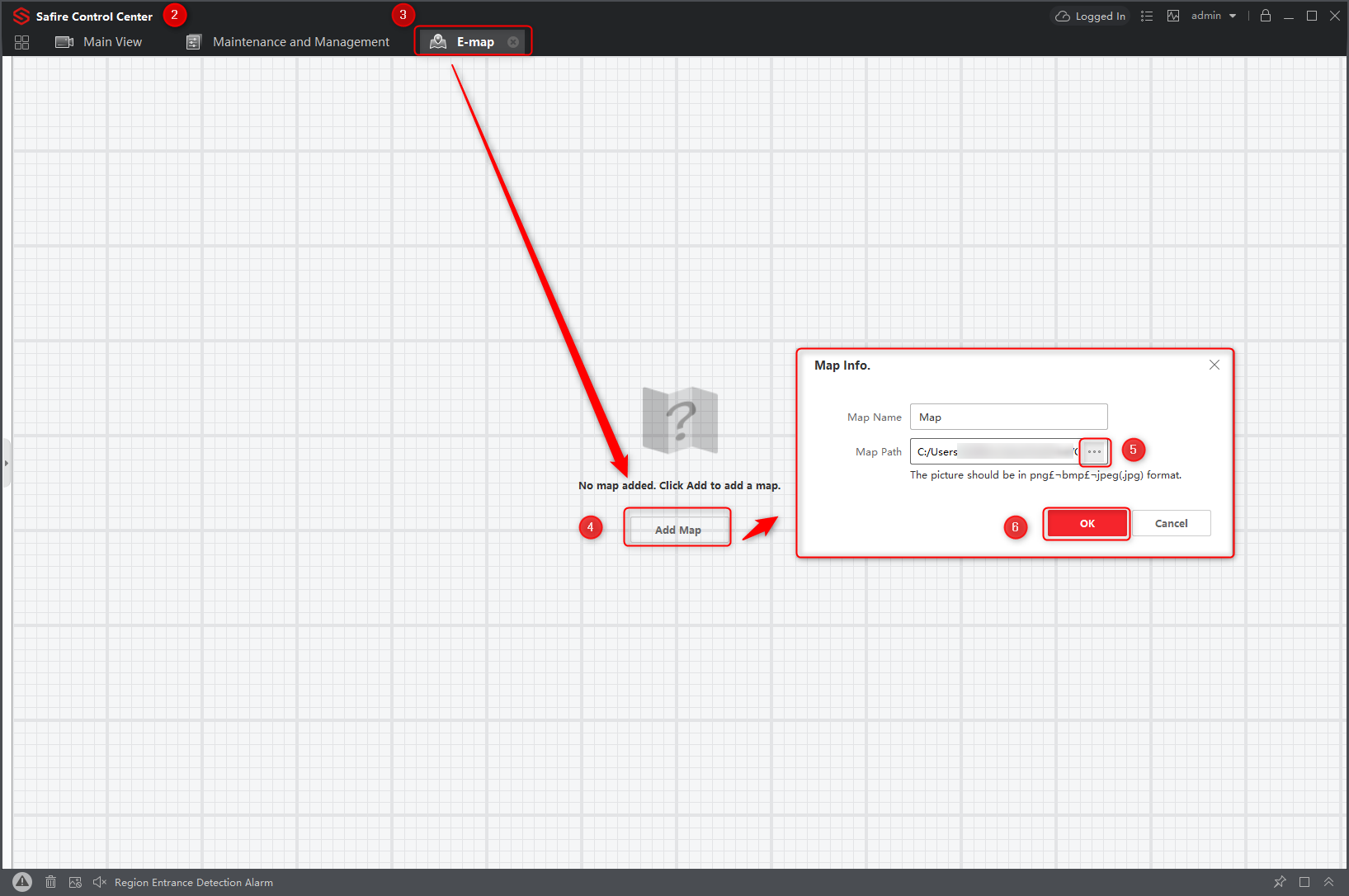
Import the blueprint image into SCC:
- Open SCC (Safire Control Center)
- Through the main page in the section
- General Application open E-map
- In the newly opened E-map tab
- Click on Add map
- Select the map directory
- And OK to import the image
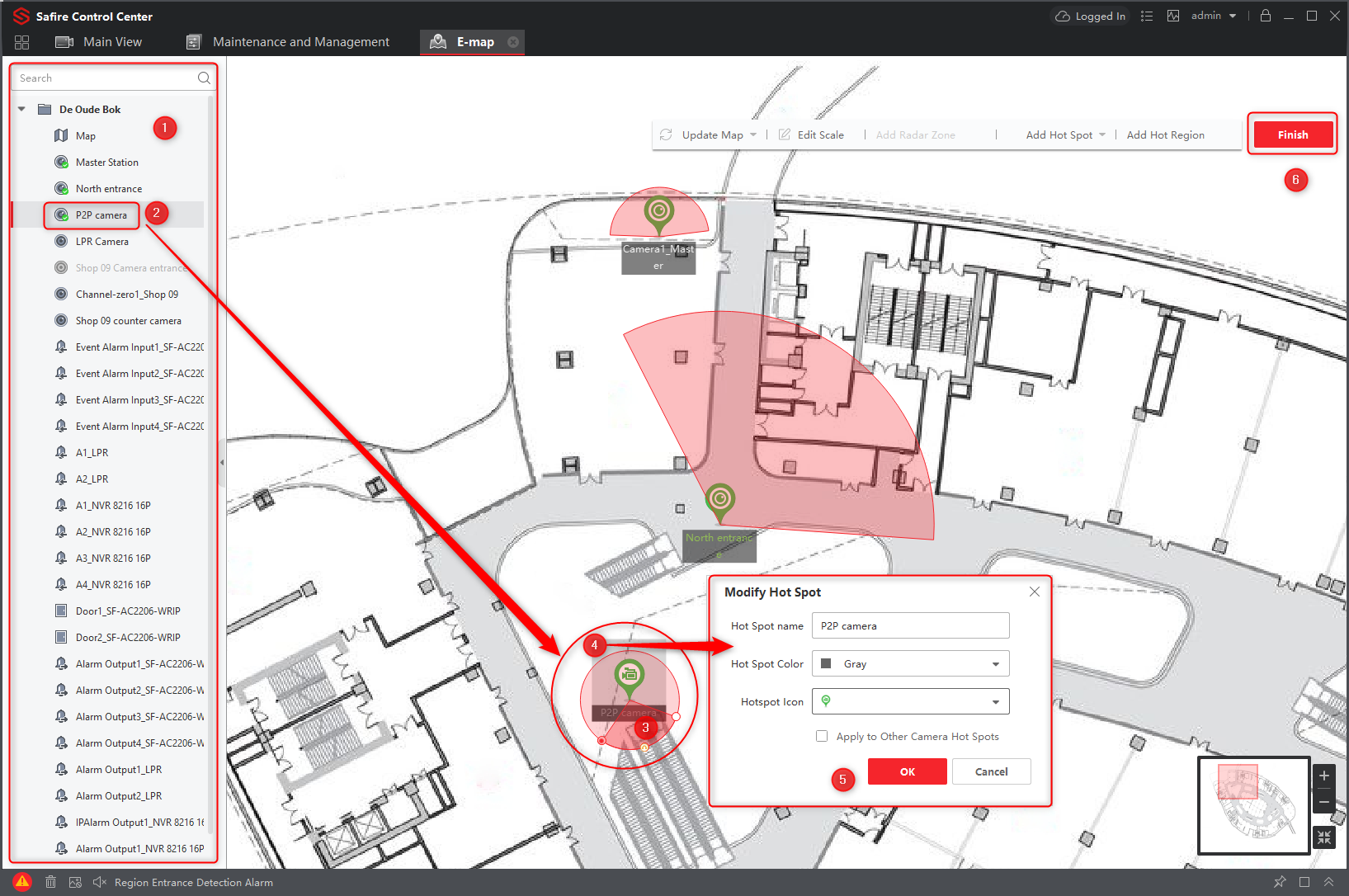
Move the devices on the map:
- On the left side, you find the devices of the group
- Select keep and move the device on the map
- You can adjust the size and length through the circles
- Click in the grey zone to edit the name and color
- Ok to save
- When finished
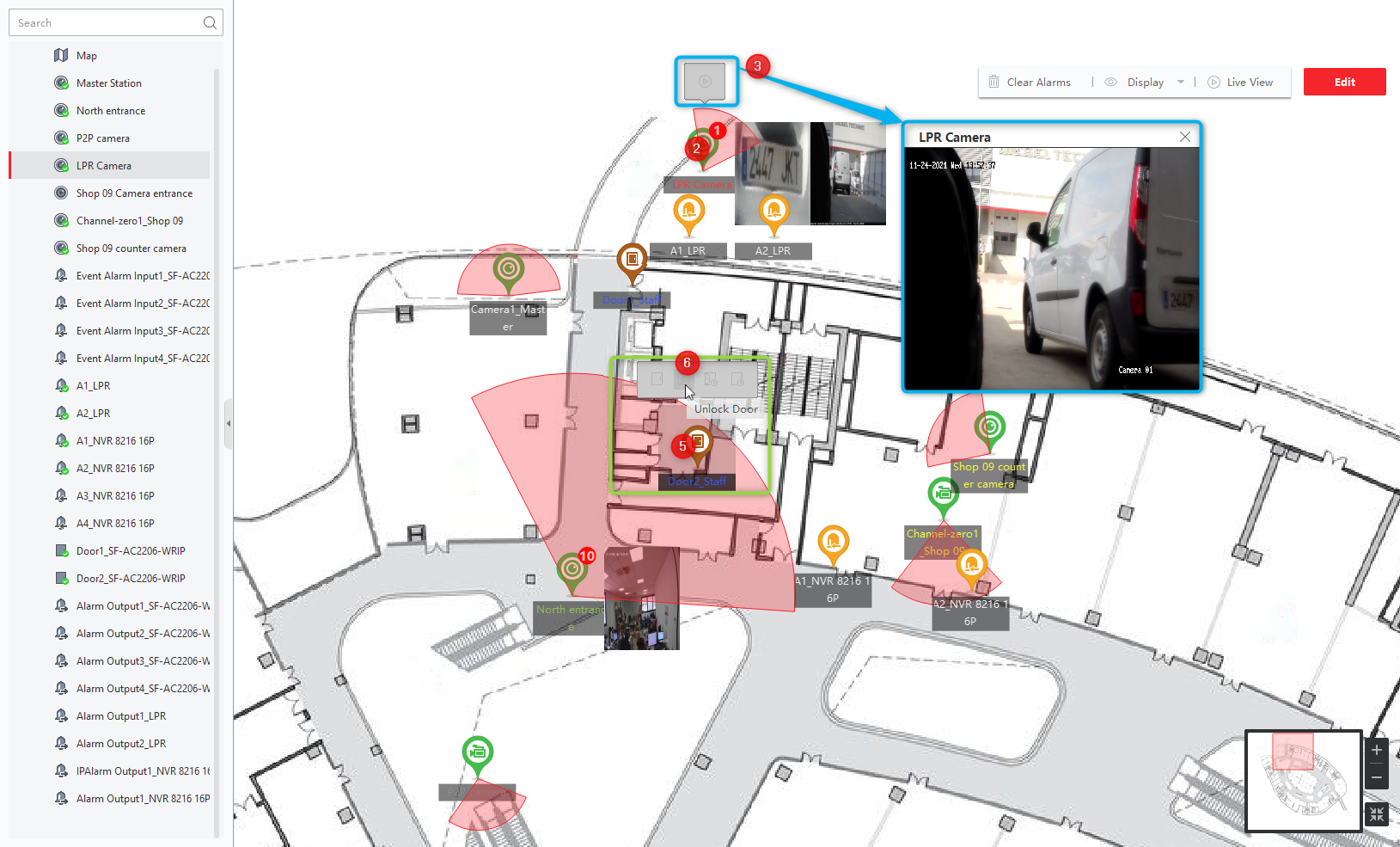
Live camera or open a door in E-map:
- Open the E-map in SCC
- Click on the camera you want to view
- Click on the grey play icon and a new window will pop up to view the camera
- To open or one of the other actions
- Click on the chosen door
- In the new window, select the action
Was this article helpful?
Bu bilgiler sorununuzu çözmeye yardımcı oldu mu?
Thanks for your feedback!
Still need help?
Uzman ekibimiz size yardımcı olmak için burada.