Dahua - How To Add A Camera To An NVR Using Auto Registration
Prerequisites
-
Camera and NVR are powered on and accessible
-
Network connectivity between the camera and the NVR
-
WAN IP address of the NVR (if connecting over WAN)
-
Port forwarding configured if required
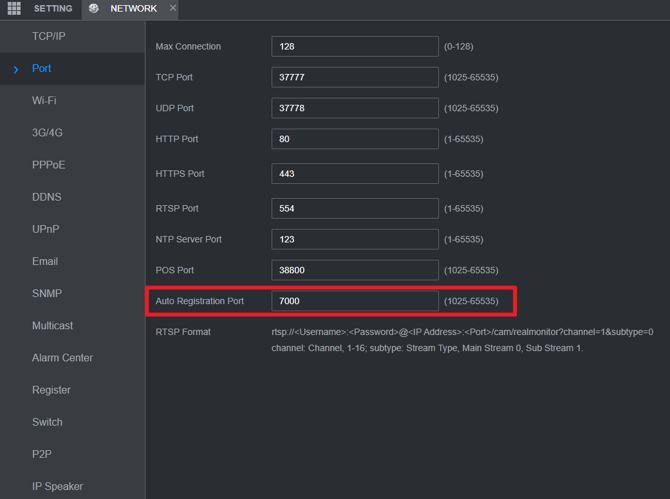
Note: The default Auto Registration port is 7000.
Step 1: Check the Auto Registration Port on the NVR
-
Log in to the NVR.
-
Verify that the Auto Registration port is set to 7000 (default).
Important (WAN Connection)
If the camera and NVR are connected over a WAN, port 7000 must be forwarded to the public network on the router.
Step 2: Enable Auto Registration on the Camera
-
Log in to the camera.
-
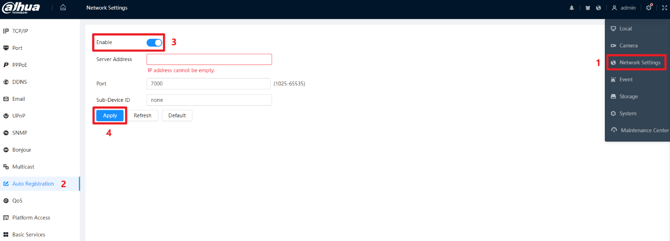
Navigate to: Network > Auto Registration
-
Enable Auto Registration.
-
Configure the following fields:
-
Server Address: Enter the WAN IP address of the NVR
-
Port:
7000 -
Sub-Device ID: Create a unique ID (this must match the Registration ID on the NVR in Step 3)
-
-
Save the settings.
Step 3: Add the Camera to the NVR
-
Log in to the NVR.
-
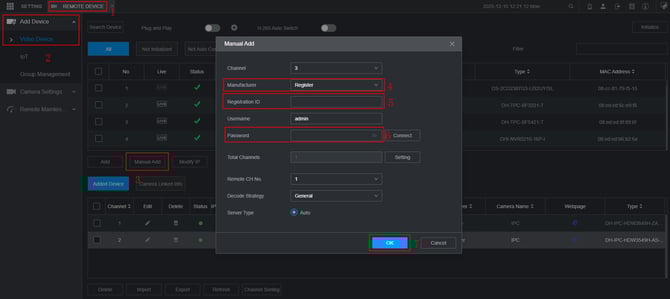
Navigate to: Remote Device > Add Device > Video Device > Manual Add
-
Configure the following:
-
Manufacturer:
Register -
Registration ID: Enter the same ID used as the Sub-Device ID on the camera
-
-
Click OK to save the settings.
Step 4: Verify Connection
-
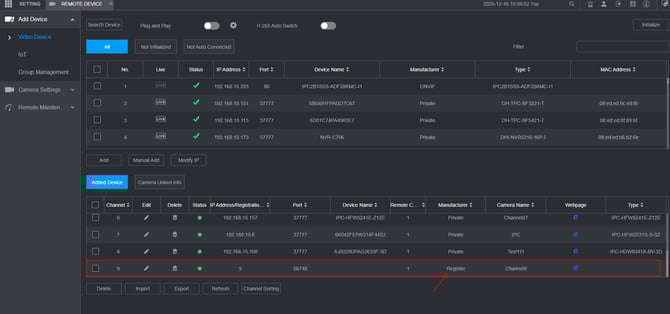
Wait several seconds after adding the device.
-
Confirm the camera status changes to Online.
-
Open Live View to verify video is streaming correctly.
Troubleshooting Tips
-
Ensure port 7000 is open and properly forwarded when using WAN
-
Confirm the Sub-Device ID and Registration ID match exactly
-
Verify the WAN IP address is correct and reachable
-
Check firewall rules on the network
Summary
By enabling Auto Registration on the camera and manually registering it on the NVR with matching IDs, the camera can be added successfully and viewed live. This method is especially useful for WAN-based deployments.
For additional assistance, contact IC Plus Support
Was this article helpful?
Bu bilgiler sorununuzu çözmeye yardımcı oldu mu?
Still need help?
Uzman ekibimiz size yardımcı olmak için burada.