AI View-How to Add the Bullet Camera to APP AI View?
Applies to I41FD/I81BC
This article aims to add the bullet camera to the APP AI View without scanning the QR code.
Here is the instruction:
1. Please download the APP AI View from Google Play or APP Store.
2. Then please use an email address or a mobile phone number to register the APP.
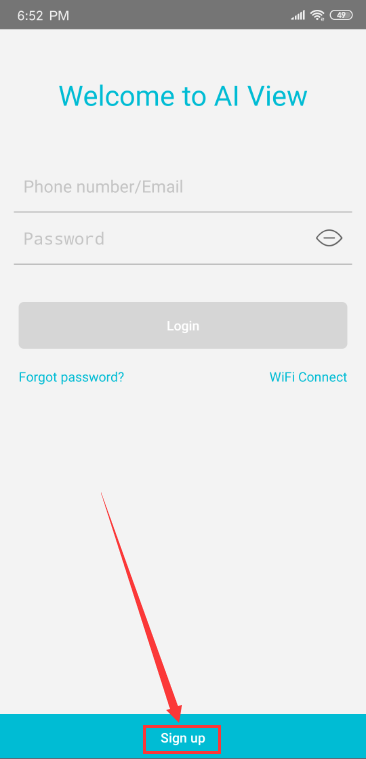
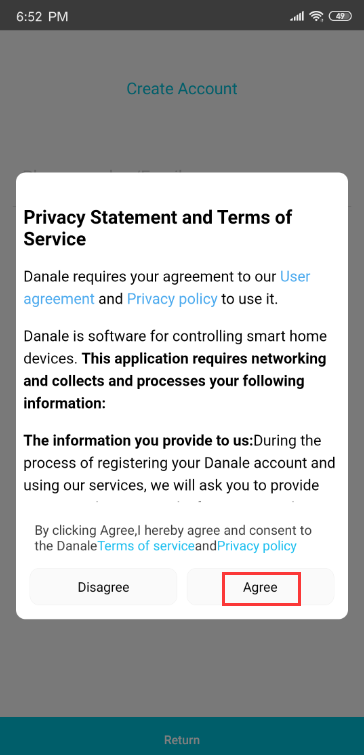
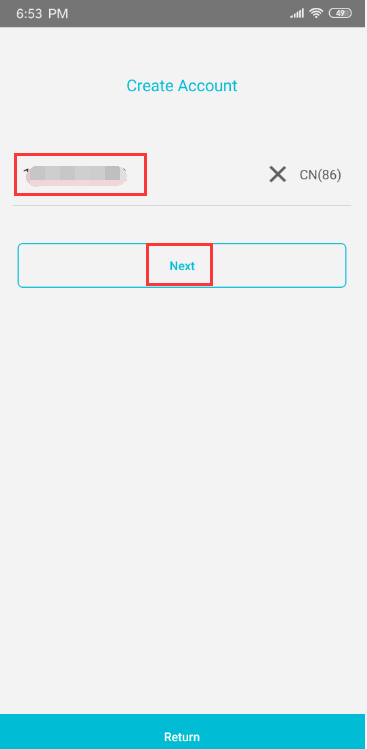
3. Next, please input the email address or the mobile phone number and click Next.
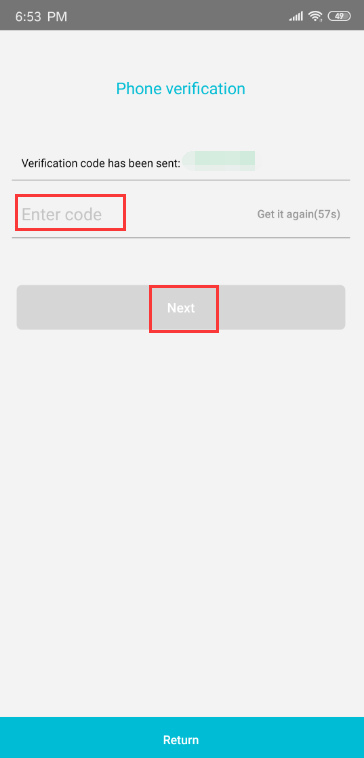
4. Next, please input the Verification Code you received and click Next again.
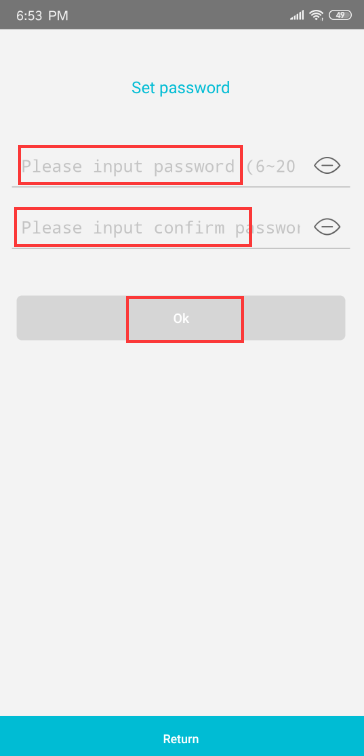
5. Finally, please create a password for your APP account and click Ok.
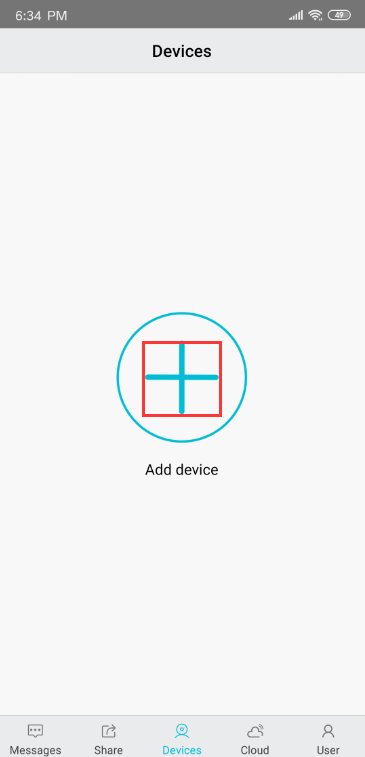
After logging into the APP, please click the '+' icon to add the camera:
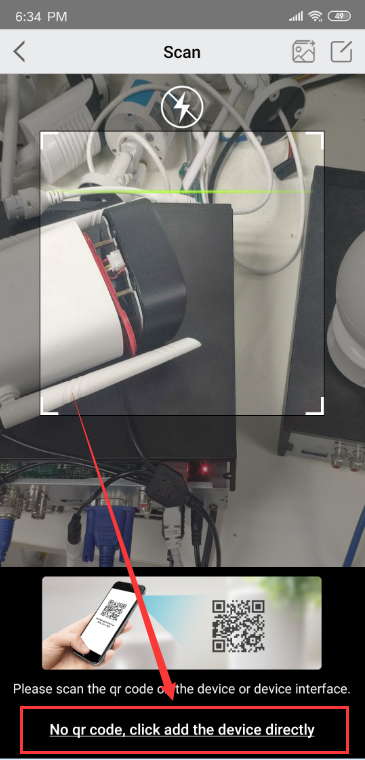
Please click the option 'No QR code, click add the device directly':
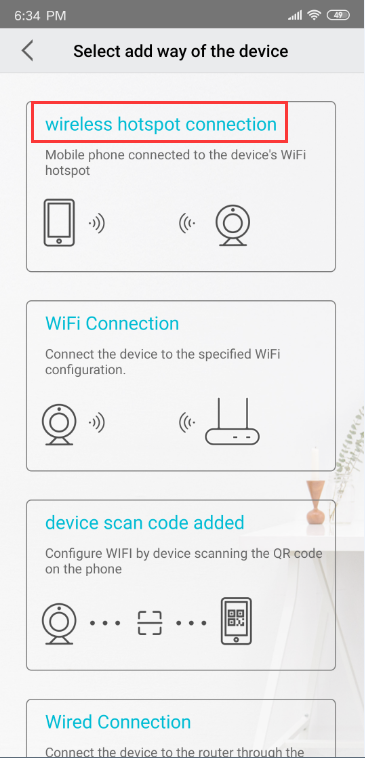
Next, please select the option 'wireless hotspot connection':
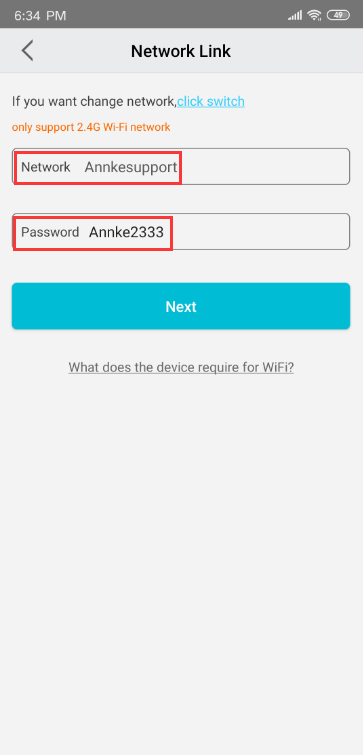
Next, please input the wifi password for your home 2.4GHz wifi network:
Note:
Please note that the camera only supports the 2.4GHz wifi, so please make sure the camera is connecting to correct wifi before the configuration. Or please click Switch to change the correct wifi.
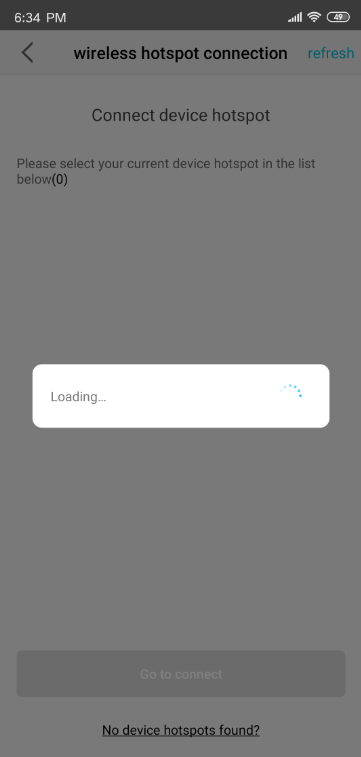
After that, the APP will load the hotspot released by the camera, and please wait for a moment:
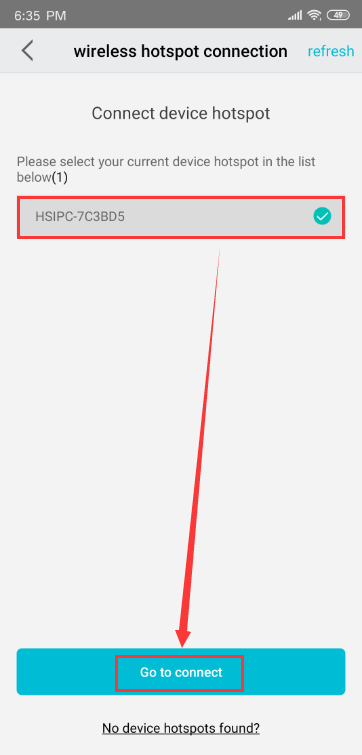
Next, please select the wireless hotspot of the camera and click Go to connect:
Note:
If the hotspot is not loaded successfully, please click refresh and try again.
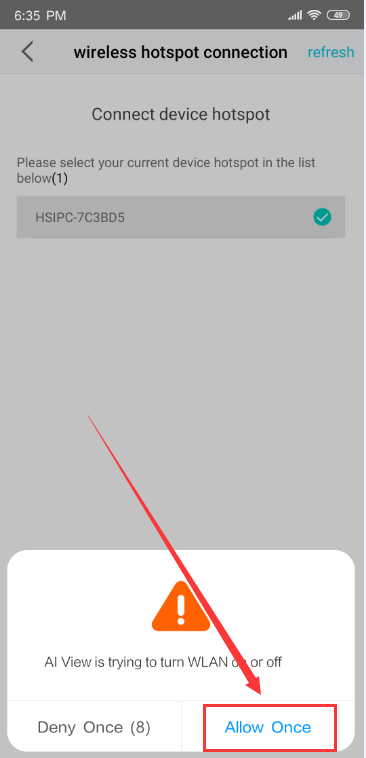
When the phone is trying to connect to the hotspot network, the APP will ask for the authentication, and please click Allow Once two times:
Next, the APP will connect to the camera and please wait for about 1 minute:
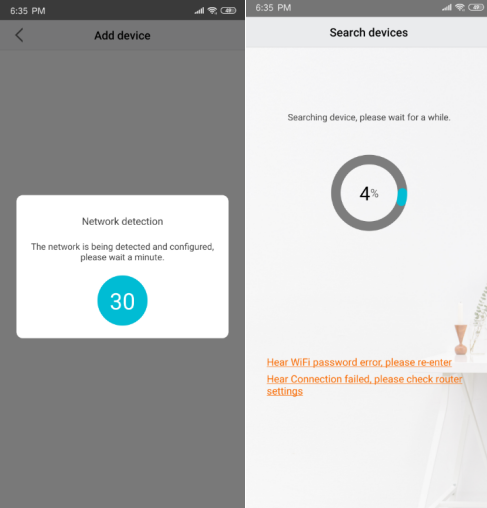
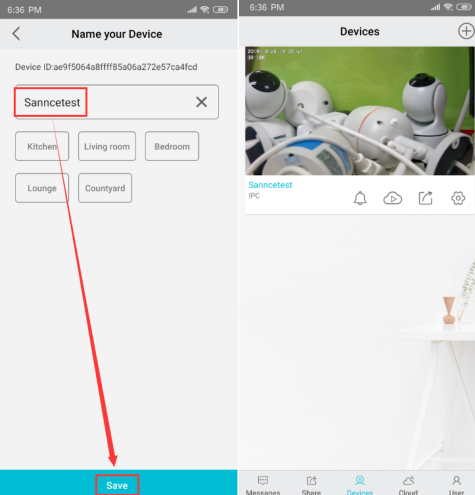
Finally, please create a name for your camera and you could live-view it on the APP:
Was this article helpful?
Bu bilgiler sorununuzu çözmeye yardımcı oldu mu?
Still need help?
Uzman ekibimiz size yardımcı olmak için burada.