Speco Silver Scanner - Web Login
20 Aug 2026
280 views
Step 1:
- Download the Speco Silver Scanner Tool @
https://www.silverbyspeco.com/silver-by-speco-scanner- Speco Silver Scanner can search for devices on the Local Network.
Please note that Speco Silver is only available for Windows PC and only scans for Speco Silver devices.
- The devices also need to be on the same "subnet" to be discovered.
Step 2:
- Open up the Speco Sliver Scanner:
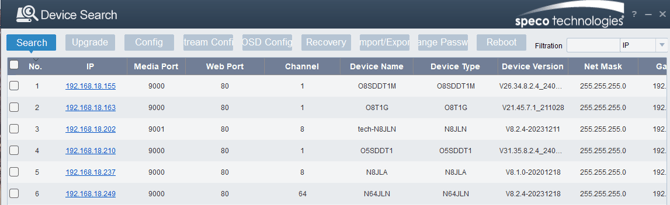
- In the device list you can view the IP address, Model number, and Mac address of each device.
- Select the applicable device and double click to open up in a web browser
Web Operation
- This device supports viewing and management via a web browser.
- Open the web browser and input the network camera IP address bar or double click the IP address in IP Scanner

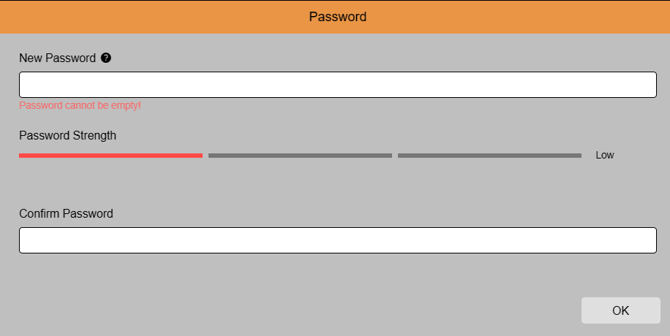
- Upon accessing the camera for the first time, a prompt to to set a NEW PASSWORD will populate.
- Enter a strong password and confirm it. Please remember the password.
- If the password is ever forgotten or misplaced, simply click on the password recovery option on the login screen for assistance.

Initial submission Date: May 3, 2024
Article Authored by: Curtis Armstrong
Step 1:
- Download the Speco Silver Scanner Tool @
https://www.silverbyspeco.com/silver-by-speco-scanner- Speco Silver Scanner can search for devices on the Local Network.
Please note that Speco Silver is only available for Windows PC and only scans for Speco Silver devices.
- The devices also need to be on the same "subnet" to be discovered.
Step 2:
- Open up the Speco Sliver Scanner:
- In the device list you can view the IP address, Model number, and Mac address of each device.
- Select the applicable device and double click to open up in a web browser
Web Operation
- This device supports viewing and management via a web browser.
- Open the web browser and input the network camera IP address bar or double click the IP address in IP Scanner
- Upon accessing the camera for the first time, a prompt to to set a NEW PASSWORD will populate.
- Enter a strong password and confirm it. Please remember the password.
- If the password is ever forgotten or misplaced, simply click on the password recovery option on the login screen for assistance.
Initial submission Date: May 3, 2024
Article Authored by: Curtis Armstrong
Was this article helpful?
Bu bilgiler sorununuzu çözmeye yardımcı oldu mu?
Thanks for your feedback!
Still need help?
Uzman ekibimiz size yardımcı olmak için burada.