Sannce Cam - How to Use IP Address to Check the Live View?
Applies to:
I21AD/I21AP/I21BK/I21AG/I21AK/I21AN/I21AS/I21AR/I21AC/I21AL/I21AH/I21BC/I31BC/I41CB/I41CG/
I41DC
1. Please use the phone app to connected the camera to the router first.
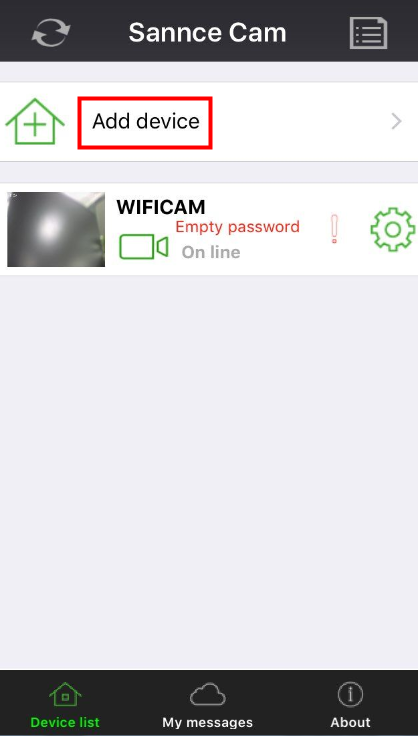
1.1 Run the APP Sannce Cam and click add device

1.2 Select Scan device QRcode/Wireless Configuration WiFi:
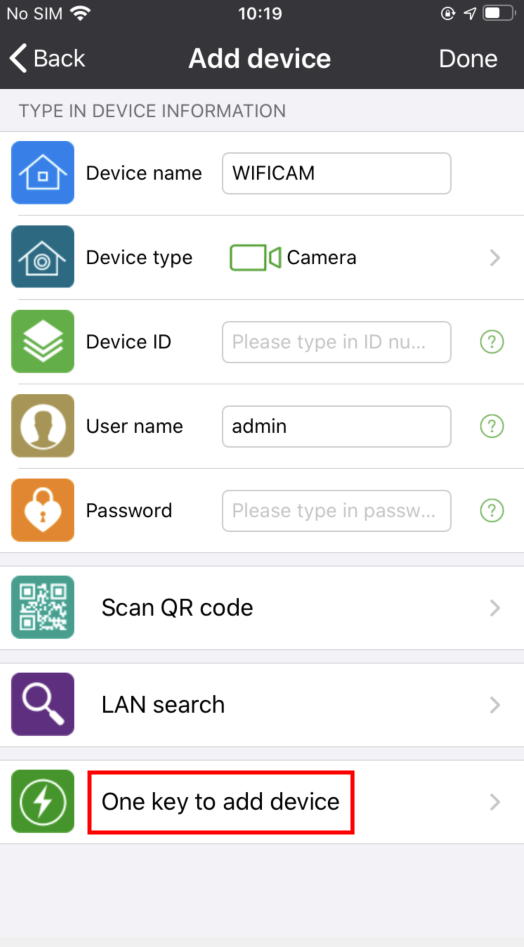
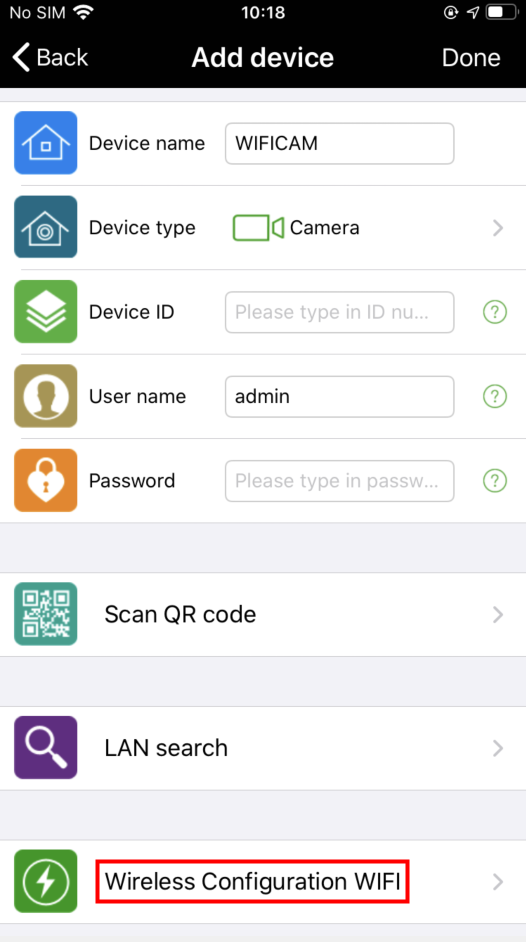
1.3 Put the camera close to the phone and make sure the situation is silent.
Input wifi password and select start configuration.
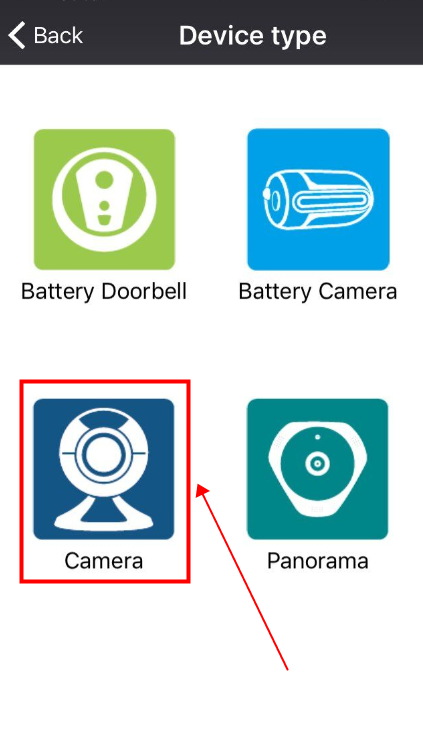
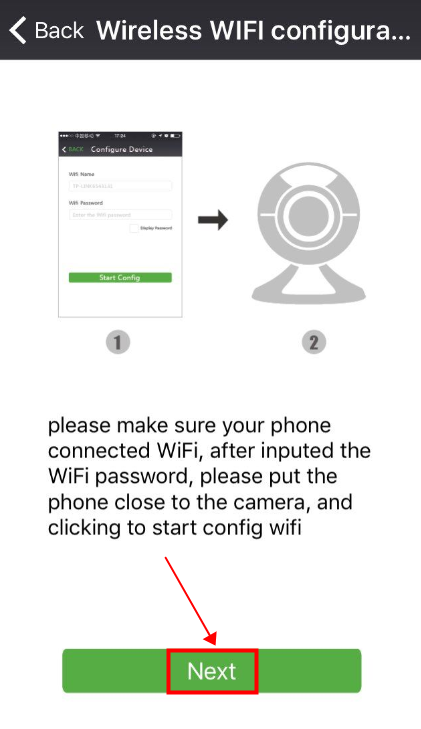
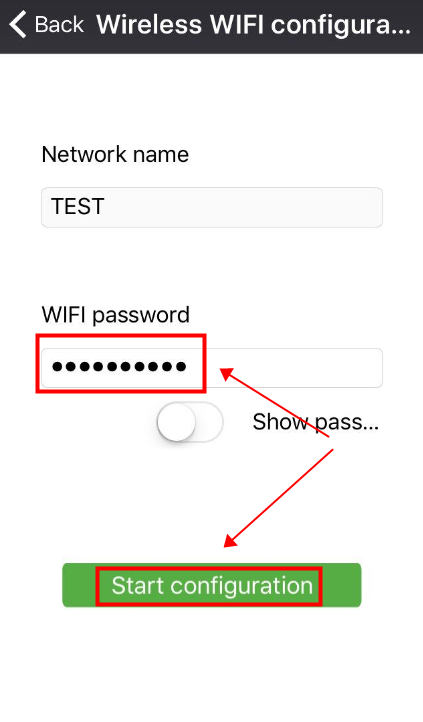
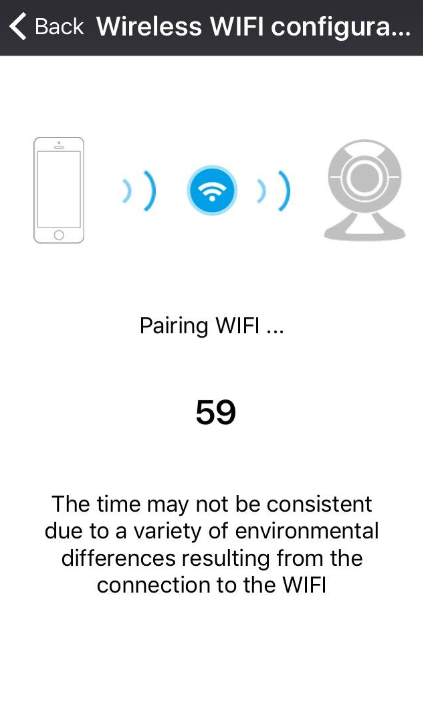
1.4 Wait for half a minute until you hear sound connection succeeds.
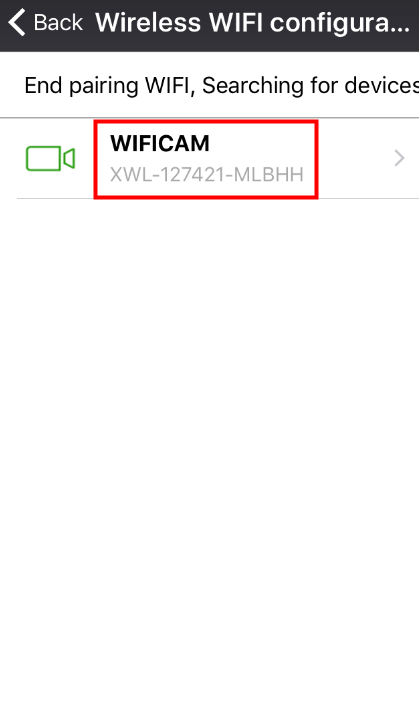
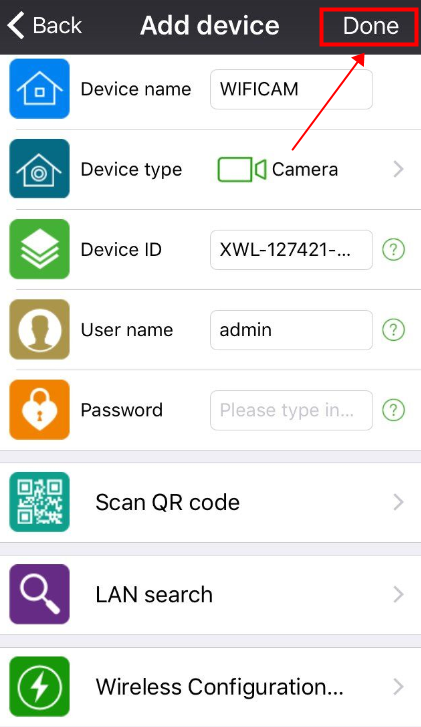
When there is a show WIFI camera means that your camera connected to the wifi.
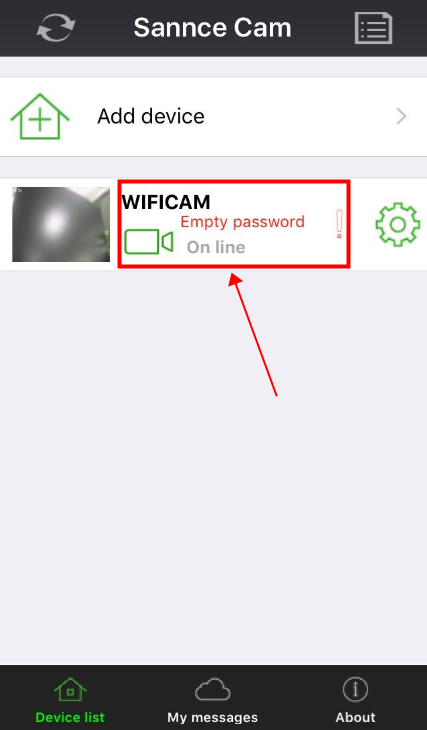
2. Use a windows computer which connected to the same router to download the IP address search tool as below:
www.sanncegroup.com/document/IPC/I21AD/tool/Search_tool4.2.exe
3. Run the tool in the computer to search the IP address
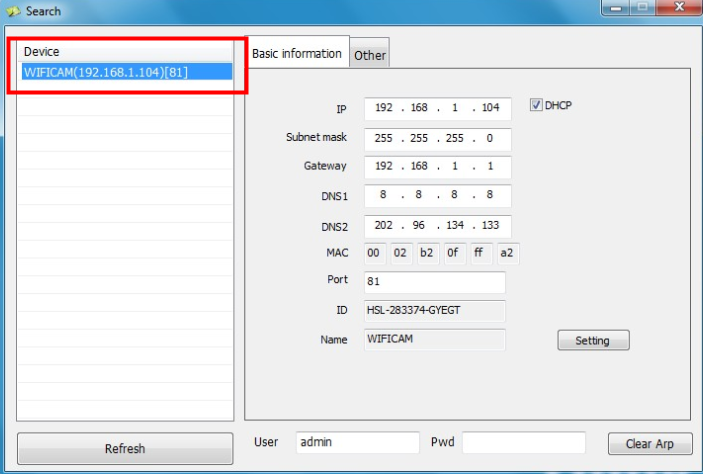
Copy the IP address and open it in the IE browser. Search the IP address via the IE browser and then you will see a login page, log in with the user name: admin and your password(if you didn’t change the password, just leave the password box blank).

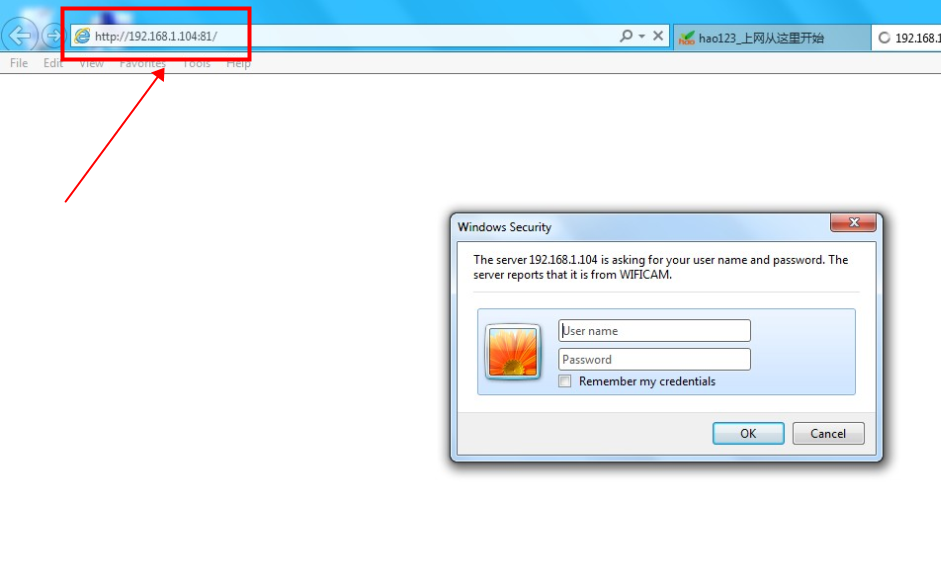
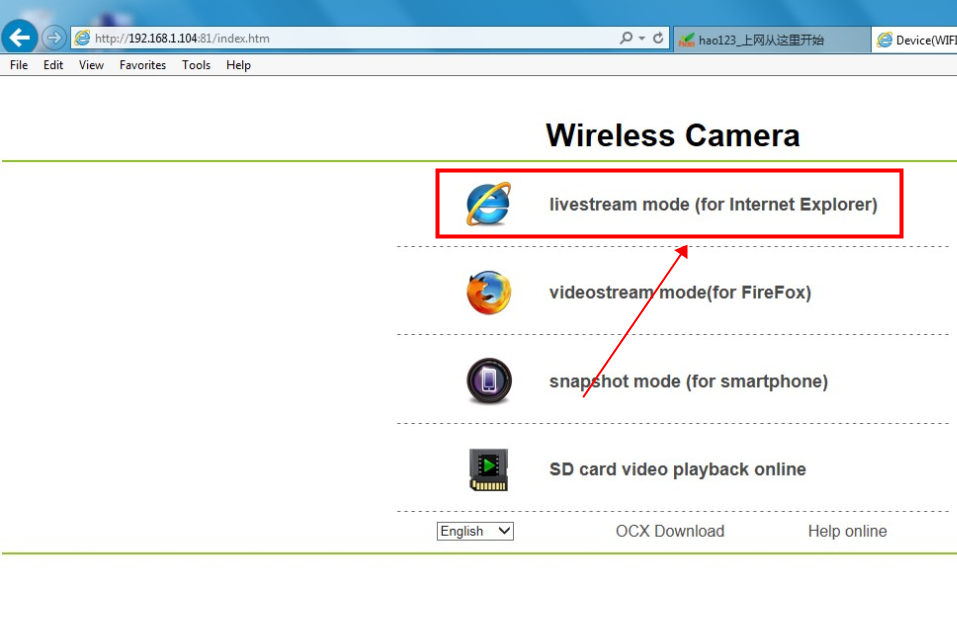
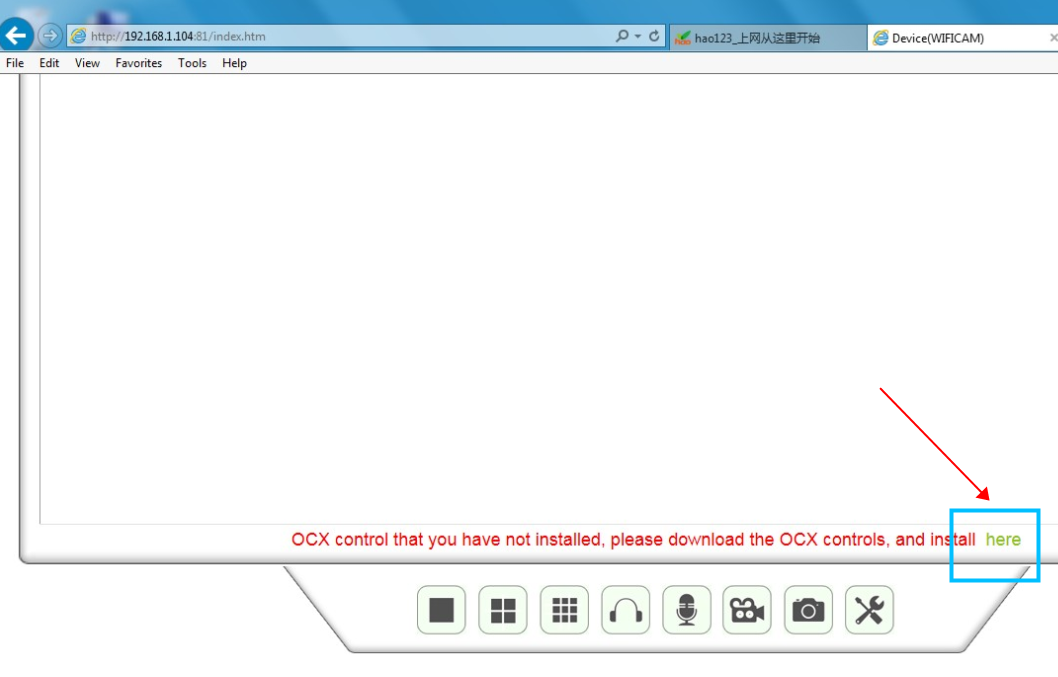
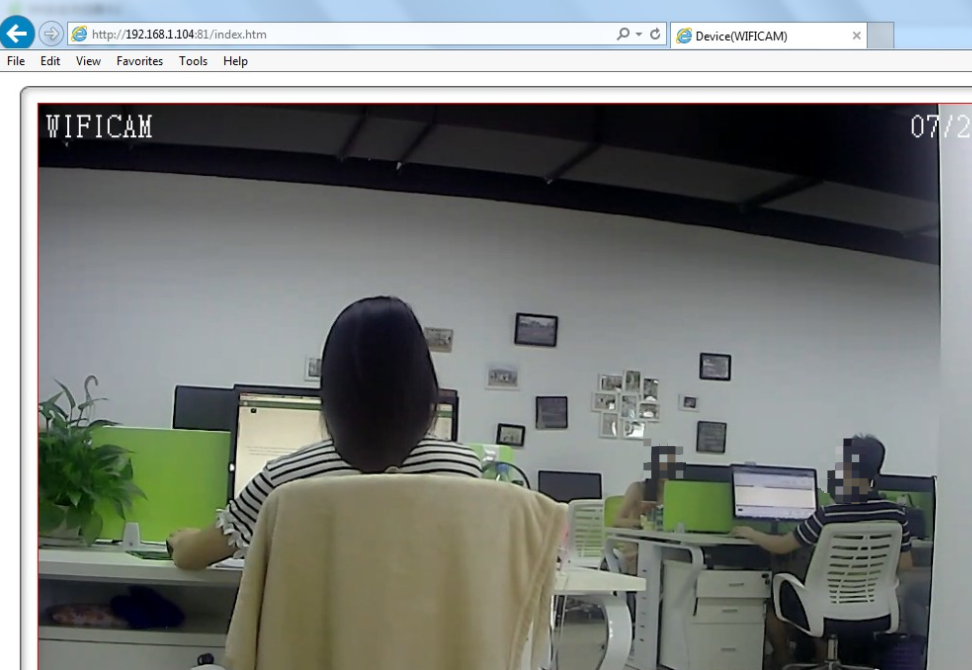
After login, you need to download a plug-in. After installing the plug-in, you will check the live view from your camera.
Was this article helpful?
Bu bilgiler sorununuzu çözmeye yardımcı oldu mu?
Still need help?
Uzman ekibimiz size yardımcı olmak için burada.