(Local) - Playback/ Search/ Smart Search
20 Aug 2026
320 views
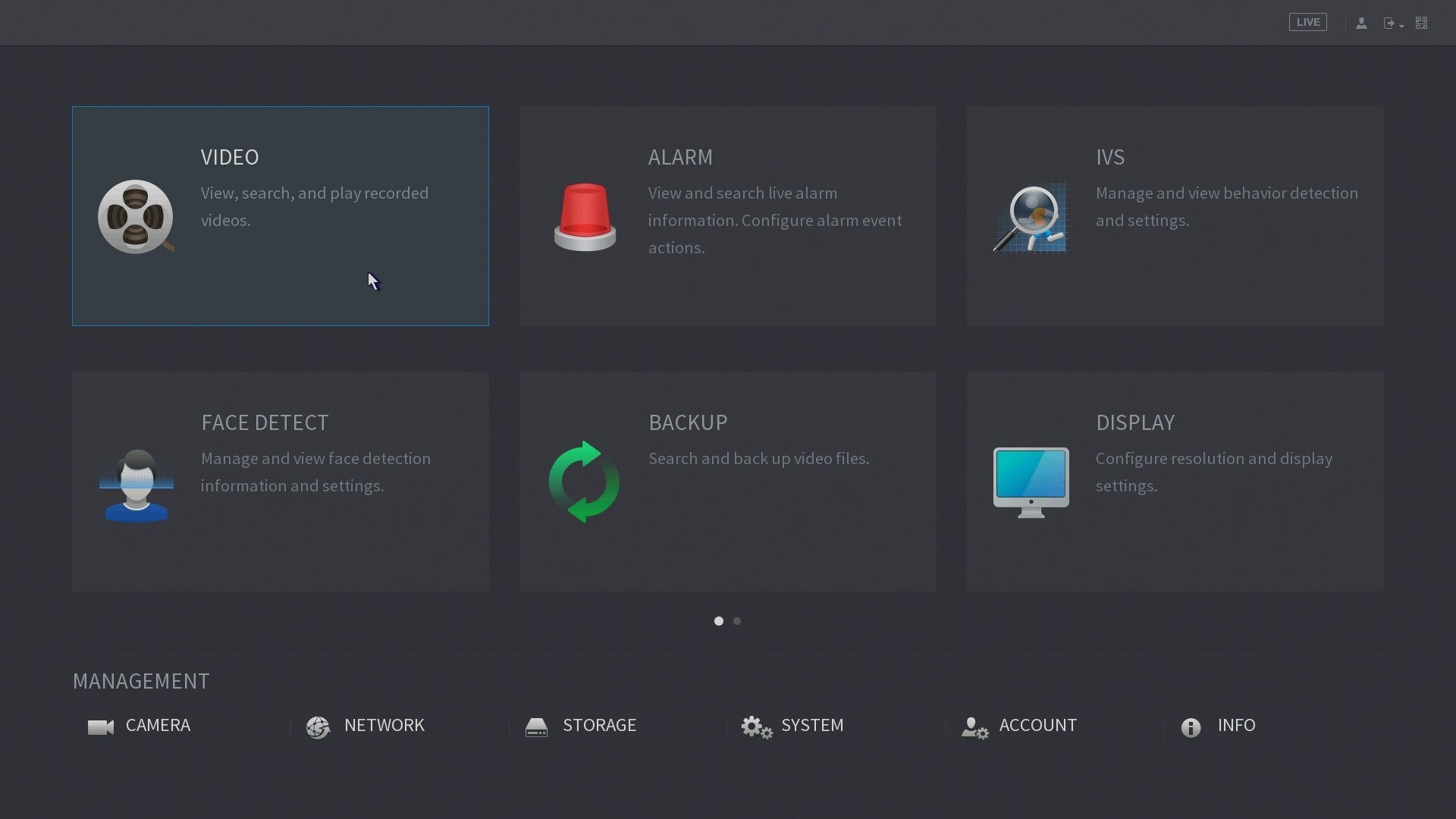
Go to Main Menu > Video
Make sure play video From R/W HDD and Record
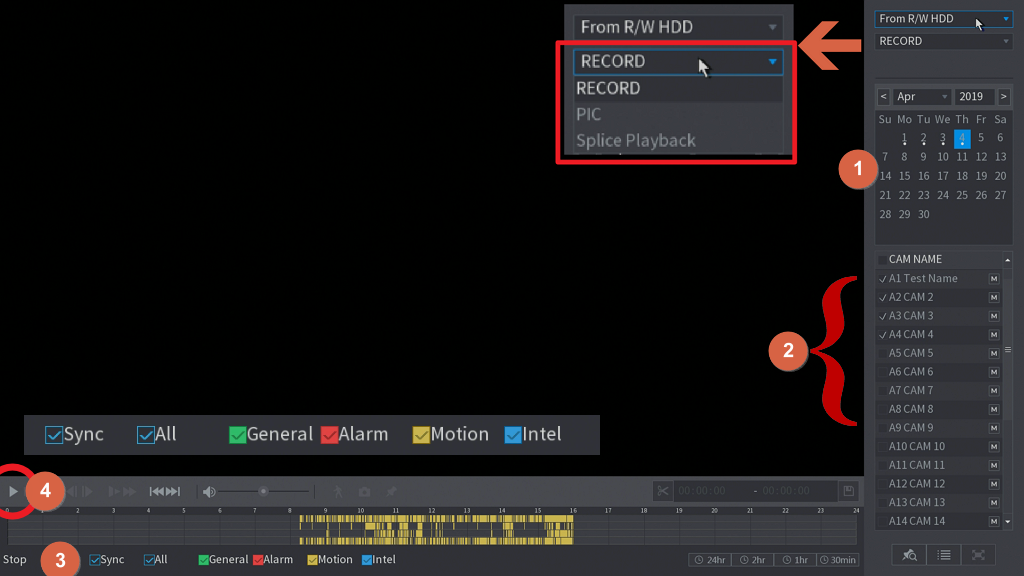
- Select Date
- Select Channel want to playback (more channels takes more time to search)
- (Optional; but please make sure the correct setting)
- Click Play button
Local - Smart Search
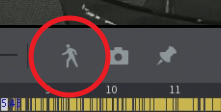
- In search interface, click the Smart Search button when playing.
- While the icon turns to Blue icon. Draw an Area from the video.
- Click the (Person) icon again, then it should work.
Clipping (Backup Video)
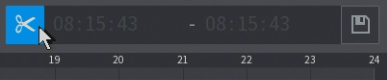
Users can clip video of any time period and backup.
- In search interface, click the scissor button when playing.
- There will be slide bars in the time bar of the corresponding channel.
Adjust the slide bar or input the accurate time to set the file end time
to choose a period to cut again. - Click the backup button and backup as previous section introduced.

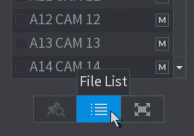
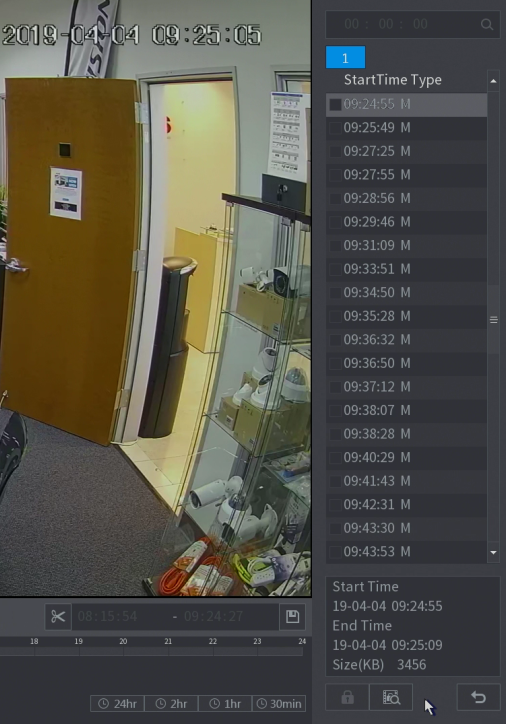
Switch to the File List mode
Click File List icon.
You can set up the Lock File / Search the Locked File (Prevent File Recycled)
Was this article helpful?
Bu bilgiler sorununuzu çözmeye yardımcı oldu mu?
Thanks for your feedback!
Still need help?
Uzman ekibimiz size yardımcı olmak için burada.