How to Upgrade Camera Firmware through a Speco Blue Recorder
20 Aug 2026
399 views
Note: This article assumes you have a thumb drive with the necessary camera firmware file(s) needed to upgrade
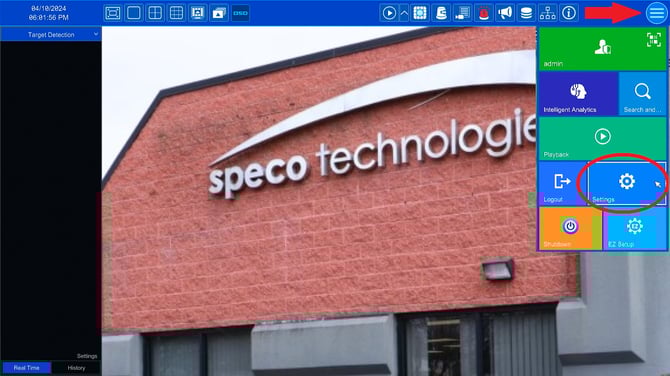
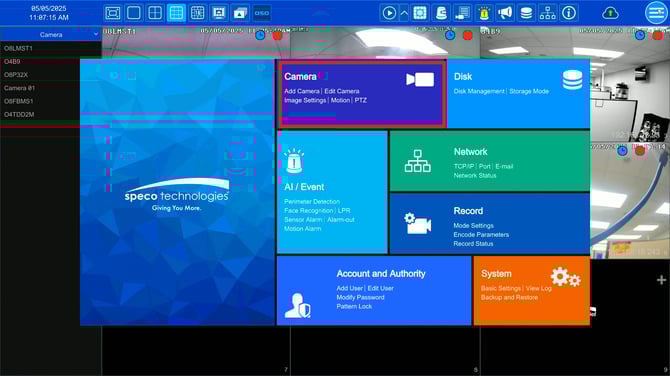
- Click the Hamburger menu ☰ > Settings > Camera
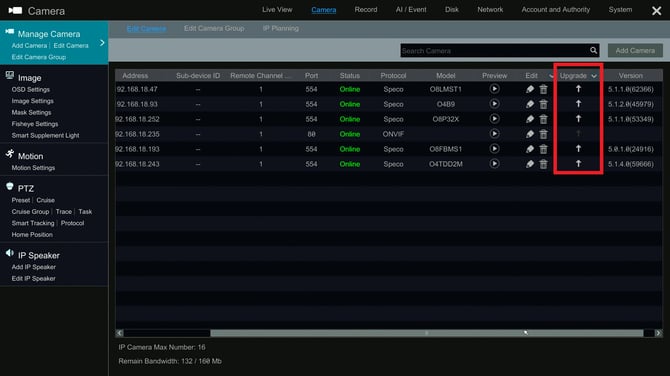
- On this page, scroll to the right to see the Upgrade column
- Click the upgrade arrow for the desired camera you want to upgrade
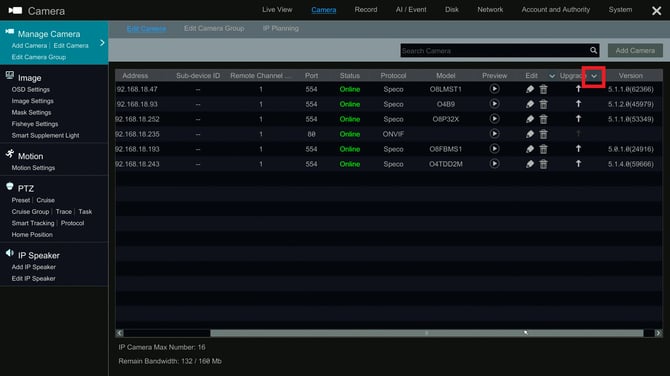
- Note: If all of the cameras the same model, click the dropdown tab and click IPC Batch Upgrade to perform a batch upgrade of all cameras
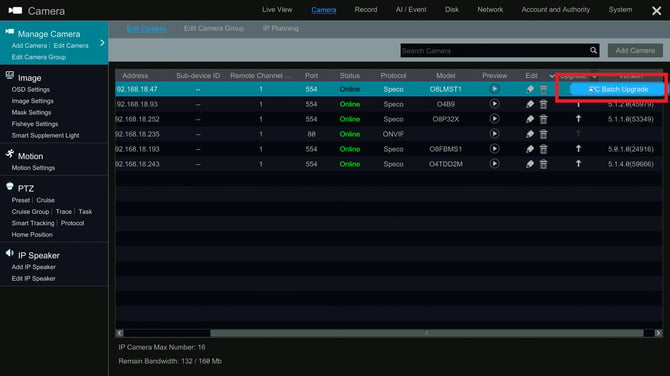
- Click the upgrade arrow for the desired camera you want to upgrade
- Click the desired firmware file from the thumb drive and click Upgrade
- Note: Make sure thumb drive is formatted to FAT32
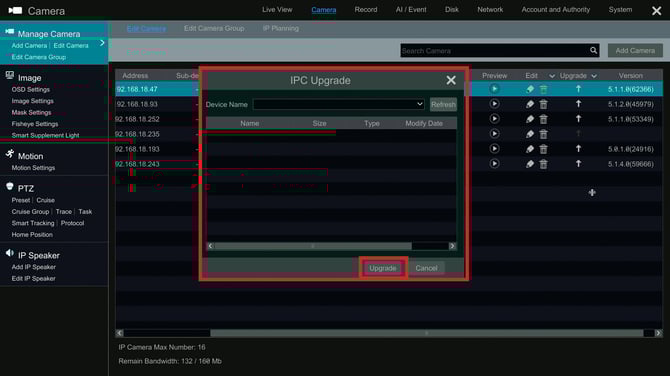
- Note: Make sure thumb drive is formatted to FAT32
- The file will upload and the camera will reboot
Initial submission Date: May 5, 2025

Article authored by: Christopher Cataldo, Technical Support Lead
Note: This article assumes you have a thumb drive with the necessary camera firmware file(s) needed to upgrade
- Click the Hamburger menu ☰ > Settings > Camera
- On this page, scroll to the right to see the Upgrade column
- Click the upgrade arrow for the desired camera you want to upgrade
- Note: If all of the cameras the same model, click the dropdown tab and click IPC Batch Upgrade to perform a batch upgrade of all cameras
- Click the upgrade arrow for the desired camera you want to upgrade
- Click the desired firmware file from the thumb drive and click Upgrade
- Note: Make sure thumb drive is formatted to FAT32
- Note: Make sure thumb drive is formatted to FAT32
- The file will upload and the camera will reboot
Initial submission Date: May 5, 2025

Article authored by: Christopher Cataldo, Technical Support Lead
Was this article helpful?
Bu bilgiler sorununuzu çözmeye yardımcı oldu mu?
Thanks for your feedback!
Still need help?
Uzman ekibimiz size yardımcı olmak için burada.