How to setup Speco Access Control Panels in a Server/Client configuration
20 Aug 2026
404 views
- Log into the Server Control panel
- Reference the Quick Start Guide here, for logging into the panel for the first time
- Logging in for the first time, you will be directed to the license page.
- Here, you will find the MAC address of the panel displayed, while other fields will appear blank.
- Below this information, you will see options for Network Settings, Edit, and Print.
- Click on the "Edit" button
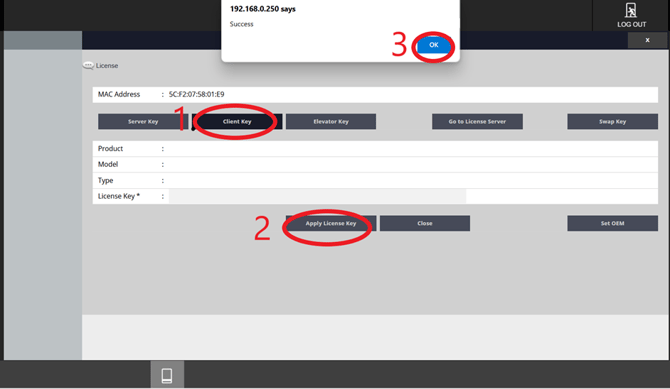
- Click on "Client Key", then click "Apply License Key".
- After doing so, a confirmation box will appear displaying the message “192.168.0.250 says Success.”
- Click "OK" then click, "Apply License Key" button once more to finalize the process.
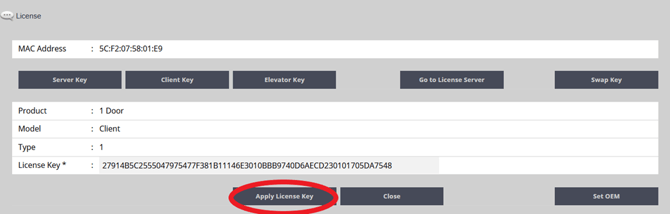
- Next, a new page will pop up where you will need to enter the identical information that was previously input into the server panel.
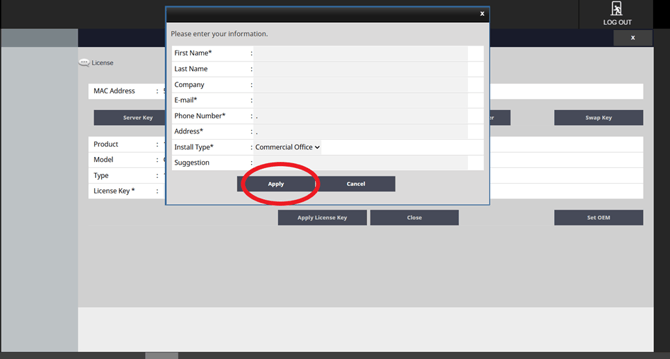
- After entering the required information, click on the "Apply" button to submit the changes.
- A confirmation message will appear, indicating that the panel has been successfully registered as a client panel.
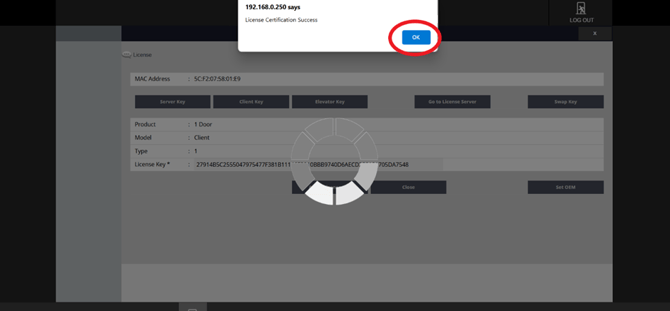
- After clicking "OK," select "Close" to return to the main license page.
- From there, proceed to click on "Network Settings" to continue configuring your device.
-
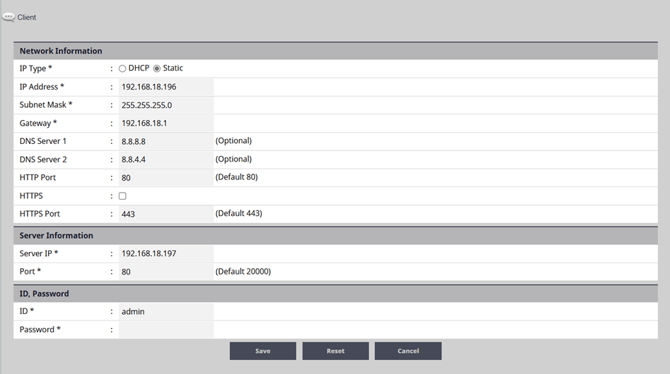
Under the "Network Information" section, manually assign an IP address to the client panel, ensuring it is configured to connect to the network effectively.
- Following this, navigate to the "Server Information" fields.
- In the "Server IP*" field, enter the IP address of the server panel.
- In the "Port*" field, input the HTTP port number of the server panel.
- In the "ID" and "Password" section, provide the login credentials for the server panel.
- Once you have filled in all the required fields, click the "Save" button.
-
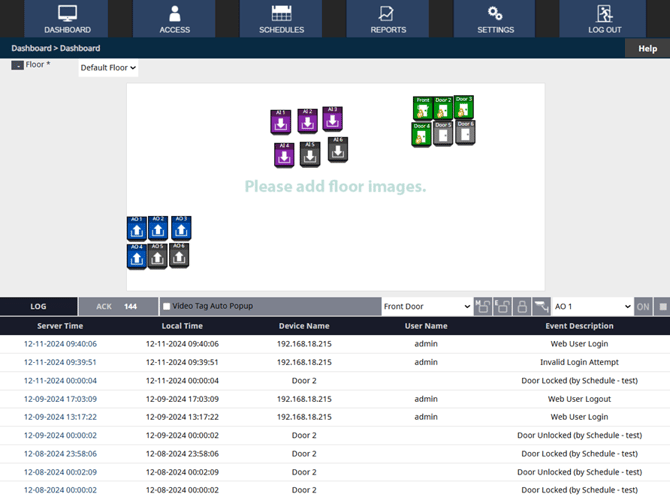
Next, log into the server panel.
-
This action will direct you to the dashboard, where you can manage and configure the server settings effectively.
-
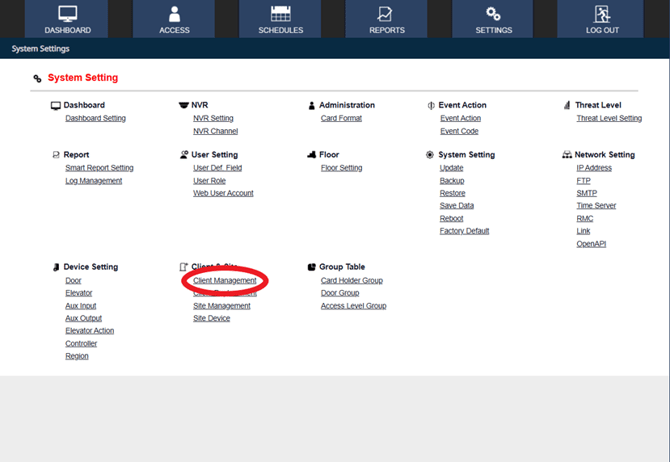
- Go to Settings > Client Management
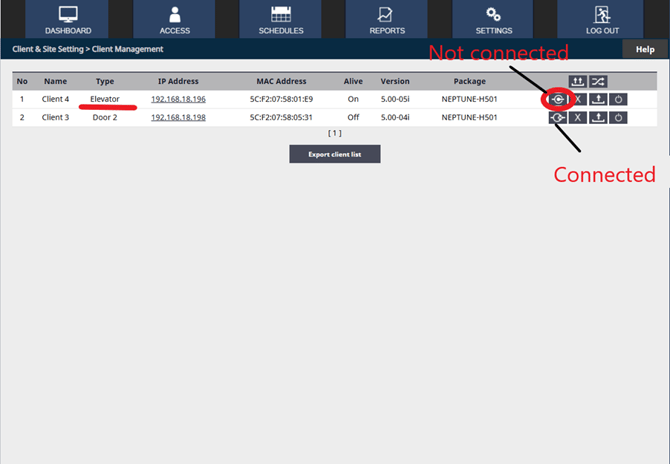
- This page shows a list of all client panels that are currently linked to the Server Panel.
- To the right of this list, you will find four icons that represent different action options. The first icon functions as the connect/disconnect button.
- Initially, this button displays a disconnected status. When you click on it to establish a connection, the client panel will successfully link to the server, and you will observe the corresponding door of the client panel appearing on the Server Panel dashboard.
- This step effectively completes the connection process between the client panel and the server panel.
Initial submission Date: December 30, 2024

Article authored by: Jacob Brenner, Tier 1

Article Revised by: Christopher Cataldo, Technical Support Lead
- Log into the Server Control panel
- Reference the Quick Start Guide here, for logging into the panel for the first time
- Logging in for the first time, you will be directed to the license page.
- Here, you will find the MAC address of the panel displayed, while other fields will appear blank.
- Below this information, you will see options for Network Settings, Edit, and Print.
- Click on the "Edit" button
- Click on "Client Key", then click "Apply License Key".
- After doing so, a confirmation box will appear displaying the message “192.168.0.250 says Success.”
- Click "OK" then click, "Apply License Key" button once more to finalize the process.
- Next, a new page will pop up where you will need to enter the identical information that was previously input into the server panel.
- After entering the required information, click on the "Apply" button to submit the changes.
- A confirmation message will appear, indicating that the panel has been successfully registered as a client panel.
- After clicking "OK," select "Close" to return to the main license page.
- From there, proceed to click on "Network Settings" to continue configuring your device.
-
Under the "Network Information" section, manually assign an IP address to the client panel, ensuring it is configured to connect to the network effectively.
- Following this, navigate to the "Server Information" fields.
- In the "Server IP*" field, enter the IP address of the server panel.
- In the "Port*" field, input the HTTP port number of the server panel.
- In the "ID" and "Password" section, provide the login credentials for the server panel.
- Once you have filled in all the required fields, click the "Save" button.
-
Next, log into the server panel.
-
This action will direct you to the dashboard, where you can manage and configure the server settings effectively.
-
- Go to Settings > Client Management
- This page shows a list of all client panels that are currently linked to the Server Panel.
- To the right of this list, you will find four icons that represent different action options. The first icon functions as the connect/disconnect button.
- Initially, this button displays a disconnected status. When you click on it to establish a connection, the client panel will successfully link to the server, and you will observe the corresponding door of the client panel appearing on the Server Panel dashboard.
- This step effectively completes the connection process between the client panel and the server panel.
Initial submission Date: December 30, 2024

Article authored by: Jacob Brenner, Tier 1

Article Revised by: Christopher Cataldo, Technical Support Lead
Was this article helpful?
Bu bilgiler sorununuzu çözmeye yardımcı oldu mu?
Thanks for your feedback!
Still need help?
Uzman ekibimiz size yardımcı olmak için burada.