DR41BC - How to Connect the System to Mobile APP
Apply to: DR41BC
1. Please configure the DVR network first, Please connect your DVR to the internet, you need to have the ethernet cable for the connection.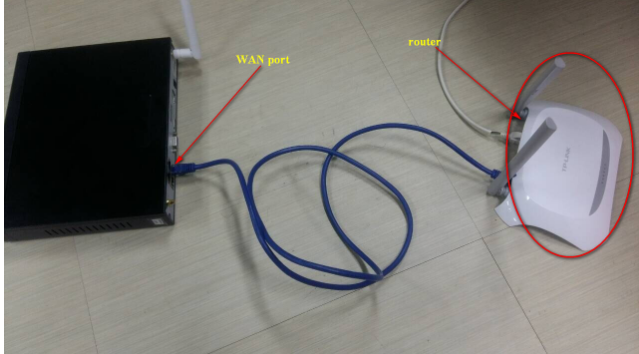
Make sure the P2P status is correct. Please go to the DVR menu Main Menu --System --Network --P2P. Please make sure the status is "Internet ready" 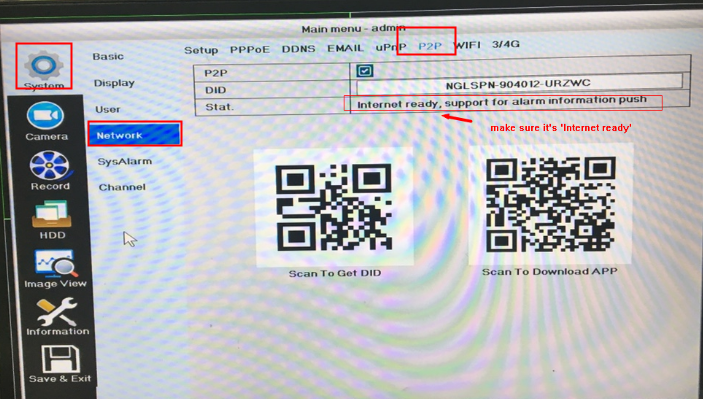
If the status is not correct, Kindly please double confirm your connection or IP setting.
2. Download the correct APP "P6SLite".
For iPhone, Kindy please download from Apple Store.
For Andriod, you can download from Google Play or you can directly download from here:
http://support.annke.com/document/APP/P6SLite.apk
3. Please register your own account first. It is very important for you to have your own account.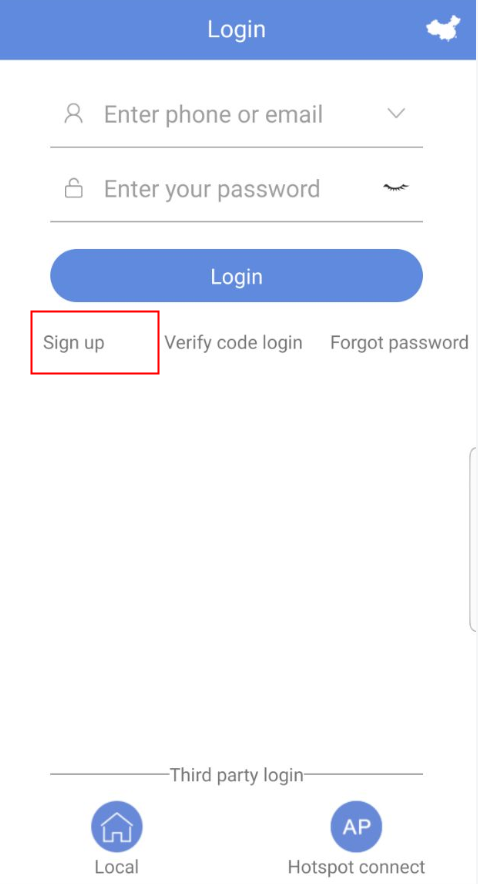
4. Click "+" and select "QR code" to do the system adding, Scan the QR code from the DVR menu in this route: Main Menu -- System -- Network -- P2P", then input the correct DVR password. 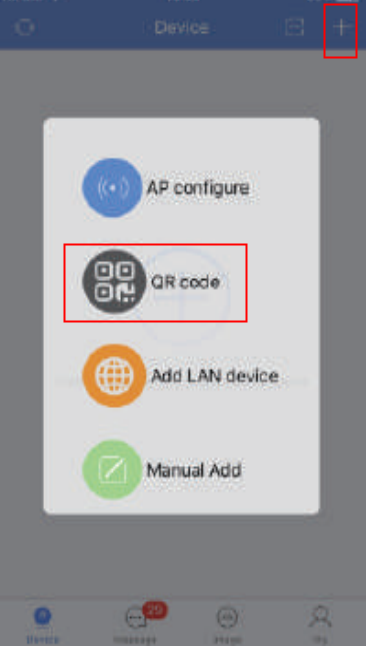
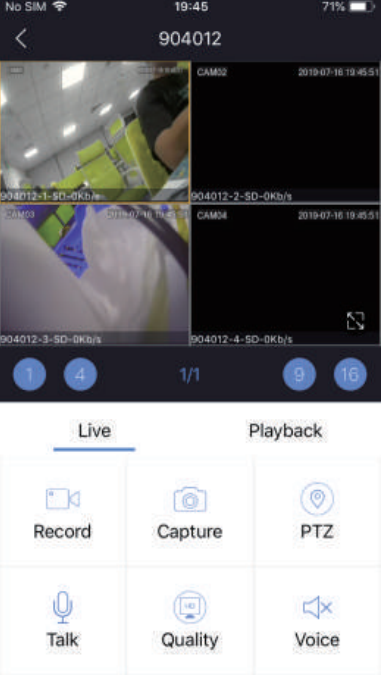
5. Click the play icon to view the DVR video.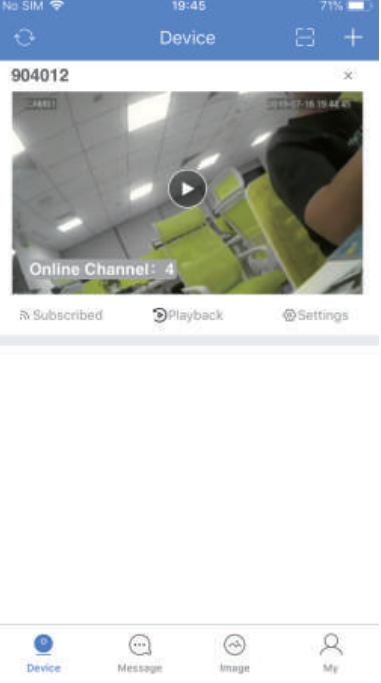
Was this article helpful?
Bu bilgiler sorununuzu çözmeye yardımcı oldu mu?
Still need help?
Uzman ekibimiz size yardımcı olmak için burada.