Dahua - IPC - Changing the Password on the V5.0 GUI for IPC
20 Aug 2026
416 views
For enhanced protection, adhere to the following password criteria:
- Minimum length of 8 characters
- At least one lowercase letter (e.g., 'a')
- At least one uppercase letter (e.g., 'A')
- At least one numeric digit (e.g., '1')
- At least one symbol (e.g., '!')
Example: HIgh91!?
Step-by-Step Instructions:
Step 1: Accessing the Camera's Web Interface
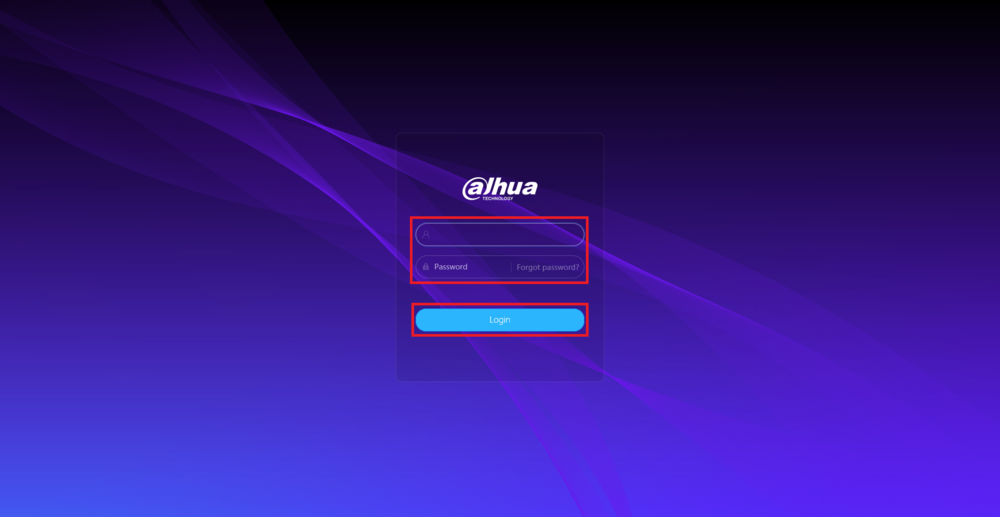
- Open a web browser and enter the camera's IP address.
- Input the current username and password for the camera.
- Click the Login button to access the interface.
Step 2: Navigating to System Settings
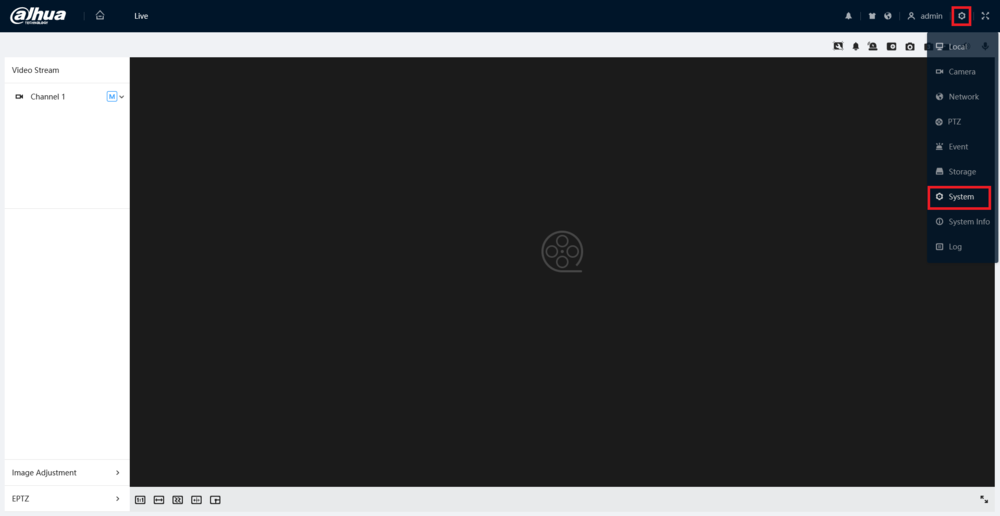
- Click on the Gear icon located in the top right corner.
- From the dropdown list, select the System option.
Step 3: Editing User Account Password
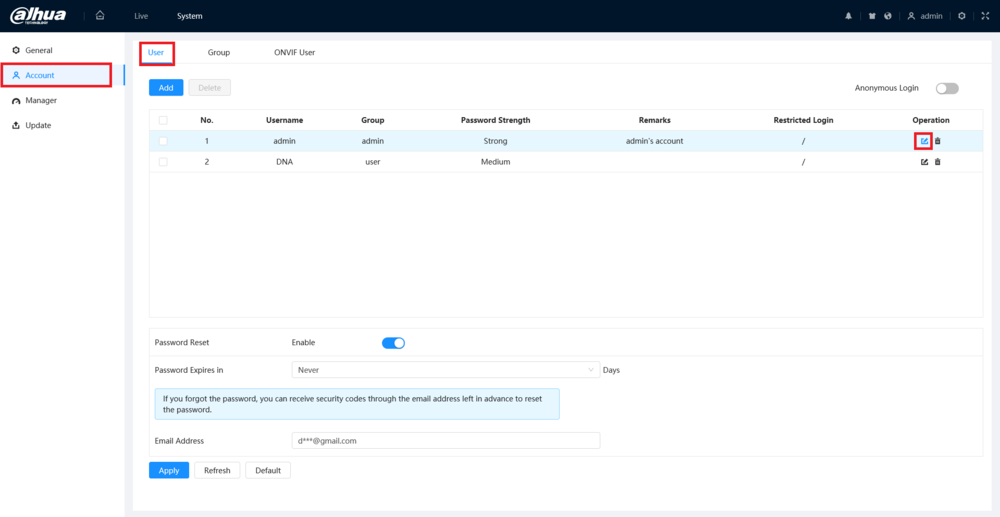
- On the left-hand side, choose the Account option.
- Then, at the top, select the User tab.
- Click the Edit (Pencil) icon next to the user account whose password you wish to modify.
Step 4: Changing the Password
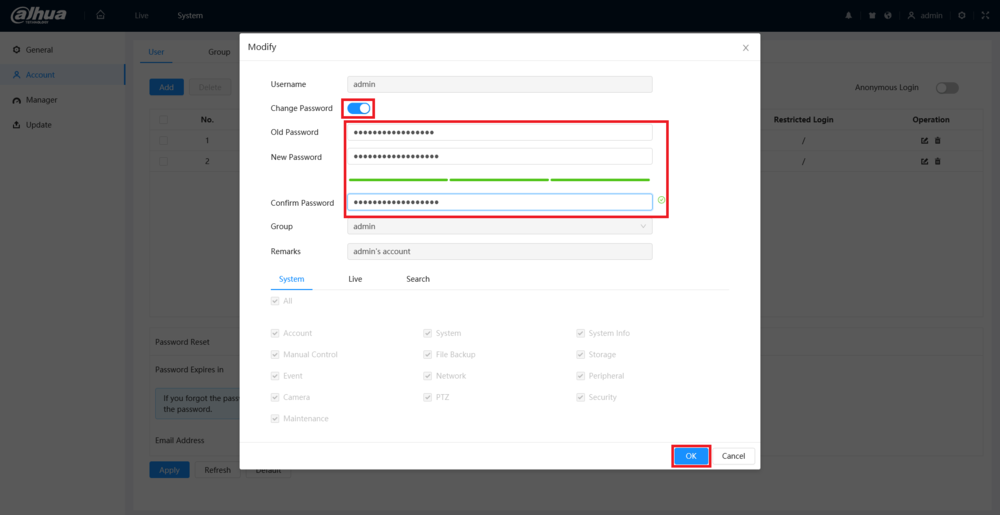
- Slide the Change Password toggle to enable password modification.
- Enter the current password in the Old Password field.
- Input the desired new password in both the New Password and Confirm Password fields.
- Click the OK button at the bottom to confirm the changes.
Step 5: Verifying Password Modification
- Upon successful password change, you will see the message "Modify User Succeeded" displayed at the top.
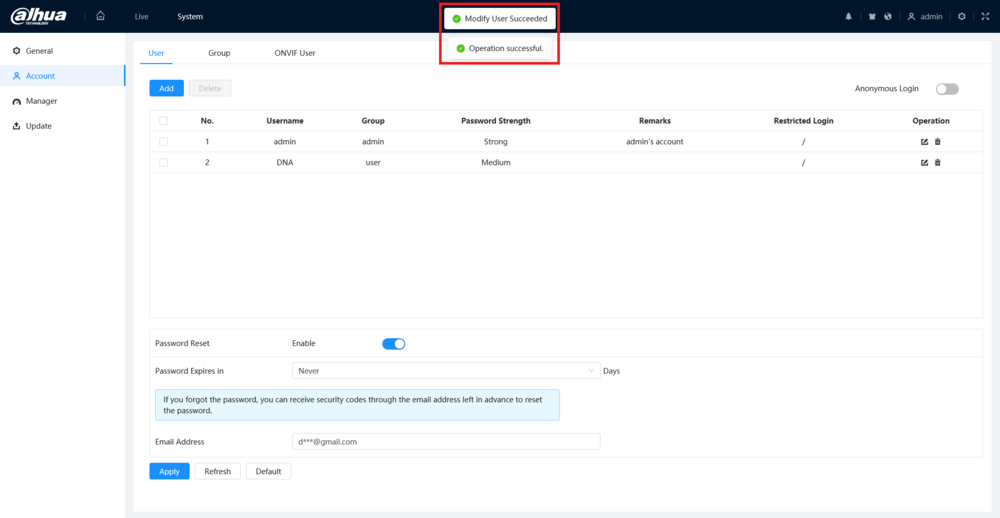
Please ensure that you follow these steps carefully to update your IP Camera's password. This will contribute to maintaining a secure and protected surveillance system.
Was this article helpful?
Bu bilgiler sorununuzu çözmeye yardımcı oldu mu?
Thanks for your feedback!
Still need help?
Uzman ekibimiz size yardımcı olmak için burada.