Annke Vision - Set up OSD Settings on Annke DVR/NVR
Applies to: DT41Y/DT61Y/DT81Y/DN41R/DN61R/DN81R/DT41GB/DT81GB/DT61GB/DT41DB/DT81DB/DT61EQ/DW41JD/DW81KD/DW61LD/DT81DP/N48PI/N44PI/N46PI/N44PAM/N48PAW/N46PCK/N88PCH/N441Y/N481Y/S500/S300/FC200/NCK800/H800/H500/E500/E800
Purpose: You can configure the OSD (On-screen Display) settings for the camera, including date /time, camera name, etc.
Before you start:
- You have logged in to your device.
- Click Menu > Camera management> OSD.
Interface: Enter into the OSD Configuration page.
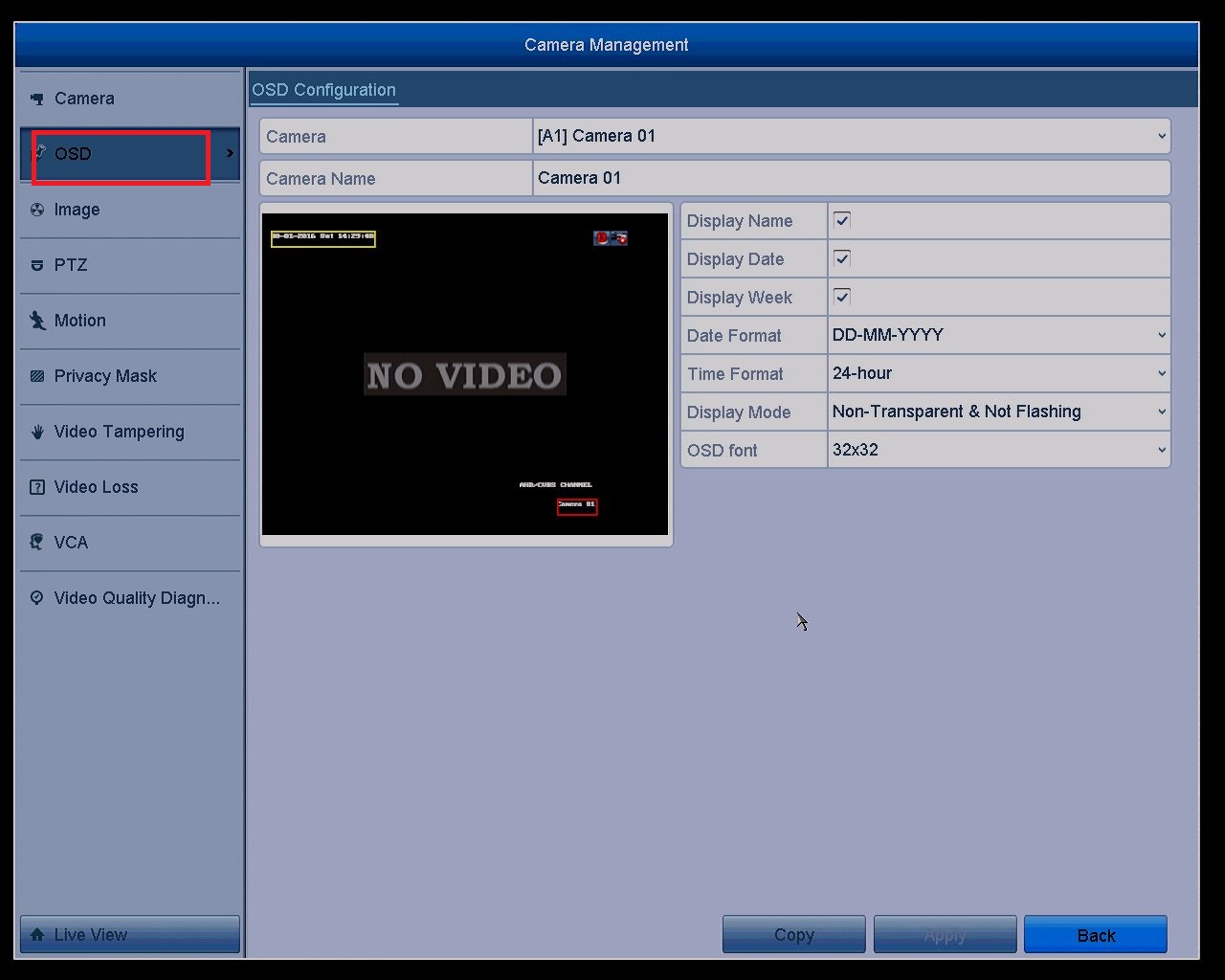
Camera: Select the camera to configure OSD settings
Camera Name: You can edit the Camera Name in the text field
Configure the items: (such as Display Name, Display Date, Display Week) by checking the checkbox
Date Format: Three types for you to choose, DD-MM-YYYY, MM-DD-YYYY, YYYY-MM-DD
Time Format: Two types for you to choose, 24-hour, 12-hour
Display Mode: Four types for you to choose, Transparent&Flashing, Transparent&Not Flashing, Non-Transparent&Flashing, Non-Transparent&Non-Flashing
OSD font: Three types for you to choose, 16x16, 32x32, 64x64
Copy: You can copy the OSD settings of the current camera to other cameras
Apply: Click Apply to save settings
Was this article helpful?
Bu bilgiler sorununuzu çözmeye yardımcı oldu mu?
Still need help?
Uzman ekibimiz size yardımcı olmak için burada.