Annke Vision - Introduction to the Live View Screen On the Web Interface
Applies to: DT41Y/DT61Y/DT81Y/DN41R/DN61R/DN81R/DT41GB/DT81GB/DT61GB/DW41JD/DW81KD/DW61LD/DT81DP/N48PI/N44PI/N46PI/N44PAM/N48PAW/N46PCK/N88PCH/S500/S300/FC200/NCK800/H800/H500/E500/E800/
I91BK/I81HB/I51DD/I51DL/I51DN/I51DM/I51DP/I91BF/I91BG/I91BM/I91BN/I91BL/I41BK/C500/C800
Purpose:
The live view screen on the Web interface allows us to monitor cameras lively on the computer.
Annke Vision - How to Access DVR/NVR System on Computer Browser with Its IP Locally?
Annke Vision -- How to Access the Web interface of ANNKE PoE Cameras via Browser? (Without NVR)
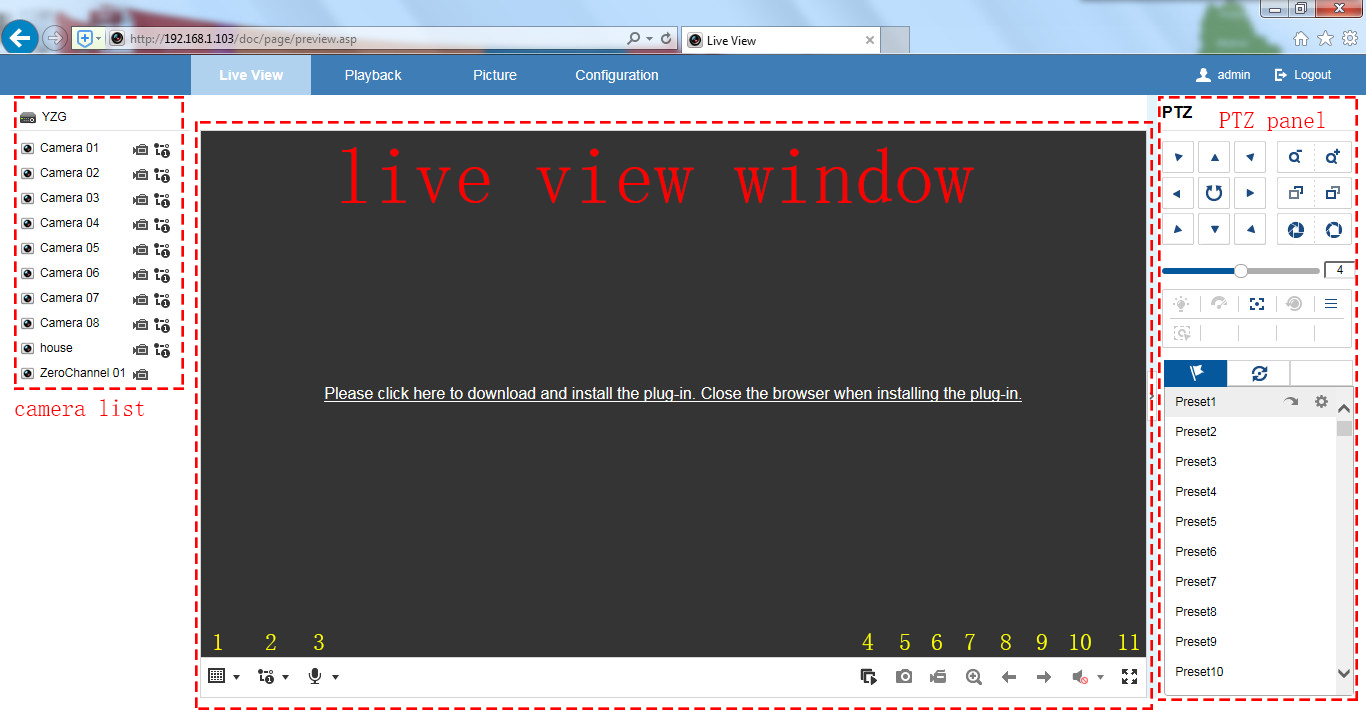
live view window
After installing the plug-in, we can watch the camera live view here. To begin, click the icon 'Start Live View' at the bottom-right corner.
List of live view buttons: (from left to right)
1. Change window layout (1/4/8/9/16/32)
2. Switch between mainstream/sub-stream
3. Begin/Stop two-way audio
4. Start Live View/Stop Live View
5. Take screenshots
6. Manual record
7. Digital zoom
8. Previous screen
9. Next screen
10. Enable/Disable audio
11. Fullscreen/back to the window
Camera list
Showing the cameras' live view status and their stream Type.
(1=mainstream, 2=sub-stream).
PTZ panel
Allow us the control the camera's PTZ function. Only applies to PTZ cameras.
If this article is helpful to you, please click the "helpful" button after you review it. Any comments would be appreciated.
Was this article helpful?
Bu bilgiler sorununuzu çözmeye yardımcı oldu mu?
Still need help?
Uzman ekibimiz size yardımcı olmak için burada.