Annke Vision - How to Rename the Cameras in Annke system?
Applies to: DT41Y/DT61Y/DT81Y/DN41R/DN61R/DN81R/DT41GB/DT81GB/DT61GB DW41JD/DW81KD/DW61LD/DT81DP/N48PI/N44PI/N46PI/N44PAM/N48PAW/N46PCK/N88PCH/S500/S300/FC200/NCK800/H800/H500
Purpose:
Below are the procedures to rename the cameras via different accesses:
Via TV/Monitor:
1. Please login to the Annke system, move the mouse cursor to the top of the screen,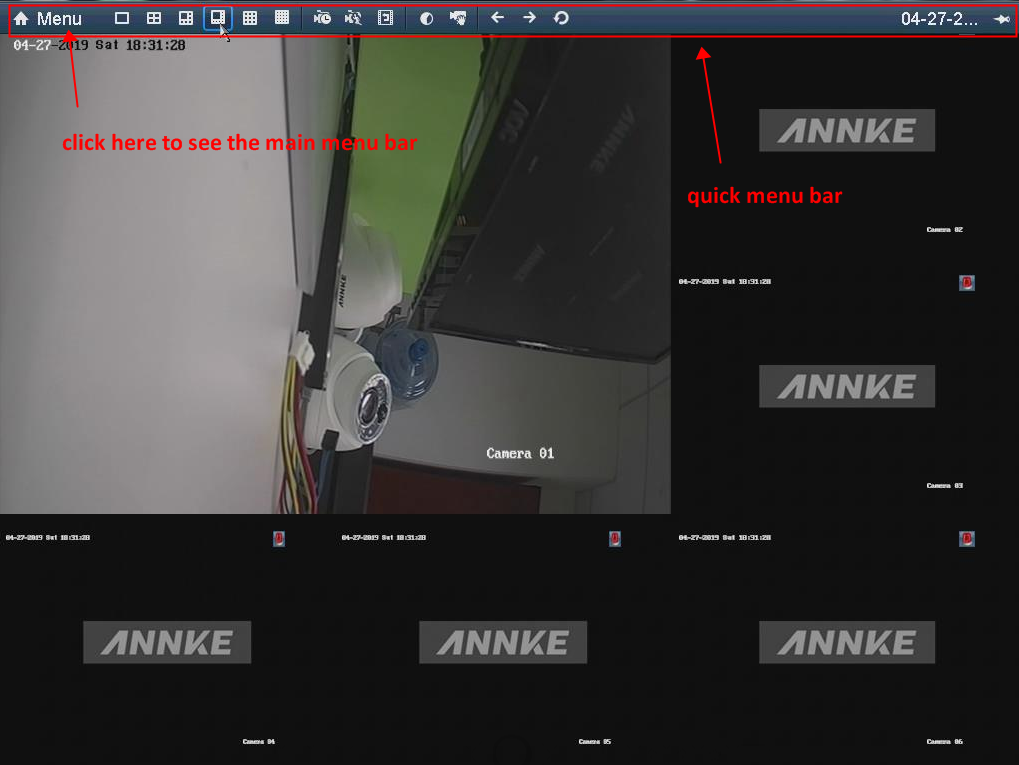
2. Go to Menu--Camera--OSD--OSD configuration.
Click on 'Camera' to choose a camera channel, then input the new name in 'Camera name', click 'Apply' to save the setting.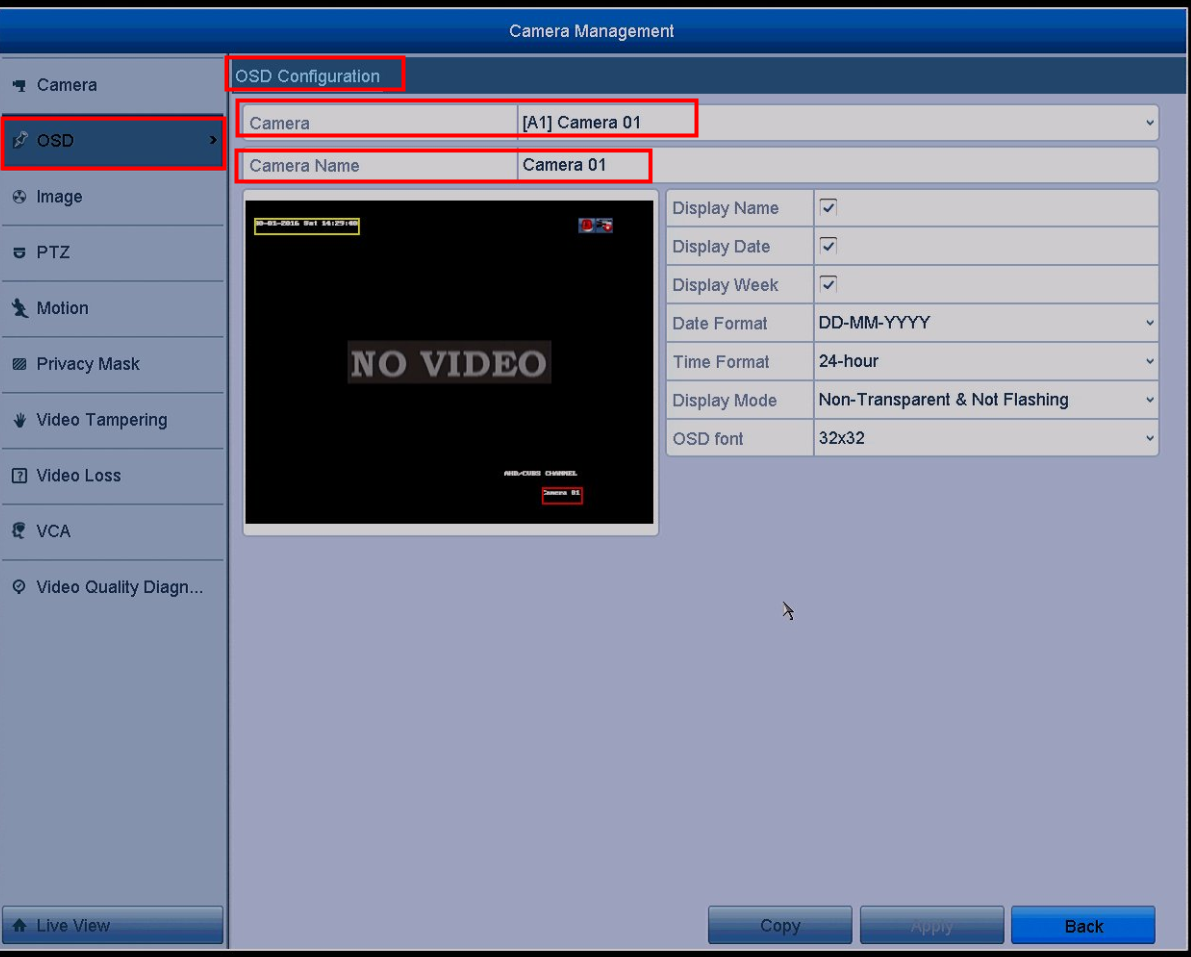
Via mobile APP (Annke Vision):
1. Log into the Annke Vision app, go to Annke Vision screen, swap on the added device to the right to see the setting icon.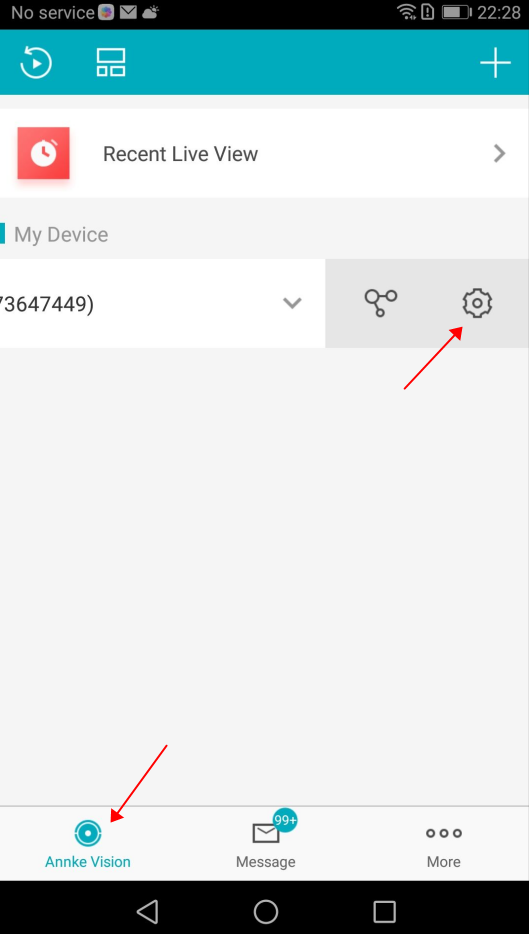
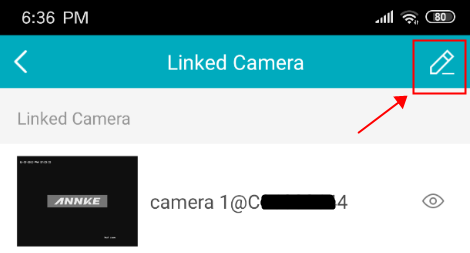
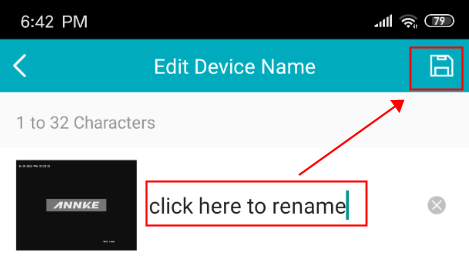
2. Tap on the setting icon to enter the device setting page. Tap on 'Linked cameras', then tap on a camera channel to edit its name.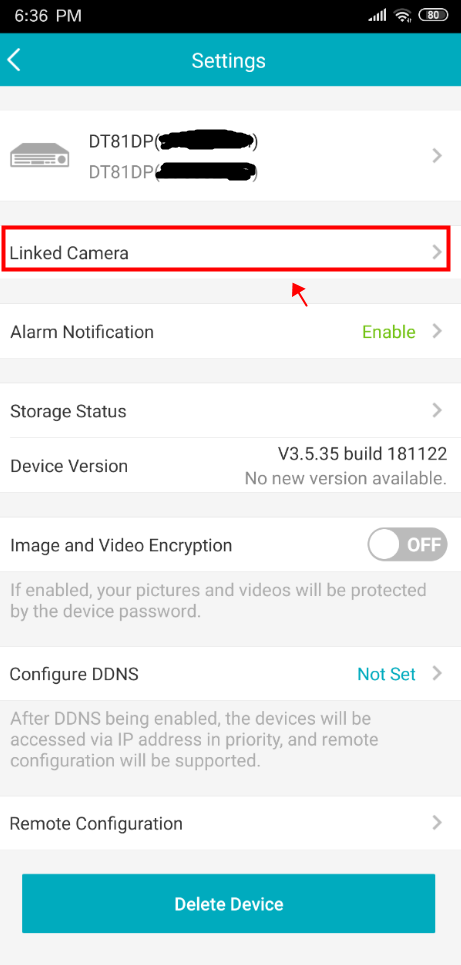
Via computer software (Guarding Vision):
1. Log into the Guarding Vision software, go to Device Management, choose 'Device' at the 'Device Type'.
Choose the added device, click on 'Remote configuration'.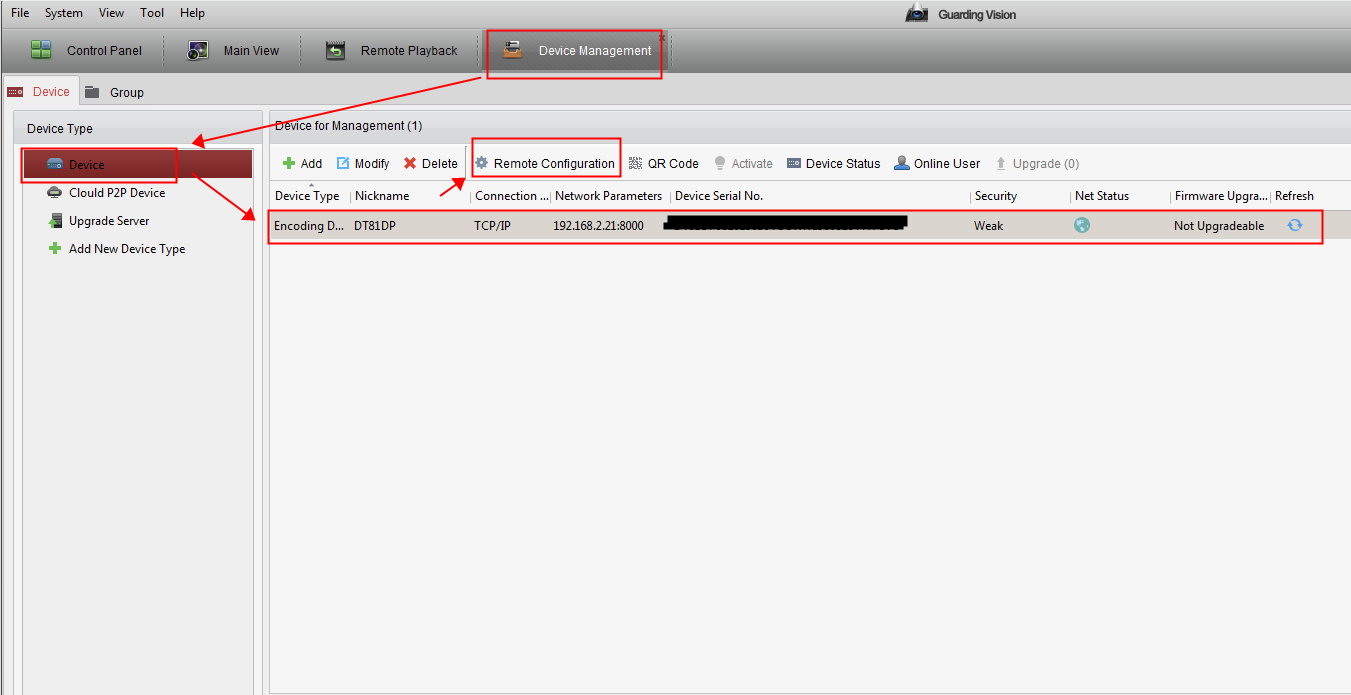
2. Go to Image--OSD Settings, click on 'Camera' to choose the camera channel, then input a new name in 'Camera Name'. Click 'Save' at the bottom to save the setting.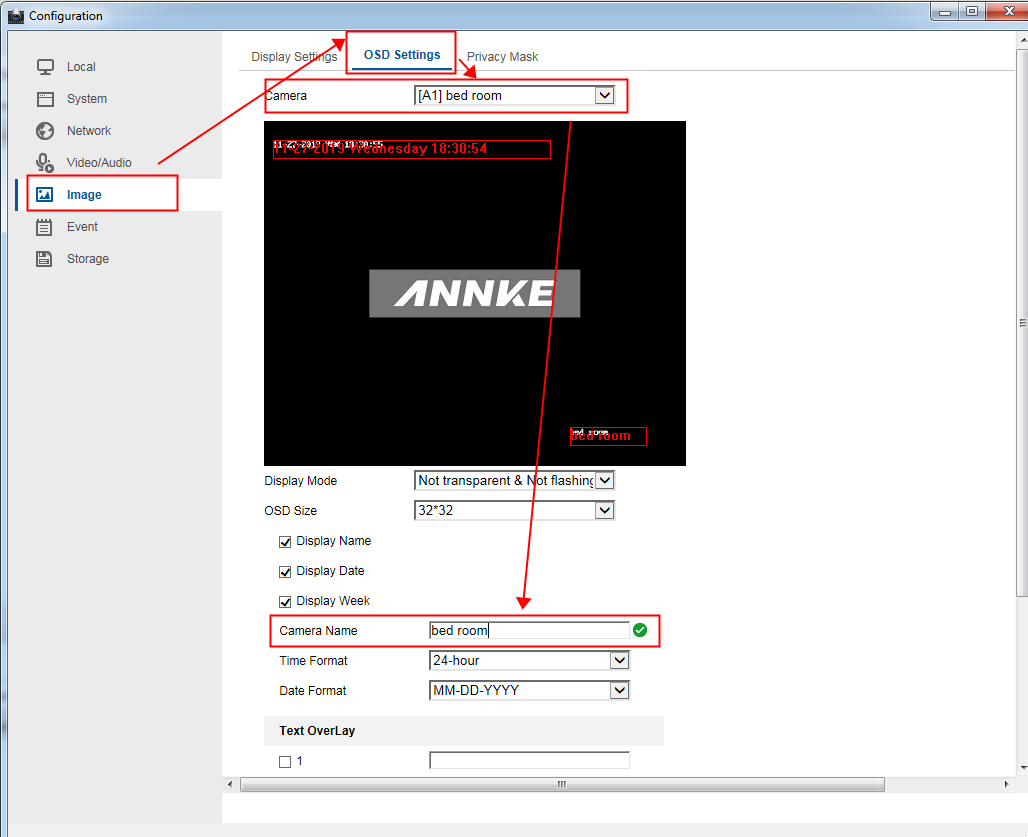
Was this article helpful?
Bu bilgiler sorununuzu çözmeye yardımcı oldu mu?
Still need help?
Uzman ekibimiz size yardımcı olmak için burada.