Annke Vision - Adding Annke Vision Device to Annke Vision App Manually
20 Aug 2026
425 views
Applies to: DT41Y/DT61Y/DT81Y/DN41R/DN61R/DN81R/DT41GB/DT81GB/DT61GB/DT41DB/DT81DB/DT61EQ/DW41JD/DW81KD/DW61LD/DT81DP/N48PI/N44PI/N46PI/N44PAM/N48PAW/N46PCK/N88PCH/N441Y/N481Y
Purpose: Add the device manually by using the Annke Vision domain.
Before you start: You have logged in to your app account.
Steps:
- On the Annke Vision page, tap
 .
.
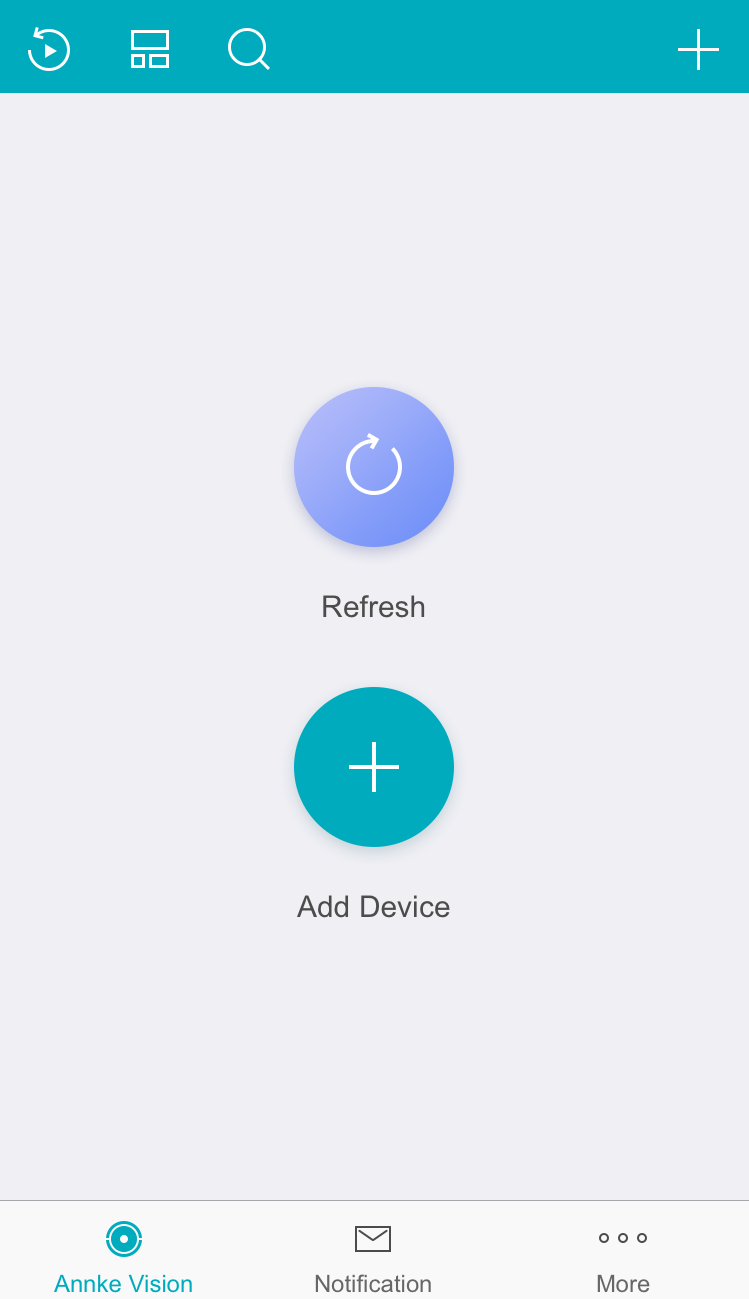
- Tap Manual Adding to enter the Add Device page.
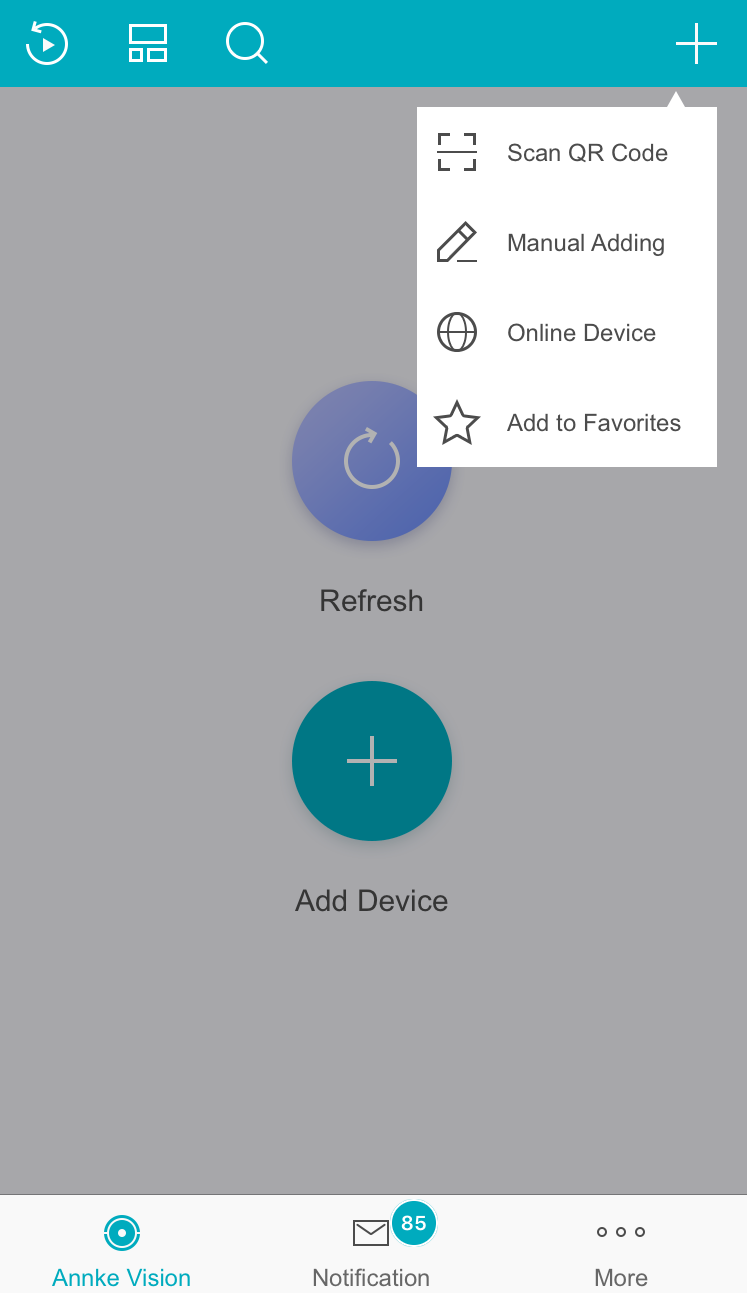
- Select the adding type as Annke Vision Domain.
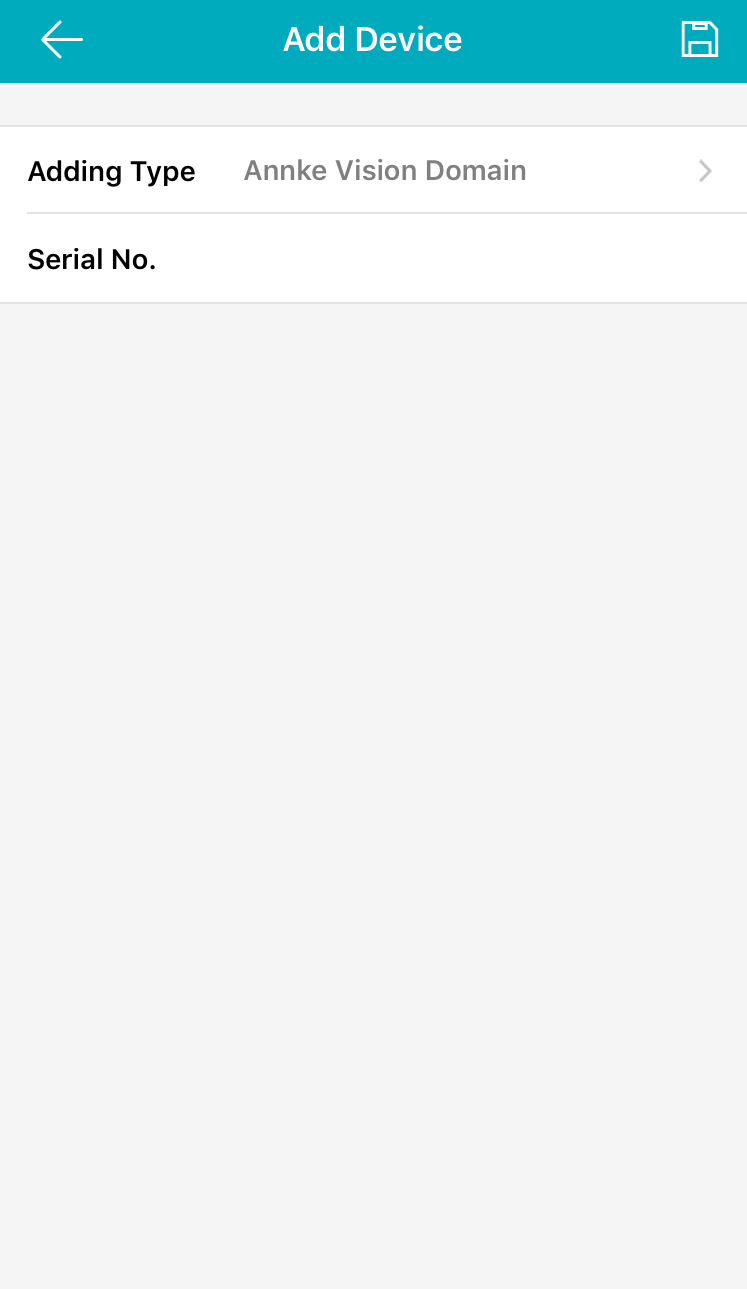
- Enter the device Serial No manually.
Generally, the device serial number can be found on the label attached to the device.
Note: If no serial number found on the label, go to Menu-Configuration-Network-Platform Access to find. - Tap
 to search the device.
- Tap Add on the Result page.
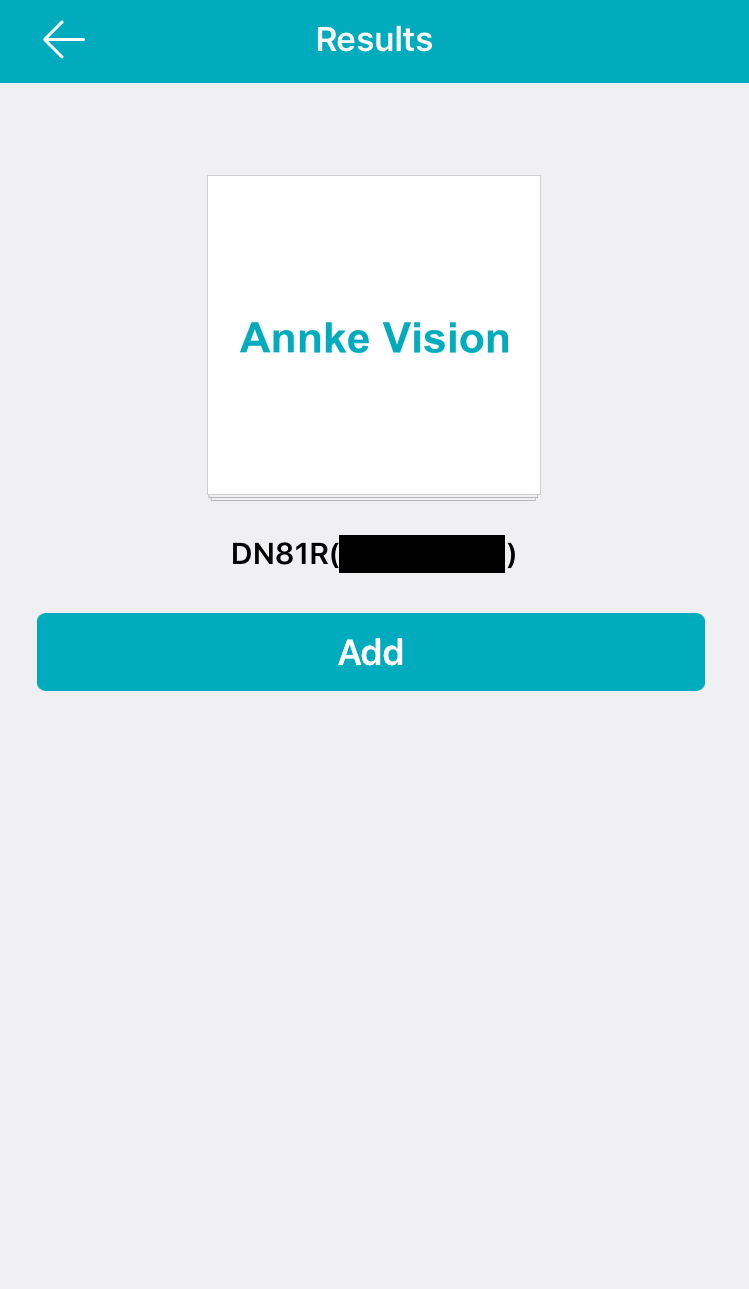
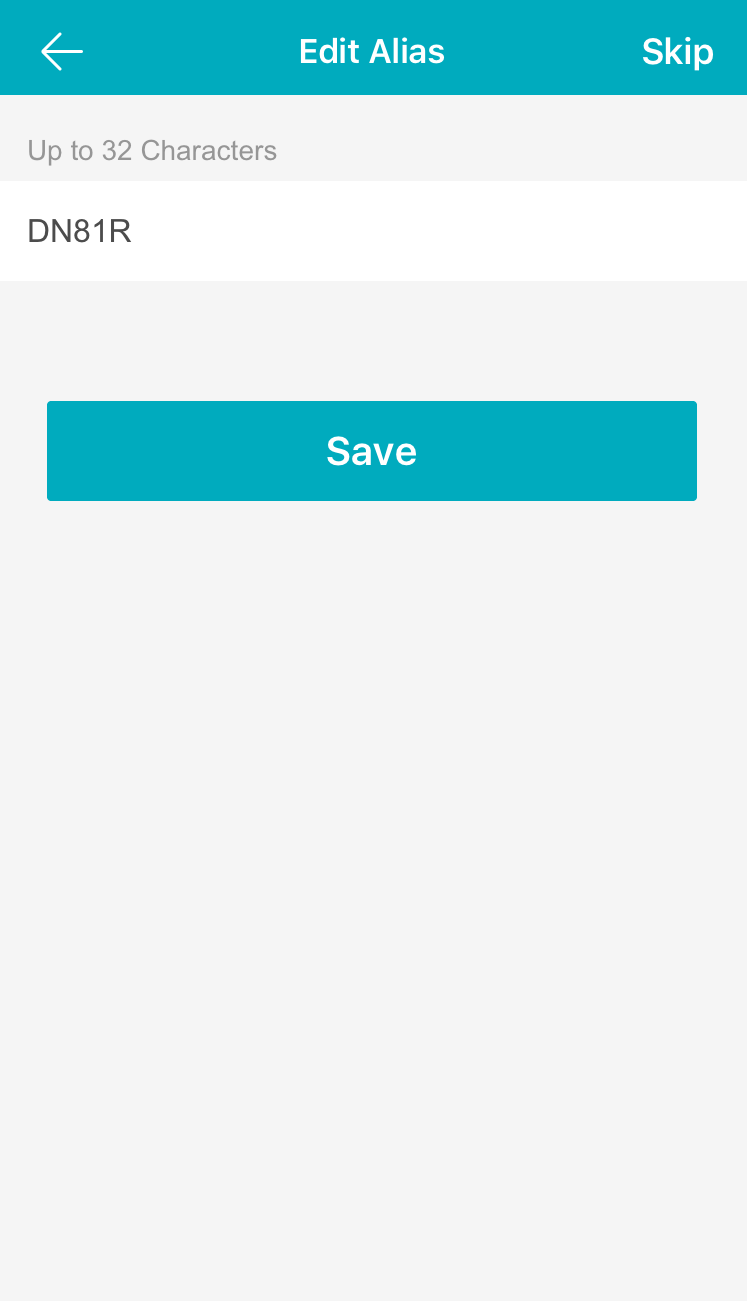
- Edit the device information as needed(Optional) and Save the information.
Was this article helpful?
Bu bilgiler sorununuzu çözmeye yardımcı oldu mu?
Thanks for your feedback!
Still need help?
Uzman ekibimiz size yardımcı olmak için burada.