ANNKE SIGHT - Introduce to the Playback Screen of Wireless NVR System
Applies to:
NW41V/N441H/N441K/N28WEB/N441B/N441D/N441L/N44PAN/N44PAJ/N34WDB/N34WDD/N44WEB/N44WED/N44WEC/NW41V/N44WBD/N48WHP/N48WHR/WL400/WE400
Purpose:
After setting up a recording schedule for the ANNKE system, we can playback the recorded videos. These articles introduce the steps to do so.
Steps:
- Log in to the system on a monitor/TV.
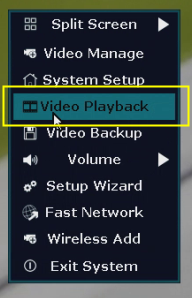
- On the system's live view screen, right-click the mouse to see a setting menu, go to [Video Playback].
-
Choose playback time on the right corner and select the channel to be played, then click [Search], recording files will be listed out. Then we can select a file and click [File Playback] to start.
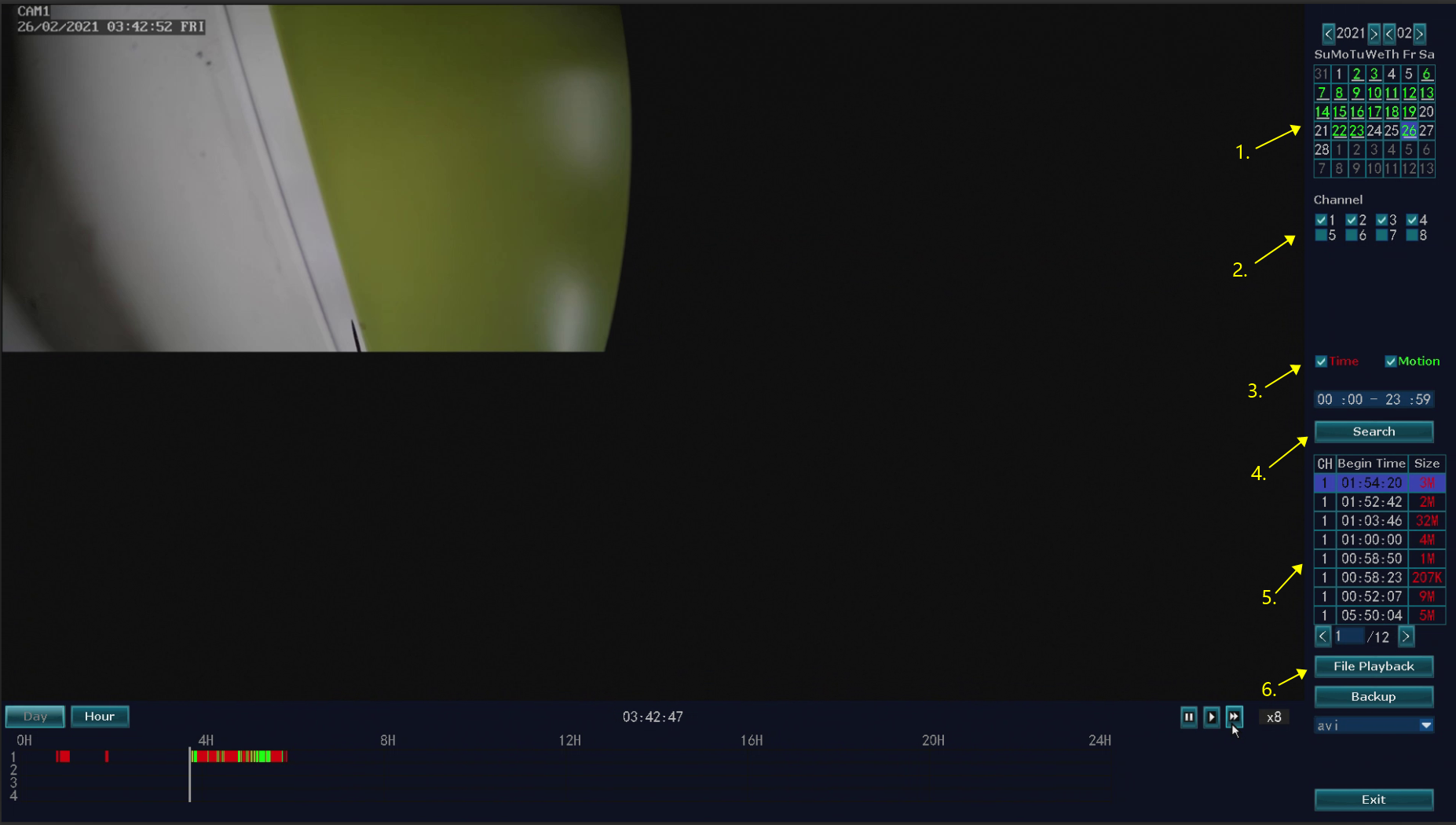
List of playback icons Playback one frame previous
 Playback one frame next
 Play
Play  Pause
Pause Fast forward at 2X/4X/8X speed.
Note:
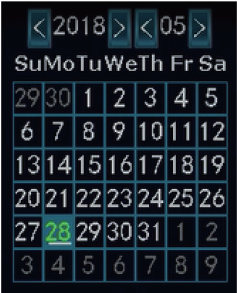
- The date in green represents there is a video record, you can choose it to playback.
- Select and enable the channel to playback.
Note: The max channel number of playback at the same time could be different depends on the system model.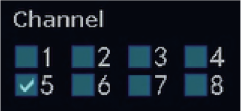
- Select the colored time bar to playback. (Red bar represents Time recordings, Green bar represents Motion recordings. )

If this article is helpful to you, please click the "helpful" button below.
Was this article helpful?
Bu bilgiler sorununuzu çözmeye yardımcı oldu mu?
Still need help?
Uzman ekibimiz size yardımcı olmak için burada.