ANNKE SIGHT - Adding Wireless NVR to Phone App by IP Address
20 Aug 2026
483 views
Applies to:
NW41V/N441H/N441K/N28WEB/N441B/N441D/N441L/N44PAN/N44PAJ/N34WDB/N34WDD/N44WEB/N44WED/N44WEC/NW41V/N44WBD/N48WHP/N48WHR/WL400/WE400
Steps:
- Log in to the system on a monitor/TV.
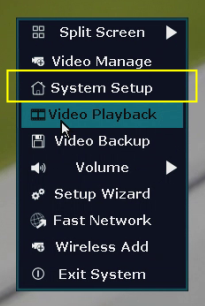
- On the system's live view screen, right-click the mouse to see a setting menu, go to [System Setup].
-
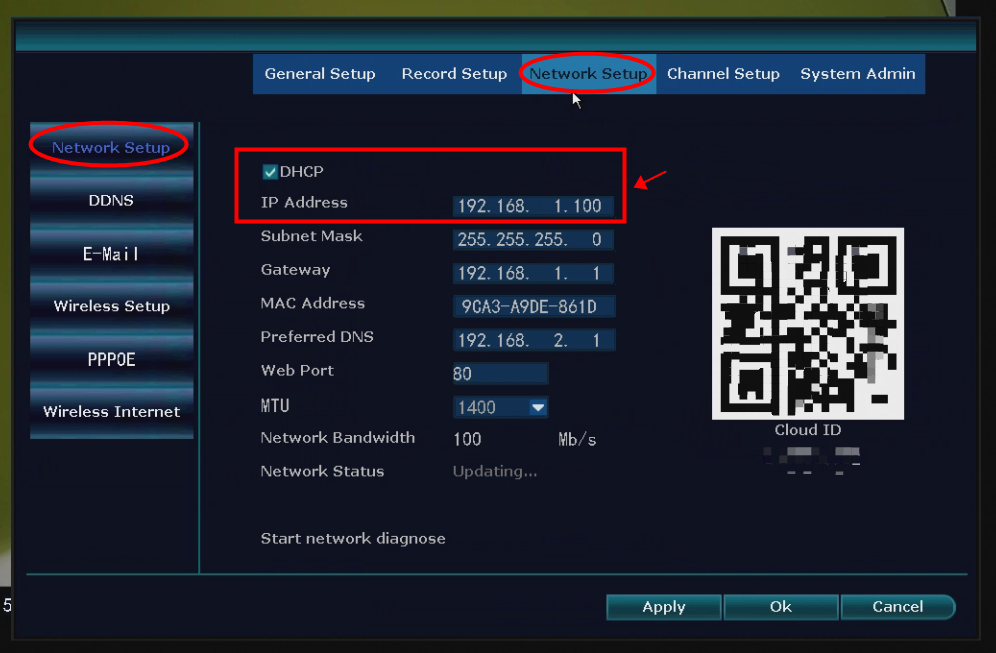
Navigate to [Network Setup--Network Setup], Make sure the option [DHCP] has been checked, then find the [IP Address] below.
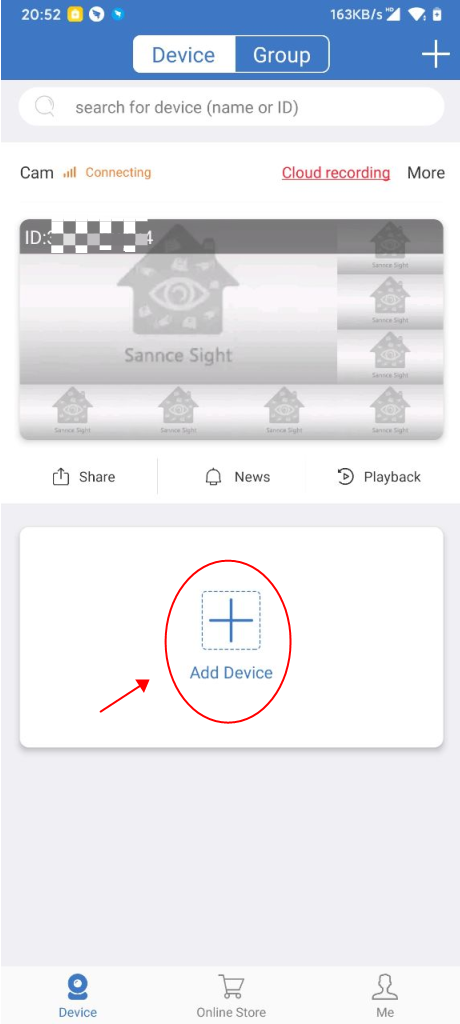
- Connect your phone to the same network as NVR. Run the phone app Annke Sight, then log in and go to the main screen as below. Click [Add Device].
- Choose [Kit]

- On the screen [Input manually], choose [Other ways to add].
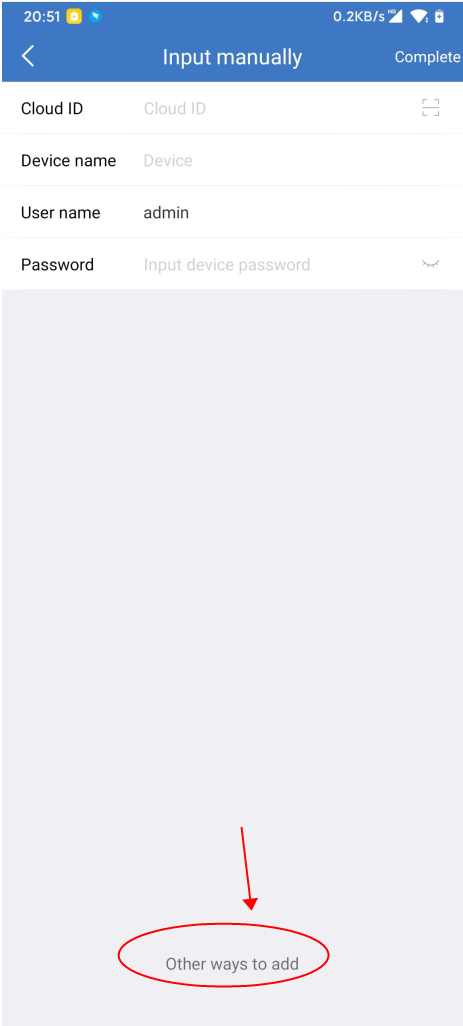
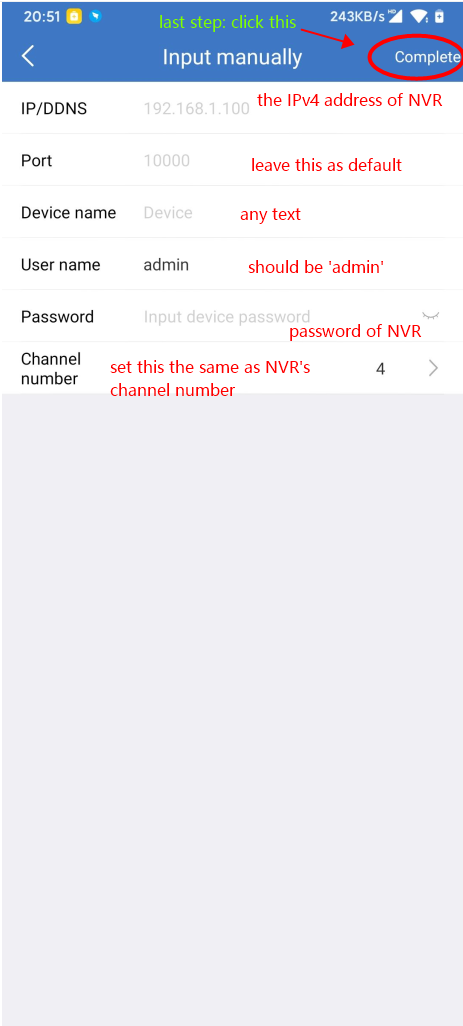
- On the next screen, input the parameters as below picture, then choose [Complete].
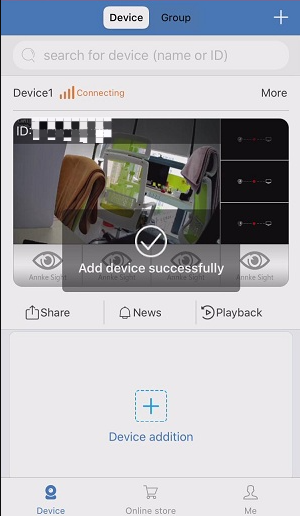
- Then you will see the device on the main screen of the App.
If this article is helpful to you, please click the "helpful" button below.
Was this article helpful?
Bu bilgiler sorununuzu çözmeye yardımcı oldu mu?
Thanks for your feedback!
Still need help?
Uzman ekibimiz size yardımcı olmak için burada.