
X Smart Home App Full Guide
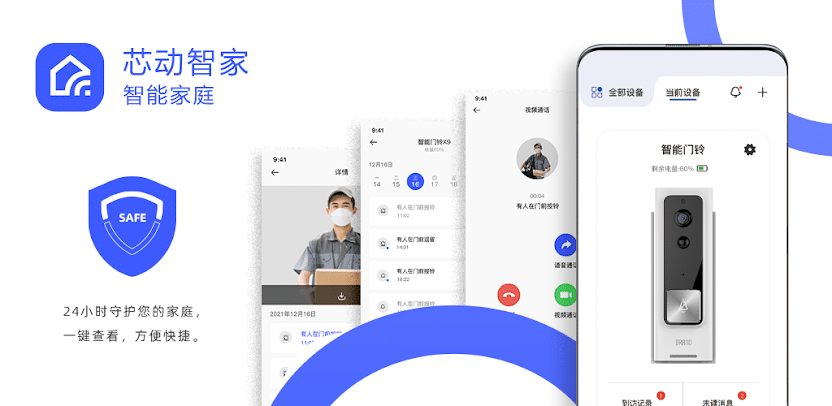
X Smart Home App is a smart hardware management platform for your home. Through X Smart Home App, you can complete the convenient and fast interaction between mobile phones and smart hardware, and realize the interconnection between smart devices.
 Push Problem
What to do if the app cannot receive the push
Check whether the APP has the notification permission enabled. You can check the method of enabling the push permission of each mobile phone on my interface, if the APP is in the background check whether the background operation permission is enabled.
What to do if WeChat cannot receive push notifications
1. Check whether the WeChat public account is enabled in the app settings
2. Check whether the account is bound to a WeChat login.
3. Check whether WeChat has followed the official account
What to do if can’t receive reminders in the app
Check whether the doorbell network connection is normal.
Check whether silent push is enabled in the settings.
Common Problem
What should l do if the receiver does not ring after pressing the doorbell button?
Check whether the doorbell and receiver are normally powered on and paired successfully. If they are powered on and paired successfully, please bring the receiver close to the doorbell and try again. The doorbell and the receiver are connected by RF 433MHz radio frequency, and the transmission distance is affected by obstacles between the two.
Why is there a push notification, but there is no corresponding photo in the list?
Network problems will cause the photo upload to fail. it is recommended to check the network and try again. If the doorbell location is not good, you can use a Wi-Fi amplifier to increase the network signal.
What should l do if the battery life is too short?
What should l do if the mobile phone cannot receive messages?
How does the doorbell work?
The doorbell is powered by a battery. When the battery is low or the battery is about to run out, a notification will be sent to the app. When the battery is exhausted, the doorbell will stop working and need to be replaced before use.
Please ensure that the wireless network is unobstructed. The router’s power failure. network failure, router name, or password modification will cause the doorbell to not work properly.
When someone presses the doorbell, the doorbell will ring a snapshot and push it to the mobile phone.
The motion detection function is enabled by default. When someone moves into the
doorbell guarding the area, the doorbell will snap a picture and push it to the mobile phone.
Is the doorbell waterproof?
This product does not support waterproofing, please avoid using it in an outdoor environment.
Can multiple people use the app?
Support multi-person use. You can share the device in the APP settings, and share it with family members according to the APPprompts
What should l pay attention to when installing with double-sided tape?
The installation location needs to be cleaned in advance to ensure that the installation location is flat, clean and free of dust;
After pasting, you need to press the mounting base hard for 30 seconds to make it fit firmly to the mounting part;
After modifying the WiFi, no video is taken.
After modifying the WiFi, you need to reconnect the doorbell to the internet, click the “+” in the upper right corner of the app homepage, and follow the phone prompts to add the device again.
When adding a doorbell, does it prompt “has beenbound”?
After logging in to the account, l found that my doorbell was missing. When l added it again, was prompted that Device binding failed. Please unbind and try again”. You need to delete the doorbell before you add it. This means you have logged in to the wrong account.
Will the doorbell be easily stolen outside?
1.Anti-dismantling: Whether it is fixed on the wall with original 3M glue or expansion screws, the fixing strength is high, it is difficult to remove it, and it takes a certain time:”
Equipment use problems
How to reset the device
Press and hold the doorbell button for 15 seconds until you hear the reset success
What to do if you choose WIFl not to display the nickname
After making sure that the phone is connected to WFl, return to the APP to view the WFl nickname
What to do if it prompts that the network configuration fails
What to do if the device cannot be found
Check whether the Bluetooth of the mobile phone has been turned on, whether the GPS has been turned on, whether the positioning permission has been turned on, and whether the doorbell has been reset successfully.
Connect X Smart Home Doorbell to wifi
Before connecting the X Smart Home, please install the batteries, if it is a doorbell with built-in batteries, please take the insulating sheet, the X Smart Home will flash the indicator light when the doorbell is powered on.
1. After X Smart Home doorbell is powered on, open the APP, click ‘Add device’ or ‘+’, select Smart doorbell, then enter your wifi password.
X Smart Home does not support 5G wifi, please choose 2.4G wifi to connect the doorbell.
2. After entering your wifi password, click ‘Device does not support 5g wifi, chinese name and special symbols ‘, then click Next step, then confirm your wifi name and password are correct, click Confirmed. Click Confirmed.
Press and hold the X Smart Home doorbell for ten seconds until hear the prompt “reset succeeded” please click Next after completing the operation.
If the doorbell does not respond and there is no indicator light, please make sure the current doorbell battery is charged.
X Smart Home Connect Chime
Push Problem
What to do if the app cannot receive the push
Check whether the APP has the notification permission enabled. You can check the method of enabling the push permission of each mobile phone on my interface, if the APP is in the background check whether the background operation permission is enabled.
What to do if WeChat cannot receive push notifications
1. Check whether the WeChat public account is enabled in the app settings
2. Check whether the account is bound to a WeChat login.
3. Check whether WeChat has followed the official account
What to do if can’t receive reminders in the app
Check whether the doorbell network connection is normal.
Check whether silent push is enabled in the settings.
Common Problem
What should l do if the receiver does not ring after pressing the doorbell button?
Check whether the doorbell and receiver are normally powered on and paired successfully. If they are powered on and paired successfully, please bring the receiver close to the doorbell and try again. The doorbell and the receiver are connected by RF 433MHz radio frequency, and the transmission distance is affected by obstacles between the two.
Why is there a push notification, but there is no corresponding photo in the list?
Network problems will cause the photo upload to fail. it is recommended to check the network and try again. If the doorbell location is not good, you can use a Wi-Fi amplifier to increase the network signal.
What should l do if the battery life is too short?
What should l do if the mobile phone cannot receive messages?
How does the doorbell work?
The doorbell is powered by a battery. When the battery is low or the battery is about to run out, a notification will be sent to the app. When the battery is exhausted, the doorbell will stop working and need to be replaced before use.
Please ensure that the wireless network is unobstructed. The router’s power failure. network failure, router name, or password modification will cause the doorbell to not work properly.
When someone presses the doorbell, the doorbell will ring a snapshot and push it to the mobile phone.
The motion detection function is enabled by default. When someone moves into the
doorbell guarding the area, the doorbell will snap a picture and push it to the mobile phone.
Is the doorbell waterproof?
This product does not support waterproofing, please avoid using it in an outdoor environment.
Can multiple people use the app?
Support multi-person use. You can share the device in the APP settings, and share it with family members according to the APPprompts
What should l pay attention to when installing with double-sided tape?
The installation location needs to be cleaned in advance to ensure that the installation location is flat, clean and free of dust;
After pasting, you need to press the mounting base hard for 30 seconds to make it fit firmly to the mounting part;
After modifying the WiFi, no video is taken.
After modifying the WiFi, you need to reconnect the doorbell to the internet, click the “+” in the upper right corner of the app homepage, and follow the phone prompts to add the device again.
When adding a doorbell, does it prompt “has beenbound”?
After logging in to the account, l found that my doorbell was missing. When l added it again, was prompted that Device binding failed. Please unbind and try again”. You need to delete the doorbell before you add it. This means you have logged in to the wrong account.
Will the doorbell be easily stolen outside?
1.Anti-dismantling: Whether it is fixed on the wall with original 3M glue or expansion screws, the fixing strength is high, it is difficult to remove it, and it takes a certain time:”
Equipment use problems
How to reset the device
Press and hold the doorbell button for 15 seconds until you hear the reset success
What to do if you choose WIFl not to display the nickname
After making sure that the phone is connected to WFl, return to the APP to view the WFl nickname
What to do if it prompts that the network configuration fails
What to do if the device cannot be found
Check whether the Bluetooth of the mobile phone has been turned on, whether the GPS has been turned on, whether the positioning permission has been turned on, and whether the doorbell has been reset successfully.
Connect X Smart Home Doorbell to wifi
Before connecting the X Smart Home, please install the batteries, if it is a doorbell with built-in batteries, please take the insulating sheet, the X Smart Home will flash the indicator light when the doorbell is powered on.
1. After X Smart Home doorbell is powered on, open the APP, click ‘Add device’ or ‘+’, select Smart doorbell, then enter your wifi password.
X Smart Home does not support 5G wifi, please choose 2.4G wifi to connect the doorbell.
2. After entering your wifi password, click ‘Device does not support 5g wifi, chinese name and special symbols ‘, then click Next step, then confirm your wifi name and password are correct, click Confirmed. Click Confirmed.
Press and hold the X Smart Home doorbell for ten seconds until hear the prompt “reset succeeded” please click Next after completing the operation.
If the doorbell does not respond and there is no indicator light, please make sure the current doorbell battery is charged.
X Smart Home Connect Chime
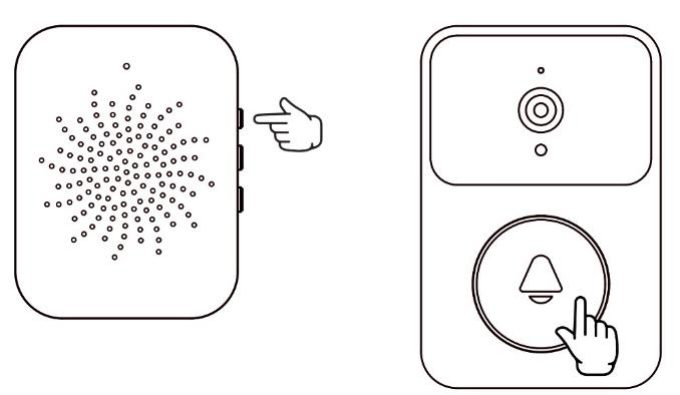 Warnings:
Share X Smart Home Doorbell
Once you’ve connected your X Smart Home doorbell, you’ll need to share the device in order for others to use the doorbell at the same time.
1. Enter Device setup, select Sharing device, there are two ways to share the doorbell, Share to account or QR code sharing.
.
Warnings:
Share X Smart Home Doorbell
Once you’ve connected your X Smart Home doorbell, you’ll need to share the device in order for others to use the doorbell at the same time.
1. Enter Device setup, select Sharing device, there are two ways to share the doorbell, Share to account or QR code sharing.
.
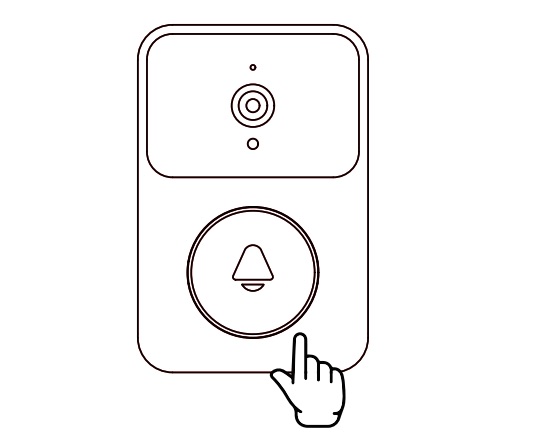 Restore Factory Settings: If the doorbell crashes or there are other factors to restore factory settings, long press the reset button on the back of the doorbell to restore factory settings.
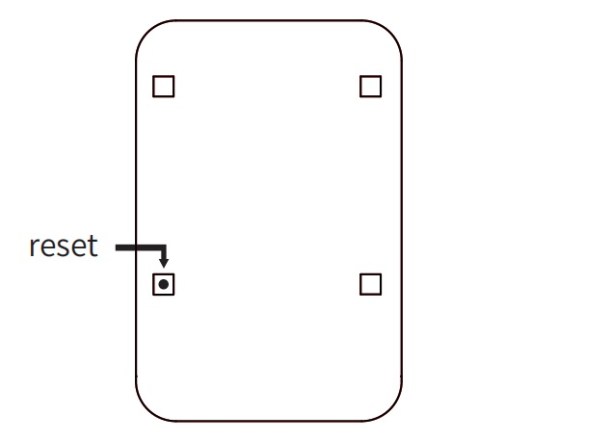 After resetting or restoring the factory settings, you need to reconnect the doorbell.
X Smart Home App Screenshot
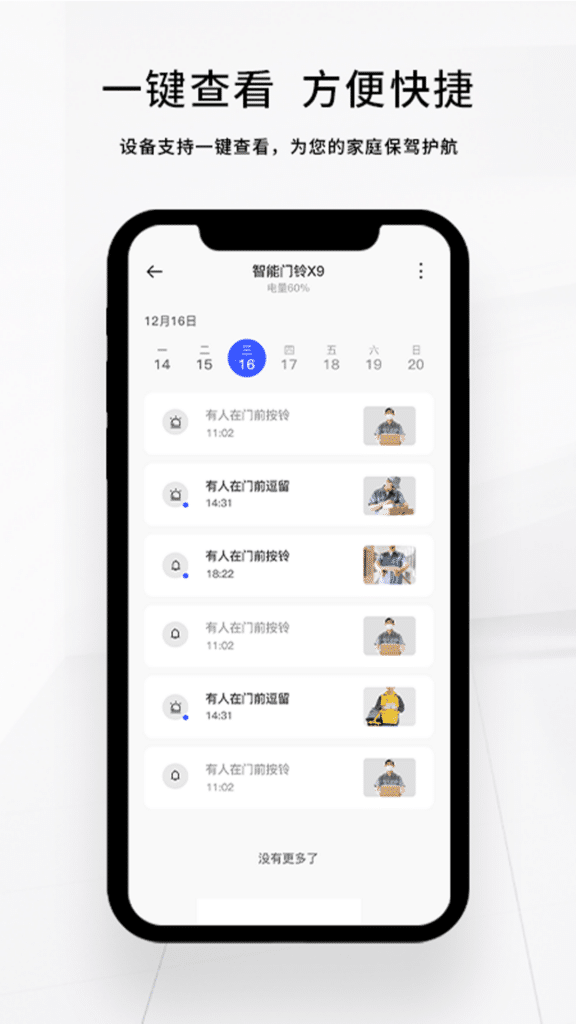
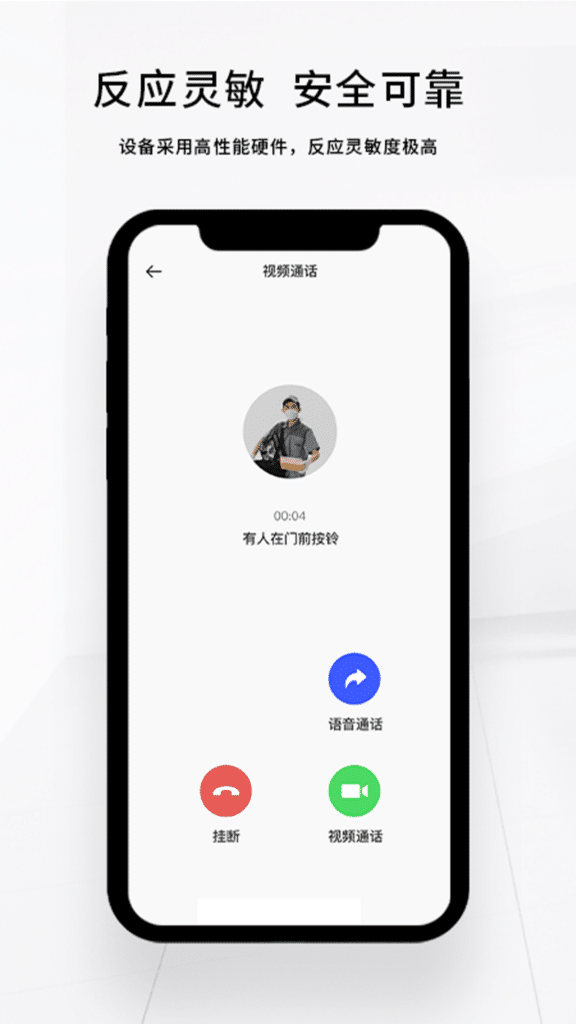
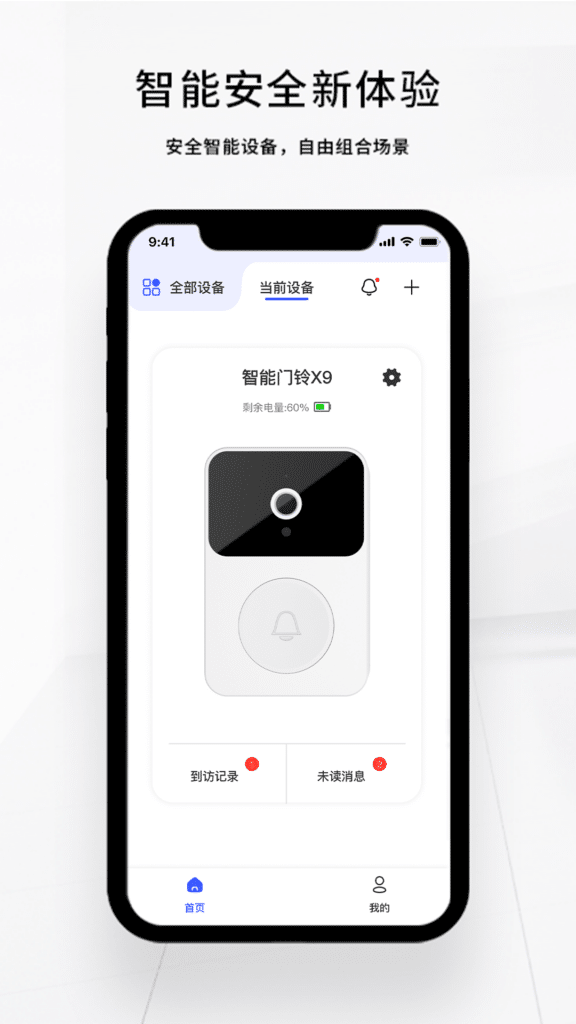
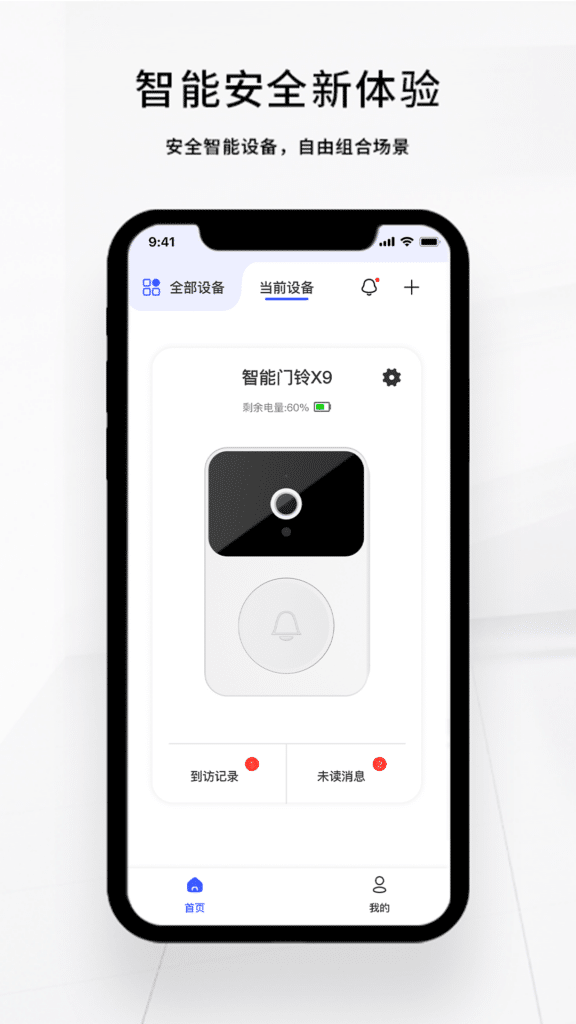
One-click viewing is convenient and fast. The device supports one-click viewing to protect your family. Responsive, safe, and reliable The equipment uses high-performance hardware and has extremely high responsiveness New experience with smart security Security and smart devices, free combination of scenarios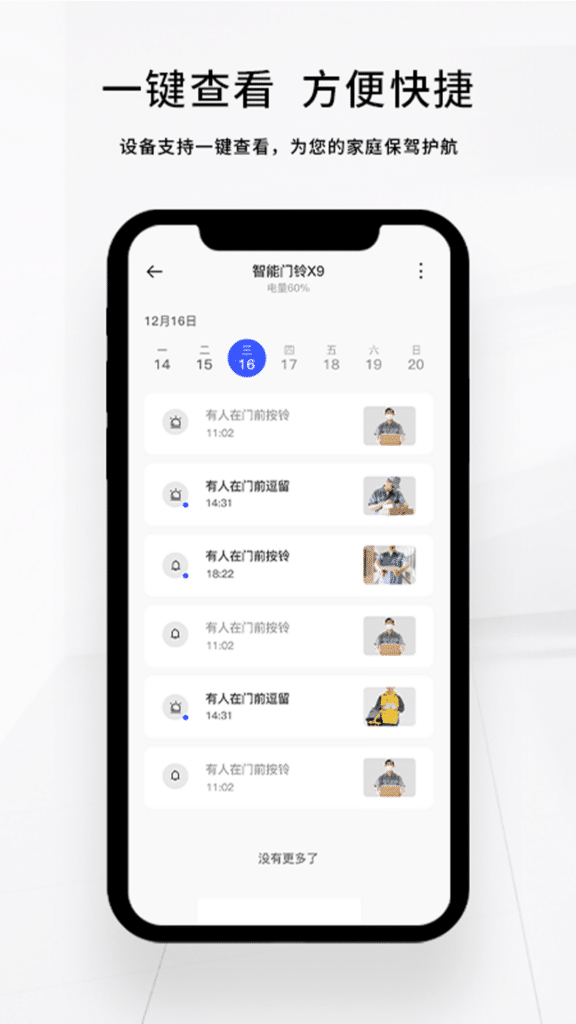

Frequently Asked Questions
Push Permission2.XIAOM Message Reminder Settings
3.HUAWEI Message Reminder Settings
4.OPPO Message Reminder Settings
5.VIVO Message Reminder Settings
1.Check whether the battery used is an AAA alkaline dry battery (AA LR6 1.5V). If you use other batteries(such as carbon batteries), it may cause problems, such as shortening the battery life of the doorbell.
2.Set the infrared flight status and
LED light of the doorbell. Always turning on the infrared supplement light will shorten the doorbell’s lifetime, it is recommended to set it to automatic or always off according to the corridor environment.
3.if there is a device with a human body detection function set up human body motion detection. Human body motion detection is frequently triggered, and the doorbell will frequently start to take photos, resulting in reduced battery life. It is recommended to change relevant settings according to the corridor environment and needs.”…”
1.Enter the APP message center to see whether there is doorbell information:
2.Check whether the relevant notification settings are turned on and whether the messages are filtered;
3.Log in to the account again;
4.If none of the above methods work, it is recommended to reinstall the latest version of the APP and upgrade the mobile phone system version to the latest.
5.lt is recommended to fix the APP in the background and enable the APp to start automatically in related software such as mobile phone butler.
1.Check whether the WiFi account password is correct.
2.Put the doorbell near the WiFi for network distribution.
3.Check if 5G WiFi is connected.
4.Check whether the router has MAC filtering enabled.
5.Try to bind the link with the mobile hotspot.
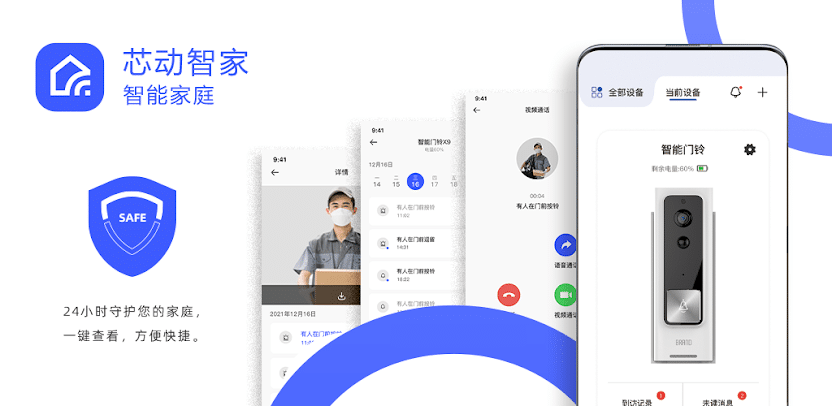
Download the X Smart Home App
Protect your family 24 hours a day, check with one click, convenient and fast. https://apps.apple.com/us/app/x-smart-home/id1599472743 https://play.google.com/store/apps/details?id=com.naxclow.home&hl=en_USHow To SetUp X Smart Home Doorbell
This manual contains all the contents of X Smart Home, how to add it, how to set up the functions of X Smart Home Doorbell, etc. It is constantly being updated.X Smart Home APP download
X Smart Home supports Android and iPhone, you can download it from google play or app store.Login X Smart Home
We recommend that you register an account and log in to use X Smart Home, when you connect to the doorbell you will be bound to your current account and cannot be connected to by other users. The application also supports local use, click Guest Login to connect to the doorbell. The doorbell paired by Guest Login can be paired by other users after reset, please note the anti-theft protection. Connection Notes1.Please turn on your mobile phone Bluetooth, Wi-Fi, and allow APP all permissions, otherwise you may not be able to connect X Smart Home doorbell, after connecting the doorbell, you can turn off the Bluetooth, and location permissions.
2.Please use the doorbell in the environment with good Wi-Fi signal, try not to stick it on the metal door, metal will block the wifi signal.
3.Most of X Smart Home doorbells don’t support 5G Wi-Fi, please connect to 2.4G Wifi.
4.Before installing the doorbell, please test the doorbell at the location where you want to install it to make sure that it can work properly. Please remove the protective film after installation.
4.X Smart Home doorbell sends out reset succeeded, click Confirm and then go to Next step, now wait for the doorbell to connect to your wifi, about 30-60 seconds, click Completed to start using the doorbell after successful connection.
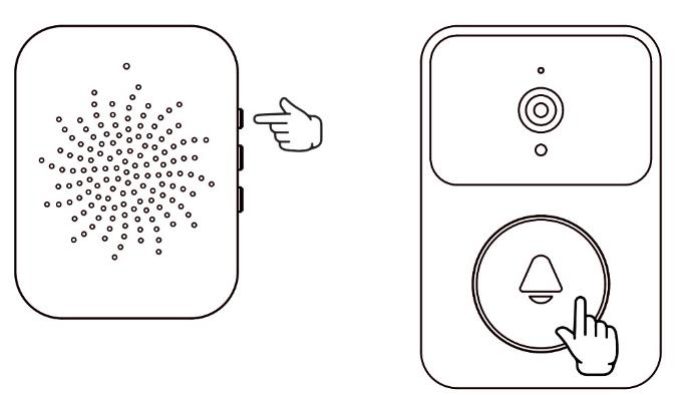
1.Plug Chime in power.
2.Press and hold the Chime match button for 2 seconds, the indicator light will illuminate to indicate pairing mode.
3.Press doorbell button once, 2 devices will pair with each other, after paired successfully, indicator lights off.
 Warnings:
1.During pairing 2 devices should be as close together as possible.
2.Ensure the doorbell is fully charged.
3.After pairing, the indicator light will automatically turn off.
4.If you don’t ring the doorbell within ten seconds, the chime indicator will automatically turn off.
5.If pairing fails or needs to be repeated, please repeat the pairing process.
How do I reset my X smart home wireless video doorbell?
Reset: Press and hold the X Smart Home button for 10 seconds until the doorbell beeps “Reset Successful”.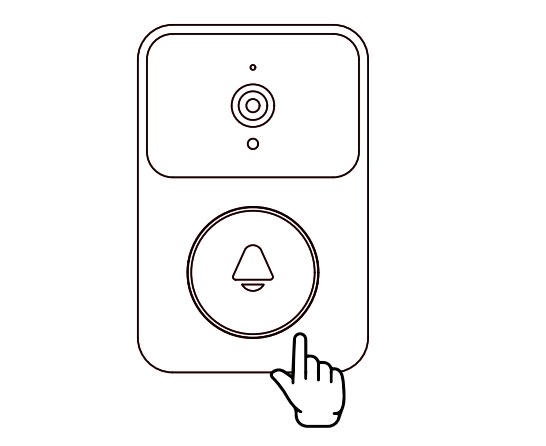 Restore Factory Settings: If the doorbell crashes or there are other factors to restore factory settings, long press the reset button on the back of the doorbell to restore factory settings.
 After resetting or restoring the factory settings, you need to reconnect the doorbell.
Low Battery and Charging
When the battery is low, X Smart Home doorbell will send a low battery alert to the APP, please charge the doorbell. The indicator light is red during charging and off when charging is complete.FAQ
What to do if X Smart Home Doorbell device cannot be found?
Check whether the Bluetooth of the mobile phone has been turned on, whether the GPS has been turned on, whether the positioning permission has been turned on, and whether the doorbell has been reset successfullyWhy doesn’t the X Smart Home app show the wifi name?
After making sure that the phone is connected to WIFI, return to the APP to view the WIFI nicknameWhat to do if it prompts that the network configuration fails?
1. Check that the WIFI account password is correct. 2. Place the doorbell near the WIFI for network distribution. 3. Check that 5G WIFI is connected, X Smart Home Doorbell only supports 2.4G WIFI. 4. Check that MAC filtering is enabled on the router. 5. Try connecting to the mobile hotspot, if it works with hotspot wifi then please try restarting your router and reconnecting.Prompts “has been bound” when connecting X Smart Home Doorbell?
“Device binding failed. Please unbind and try again”. This means that the X Smart Home Doorbell has been connected to another account and has not been deleted, if this is your first time using the Doorbell, please contact your seller. If you have used it before, please log in the account you connected the Doorbell to, and then delete the device.What batteries does the X smart home wireless video doorbell?
X Smart Home Doorbell supports AAA Alkaline Dry Battery(AA LR6 1.5V), if you use other batteries, it may cause the doorbell’s battery life shortened and other problems.How does the X smart home wireless video doorbell work?
X Smart Home Doorbell can’t view live video manually, only when it is triggered to work. Video Calls: When someone presses the doorbell, the mobile phone which has been bundled with X Smart Home Doorbell will receive a push notification from the app, which allows you to make a video call to the visitor. Body Sensing: Doorbell is able to detect changes in movement within the detection range of the infrared sensor and take a photo to push to the tethered mobile phone. (Note: This function is only available in the Enhanced model, not supported by the mini doorbell).
Advertisement

Topics:
#X Smart Home App automation settings
#X Smart Home App camera setup
#X Smart Home App compatibility
#X Smart Home App configuration
#X Smart Home App connection issues
#X Smart Home App control devices
#X Smart Home App device pairing
#X Smart Home App full guide
#X Smart Home App guide for beginners
#X Smart Home App installation
#X Smart Home App login problem
#X Smart Home App not working
#X Smart Home App notifications
#X Smart Home App remote access
#X Smart Home App setup
#X Smart Home App smart devices
#X Smart Home App troubleshooting
#X Smart Home App tutorial
#X Smart Home App update
#X Smart Home App user manual
#X Smart Home App user settings
#X Smart Home App WiFi setup
Did this security guide help you?
Rate this article to help fellow engineers find the best guides.

Written by
Alex Vance
Senior Security Systems Architect & IoT Consultant with over 15 years in digital surveillance design.
Discussion (0)
No comments yet. Be the first to share your thoughts!
Leave a Comment