
TDSEE App User Guide
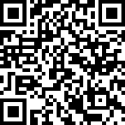
If you already have the TDSEE App, please Login.


If you have NOT got one, scan the following QR code, or search for TDSEE in Google Play or App Store, download and install it onto your smartphone/tablet
TDSEE
Login

Ensure that your smart device used for setup, such as a smartphone, can access the internet.
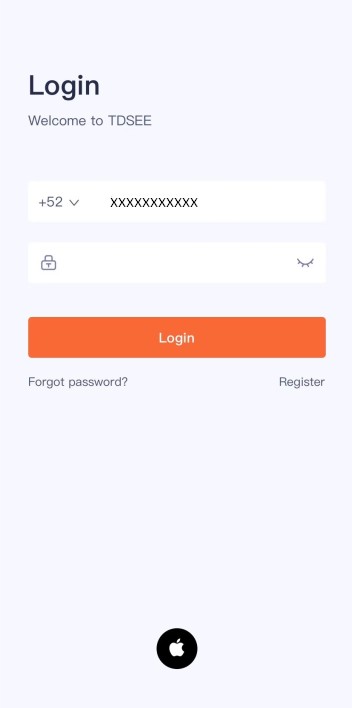
Step 2 Enter the registered mobile phone number or Email address and password, and tap Login .

—-End
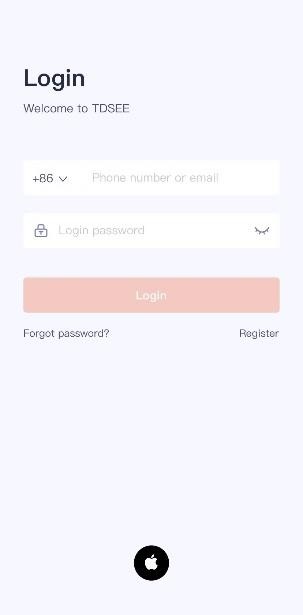
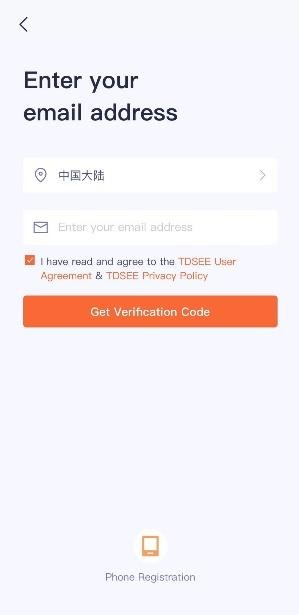
Step 2 Choose the region where you are. Then enter your email address, and tap Get Verification Code .
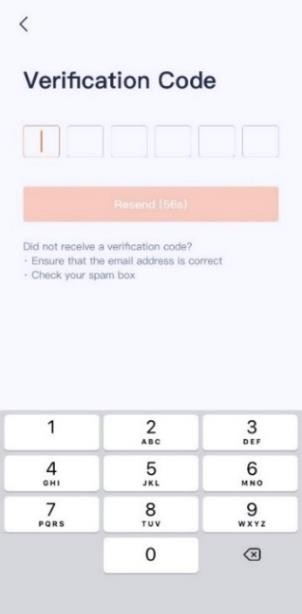
Step 3 Enter the Verification Code.

If you do not receive activation code:
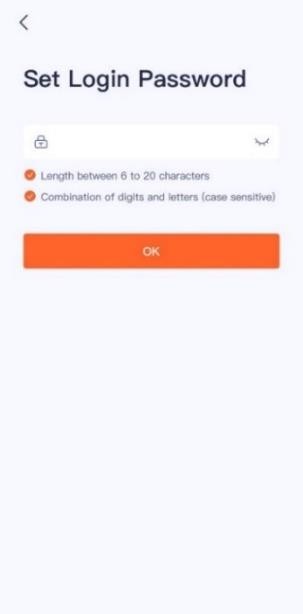
Step 4 Set the login password, and tap OK .







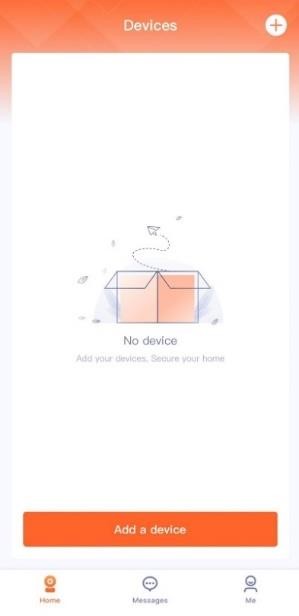
—-End
Add the camera to TDSEE App

Before adding the camera, please ensure that the router is connected to the internet successfully and the filter function is disabled.
Method 1: Add a camera through QR code
Step 1 Power on the camera.
The LED indicator lights solid red after the camera is powered on. When the LED indicator blinks blue quickly, the camera is waiting to connect to a 2.4 GHz Wi-Fi network.
Assume that the Wi-Fi name and Wi-Fi password of the router are:
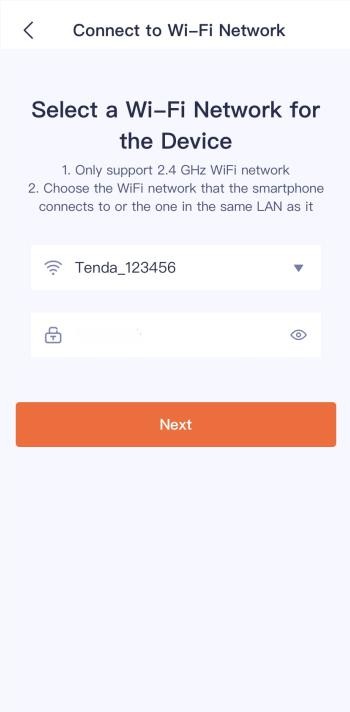
− Wi-Fi name: Tenda_123456
− Wi-Fi password: UmXmL9UK
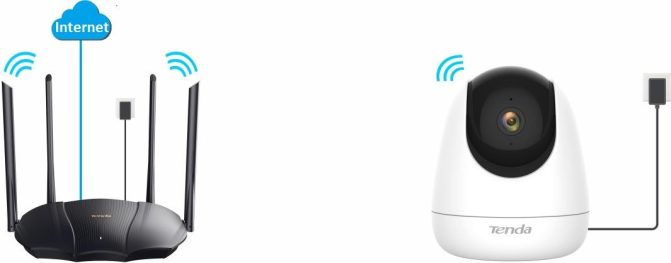
Step 2 Add the camera to TDSEE App.
 in the upper right corner of the home page.
 If a prompt pop up asking for access to the camera of your smartphone, please allow it.

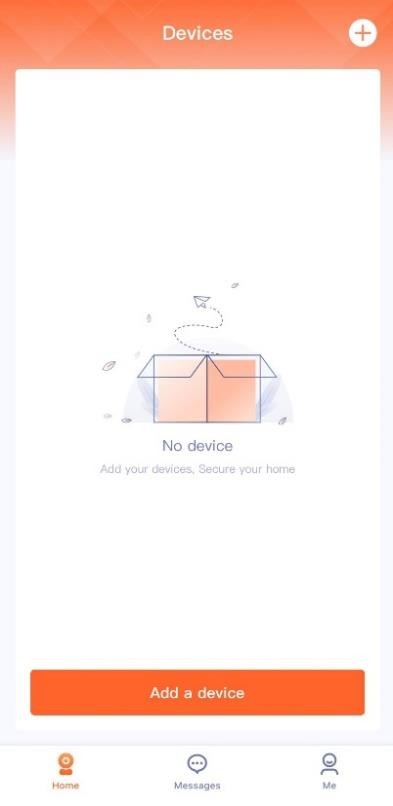

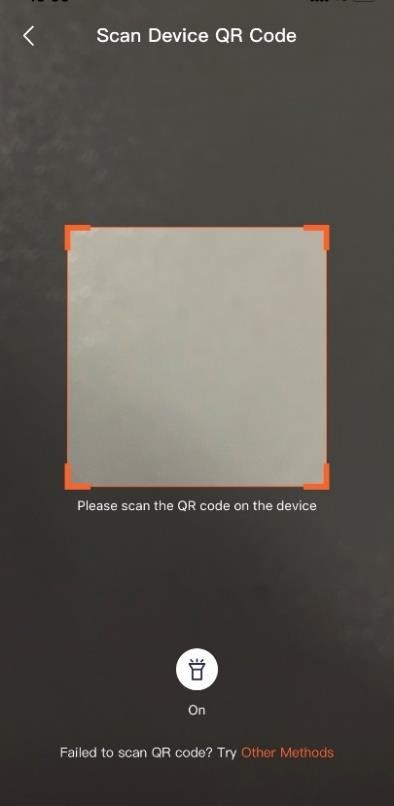
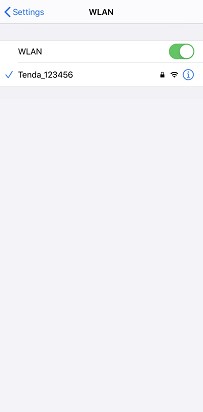
 to go to Settings > WLAN of your smartphone. Then connect to the 2.4 GHz Wi-Fi network of the router, which is Tenda_123456 in this example.


 If a prompt pop up asking for access to the location information of your smartphone, please allow it.

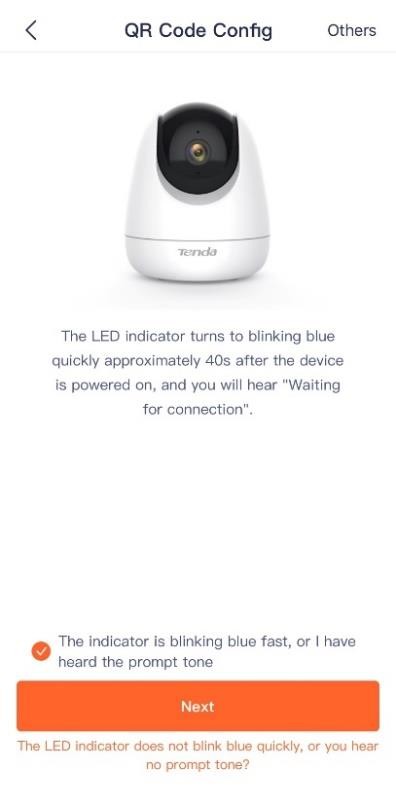

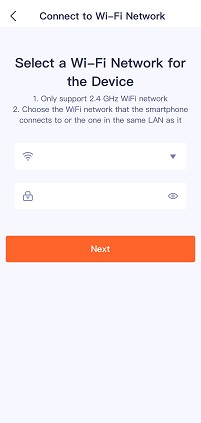



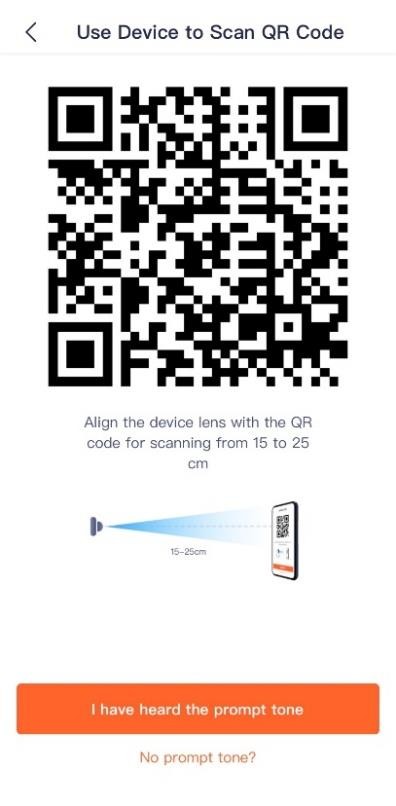
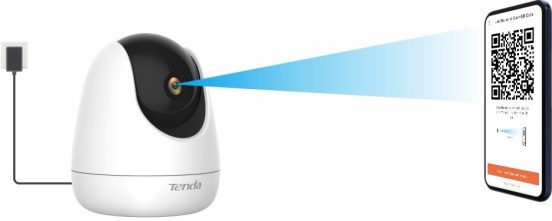 Ensure that the smartphone screen is clear, no crack and no reflections.




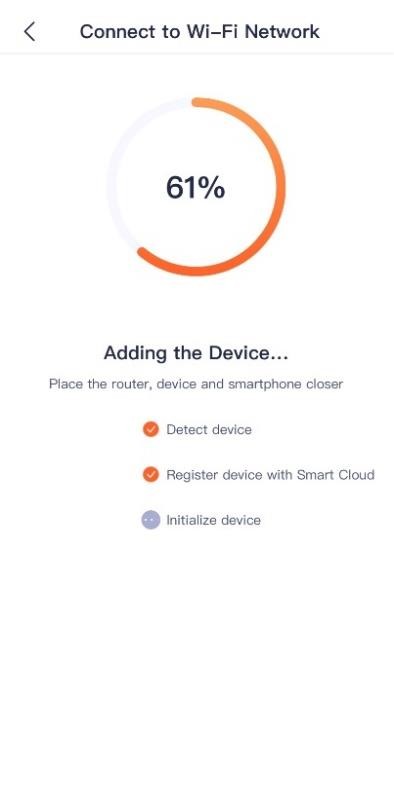

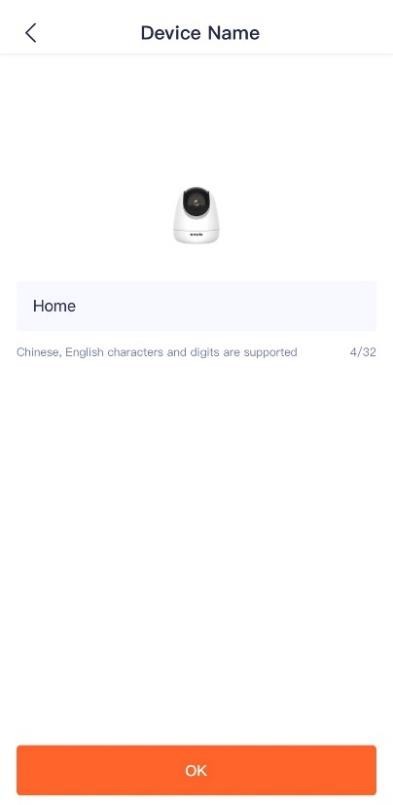

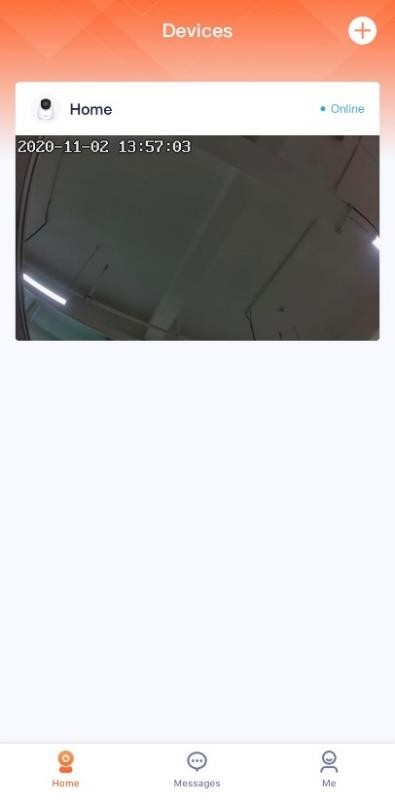
—-End
Method 2: Add a camera through hotspot
Step 1 Power on the camera.
The LED indicator lights solid red after the camera is powered on. When the LED indicator blinks blue quickly, the camera is waiting to connect to a 2.4 GHz Wi-Fi network.
Assume that the Wi-Fi name and Wi-Fi password of the router are:
− Wi-Fi name: Tenda_123456
− Wi-Fi password: UmXmL9UK
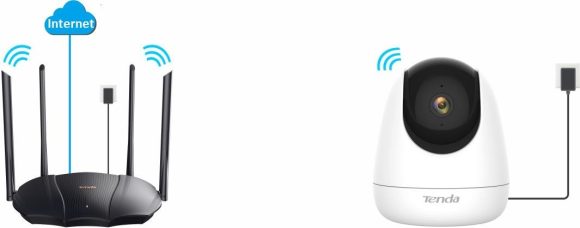 Power on the camera
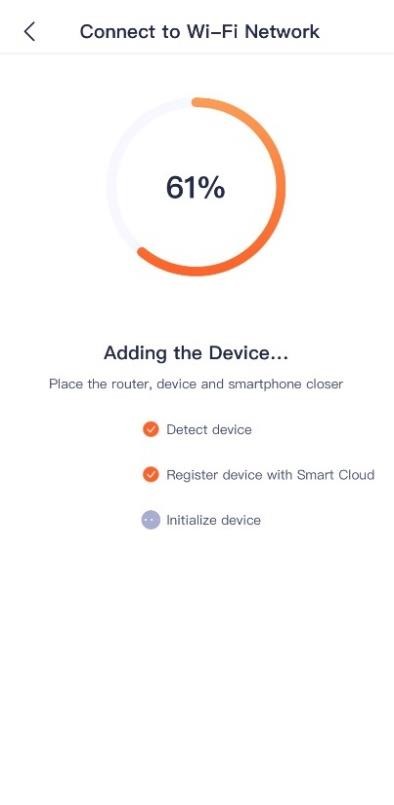
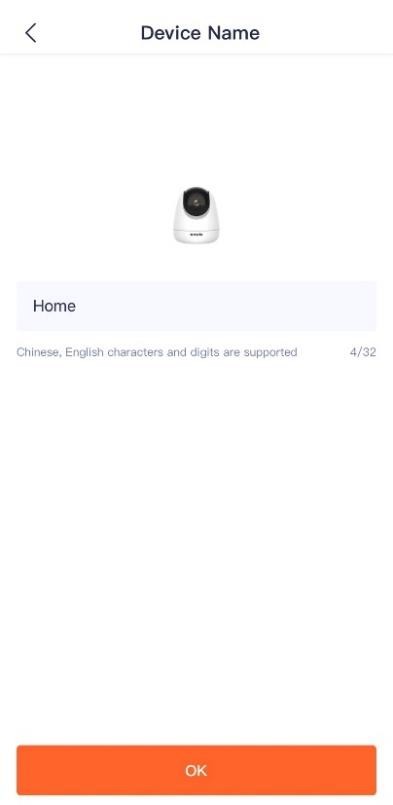
Step 2 Add the camera to TDSEE App.
 in the upper right corner of the home page.
If a prompt pop up asking for access to the camera of your smartphone, please allow it.
Next .



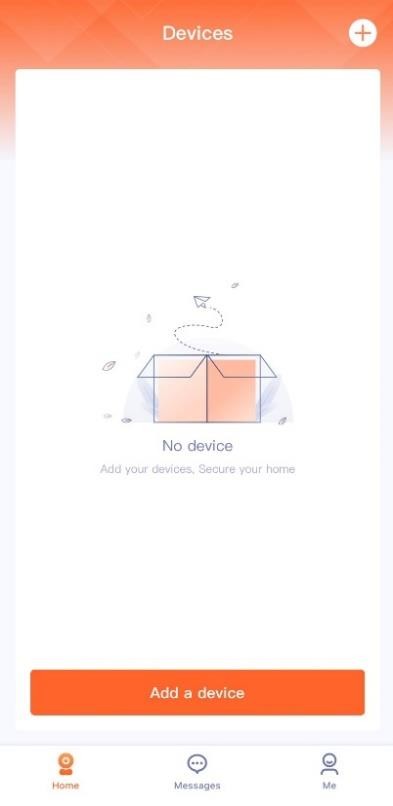

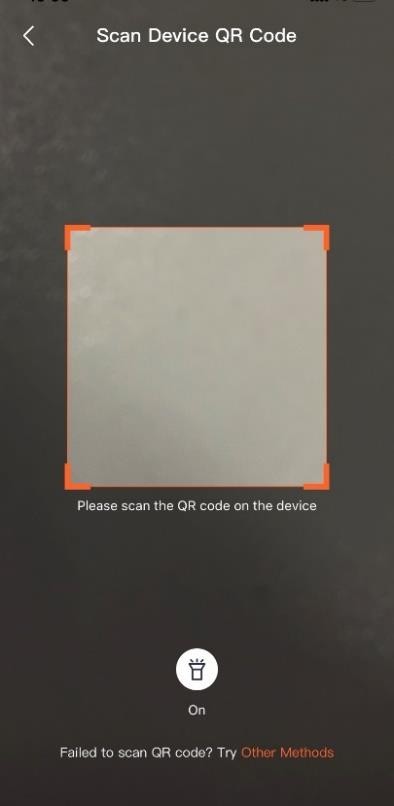

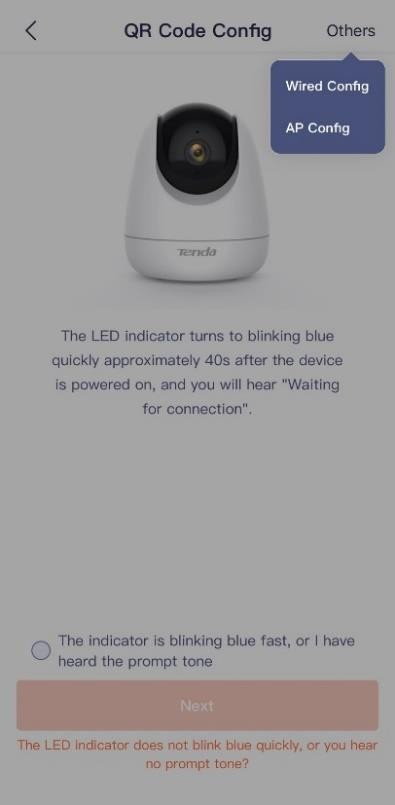

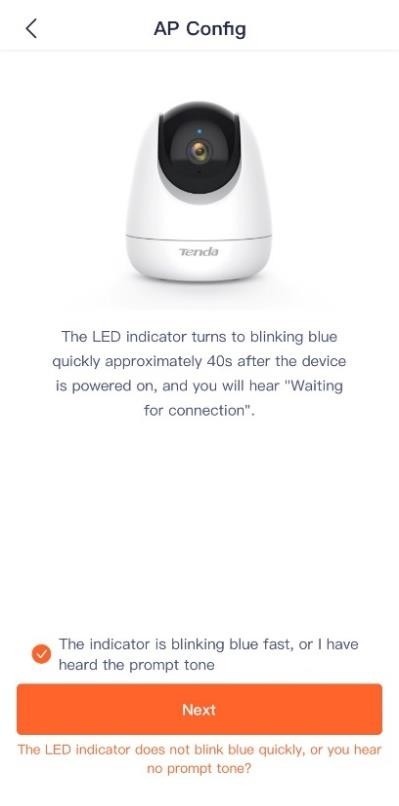
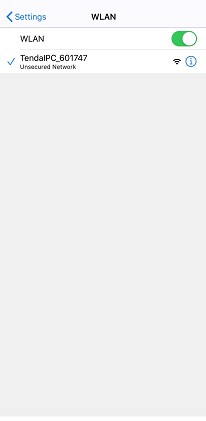
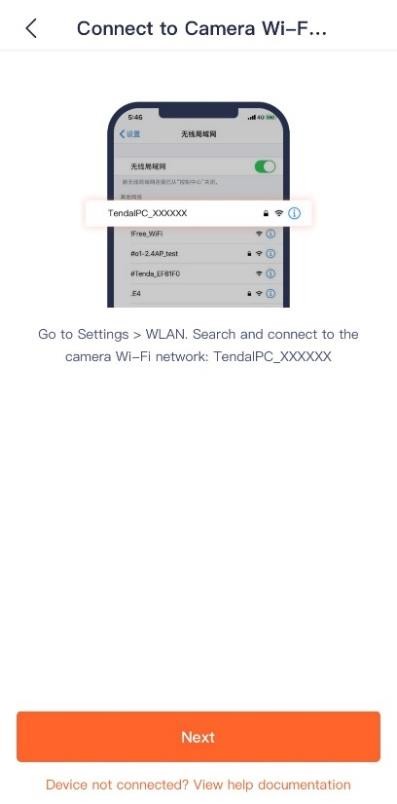
 to go to Settings > WLAN of your smartphone. Then connect to the 2.4 GHz Wi-Fi network of the router, which is Tenda_123456 in this example.
If a prompt pop up asking for access to the location information of your smartphone, please allow it.



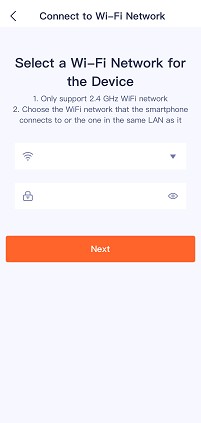

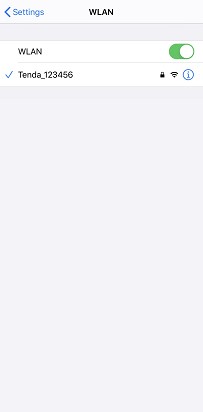

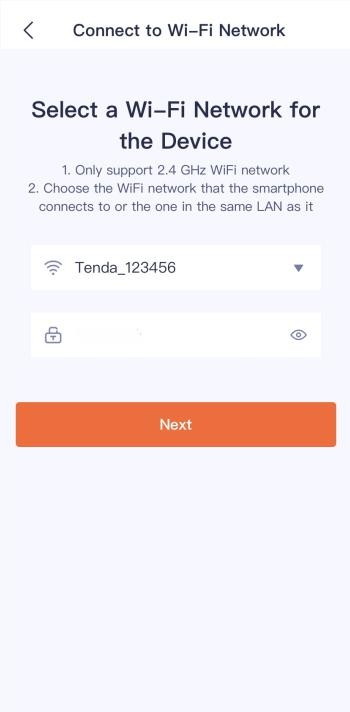

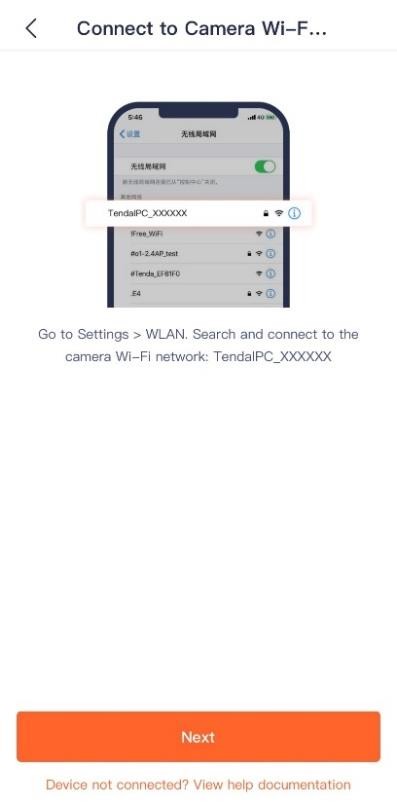

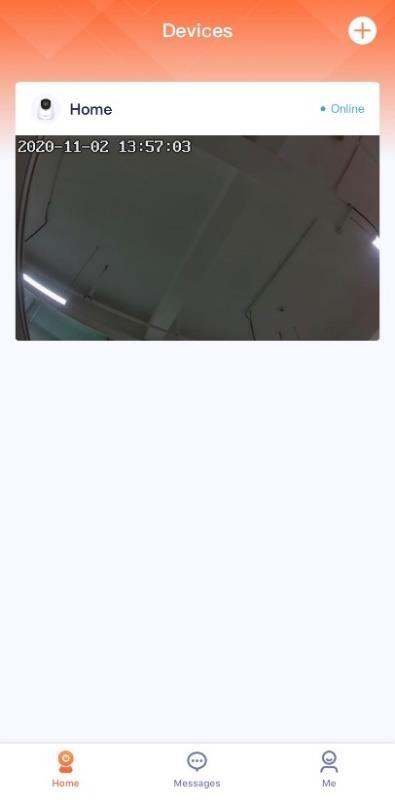
The SSID is TendaIPC_XXXXXX, XXXXXX indicates the last six characters of its UUID which can be found on the bottom of the device.








—-End
Method 3: Add a camera in a wired manner
Assume that the Wi-Fi name and Wi-Fi password of the router are:
− Wi-Fi name: Tenda_123456
− Wi-Fi password: UmXmL9UK
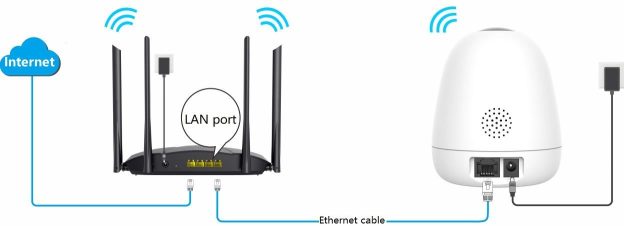
Step 1 Connect to the camera.
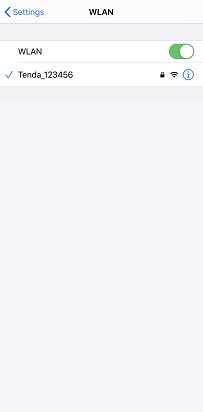
Step 2 Connect the smartphone to the Wi-Fi network of the router. Which is Tenda_123456 in this example.

Step 3 Add the camera to TDSEE App.
 in the upper right corner of the home page.
If a prompt pop up asking for access to the camera of your smartphone, please allow it.
TDSEE App User Guide
Read Next : ICSEE App User Guide
Related Posts

Did this security guide help you?
Rate this article to help fellow engineers find the best guides.

Alex Vance
Senior Security Systems Architect & IoT Consultant with over 15 years in digital surveillance design.
Discussion (0)
No comments yet. Be the first to share your thoughts!
Leave a Comment