
Swann Security App: Manuals and Tutorials
Swann Security App: Manuals and Tutorials, Swann Security makes it simple to bring all your devices together in one place. Whether you’re using recorders like the MaxRanger4K™ or powerful standalone cameras such as the 4K Pan & Tilt Wireless Security Camera, this platform gives you control, flexibility, and peace of mind.
Applies to the listed products
Downloads
Basics
Pairing or access" class="text-sky-600 dark:text-sky-400 font-medium hover:underline" title="Guides for remote access">Remote Access Guides
Play Back, Export, and Delete Recordings
Notification Set Up
Password Reset
Firmware Update Guide
.
Fixes
Video and Audio Issues
Storage Problems
Compatibility and Setup Issues
Security and Access Control
.
FAQs
Setup and Installation
Basic Operation
Device Features
Connectivity and Remote Streaming
Account Management
Firmware and Software Updates
Have encountered an error message on the app? Search the error message here in Support Center to find the correct article.
Can't find the right article?
We will create an article as soon as we have replicated the error.
.
Guides
Firmware and Software Updates
How to Pair Your Recorder Using the Swann Security app
This guide will walk you through how to pair your Swann Security recorder to the Swann Security app. Once paired, you can view and manage your recorder along with other Swann devices all in one place.
Things to Prepare
Before you begin, make sure you have completed the following setup steps:
Once done, choose your phone type
AndroidiOS
Choose Your Starting Point
Having trouble or unsure where to begin? Select the issue that fits your situation:
How to Pair Your Recorder (Android or iOS)
Follow the steps below if you are an Android user.
Open the Swann Security app, tap Menu then tap Pair Device
.
Common Error Messages When Pairing Your Recorder
Did you get an error message when pairing your recorder?
Check the list of error messages below that may match the error that you have on the app:
For Android users:
For iOS users:
NOTE: If you have encountered an error message that is not listed above, please click Submit Feedback below and include the following to have it added in the article:
Summary and Next Steps
You’ve now learned how to:
If you still can’t pair your recorder, contact Swann Support for further assistance.
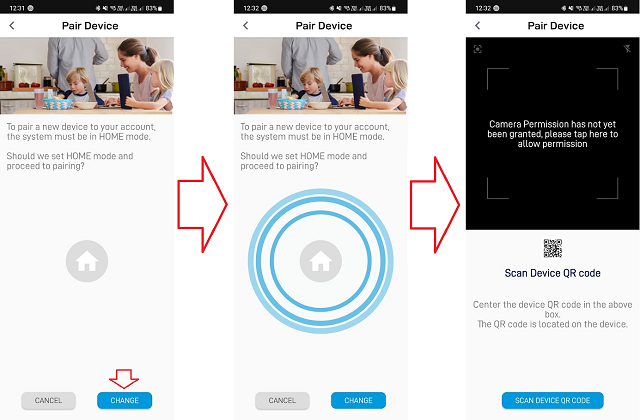
Warning: You can only pair your device when in Home mode.
Older versions of the Swann Security Apps show a pop-up indicating that you must switch to "Home" mode manually first before device pairing can proceed. This has been automated in the new version of the Swann Security app.
Please update as per App version requirement and follow the steps below.
 .
How Dynamic or Descriptive Notifications Work
Once activated, the feature runs automatically in the background:
.
How Dynamic or Descriptive Notifications Work
Once activated, the feature runs automatically in the background:
No extra configuration is needed.
Why this helps? Descriptive alerts allow you to judge the importance of a motion event without opening the app.
Advanced Troubleshooting
Still not seeing descriptive alerts? Try the following:
Update your app
Go to the App Store or Google Play and update the Swann Security app if one is available.
Restart your camera
In the Swann Security app, go to Devices > choose your device > Advance >Reboot
Check notification permissions
You can follow this article for a complete guide on which settings to check.
Log out and log back in
This resets session tokens and refreshes your access to premium features
Why this helps? Some devices or accounts may need a reset to recognize your subscription and display enhanced features.
Summary & Next Steps
You’ve now learned:
If everything checks out and you're still having trouble, feel free to contact Swann Support for a deeper look.
Where Can I Find My Recorder's Cloud Recordings
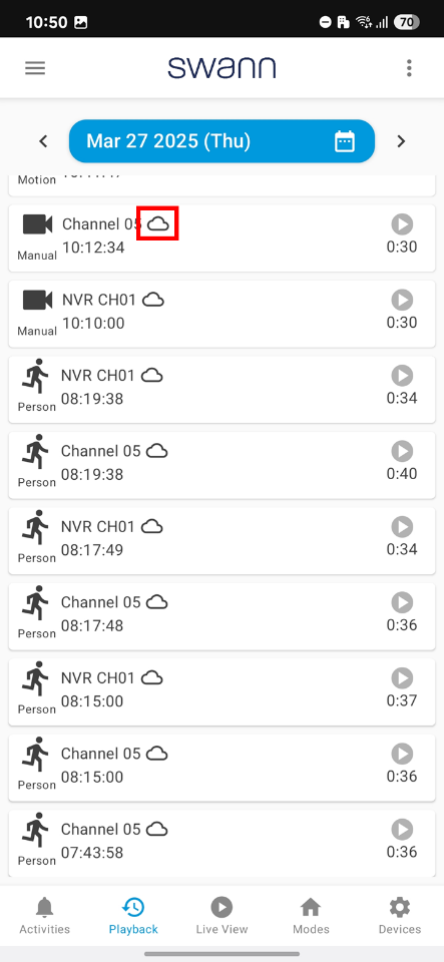
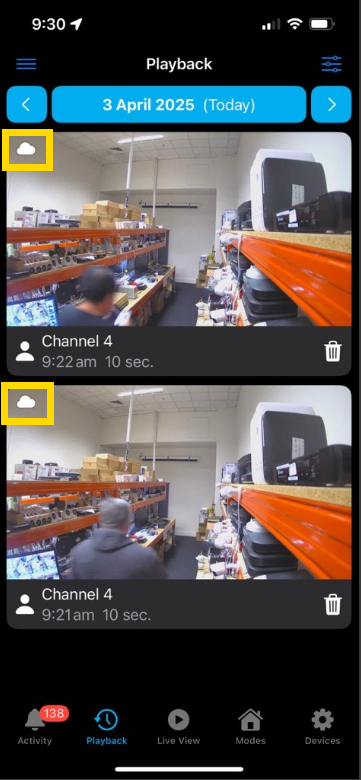
Answer: Open the Swann Security app and go to Playback. Clips with a 'cloud' icon are the cloud recordings.
Cloud recordings will only appear if the recorder is offline (e.g. disconnected from the internet or turned off)
NOTE: 'Cloud Recordings' doesn't mean it records straight to the cloud. It needs to be saved to a local storage first (e.g. microSD or HDD), then it gets uploaded to the cloud. No local storage, no local recordings, no cloud recordings.
Things to Have
The requirements to use Swann's cloud server are also listed in this article:
View larger
 View larger
 View larger
 View larger
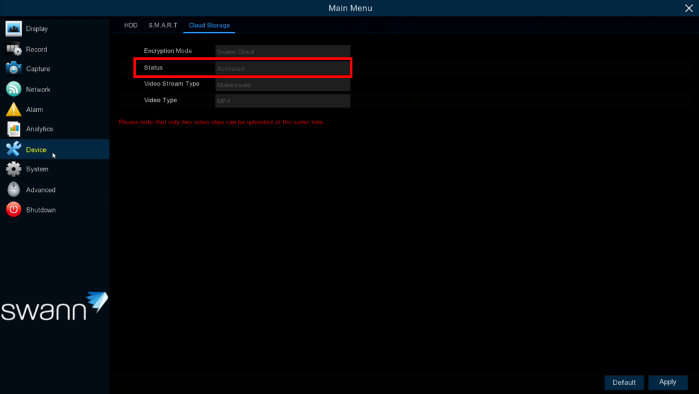
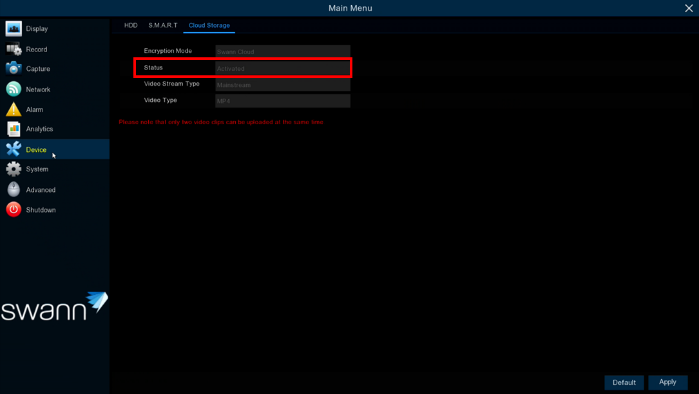
 Then, access the recorder's Menu > Devices > Cloud and check if the 'Status' shows 'Activated'.
 .
.
.
.
DVR4-4480G, DVR4-4480RN, DVR4-4480V, DVR4-4580G, DVR4-4580RN, DVR4-4580V, DVR4-4680, DVR4-4680RN, DVR4-4685, DVR4-4685RN, DVR4-4780V, DVR4-4980V, DVR4-5580, DVR4-5580G, DVR4-5580RN, DVR4-5680, DVR4-5680RN, DVR8-4480G, DVR8-4480RN, DVR8-4480V, DVR8-4580G, DVR8-4580RN, DVR8-4580V, DVR8-4680, DVR8-4680A, DVR8-4680RN, DVR8-4685, DVR8-4685RN, DVR8-4780V, DVR8-4880RN, DVR8-4980, DVR8-5580, DVR8-5580A, DVR8-5580G, DVR8-5580RN, DVR8-5580RU, DVR8-5680, DVR8-5680A, DVR8-5680RN, DVR8-5680RU, DVR8-5880RU, DVR16-4580G, DVR16-4580RN, DVR16-4580V, DVR16-4680, DVR16-4680A, DVR16-4680RN, DVR16-4680RU, DVR16-4880RU, DVR16-4980, DVR16-5580, DVR16-5580G, DVR16-5580G2, DVR16-5580RU, NVR8-8580, NVR8-8580RN, NVR8-8600RU, NVR8-8780, NVR8-8780RN, NVR16-8580, NVR16-8580RN, NVR16-8600RU, NVR16-8780, NVR16-8780RN, NVW-650, NVW-800, NVW-MR4K, NVW-MR4KSTN, DVR4-4680XN, DVR4-4680XU, DVR4-4685XU, DVR4-5680XN, DVR8-4680X, DVR8-4680XN, DVR8-4680XU, DVR8-4685XU, DVR8-5680X, DVR8-5680XU, NVR8-ADVANX, NVR16-ADVANX, SWIFI-4KPTBC, SWIFI-SESOL2KBC, SWIFI-SE2KBC, SWIFI-4KXTRMECO, SWIFI-SEVDBC, SWIFI-SE2KPT, SWIFI-SE2KIC, SWIFI-4KBUDDY, SWIFI-4KXTRM, SWIFI-4KFLOCAM, SWIFI-COREPRO, SWIFI-CORECAM, SWIFI-2KOCAM, SWIFI-2KICAM, SWIFI-FOURTIFY, SWIFI-BUDDY, SWIFI-XTRCM, SWIFI-CAM, SWIFI-PTCAM2, SWIFI-FLOCAM2, SWIFI-TRACKCM, SWIFI-SPOTCAM, SWIFI-ALERTCAM, SWIFI-SLMFLC, WHD-FLOCAM, WHD-OUTCAM, WHD-INDCAM, SWIFI-MOTION, SWIFI-WDOOR, SWIFI-LEAK, SWIFI-ISIREN, SWIFI-ACTIVEG2A, SWIFI-ACTIVEG2B, SWIFI-MPRSB, SWIFI-MPRST
Swann Security App: Manuals and Tutorials
What you can do in the Swann Security app What sets the Swann Security app apart is how smoothly it works across Swann’s ecosystem. It’s designed to give you features and control that go beyond what most other platforms can offer. Easily move between devices Manage your system with ease Stay in charge of your subscription Catch every detail See what’s happening live Talk through your cameras Choose Your Phone Type• Android App Manual
• Android App Quick Start Guide (for stand-alone cameras)
• Android App Quick Start Guide (for AdvancedX™ NVR)
• Android
• iOS
1.Take a screenshot of the error or screen recording to demonstrate how it happens.
2.Click Submit Feedback below.
3.Upload the screenshot or screen recording and provide more information about it (e.g. Swann model number, app version, phone model, and phone's OS version.
• iOS App Manual
• iOS App Quick Start Guide (for stand-alone cameras)
• iOS App Quick Start Guide (for AdvancedX™ NVR)
4.Install the Swann Security app, create an account, verify it, then log in.
• Never ending "Verifying credentials" - the troubleshooting is similar to the article above.
• Model number of your recorder
• Screenshot of the error or screen recording of how you got the error
• Pair your Swann recorder to the Swann Security app (Android/iOS)
• Fix common pairing issues such as being already paired, password errors, or offline messages
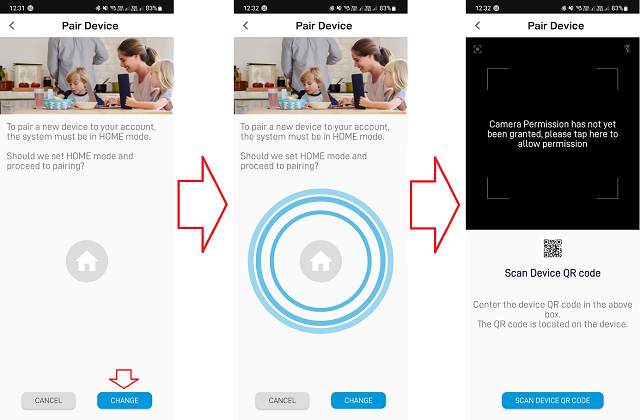
1.Tap Change.
2.The app will automatically switch to "Home" mode.
3.and proceeds to the QR code scanning page.
 .
How Dynamic or Descriptive Notifications Work
Once activated, the feature runs automatically in the background:
.
How Dynamic or Descriptive Notifications Work
Once activated, the feature runs automatically in the background:
• Your camera detects motion (must be recording).
• Swann AI analyzes the footage.
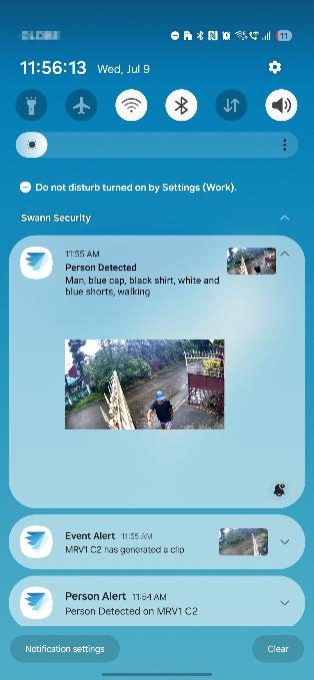
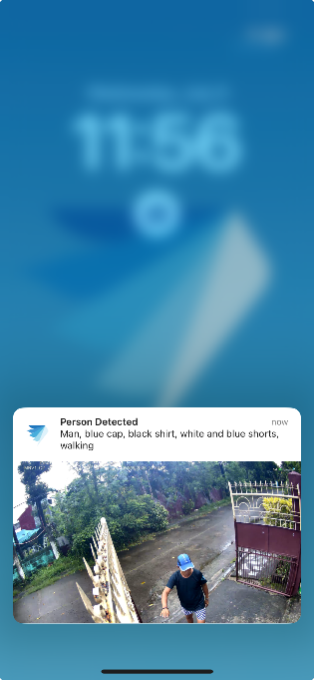
• A notification is sent with:
◦ A thumbnail from the clip
◦ A description, like in the screenshots below
| Android | iOS |
 View larger
 |
 View larger
 |
• What Dynamic or Descriptive Notifications are.
• What devices and plans support them.
• How to troubleshoot if they’re not showing up.
| Android | iOS |
 View larger
 |
 View larger
 |
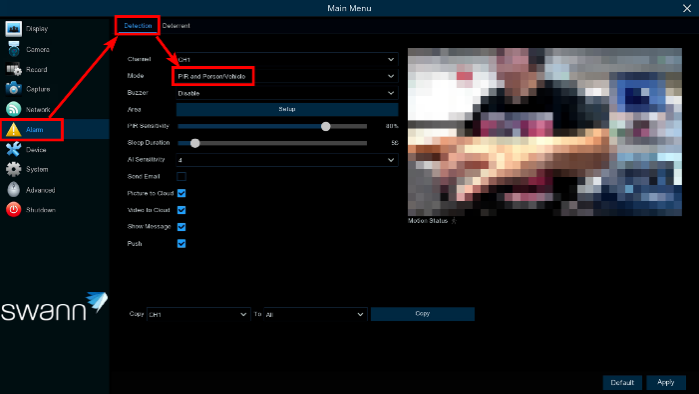
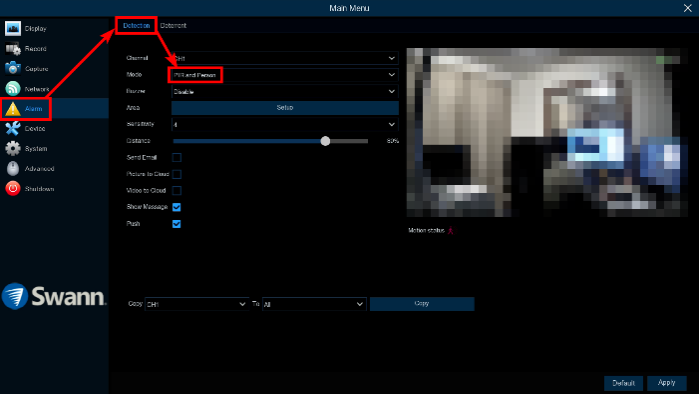
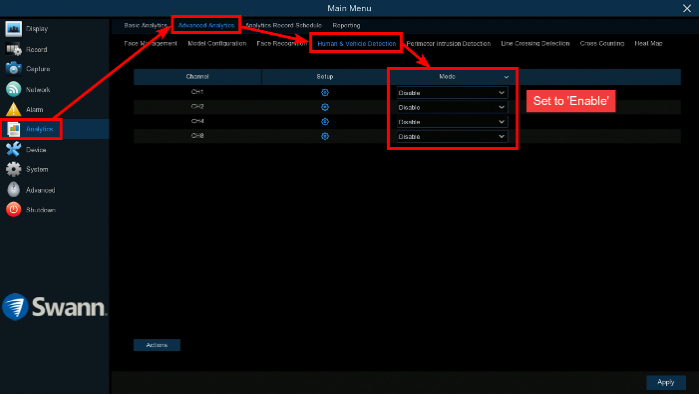
1.Secure+ Unlimited Plan: The recorder must be paired to a Swann Security account with this plan.
2.Agent Version 4.2.x and above: Once the recorder is paired to Swann Security, go to Devices, choose your recorder, then tap on About Device / Technical Details.
• Don't have Agent Version 4.2.x or above? Check in this article if there is a firmware update available.
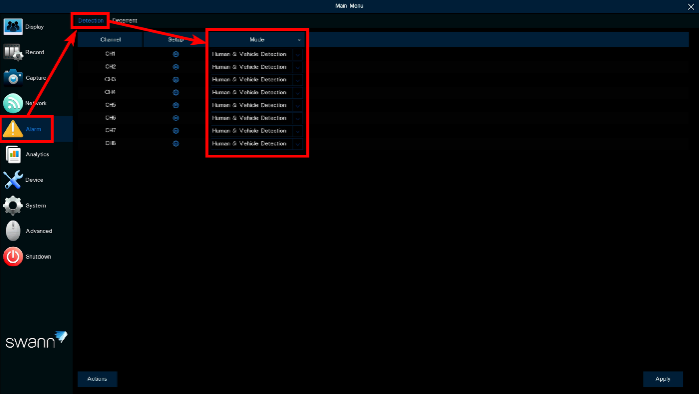
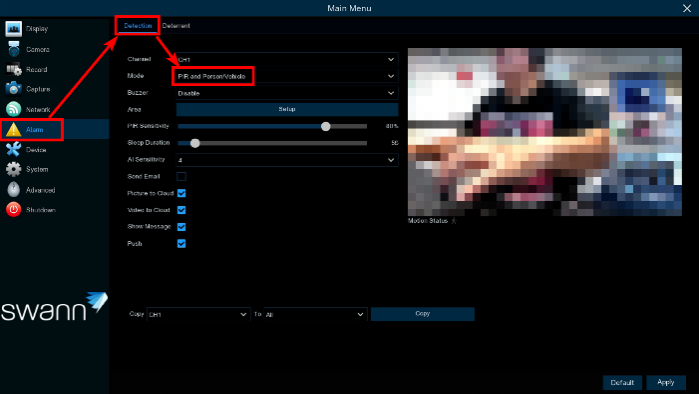
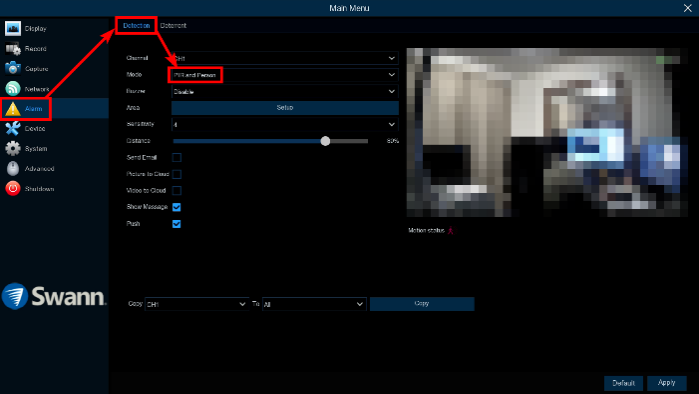
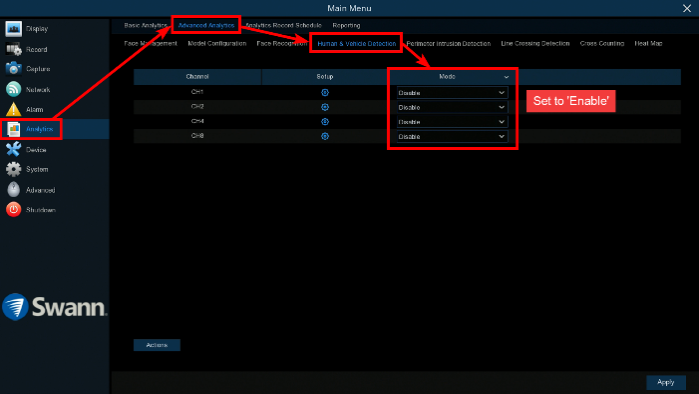
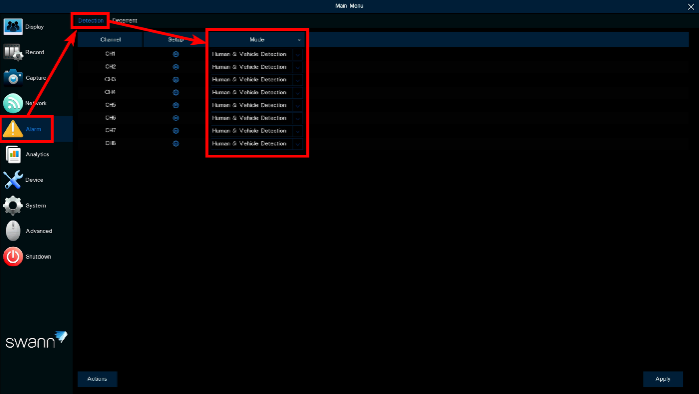
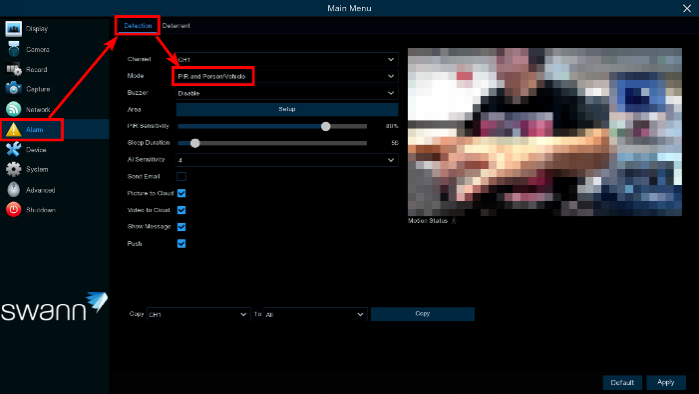
3.Recorder has Human detection: You can find this either in Alarm > Detection or Analytics (depending on your system). Only human detected clips are uploaded to the cloud.
 View larger
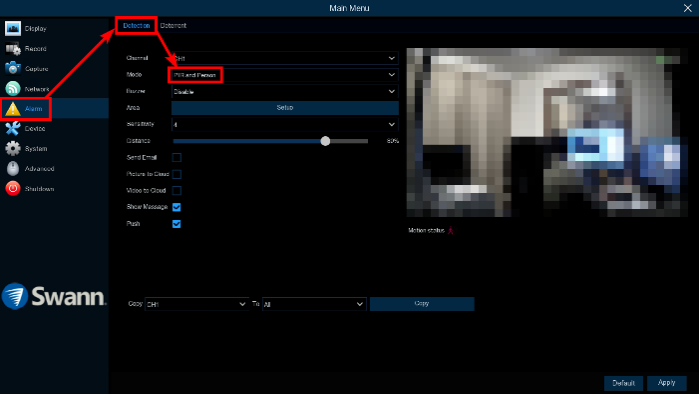 View larger
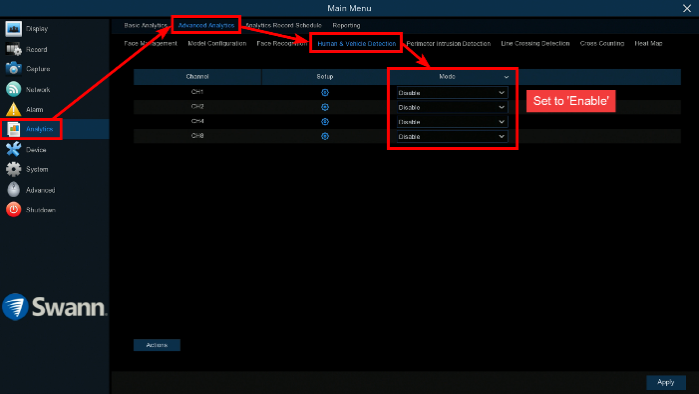 View larger
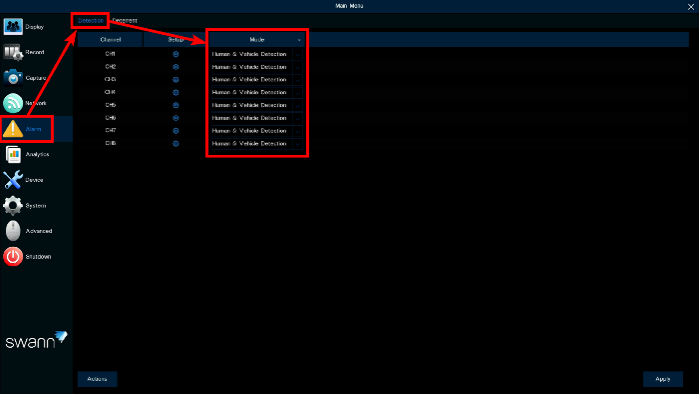 View larger
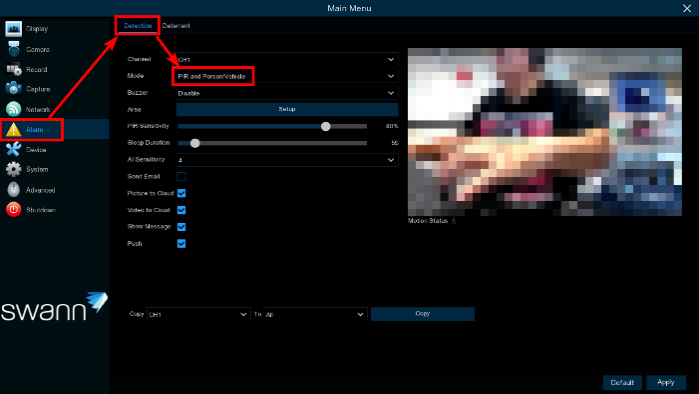
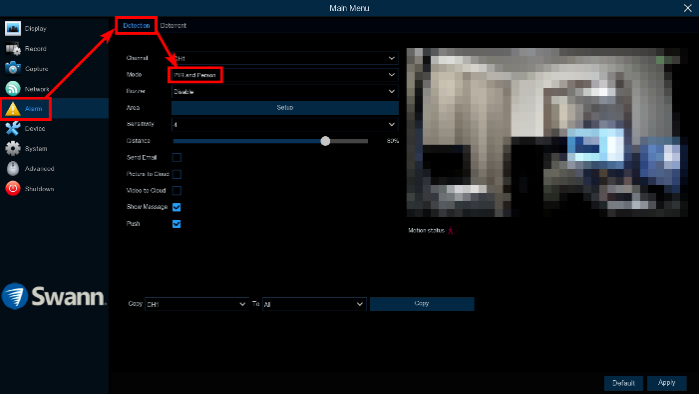
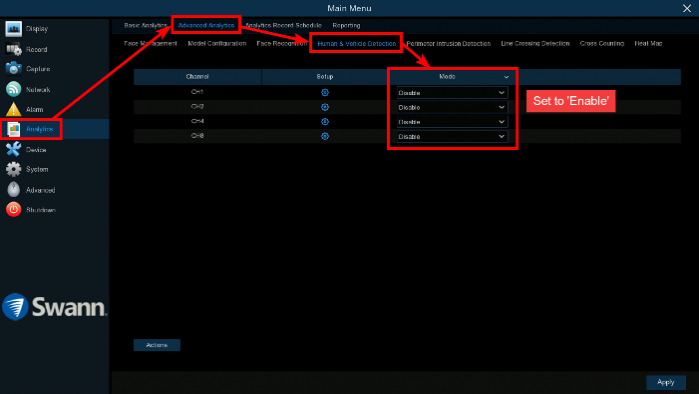
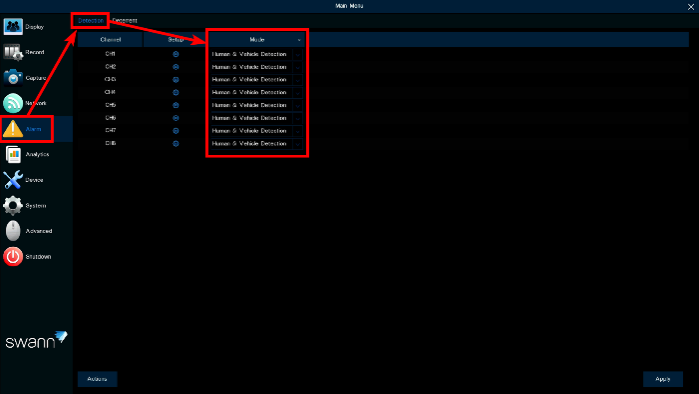 Then, access the recorder's Menu > Devices > Cloud and check if the 'Status' shows 'Activated'.
• If it doesn't show 'Activated', try rebooting your internet and recorder to refresh the connection.
• If it is still the same, reach out to Technical Support
 .
.
.
.
Advertisement

Topics:
#Swann app camera setup tutorial
#Swann app compatibility with devices
#Swann app connection problems fix
#Swann app installation steps
#Swann app motion detection settings
#Swann app network configuration help
#Swann app not working solution
#Swann app password reset instructions
#Swann app push notifications setup
#Swann app recording settings tutorial
#Swann app video playback issues fix
#Swann Security App alerts setup guide
#Swann Security App cloud storage setup
#Swann Security App device pairing guide
#Swann Security App FAQ guide
#Swann Security App firmware update guide
#Swann Security App how to use guide
#Swann Security App live view not loading fix
#Swann Security App login issues fix
#Swann Security App playback tutorial
#Swann Security App remote viewing setup
#Swann Security App setup guide
#Swann Security App troubleshooting guide
#Swann Security App tutorial for beginners
#Swann Security App user manual
Did this security guide help you?
Rate this article to help fellow engineers find the best guides.

Written by
Alex Vance
Senior Security Systems Architect & IoT Consultant with over 15 years in digital surveillance design.
Discussion (0)
No comments yet. Be the first to share your thoughts!
Leave a Comment