
How to remotely connect to DIVAR Mobile Viewer App
How to remotely connect to DIVAR Mobile Viewer App, This article contains a step by step guide meant to show you how to remotely connect to your DIVAR Network or Hybrid by using your phone/ tablet via DIVAR Mobile Viewer App.
 It is mandatory to have the monitor & mouse & Keyboard connected to your DIVAR.
Recommendation
When adding your DIVAR in Remote Portal, please consider to use a separate Technician account when performing this action.
In case you are using an Admin account to connect your DIVAR to it and if you forgot the password of the Admin account, after resetting it, you will be required to re-add the password locally, physically on your DIVAR.
Therefore, by using a Technician account added into an Admin account, after resetting the Admin account password, this action will not impact the password of your DIVAR when adding it into the Remote Portal.
.
Or you can create the Remote Portal account directly from your DIVAR Hybrid/ Network only if you have connected locally the monitor & mouse & Keyboard to your DIVAR:
To create a new Remote Portal account from your DIVAR Hybrid/ Network:
.
Important!
Make sure the recorder is connected to the open internet, before you configure the DDNS service.
It is mandatory to have the monitor & mouse & Keyboard connected to your DIVAR.
Recommendation
When adding your DIVAR in Remote Portal, please consider to use a separate Technician account when performing this action.
In case you are using an Admin account to connect your DIVAR to it and if you forgot the password of the Admin account, after resetting it, you will be required to re-add the password locally, physically on your DIVAR.
Therefore, by using a Technician account added into an Admin account, after resetting the Admin account password, this action will not impact the password of your DIVAR when adding it into the Remote Portal.
.
Or you can create the Remote Portal account directly from your DIVAR Hybrid/ Network only if you have connected locally the monitor & mouse & Keyboard to your DIVAR:
To create a new Remote Portal account from your DIVAR Hybrid/ Network:
.
Important!
Make sure the recorder is connected to the open internet, before you configure the DDNS service.
 .
.
 .
.
 For access" class="text-sky-600 dark:text-sky-400 font-medium hover:underline" title="Guides for remote access">remote access on your Divar Network/Hybrid, you will need to forward certain communication ports on your router that connects you to the internet.
Read your router manual for instructions to forward ports to a device or you can refer to this link where basic information on Port Forwarding are provided.
The Divar Mobile Viewer App only needs TCP port 37777.
However, if you also plan to connect remotely to the unit via web browser, you will need to forward the HTTPS port and/or HTTP port. Bosch advises to use only HTTPS connections for a higher security.
See below an overview of the ports default values and their usage:
Bosch strongly recommends to only use HTTPS communication. However, if the network bandwidth is limited, the system has a very high load or the remote workstations are not powerful enough, the HTTP connection can be used to increase the systems performance and reduce network bandwidth stress.
See also this article: Which ports are used by Bosch DIVAR Mobile Viewer App?
For access" class="text-sky-600 dark:text-sky-400 font-medium hover:underline" title="Guides for remote access">remote access on your Divar Network/Hybrid, you will need to forward certain communication ports on your router that connects you to the internet.
Read your router manual for instructions to forward ports to a device or you can refer to this link where basic information on Port Forwarding are provided.
The Divar Mobile Viewer App only needs TCP port 37777.
However, if you also plan to connect remotely to the unit via web browser, you will need to forward the HTTPS port and/or HTTP port. Bosch advises to use only HTTPS connections for a higher security.
See below an overview of the ports default values and their usage:
Bosch strongly recommends to only use HTTPS communication. However, if the network bandwidth is limited, the system has a very high load or the remote workstations are not powerful enough, the HTTP connection can be used to increase the systems performance and reduce network bandwidth stress.
See also this article: Which ports are used by Bosch DIVAR Mobile Viewer App?
 .
.
 .
.
.
TIp
The abc icon is displayed in the domain name when you are hovering over it. Move the mouse outside of it to make the abc icon disappear.
.
.
.
TIp
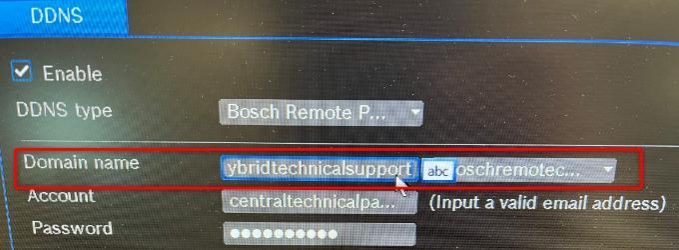
The abc icon is displayed in the domain name when you are hovering over it. Move the mouse outside of it to make the abc icon disappear.
 Behind the abc icon there is '.' and not '@'
 .
Whether you follow the Option 1 or Option 2, you will have the overview below in the DIVAR Mobile Viewer App:
.
Whether you follow the Option 1 or Option 2, you will have the overview below in the DIVAR Mobile Viewer App:
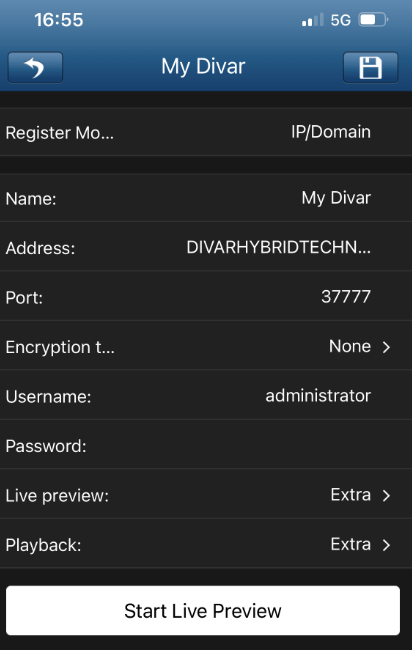 Important
The username and the password are the credentials of your DIVAR!
Important
The username and the password are the credentials of your DIVAR!
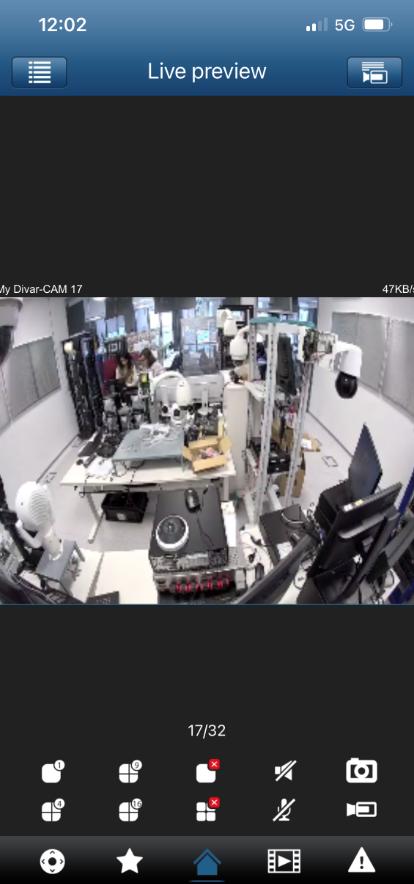 .
.
.
.
Step-by-step guide
 It is mandatory to have the monitor & mouse & Keyboard connected to your DIVAR.
Recommendation
When adding your DIVAR in Remote Portal, please consider to use a separate Technician account when performing this action.
In case you are using an Admin account to connect your DIVAR to it and if you forgot the password of the Admin account, after resetting it, you will be required to re-add the password locally, physically on your DIVAR.
Therefore, by using a Technician account added into an Admin account, after resetting the Admin account password, this action will not impact the password of your DIVAR when adding it into the Remote Portal.
It is mandatory to have the monitor & mouse & Keyboard connected to your DIVAR.
Recommendation
When adding your DIVAR in Remote Portal, please consider to use a separate Technician account when performing this action.
In case you are using an Admin account to connect your DIVAR to it and if you forgot the password of the Admin account, after resetting it, you will be required to re-add the password locally, physically on your DIVAR.
Therefore, by using a Technician account added into an Admin account, after resetting the Admin account password, this action will not impact the password of your DIVAR when adding it into the Remote Portal.
A) Setting up DDNS & Remote Portal account
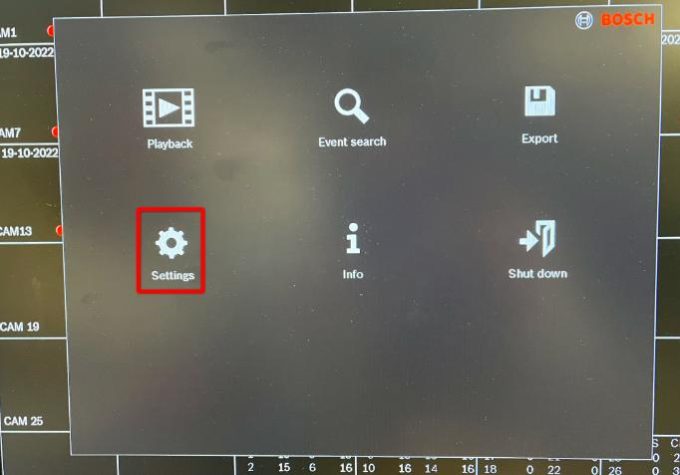
First, you have to create a Remote Portal account, if you don't have one yet. If you already have an account, add it locally (not via web interface) to the DIVAR by accessing Settings > Network > DDNS . You can create the Remote Portal account in advance from any browser by accessing: https://remote.boschsecurity.com and click Sign up button.• See more details here: How to create a company's account in Bosch Remote Portal?
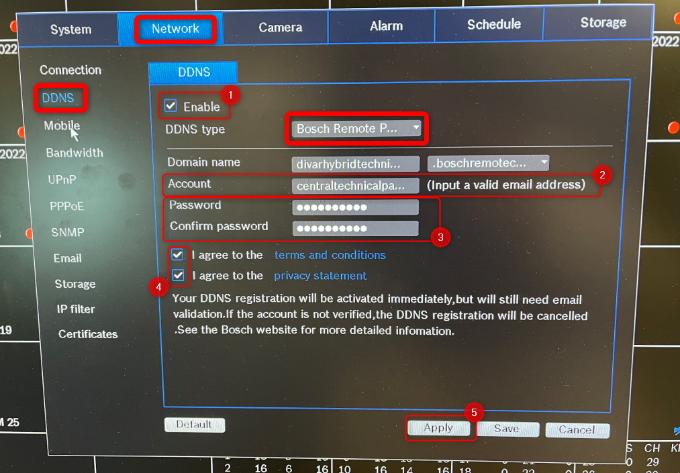
• Go to Settings > Network > DDNS > select "Bosch Remote Portal" next to the DDNS type


1.Tick the box next to "Enable"
2.Type in the e-mail address that will be used to log in to the Bosch Remote Portal
3.Insert the password that will be used in Bosch Remote Portal
Note: The password must contain minimum 8 characters that must include at least one letter and one number.
Hint: While creating the Remote Portal account, please note that the password length displayed in the dedicated password field will display maximum 11 dots characters instead of the real number of dots characters that you typed in for your password. Therefore, behind the 11 dots characters, it will be the password of your choice. This is also valid for the users on the Divar.
4.Agree to the conditions
5.Click Apply → "Successfully Registered" message will appear within a few seconds:
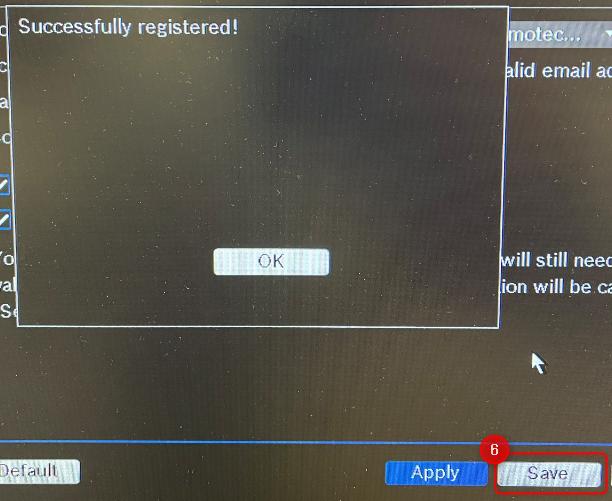

6.Click Save
• An e-mail will be sent to your nominated email address with the Bosch Remote Portal activation link. Click on the link from the e-mail. This will redirect you to the Bosch Remote Portal web page to login.
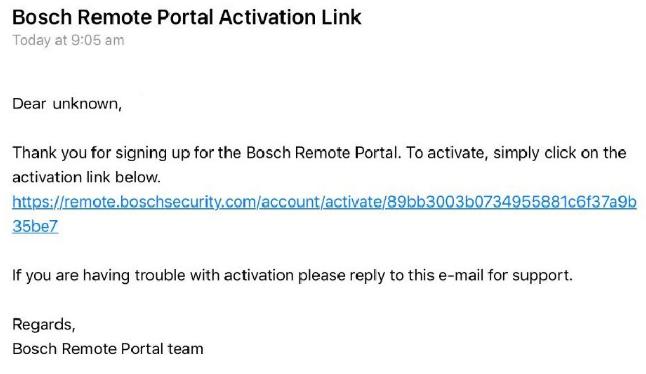 This message should be displayed:
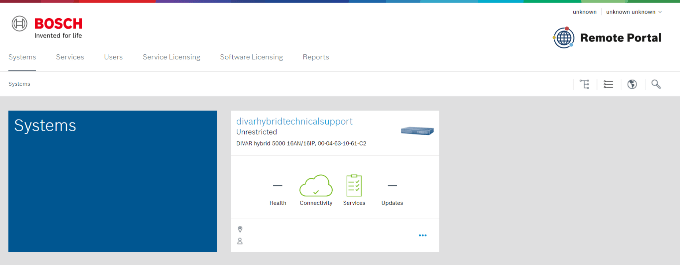
 After logging in to your Bosch Remote Portal Account (with the credentials you previously set within your DIVAR, DDNS tab), you should be able to see the DIVAR as connected:
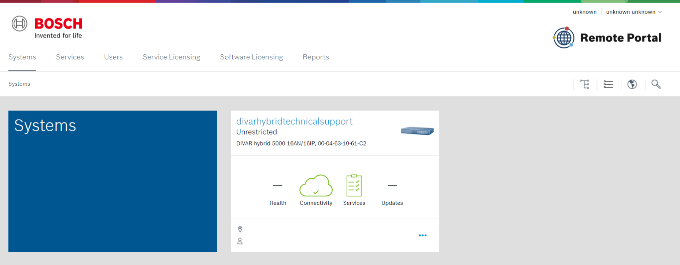
 This message should be displayed:
 After logging in to your Bosch Remote Portal Account (with the credentials you previously set within your DIVAR, DDNS tab), you should be able to see the DIVAR as connected:
B) UPnP SET UP
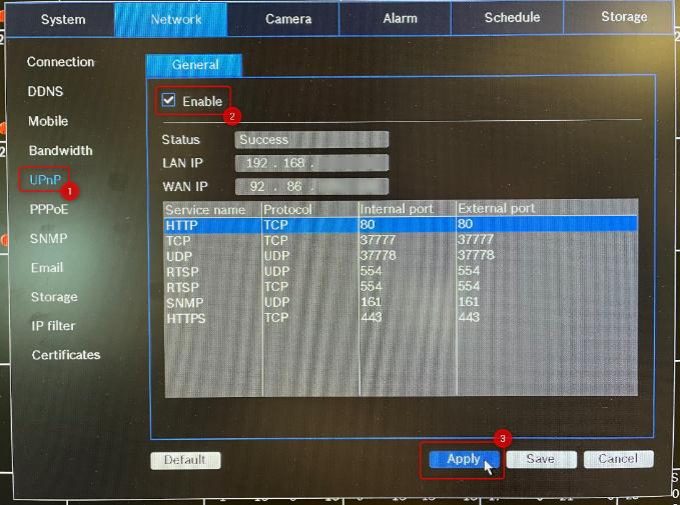
Now, you have to go in the UPnP menu and tick the box next to Enable > click Apply The status should display "Success" and the LAN IP and WAN IP fields will be populated. The table shows the port-forwarding rules that will be passed through your router, if UPnP is enabled on the router. Tip Please make sure that the Public IP is correctly set. If you don’t know what your Public IP is, type in “what is my IP” in any search engine and you will find it. . .
.
 For access" class="text-sky-600 dark:text-sky-400 font-medium hover:underline" title="Guides for remote access">remote access on your Divar Network/Hybrid, you will need to forward certain communication ports on your router that connects you to the internet.
Read your router manual for instructions to forward ports to a device or you can refer to this link where basic information on Port Forwarding are provided.
The Divar Mobile Viewer App only needs TCP port 37777.
However, if you also plan to connect remotely to the unit via web browser, you will need to forward the HTTPS port and/or HTTP port. Bosch advises to use only HTTPS connections for a higher security.
See below an overview of the ports default values and their usage:
For access" class="text-sky-600 dark:text-sky-400 font-medium hover:underline" title="Guides for remote access">remote access on your Divar Network/Hybrid, you will need to forward certain communication ports on your router that connects you to the internet.
Read your router manual for instructions to forward ports to a device or you can refer to this link where basic information on Port Forwarding are provided.
The Divar Mobile Viewer App only needs TCP port 37777.
However, if you also plan to connect remotely to the unit via web browser, you will need to forward the HTTPS port and/or HTTP port. Bosch advises to use only HTTPS connections for a higher security.
See below an overview of the ports default values and their usage:
• TCP port: 37777 - used for video streaming, mandatory. This port is used by the Bosch DIVAR Mobile Viewer app to connect to the recorder. The web client also uses TCP port 37777.
• UDP port: 37778 - used for UDP type data streaming
• HTTPS port: 443 - used for secure connection via web browser
• HTTP port: 80 - used for connection via web browser.
• RTSP port: 554 - used for accessing the video using an RTSP stream
C) Mobile device set up | DIVAR Mobile Viewer App (phone/ tablet)
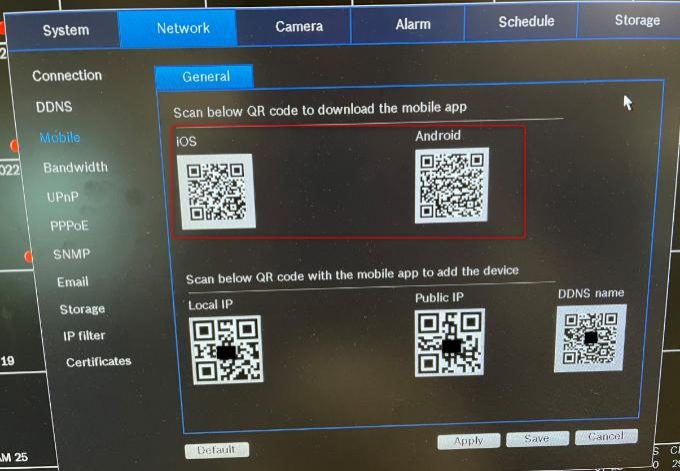
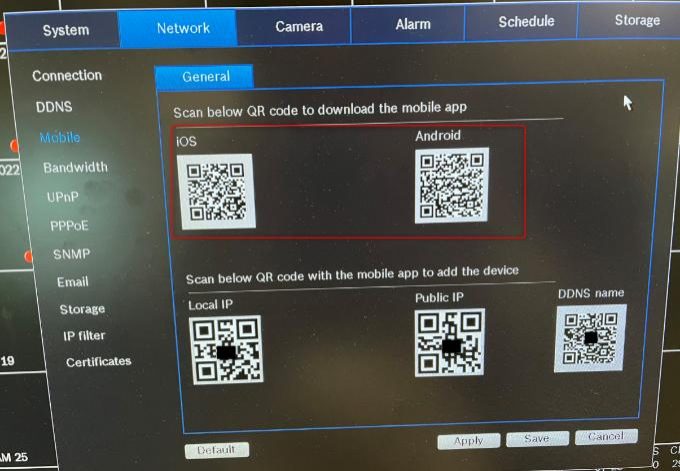
• Go to Network > Mobile > General and scan the QR code to download the Mobile Viewer app if you do not have it already installed on your phone/ tablet

 .
.
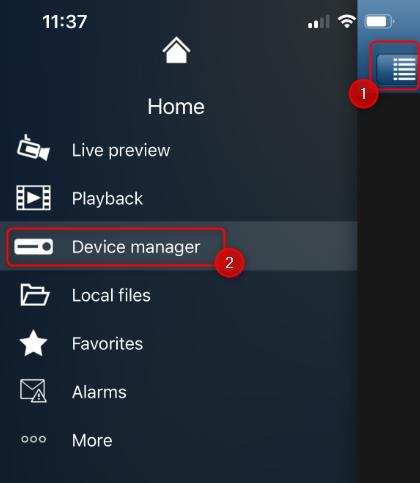
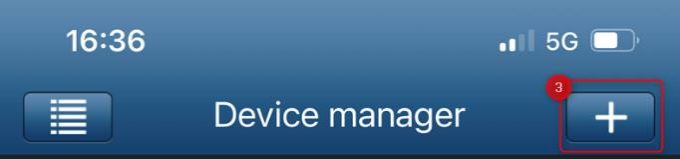
• Once the DIVAR Mobile Viewer app is installed on your mobile device, open the App > click on the left side menu > select Device manager > then click + to add a new device

 .
.
• Add the preferred name for your DIVAR
• Now you have 2 options to add your DIVAR in the App
• Option 1: by scanning the QR code (next to the DDNS name) displayed on the DIVAR's screen
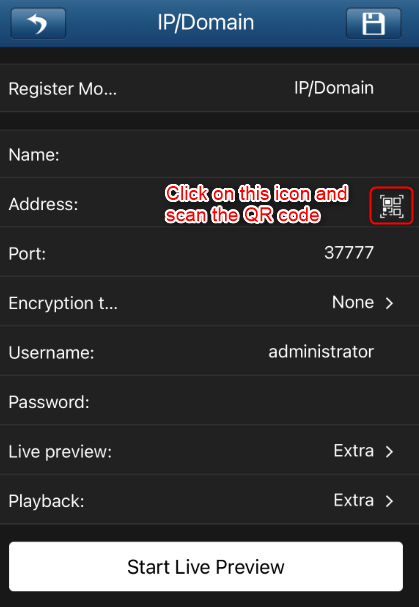
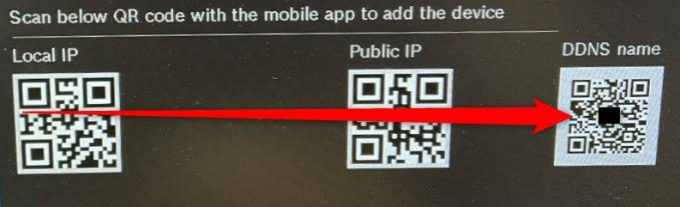
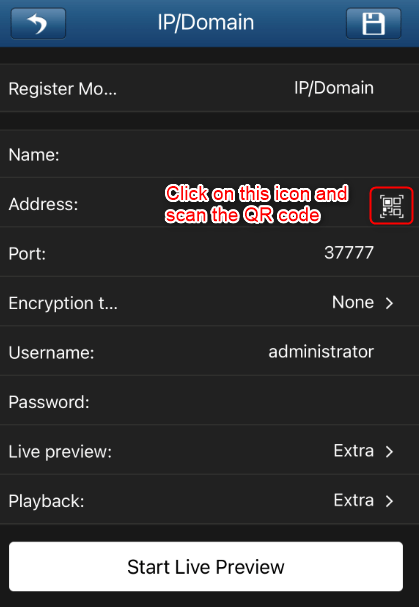

• Option 2: by manually adding the details.
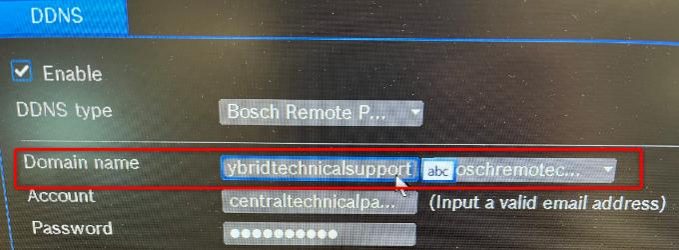
Note: if you manually add the details, for remote connection you should enter the Domain name from the DDNS menu on your DIVAR:
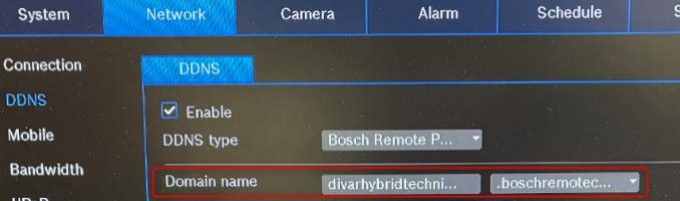

 Behind the abc icon there is '.' and not '@'
 .
Whether you follow the Option 1 or Option 2, you will have the overview below in the DIVAR Mobile Viewer App:
.
Whether you follow the Option 1 or Option 2, you will have the overview below in the DIVAR Mobile Viewer App:
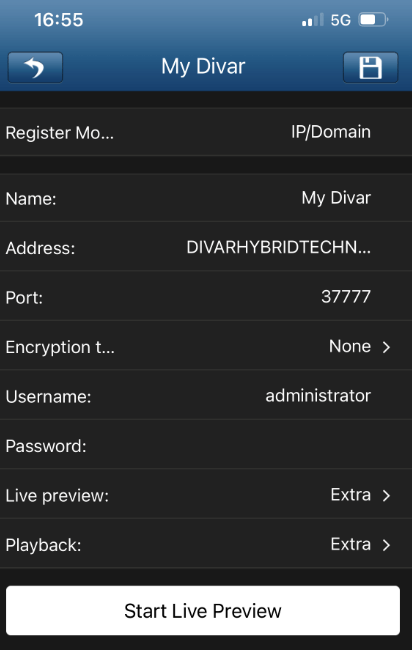
• Enter the Username and the password and click Start Live Preview
• Now, you can remotely see the cameras connected to your DIVAR Network or Hybrid, directly on your phone/ tablet via Mobile Viewer App!
 .
.
How to create a technical password in Remote Portal?
When a user decides to use SingleKey ID (SKID) or an integrated customer IDP (company account) as the authentication method for Bosch Remote Portal or Alarm Management a technical password will be required to login to other applications that do not support SingleKey ID or any other IDP. In the following, it is explained how to create a technical password and how to use it with an application like for example Bosch Configuration Manager or Bosch Project Assistant app, that does not support SingleKey ID or any other IDP.Step-by-step guide
1.Login to Remote Portal with your SKID account or your company account in case the IDP of your company has been integrated to Remote Portal.
2.Click on your user name in the upper right hand corner and select User Settings.


3.On the Technical Password card click Generate.
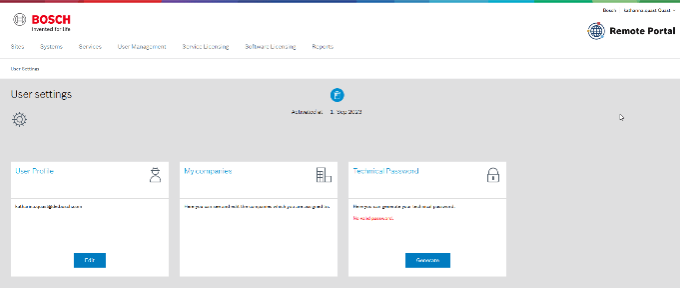
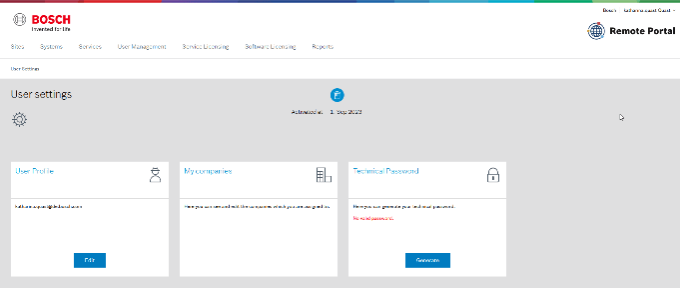
4.The success banner will show you the technical password you have just created. Please note: the technical password expires after 8 hours.
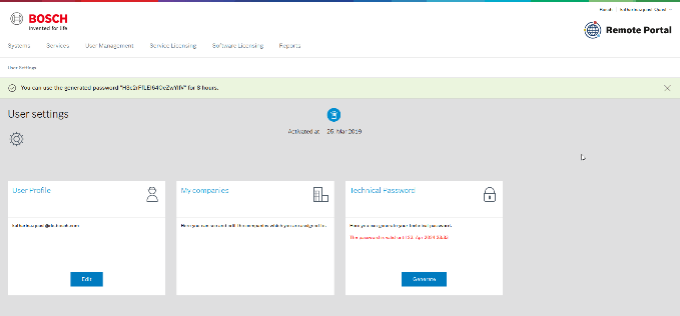
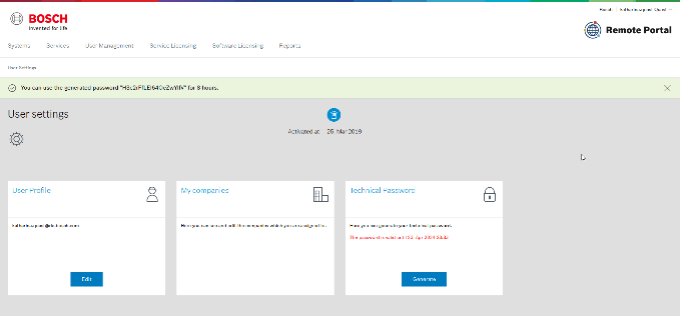
5.Copy the technical password from the banner shown in Remote Portal and use it together with the email address you're using for SingleKey ID / your company IDP to connect to Remote Portal e.g. in Configuration Manager.
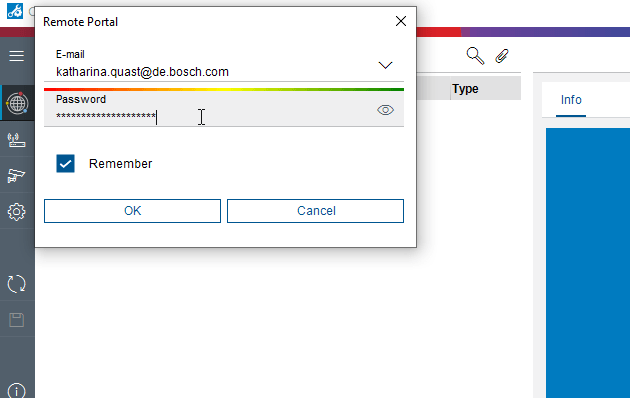 You can now use Configuration Manager as before when using the legacy login with email address and password.
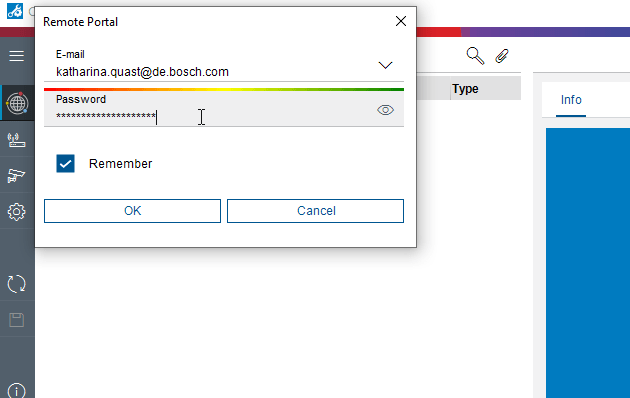 You can now use Configuration Manager as before when using the legacy login with email address and password.
Advertisement

Topics:
#best network settings for DIVAR Mobile Viewer
#best security camera apps for remote viewing
#best settings for DIVAR Mobile Viewer
#best way to access DIVAR Mobile Viewer remotely
#connect DIVAR Mobile Viewer to WiFi
#DIVAR Mobile Viewer app for Android
#DIVAR Mobile Viewer for iPhone
#DIVAR Mobile Viewer network setup
#DIVAR Mobile Viewer port forwarding guide
#DIVAR Mobile Viewer remote access
#DIVAR Mobile Viewer remote login
#DIVAR Mobile Viewer remote setup 2025
#DIVAR Mobile Viewer setup guide
#DIVAR Mobile Viewer troubleshooting
#does DIVAR Mobile Viewer work without WiFi
#how to access DVR remotely on phone
#how to configure DIVAR Mobile Viewer
#how to connect DIVAR Mobile Viewer without static IP
#how to fix DIVAR Mobile Viewer connection issues
#how to remotely connect to DIVAR Mobile Viewer App
#how to reset DIVAR Mobile Viewer
#how to use DIVAR Mobile Viewer app
#how to view CCTV remotely with DIVAR
#how to watch CCTV online with DIVAR
#why is DIVAR Mobile Viewer not working
Did this security guide help you?
Rate this article to help fellow engineers find the best guides.

Written by
Alex Vance
Senior Security Systems Architect & IoT Consultant with over 15 years in digital surveillance design.
Discussion (0)
No comments yet. Be the first to share your thoughts!
Leave a Comment