
HapSee Mate app User Manual
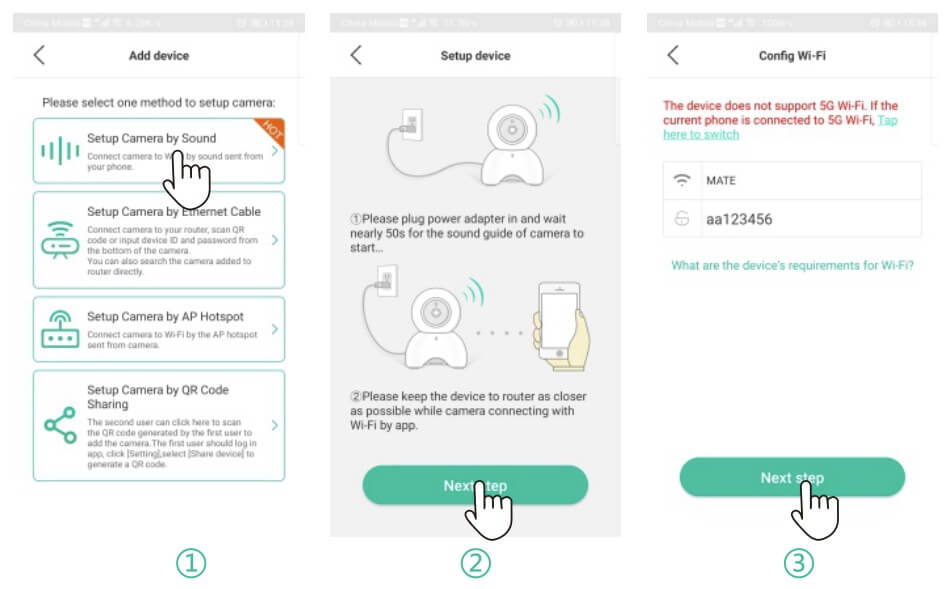
This manual applies to cameras using the HapSee Mate app, HapSee Mate is an instant monitoring software for IP cameras. You can watch clear and smooth real-time images anytime anywhere after connecting the smart camera through a mobile phone.
Multiple functions are supported, such as two-way talk, remote PTZ control, video playback, motion detection and alarm push, etc. It is perfect for families, shops, companies, caring for the elderly, babies and pets, supervising nannies and employees, and intelligent anti-theft.
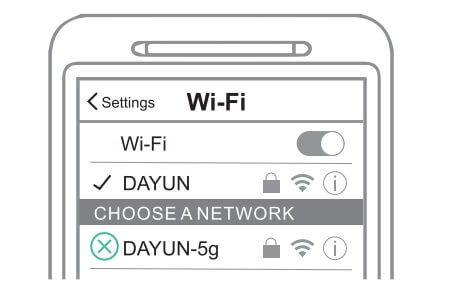 2. Raise the volume on your smartphone to hear the connecting process.
3. Download & Install the HapSee Mate.
2. Raise the volume on your smartphone to hear the connecting process.
3. Download & Install the HapSee Mate.
 4. Register an account and set up a username and password.
 (1) Plug in power for camera, wait for 20 seconds until camera gives out a voice of “Please use your mobile phone for configuration’
(2) Reset camera: Long press reset hole for 3 seconds until hear a voice of Reset success”
(3) After 20 seconds, camera will give out a voice of Please use your mobile phone for configuration’ ‘again.
(1) Plug in power for camera, wait for 20 seconds until camera gives out a voice of “Please use your mobile phone for configuration’
(2) Reset camera: Long press reset hole for 3 seconds until hear a voice of Reset success”
(3) After 20 seconds, camera will give out a voice of Please use your mobile phone for configuration’ ‘again.
 1. Click “+”, click Setup Camera by Sound”.
2. Click “Next step’
3. Select your wifi, enter wifi password and click “Next step’
4,5. Connect camera to wifi by sound sent from your phone.
6. Wifi connected, you can view camera now.
UNSUCCESSFUL CONNECTION?
1) Reboot your phone
2) Reset camera
3) Setup camera again
1. Click “+”, click Setup Camera by Sound”.
2. Click “Next step’
3. Select your wifi, enter wifi password and click “Next step’
4,5. Connect camera to wifi by sound sent from your phone.
6. Wifi connected, you can view camera now.
UNSUCCESSFUL CONNECTION?
1) Reboot your phone
2) Reset camera
3) Setup camera again
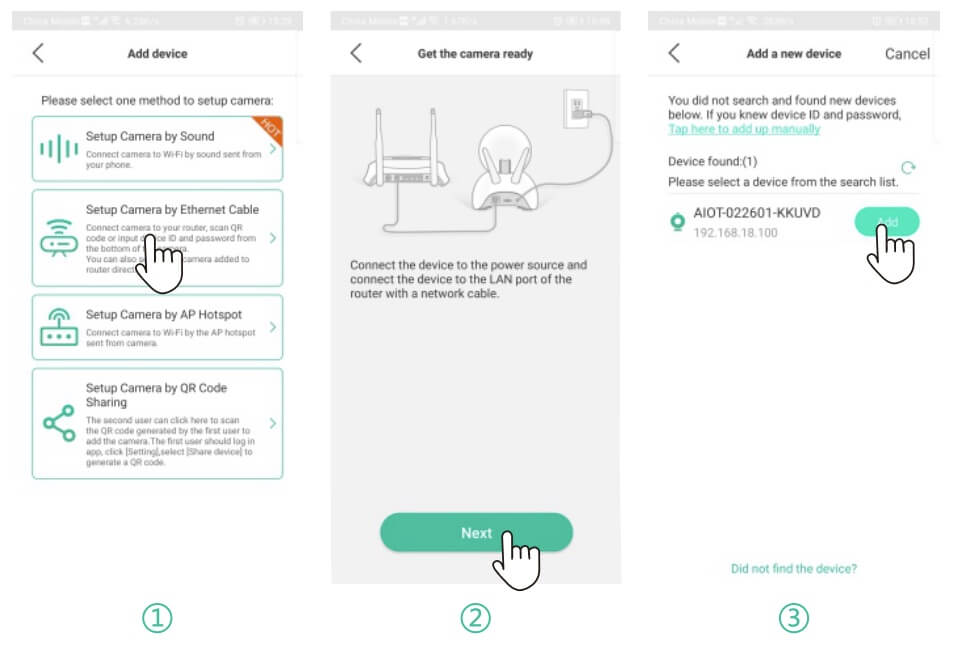
 1. Plug in power and Ethernet cable for camera, click Setup Camera by Ethernet Cable”.
2. Click Next”
3. Click”
1. Plug in power and Ethernet cable for camera, click Setup Camera by Ethernet Cable”.
2. Click Next”
3. Click” “, the camera ID appears and then click “Add”.
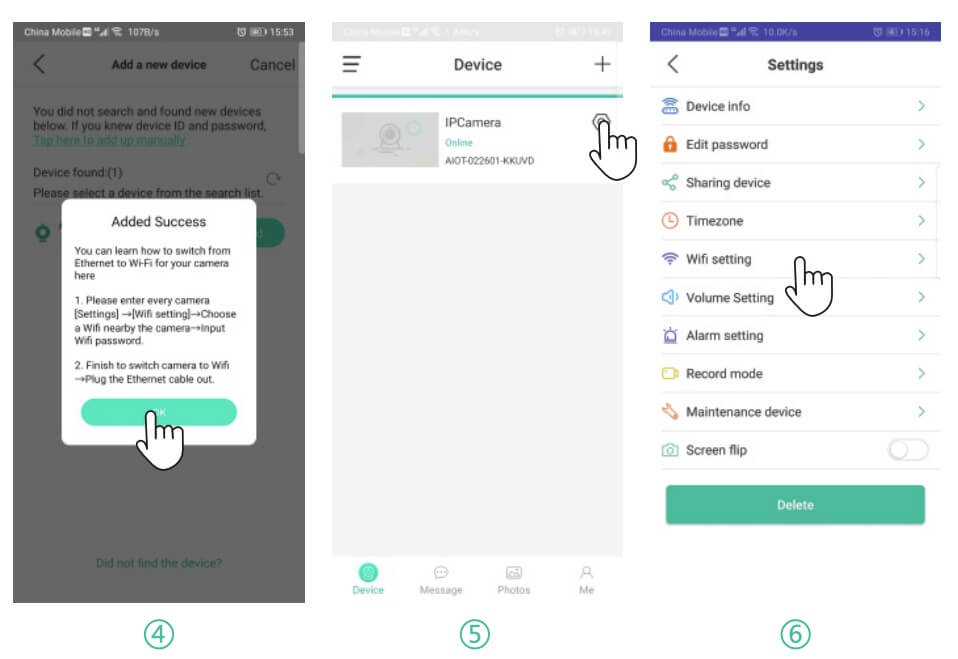
4. Click “OK”
5. Internet connected, pls click
“, the camera ID appears and then click “Add”.
4. Click “OK”
5. Internet connected, pls click  Setting icon and go to settings page. (Change camera from wired to wireless connection.)
6. Click “wifi settings”, choose your wifi and enter wifi password.
Wait for 1 minute and plug off Ethernet cable.
Setting icon and go to settings page. (Change camera from wired to wireless connection.)
6. Click “wifi settings”, choose your wifi and enter wifi password.
Wait for 1 minute and plug off Ethernet cable.
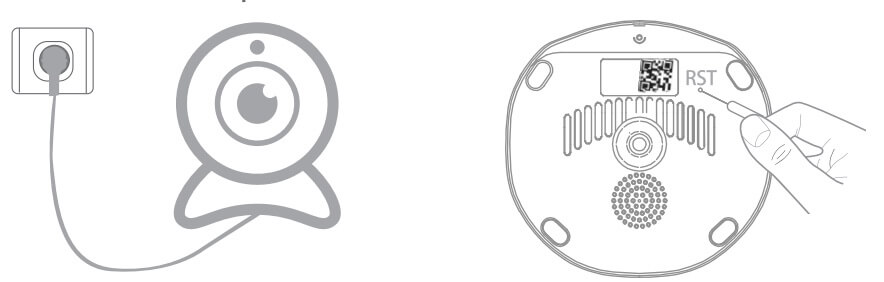 (1) Plug in power for camera, wait for 20 seconds until camera gives out a voice of “Please use your mobile phone for configuration”.
(2) Reset camera: Long press reset hole for 3 seconds until hear a voice of Reset success”.
(3) After 20 seconds, camera will give out a voice of Please use your mobile phone for configuration again.
(1) Plug in power for camera, wait for 20 seconds until camera gives out a voice of “Please use your mobile phone for configuration”.
(2) Reset camera: Long press reset hole for 3 seconds until hear a voice of Reset success”.
(3) After 20 seconds, camera will give out a voice of Please use your mobile phone for configuration again.
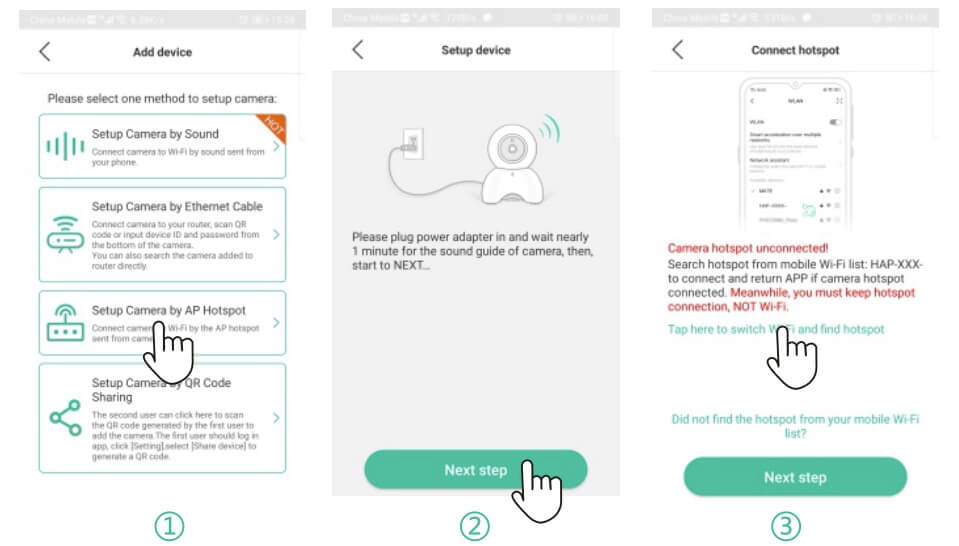
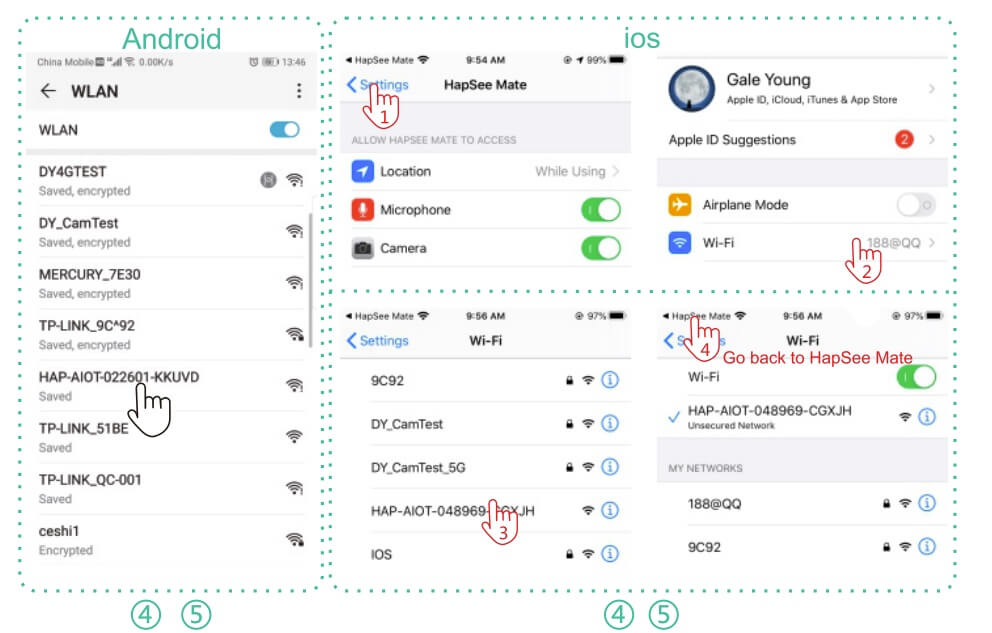
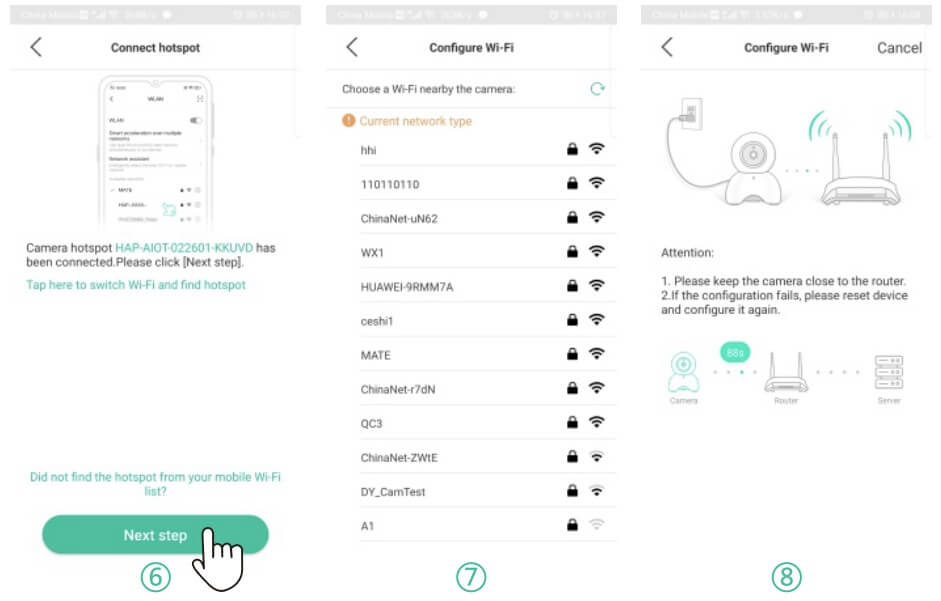 1. Open HapSee Mate, click “+”, click Setup Camera by AP Hotspot”.
2. Click Next step” .
3. Click “Tap here to switch Wi-Fi and find hotspot”.
4. Go to your phone’s WL AN settings.
5. Click HAP-AIOT-XXXX-MTSNG” and connect to it.
6. Return HapSee mate.Click Next step”.
7. Choose your wifi and enter wif¡ password.
8. Wait for device to connect to wifi.
9. Wifi connected, you can view camera now.
1. Open HapSee Mate, click “+”, click Setup Camera by AP Hotspot”.
2. Click Next step” .
3. Click “Tap here to switch Wi-Fi and find hotspot”.
4. Go to your phone’s WL AN settings.
5. Click HAP-AIOT-XXXX-MTSNG” and connect to it.
6. Return HapSee mate.Click Next step”.
7. Choose your wifi and enter wif¡ password.
8. Wait for device to connect to wifi.
9. Wifi connected, you can view camera now.
 and go to Settings page.
(2) Please click “Share device” and a QR code will be generated.
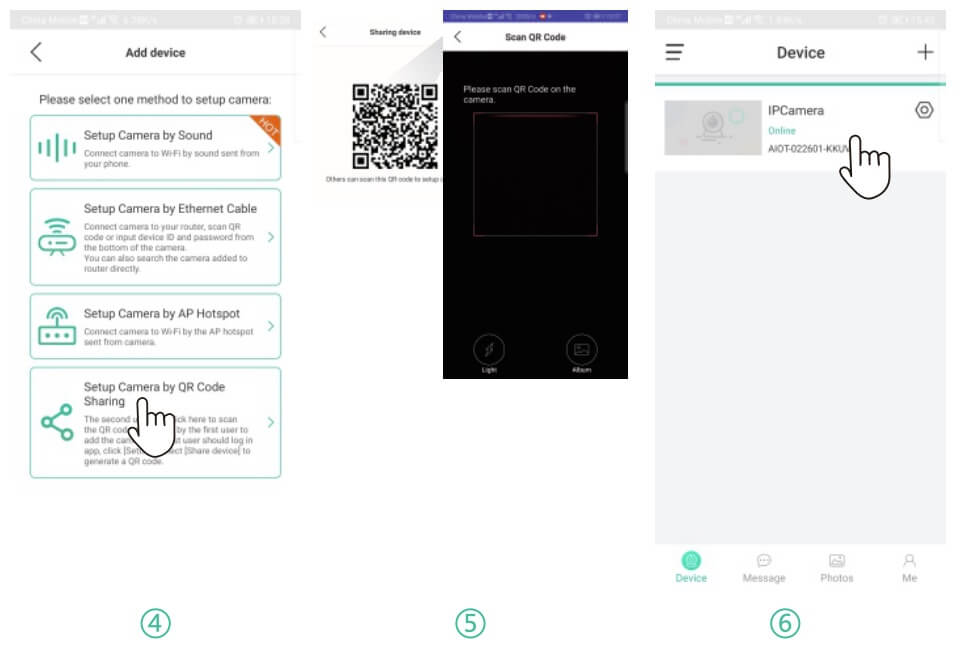
(3) Your second device can click “Setup Camera by QR Code Sharing” and scan that generated QR code to setup camera.
Note: this method is just for sharing camera to your second/third device.
and go to Settings page.
(2) Please click “Share device” and a QR code will be generated.
(3) Your second device can click “Setup Camera by QR Code Sharing” and scan that generated QR code to setup camera.
Note: this method is just for sharing camera to your second/third device.
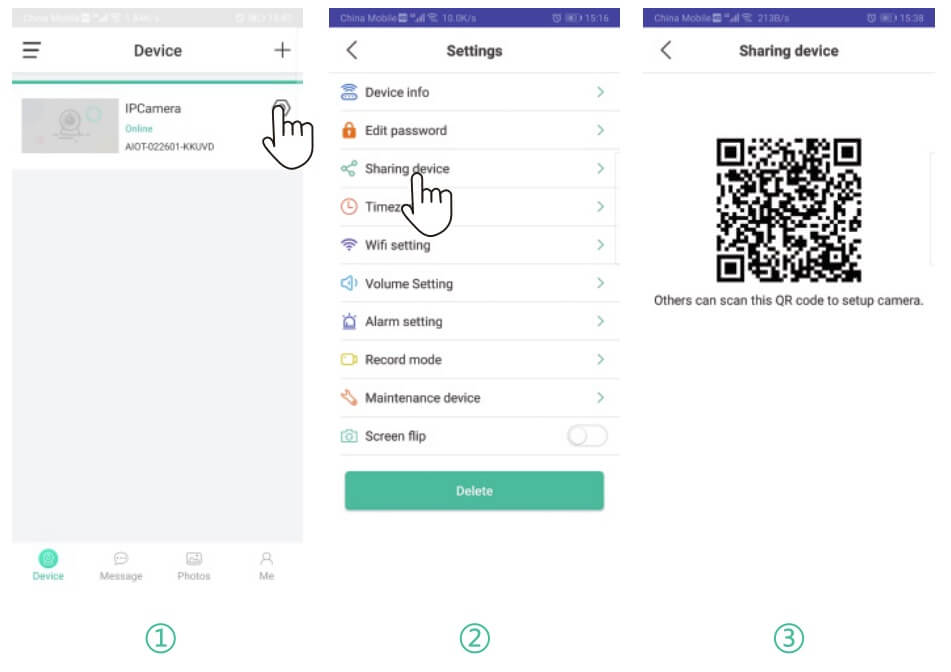
 1. Device 1 click
  2. Device 1 click “sharing device’ ” .
3. Device 1 generates a QR code.
4. Device 2 click Setup camera by QR code sharing”.
5. Device 2 scan the QR code from device 1.
6. Camera is added on device 2.
2. Device 1 click “sharing device’ ” .
3. Device 1 generates a QR code.
4. Device 2 click Setup camera by QR code sharing”.
5. Device 2 scan the QR code from device 1.
6. Camera is added on device 2.
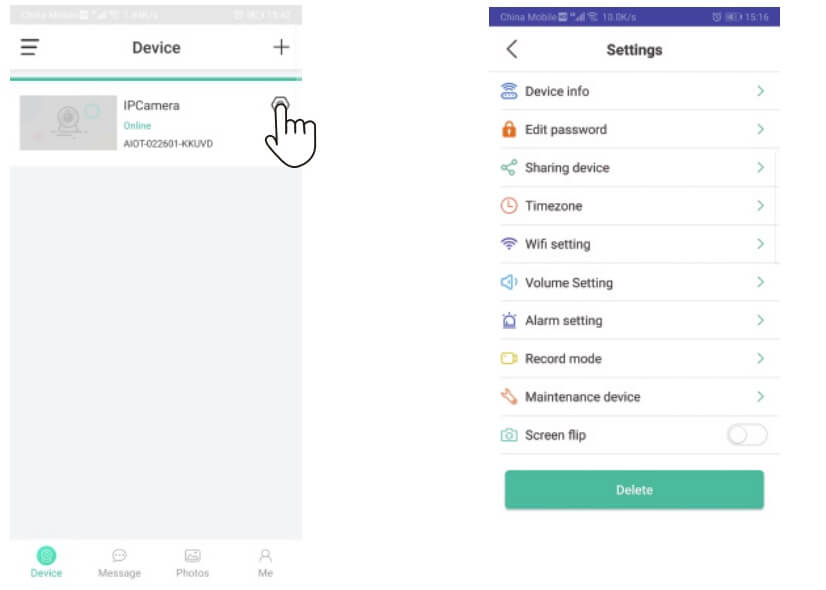
 device settings – Device info – TF-Card status) If you have inserted it into the camera, but it shows there’s no TF-Card. Please plug off the power for camera and re-inserted SD card and then format the SD card in the app. (Path: Hapsee mate –
  device settings – Maintenance device – TF-Card format)
5.3. lf still not work, pls format the SD card on your computer and choose FAT32 or exFAT when formating.
6. If you can not receive notifications" class="text-sky-600 dark:text-sky-400 font-medium hover:underline" title="Guides for Alarm Notifications">alarm notifications after detecting a moving object, please confirm:
6.1. The Alarm for Motion Detection turns on (Path: Hapsee mate –
device settings – Maintenance device – TF-Card format)
5.3. lf still not work, pls format the SD card on your computer and choose FAT32 or exFAT when formating.
6. If you can not receive notifications" class="text-sky-600 dark:text-sky-400 font-medium hover:underline" title="Guides for Alarm Notifications">alarm notifications after detecting a moving object, please confirm:
6.1. The Alarm for Motion Detection turns on (Path: Hapsee mate –  device settings – Alarm Setting – turn on“Alarm notification” – Motion detect – “Low” – OK ).
6.2. The right for HapSee Mate to send notifications to your phone (Path: phone settings – notifications – HapSee Mate ; phone settings – all apps – HapSee Mate – notifications).
7. Loud Whistling is heard when using two way talk feature on APP.
This is caused by the short distance of camera and your mobile phone.
To improve this condition, please use this talk feature when you’re at a further distance from camera.
8. APP shows wrong password, pls try:
device settings – Alarm Setting – turn on“Alarm notification” – Motion detect – “Low” – OK ).
6.2. The right for HapSee Mate to send notifications to your phone (Path: phone settings – notifications – HapSee Mate ; phone settings – all apps – HapSee Mate – notifications).
7. Loud Whistling is heard when using two way talk feature on APP.
This is caused by the short distance of camera and your mobile phone.
To improve this condition, please use this talk feature when you’re at a further distance from camera.
8. APP shows wrong password, pls try:
 Device settings – Delete camera – Reset camera – Setup camera again.
9. Why I still can’t hear much though l’ve turned the volume all the way up?
Path: HapSee Mate –
Device settings – Delete camera – Reset camera – Setup camera again.
9. Why I still can’t hear much though l’ve turned the volume all the way up?
Path: HapSee Mate – Device settings – Volume Settings – adjust the volume of Speaker and Mic.
10. How to add a second camera to your phone?
Path: HapSee Mate – click “+” – select one method to setup camera (AP Hotspot/Sound/Ethernet cable)
Android
iPhone
PC Software
Device settings – Volume Settings – adjust the volume of Speaker and Mic.
10. How to add a second camera to your phone?
Path: HapSee Mate – click “+” – select one method to setup camera (AP Hotspot/Sound/Ethernet cable)
Android
iPhone
PC Software
new Features
1. Whole new upgrade, adding account management, convenient and efficient. 2. All devices in one APP, anytime, anywhere. 3. It can be set for different scenarios, one device, and multiple functions. 4. Remote playback of videos stored in TF card and cloud to keep the wonderful moments. 5. One device can be shared and watched by multiple users.PREPARE YOUR PHONE
1. Connect your smartphone to 2.4GHz Wi-Fi. DO NOT choose 5G Wi-Fi if you use a Dual-Band router. 5G Wi-Fi can be supported only from 5G/2.4G Dual-Band cameras.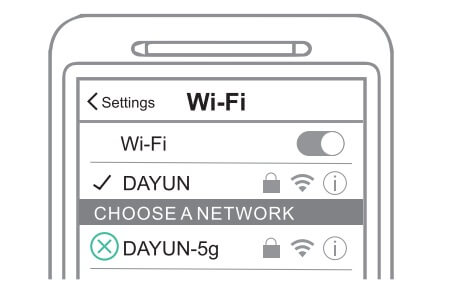 2. Raise the volume on your smartphone to hear the connecting process.
3. Download & Install the HapSee Mate.
2. Raise the volume on your smartphone to hear the connecting process.
3. Download & Install the HapSee Mate.
 4. Register an account and set up a username and password.
Setup Camera by Sound
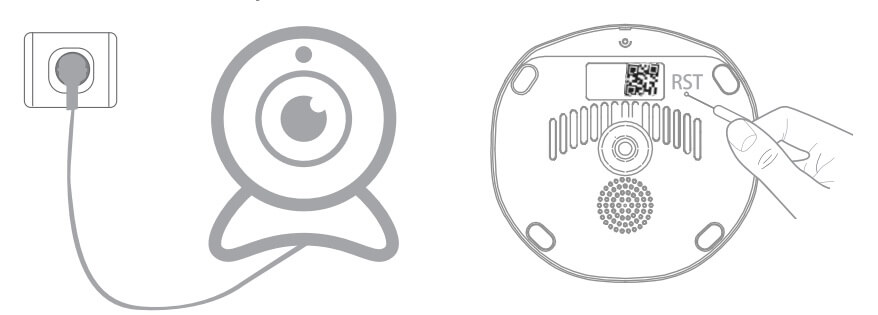
camera start-up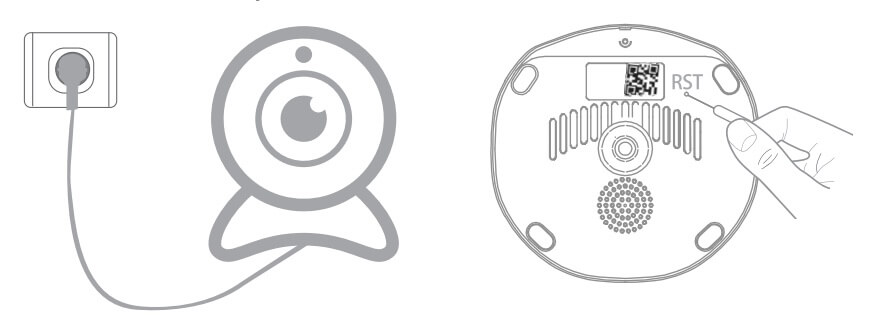 (1) Plug in power for camera, wait for 20 seconds until camera gives out a voice of “Please use your mobile phone for configuration’
(2) Reset camera: Long press reset hole for 3 seconds until hear a voice of Reset success”
(3) After 20 seconds, camera will give out a voice of Please use your mobile phone for configuration’ ‘again.
(1) Plug in power for camera, wait for 20 seconds until camera gives out a voice of “Please use your mobile phone for configuration’
(2) Reset camera: Long press reset hole for 3 seconds until hear a voice of Reset success”
(3) After 20 seconds, camera will give out a voice of Please use your mobile phone for configuration’ ‘again.
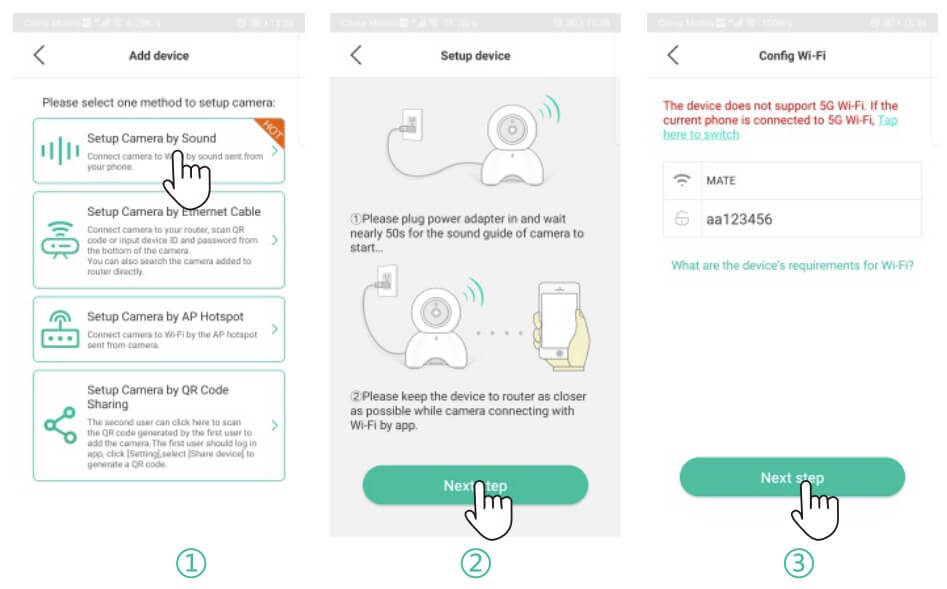
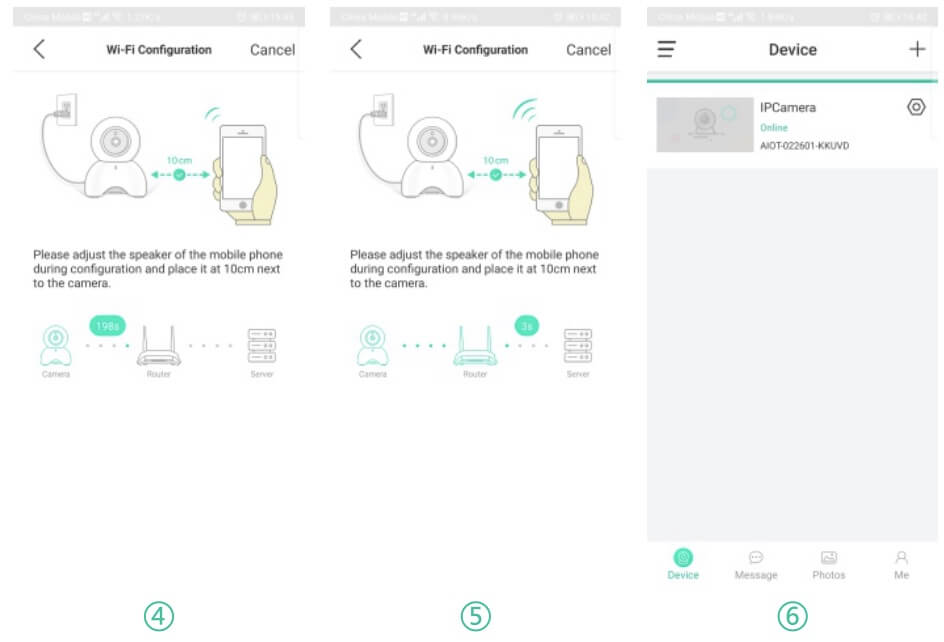
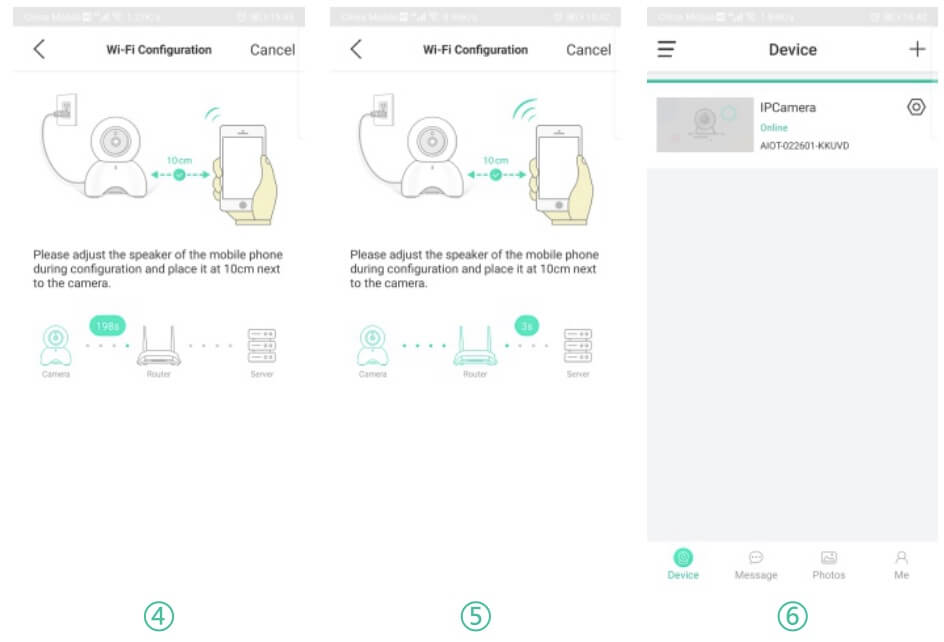 1. Click “+”, click Setup Camera by Sound”.
2. Click “Next step’
3. Select your wifi, enter wifi password and click “Next step’
4,5. Connect camera to wifi by sound sent from your phone.
6. Wifi connected, you can view camera now.
UNSUCCESSFUL CONNECTION?
1) Reboot your phone
2) Reset camera
3) Setup camera again
1. Click “+”, click Setup Camera by Sound”.
2. Click “Next step’
3. Select your wifi, enter wifi password and click “Next step’
4,5. Connect camera to wifi by sound sent from your phone.
6. Wifi connected, you can view camera now.
UNSUCCESSFUL CONNECTION?
1) Reboot your phone
2) Reset camera
3) Setup camera again
Setup Camera by Ethernet Cable
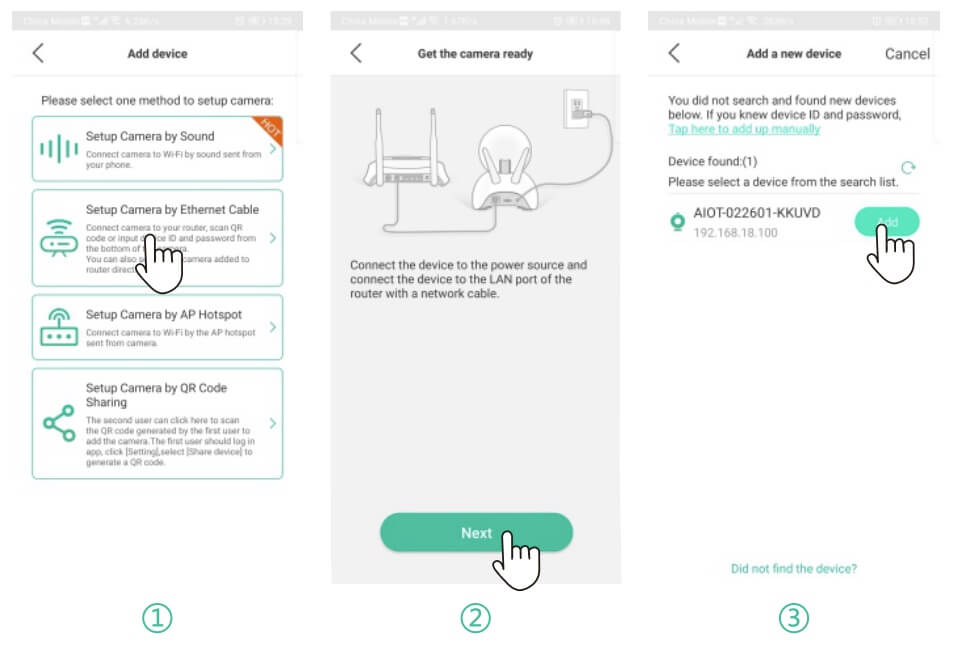
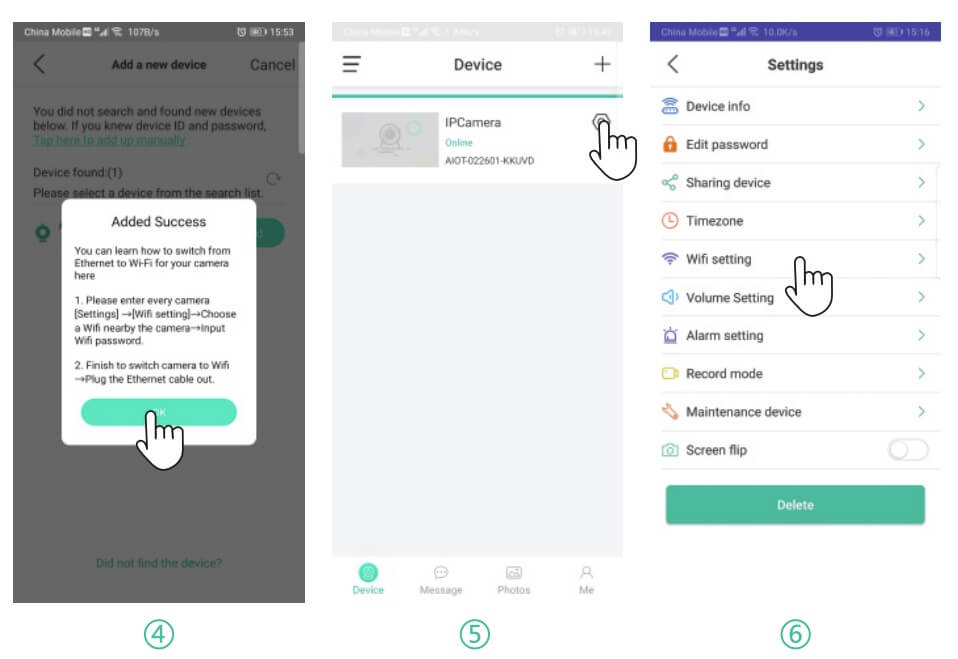 1. Plug in power and Ethernet cable for camera, click Setup Camera by Ethernet Cable”.
2. Click Next”
3. Click”
1. Plug in power and Ethernet cable for camera, click Setup Camera by Ethernet Cable”.
2. Click Next”
3. Click” “, the camera ID appears and then click “Add”.
4. Click “OK”
5. Internet connected, pls click
“, the camera ID appears and then click “Add”.
4. Click “OK”
5. Internet connected, pls click  Setting icon and go to settings page. (Change camera from wired to wireless connection.)
6. Click “wifi settings”, choose your wifi and enter wifi password.
Wait for 1 minute and plug off Ethernet cable.
Setting icon and go to settings page. (Change camera from wired to wireless connection.)
6. Click “wifi settings”, choose your wifi and enter wifi password.
Wait for 1 minute and plug off Ethernet cable.
Setup Camera by AP Hotspot
camera start-up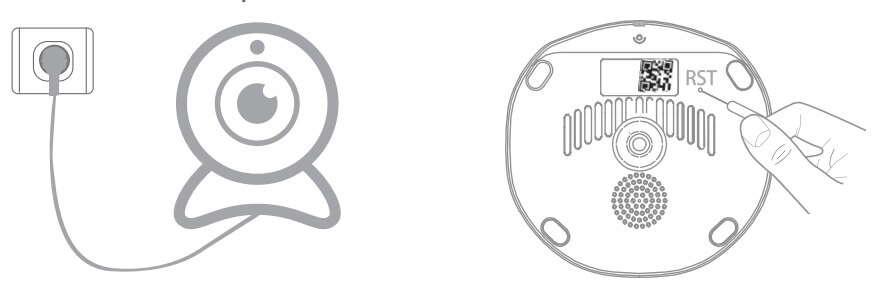 (1) Plug in power for camera, wait for 20 seconds until camera gives out a voice of “Please use your mobile phone for configuration”.
(2) Reset camera: Long press reset hole for 3 seconds until hear a voice of Reset success”.
(3) After 20 seconds, camera will give out a voice of Please use your mobile phone for configuration again.
(1) Plug in power for camera, wait for 20 seconds until camera gives out a voice of “Please use your mobile phone for configuration”.
(2) Reset camera: Long press reset hole for 3 seconds until hear a voice of Reset success”.
(3) After 20 seconds, camera will give out a voice of Please use your mobile phone for configuration again.
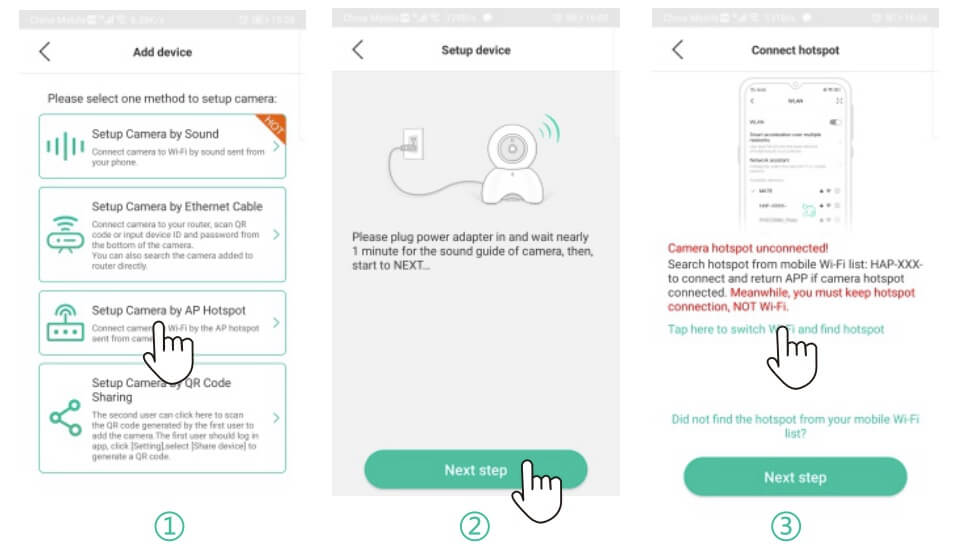
 1. Open HapSee Mate, click “+”, click Setup Camera by AP Hotspot”.
2. Click Next step” .
3. Click “Tap here to switch Wi-Fi and find hotspot”.
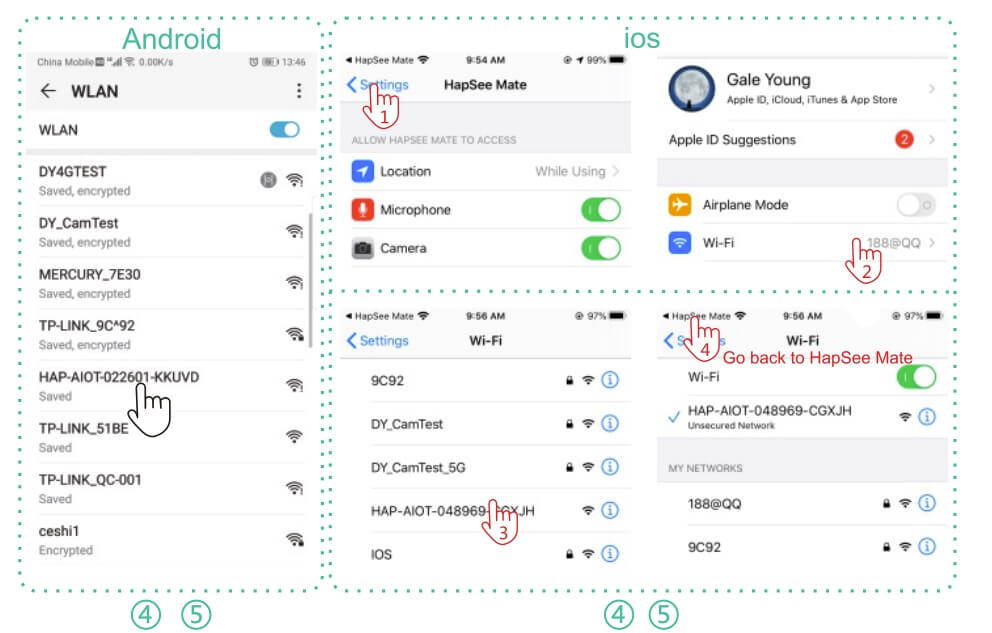
4. Go to your phone’s WL AN settings.
5. Click HAP-AIOT-XXXX-MTSNG” and connect to it.
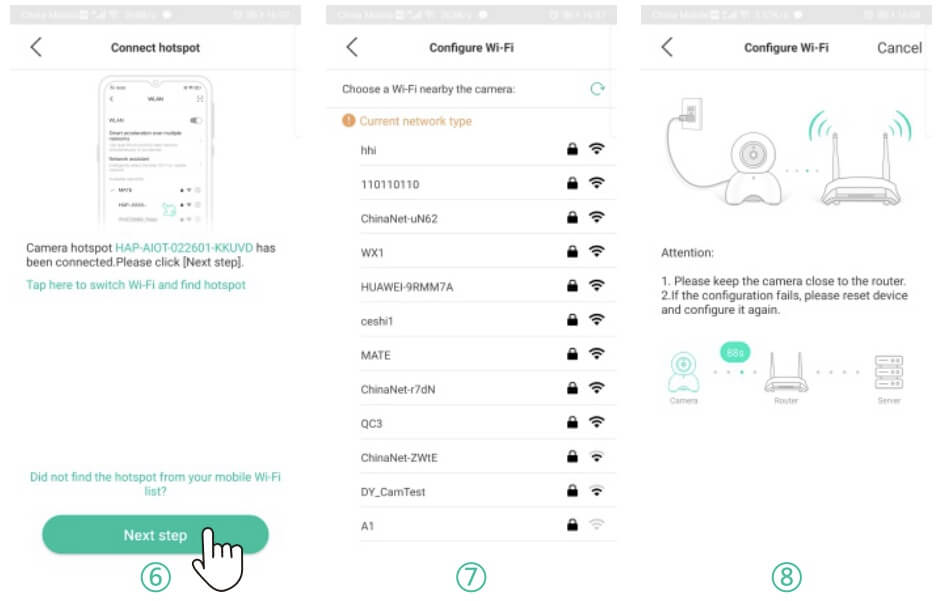
6. Return HapSee mate.Click Next step”.
7. Choose your wifi and enter wif¡ password.
8. Wait for device to connect to wifi.
9. Wifi connected, you can view camera now.
1. Open HapSee Mate, click “+”, click Setup Camera by AP Hotspot”.
2. Click Next step” .
3. Click “Tap here to switch Wi-Fi and find hotspot”.
4. Go to your phone’s WL AN settings.
5. Click HAP-AIOT-XXXX-MTSNG” and connect to it.
6. Return HapSee mate.Click Next step”.
7. Choose your wifi and enter wif¡ password.
8. Wait for device to connect to wifi.
9. Wifi connected, you can view camera now.
Share Camera to Others
(1) After camera is connected to wifi successfully on your first device, you can click and go to Settings page.
(2) Please click “Share device” and a QR code will be generated.
(3) Your second device can click “Setup Camera by QR Code Sharing” and scan that generated QR code to setup camera.
Note: this method is just for sharing camera to your second/third device.
and go to Settings page.
(2) Please click “Share device” and a QR code will be generated.
(3) Your second device can click “Setup Camera by QR Code Sharing” and scan that generated QR code to setup camera.
Note: this method is just for sharing camera to your second/third device.
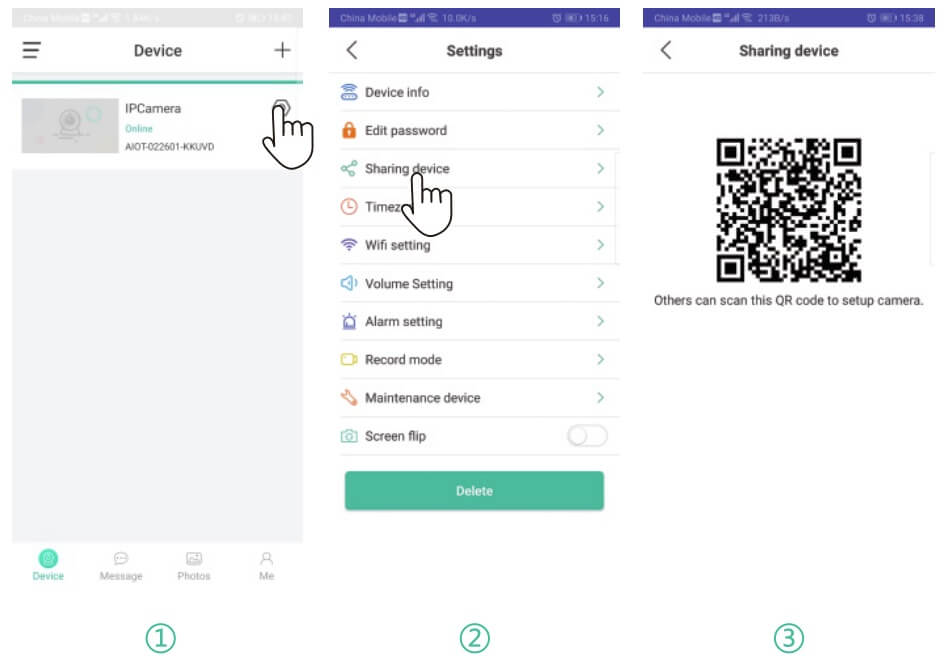
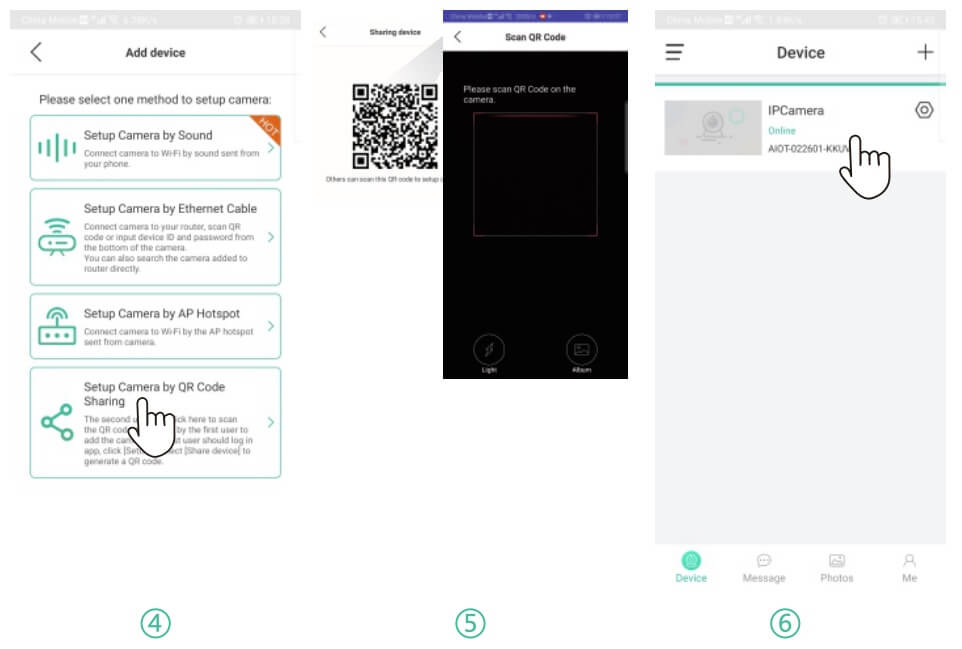 1. Device 1 click
  2. Device 1 click “sharing device’ ” .
3. Device 1 generates a QR code.
4. Device 2 click Setup camera by QR code sharing”.
5. Device 2 scan the QR code from device 1.
6. Camera is added on device 2.
2. Device 1 click “sharing device’ ” .
3. Device 1 generates a QR code.
4. Device 2 click Setup camera by QR code sharing”.
5. Device 2 scan the QR code from device 1.
6. Camera is added on device 2.
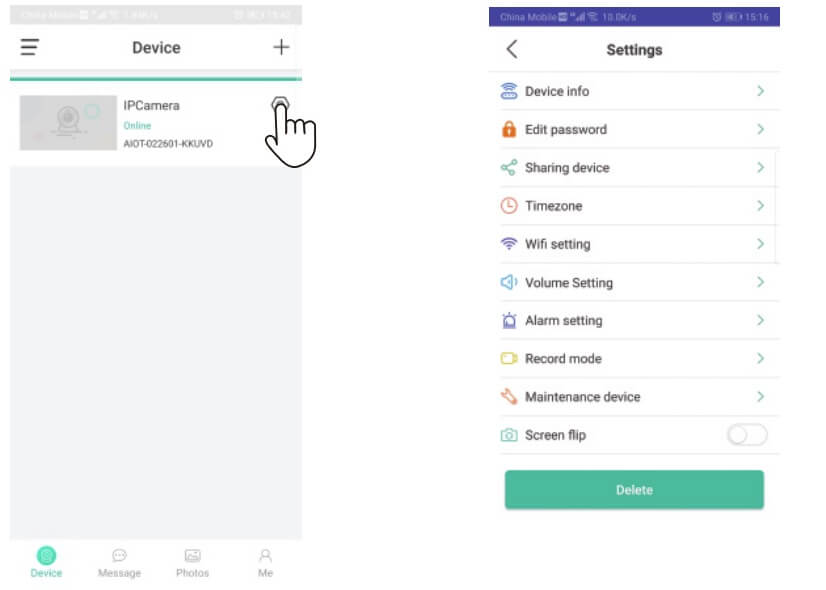
Camera Settings
Troubleshooting
1. Get more help from HapSee Mate app: Path: HapSee Mate – Me – User manual 1 Help And feedback(There are operational videos and the latest problem solving contents). 2. lf you can not connect your camera with Wi-Fi successfully, please confirm: 2.1. Your home Wi-Fi network is 2 4G. Our camera does not support 5G Wi-Fi network. Please check your Wi-Fi Frequency band of the Wi-Fi router, or search its brand and model on google. 2.2. If your router is dual band, please choose 2.4G Wi-Fi to connect your phone and the camera. 2.3. Please put this Wi-Fi camera more close to the router. 2.4. Please check if the Wi-Fi router is operating properly first, then turn on the DHCP of router, and set up WAP2-PSK for security recognized by the camera. 2.5. If camera still fails to connect with wifi, please reset camera and reconnect it. 3. If camera’s network connection breaks off after you change network provider or router, please reset this camera and re-install it. 4. If you want to download/delete the videos recorded on SD card, please take out yourSD card and download/delete videos on your computer. 5. If camera can’t record normally, here are some tips: 5.1. Check whether your SD card is at Class 10. (8G-64G) 5.2. Please check the SD card status on app. (Path: Hapsee mate – device settings – Device info – TF-Card status) If you have inserted it into the camera, but it shows there’s no TF-Card. Please plug off the power for camera and re-inserted SD card and then format the SD card in the app. (Path: Hapsee mate –
  device settings – Maintenance device – TF-Card format)
5.3. lf still not work, pls format the SD card on your computer and choose FAT32 or exFAT when formating.
6. If you can not receive notifications" class="text-sky-600 dark:text-sky-400 font-medium hover:underline" title="Guides for Alarm Notifications">alarm notifications after detecting a moving object, please confirm:
6.1. The Alarm for Motion Detection turns on (Path: Hapsee mate –
device settings – Maintenance device – TF-Card format)
5.3. lf still not work, pls format the SD card on your computer and choose FAT32 or exFAT when formating.
6. If you can not receive notifications" class="text-sky-600 dark:text-sky-400 font-medium hover:underline" title="Guides for Alarm Notifications">alarm notifications after detecting a moving object, please confirm:
6.1. The Alarm for Motion Detection turns on (Path: Hapsee mate –  device settings – Alarm Setting – turn on“Alarm notification” – Motion detect – “Low” – OK ).
6.2. The right for HapSee Mate to send notifications to your phone (Path: phone settings – notifications – HapSee Mate ; phone settings – all apps – HapSee Mate – notifications).
7. Loud Whistling is heard when using two way talk feature on APP.
This is caused by the short distance of camera and your mobile phone.
To improve this condition, please use this talk feature when you’re at a further distance from camera.
8. APP shows wrong password, pls try:
device settings – Alarm Setting – turn on“Alarm notification” – Motion detect – “Low” – OK ).
6.2. The right for HapSee Mate to send notifications to your phone (Path: phone settings – notifications – HapSee Mate ; phone settings – all apps – HapSee Mate – notifications).
7. Loud Whistling is heard when using two way talk feature on APP.
This is caused by the short distance of camera and your mobile phone.
To improve this condition, please use this talk feature when you’re at a further distance from camera.
8. APP shows wrong password, pls try:
 Device settings – Delete camera – Reset camera – Setup camera again.
9. Why I still can’t hear much though l’ve turned the volume all the way up?
Path: HapSee Mate –
Device settings – Delete camera – Reset camera – Setup camera again.
9. Why I still can’t hear much though l’ve turned the volume all the way up?
Path: HapSee Mate – Device settings – Volume Settings – adjust the volume of Speaker and Mic.
10. How to add a second camera to your phone?
Path: HapSee Mate – click “+” – select one method to setup camera (AP Hotspot/Sound/Ethernet cable)
Device settings – Volume Settings – adjust the volume of Speaker and Mic.
10. How to add a second camera to your phone?
Path: HapSee Mate – click “+” – select one method to setup camera (AP Hotspot/Sound/Ethernet cable)
lmportant safeguards and warnings
1. Electrical Safety All installation and operation should conform to your local electrical safety codes. We assume no liability or responsibility for any fires or electrical shock caused by improper handling or installation. 2. Transportation Security Heavy stress, violent vibrations, and excess moisture should not occur during transportation, storage, and installation of the device. 3. Repair Professionals All the examination and repair work should be done by qualified service engineers. We are not liable for any problems caused by unauthorized modifications or user-attempted repair. 4. Environment The camera should be kept in a cool, dry place away from direct sunlight, flammable materials, explosive substances,etc. .HapSee Mate
The P2P connection technology used in this app can be operated remotely at any time and anywhere on the Internet. It has the following features:• 1. Watch real-time video
• 2. Capturing pictures and local videos
• 3. Two-way Real-time Call
• 4. Alarm Video and Planned Video
• 5. Real-time playback
• 6. Alarm push notification
• 7. Sharing pictures and videos
• 8. Sound Wave One-button Configuration Wifi
info
• ONVIF: not support
• RTSP: Port: 554
• Web port: not support
• PC software: Windows
• Smart home: not support
• Cloud storage: not support
Advertisement

Topics:
#How To Access Cloud Storage Hapsee Mate
#How To Add Multiple Devices To Hapsee Mate
#How To Change Password On Hapsee Mate
#How To Change Wifi In Hapsee Mate App
#How To Check Storage On Hapsee Mate
#how to connect hapsee camera to app
#how to connect hapsee to wifi
#how to delete device from hapsee mate
#how to enable motion detection hapsee mate
#how to fix hapsee login error
#how to fix hapsee mate offline
#how to fix hapsee mate push notifications
#how to get qr code in hapsee mate app
#how to install hapsee mate on android
#how to pair hapsee mate device
#how to receive alerts from hapsee mate
#how to record video on hapsee mate app
#how to reset hapsee app settings
#how to reset hapsee mate camera
#how to save video from hapsee app
#how to setup hapsee mate app
#how to share hapsee mate camera with family
#how to update firmware through hapsee mate
#how to update hapsee mate app
#how to use hapsee mate app
#how to use hapsee mate on ios
#how to view hapsee camera remotely
#how to view playback on hapsee mate
#why hapsee app not connecting to camera
#why is hapsee mate not working
Did this security guide help you?
Rate this article to help fellow engineers find the best guides.

Written by
Alex Vance
Senior Security Systems Architect & IoT Consultant with over 15 years in digital surveillance design.

Discussion (0)
No comments yet. Be the first to share your thoughts!
Leave a Comment