
Default Password NVR - IPCAMERA
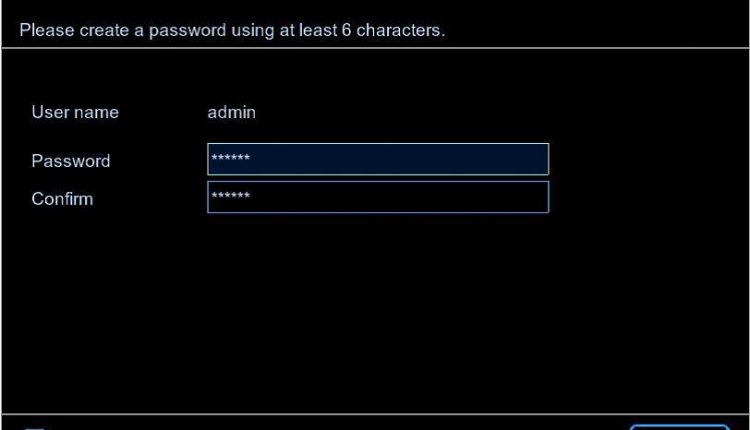
Default Usernames, Passwords and IP Addresses for Security Cameras

Forgotten or lost login credentials information needed to access surveillance systems or individual components is a fairly common occurrence for Security Owners. Specifically, user names, passwords, and IP addresses are all touched on in this article. The information found on this page will be applicable for a wide range of system applications and types (including, but not limited to) smaller residential systems on up to enterprise/commercial systems and even integrators trying to help their customers!
We will warn you that some equipment manufacturers have 'advanced product lines' that may include unique login credentials. In these cases, the standard login credentials may not apply. If the default password doesn't work, try referencing the installation manual specific to that product. These manuals are often found online by searching your particular part number with some light digging into those online search listings you'll find it. Our A1 service team can provide manuals to you if you are unable to locate them.
Below is a chart that lists default credentials by manufacturer/brand name. If you or someone with access to your system has changed any default values, the default credentials would no longer apply. We recommend resetting the equipment first. We've provided reset instructions below; resetting your security equipment is also something our A1 team is happy to help solve. Below is an easily referenced chart for you; hope it helps! Reach out to us if it does not or for any other service needs, you are unable to resolve yourself!
DO YOU
TRUST
YOUR SECURITY SYSTEM?
Do you have issues with it? Does it have any weaknesses? Is it capable enough?

USERNAME:
Admin / admin
PASSWORD:
12345 / 123456
IP ADRESS:
192.168.0.100

USERNAME:
admin
PASSWORD:
admin
IP ADRESS:
192.168.1.108

USERNAME:
admin
PASSWORD:
admin
IP ADRESS:
192.168.1.108

USERNAME:
admin
PASSWORD:
12345 / 123456
IP ADRESS:
192.0.0.64

For new models you can reset password via SADP tool.
Please click the link below and follow the instructions on the pdf file.
Hikvision password resetting guide

USERNAME:
admin
PASSWORD:
12345
IP ADRESS:
192.0.0.64

USERNAME:
admin
PASSWORD:
4321
IP ADRESS:
192.168.1.200

USERNAME:
admin
PASSWORD:
111111 / 1111111
IP ADRESS:
192.168.1.200

USERNAME:
admin
PASSWORD:
12345 / Model No
IP ADRESS:
192.168.1.30

USERNAME:
admin
PASSWORD:
meinsm
IP ADRESS:
---

USERNAME:
admin
PASSWORD:
admin
IP ADRESS:
192.168.0.100

USERNAME:
ubnt
PASSWORD:
ubnt
IP ADRESS:
192.168.1.20

1- Remove the Ethernet cable 2- Press and hold the control button and insert the Ethernet cable again while holding the control button.
3- Hold the control button until the amber lights turn on. Then release the button .
Wait about 1 minute.
4- When the amber lights turns into the green lights your camera is resetted and your passoword as well.

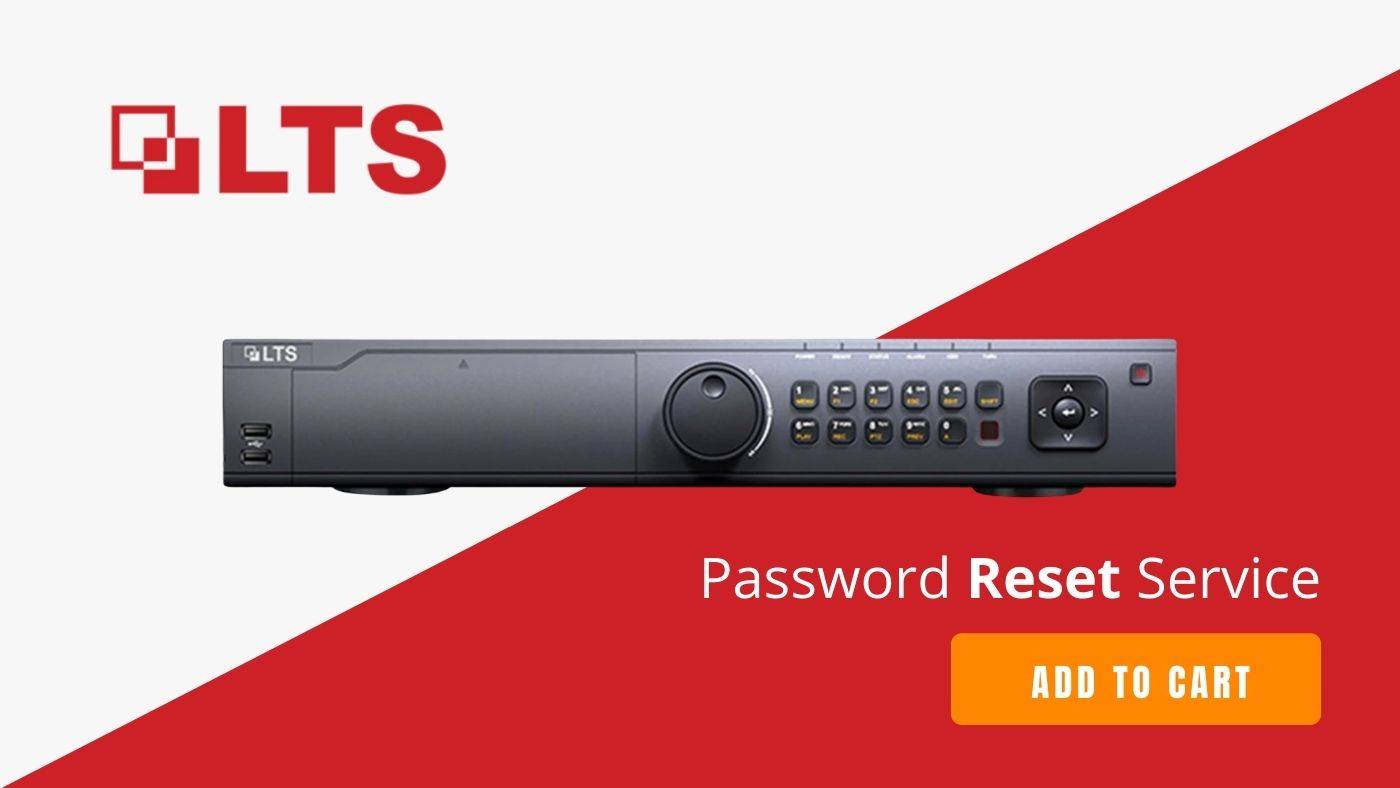
New Model does not have a default password , but you can reset it to factory settings.
Follow these steps.
1- You can reset the camera by pushing the reset button about 7 seconds.
2- Or you can reset the NVR by removing the battery on the mainboard (not recommended, at your own risk)

USERNAME:
Root
PASSWORD:
Pass
IP ADRESS:
192.168.0.90

USERNAME:
service
PASSWORD:
service
IP ADRESS:
192.168.0.1

USERNAME:
admin
PASSWORD:
1234
IP ADRESS:
192.168.1.7

USERNAME:
root / admin
PASSWORD:
root / admin
IP ADRESS:
192.168.1.7

Arecont does not have a default password, but you can reset it to factory settings.
Follow these steps
1- Access the camera's web interface by typing the IP in your web browser.
2- Under the Administration or System tab, click on Restore to Factory Default.
3- Once the camera reboots, all settings on the camera will be restored to factory default

You can choose your own password after setup.
If you want to reset it
1- Press and hold down the reset button for at least 1 minute.
2- Power on the camera until the red light flashes rapidly Now your camera is back to factory default without any password.
Other Products
| Brand | User Name | Password | IP Addressr1 |
|
3xLogic
|
admin
|
12345
|
192.0.0.64
|
|
admin
|
admin
|
192.168.0.100
|
|
|
American Dynmics
|
admin
|
admin
|
192.168.1.168
|
|
Arecont Vision
|
admin
|
No Set Password
|
No Default / DHCP
|
|
admin
|
admin
|
No Default / DHCP
|
|
|
root
|
no set password
|
No Default / DHCP
|
|
|
Basler
|
admin
|
admin
|
192.168.100.x
|
|
service
|
service
|
192.168.0.1
|
|
|
Bosch Dinion
|
admin
|
No set password
|
192.168.0.1
|
|
Brickcom
|
admin
|
admin
|
192.168.1.1
|
|
CBC Ganz
|
admin
|
admin
|
192.168.100.x
|
|
Cisco
|
no default
|
no set password
|
192.168.0.100
|
|
CNB
|
root
|
admin
|
192.168.123.100
|
|
Costar
|
root
|
root
|
unknown
|
|
admin
|
admin
|
192.168.1.108
|
|
|
Drs
|
admin
|
1234
|
192.168.0.200
|
|
DVTel
|
Admin
|
1234
|
192.168.0.250
|
|
DynaColor
|
admin
|
1234
|
192.168.0.250
|
|
Flir
|
admin
|
fliradmin
|
192.168.250.116
|
|
admin
|
leave blank
|
unknown
|
|
|
admin
|
admin
|
192.168.0.10
|
|
|
Grandstream
|
admin
|
admin
|
192.168.1.168
|
|
GVI
|
Admin
|
1234
|
192.168.0.250
|
|
admin
|
12345
|
192.0.0.64
|
|
|
1234
|
no default/DHCP
|
||
|
IOImage
|
admin
|
admin
|
192.168.123.10
|
|
IPX-DDK
|
root
|
Admin or admin
|
192.168.1.168
|
|
IQInvision
|
root
|
system
|
no default/DHCP
|
|
JVC
|
admin
|
Model# of camera
|
no default/DHCP
|
|
VideoIQ
|
supervisor
|
supervisor
|
no default/DHCP
|
| Brand | User Name | Password | IP Addressr1 |
|
LTS Security
|
admin
|
12345
|
192.0.0.64
|
|
March Networks
|
admin
|
leave blank
|
unknown
|
|
Merit Lilin
|
Camera
|
admin pass
|
No Default / DHCP
|
|
Merit Lilin
|
Recorder
|
admin / 1111
|
No Default / DHCP
|
|
Messoa
|
admin
|
Model# of camera
|
192.168.1.30
|
|
admin
|
meinsm
|
No Default / DHCP
|
|
|
Northern
|
admin
|
12345
|
192.168.1.64
|
|
admin
|
12345
|
192.168.0.253
|
|
|
Panasonic
|
admin1
|
password
|
192.168.0.253
|
|
Pelco
|
admin
|
admin
|
no default/DHCP
|
|
PiXORD
|
admin
|
admin
|
192.168.0.200
|
|
PiXORD
|
root
|
pass
|
192.168.0.200
|
|
QVIS
|
admin
|
1234
|
192.168.0.250
|
|
root
|
4321 / admin
|
192.168.0.200
|
|
|
Samsung
|
admin
|
4321 / 1111111
|
192.168.1.200
|
|
Sanyo
|
admin
|
admin
|
192.168.0.2
|
|
Sentry360
|
Admin
|
1234
|
192.168.0.250
|
|
admin
|
admin
|
192.168.0.100
|
|
|
root
|
root
|
192.168.1.7
|
|
|
Speco
|
admin
|
admin
|
192.168.1.7
|
|
StarDot
|
admin
|
admin
|
no default/DHCP
|
|
Starvedia
|
admin
|
no set password
|
no default/DHCP
|
|
Toshiba
|
root
|
ikwb
|
192.168.0.30
|
|
Trendnet
|
admin
|
admin
|
192.168.10.1
|
|
UDP
|
root
|
unknown
|
unknown
|
|
Ubiquiti
|
ubnt
|
ubnt
|
192.168.1.20
|
|
W-Box
|
admin
|
wbox / 123
|
192.0.0.64
|
|
Wodsee
|
root
|
leave blank
|
unknown
|
|
Verint
|
admin
|
admin
|
no default/DHCP
|
|
root
|
no set password
|
no default/DHCP
|
Advertisement

Did this security guide help you?
Rate this article to help fellow engineers find the best guides.

Written by
Alex Vance
Senior Security Systems Architect & IoT Consultant with over 15 years in digital surveillance design.
Discussion (0)
No comments yet. Be the first to share your thoughts!
Leave a Comment